

Introduction
Imagine you accidentally delete a critical file in your S3 bucket. Without versioning, it’s gone forever. With versioning enabled, you can restore the file in seconds. In this article, we'll learn how to enable versioning and manage file versions in Amazon S3 using an EC2 instance.
Why is this useful?
- If you accidentally delete or overwrite a file, you can restore a previous version.
- You can track changes made to important files.
1. Enable Versioning on an S3 Bucket
- Select your S3 bucket
- Click on Properties

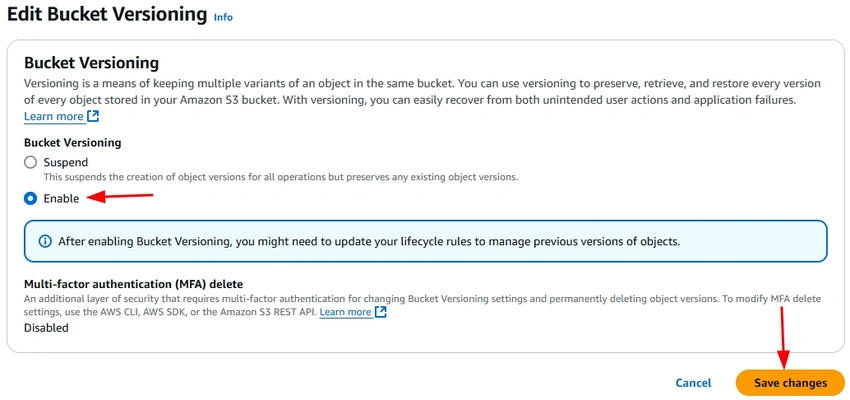
- Scroll down to Bucket Versioning and click on edit.

- Click Enable Versioning and Save.
2. Upload a File to the S3 Bucket from EC2
- To upload a file to an S3 bucket from an EC2 instance, you first need to connect to your EC2 instance.
ssh -i "C:\Users\ATUL GUPTA\Downloads\rocky-999.pem" [email protected]
- You can create a simple text file by using the echo command. This file contains a string of text and is saved as myfile.txt.
echo "This is my first file version" > myfile.txt
- The AWS s3 cp command is used to copy the file from your EC2 instance to your S3 bucket. Replace your bucket name with the actual name of your S3 bucket.
aws s3 cp myfile.txt s3://my-puma-bucket05/
3. Upload a New Version of the File
- First, we will modify the existing myfile.txt by updating its content. You can use the echo command again, this time with the updated text.
echo "This is my updated file version" > myfile.txt
- Now, S3 stores two versions of the file.
4. View File Versions in S3
To see all the versions of a specific file in your S3 bucket, you can use the aws s3api list-object-versions command. This will list all versions of the file, including their version IDs.
aws s3api list-object-versions --bucket my-puma-bucket05 --prefix myfile.txt
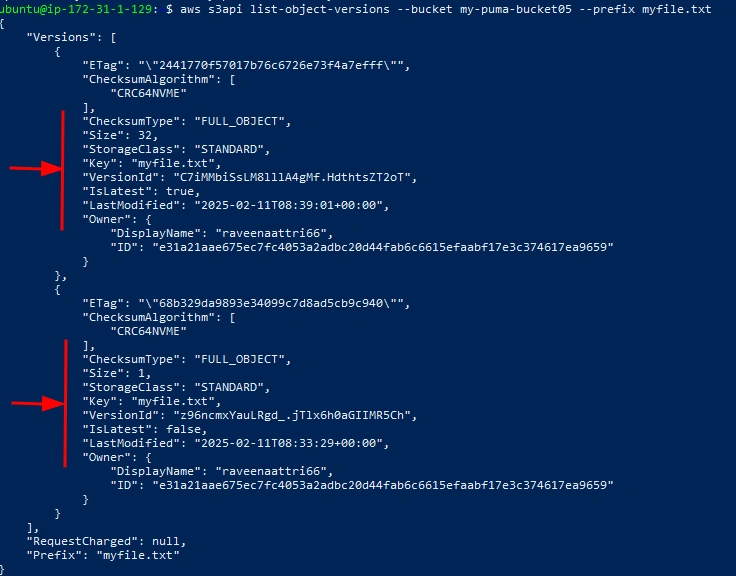
When you run this command, it will return a list of all versions of myfile.txt in your my-puma-bucket05 bucket, along with details like version IDs and the last modified time.
5. Restore or Delete a Specific Version
- To delete a specific version of a file, first retrieve its version ID.
- Use the aws s3api delete-object command to delete the file version by specifying the --version-id. Replace <version-id> with the actual version ID you want to delete.
aws s3api delete-object --bucket my-puma-bucket05 --key myfile.txt --version-id z96ncmxYauLRgd_.jTlx6h0aGIIMR5Ch
Explanation
- --bucket my-puma-bucket05: Specifies the name of your S3 bucket.
- --key myfile.txt: Specifies the file name in the S3 bucket.
- --version-id z96ncmxYauLRgd_.jTlx6h0aGIIMR5Ch: Specify the version ID of the file you want to delete (the second version from your output).
6. Restore a previous version
Download an old version using its version ID.
aws s3api get-object --bucket my-puma-bucket05 --key myfile.txt --version-id C7iMMbiSsLM8lllA4gMf.HdthtsZT2oT old-myfile.txt

This will download the file as old-myfile.txt in your EC2 instance.
Conclusion
Amazon S3 versioning ensures data protection by keeping track of every change, allowing you to restore, recover, or delete file versions easily. Whether you're preventing accidental data loss or maintaining a backup, this feature is essential for efficient cloud storage management.
Join the conversation! Your thoughts help the community grow.