In this tutorial, I’ll explain how to export and import build definitions in TFS 2015.
To export/import our build definition, we have to install a plug-in, as there is no built-in way to do that currently.
STEP 1 - Download Extension
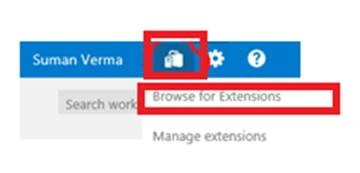
- Open TFS and click on "Browse for Extensions" on the extreme right side, as shown below.
- Download the extension from Visual Studio Marketplace.
Using this extension, you are able to export your build definition and then import it in the same or another team project or even different collection/account.
On clicking "Install", it will ask to select the collection. Select Project collection and click on "Continue".
To Start
Once you install the extension, go to Builds hub and right-click on any build definition. You will see two new menu items - Export and Import.
Export build definition
Step 1
Right-click and click Export on the build definition you would like to export.
Step 2
You will be prompted to save the definition as a file.
Step 3
Save the file with JSON extension.

Import build definition
Step 1
Right-click on "All build definitions" or any existing build definition and click on Import.
Step 2
You will be prompted to upload a build definition file.

Step 3
You can either drag and drop a file or use the Browse button to select the file you want to import.
Step 4
Click Import. If the import is successful, you will have your build created with all your steps, variables, schedules, and other build definition parameters.

Constraints
- Known issues on On-Prem TFS
- Export and Import menu items only appear on build definition context menu. If you are using on-prem TFS, then it won't appear on "All build definitions" context menu.
For example, if you right-click on "All build definitions", the export and import options are not available as shown below.
BUT, on right-clicking on a particular build definition, we can see these options.
- In case you don’t have any build definition, then in order to see those options, you will have to create a new temporary empty build definition.
- If we are trying to import a build definition whose associated team project or repository does not exist in the collection/account we are trying to import, then we will get an error.




Wichit KhaijunPosted May 27, 2019, 3:44 AM
Hi, What's the roles can be imported/export the builds?
rahul meenaPosted Dec 27, 2018, 3:44 AM
Not able to download extension . getting get it free option instead
Hadshana KamalanathanPosted Jul 19, 2018, 4:53 AM
Thanks for sharing