
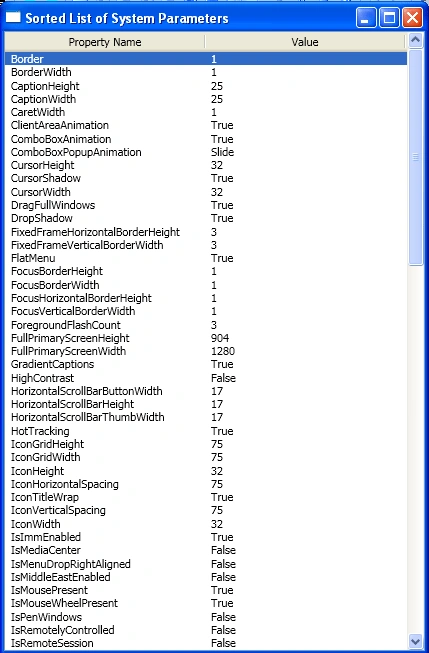
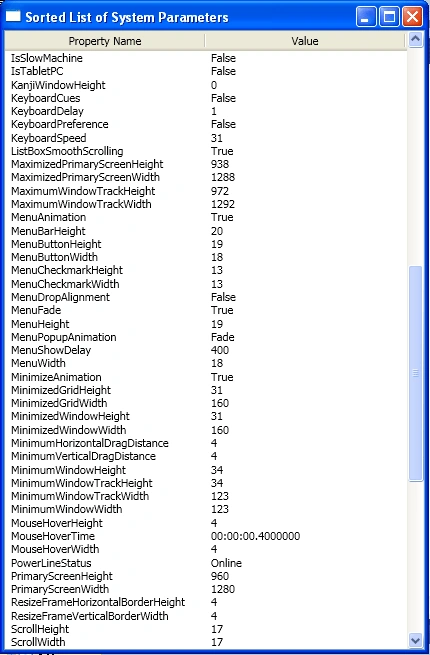
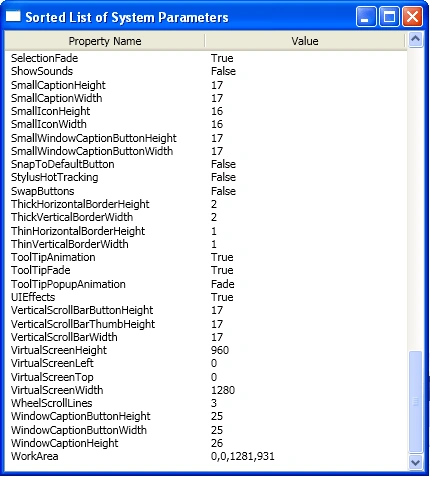
Today I am discussing that how can we get the Sorted list of System Parameters. We need a GridView, ListView and TextBlock control for implementation of Sorted SytemParameters. Firstly we will define two GridView column and then we create a DataTemplate for the second Column and display the List of the SystemParameters.
You will create two
GridView column by the below code block.
// Create two GridView columns.
new
GridViewColumn(Header="Property Name",
Width=200.0,
DisplayMemberBinding = new
Binding("Name"))
|> grvlu.Columns.Add
Then you will create a
DataTemplate for the second column by the below code block.
// Create DataTemplate for second column
let
template = new DataTemplate(typeof<string>)
let
factoryTextBlock = new
FrameworkElementFactory(typeof<TextBlock>)
(TextBlock.HorizontalAlignmentProperty, HorizontalAlignment.Right)
|> factoryTextBlock.SetValue
(TextBlock.TextProperty,new Binding("Value"))
|> factoryTextBlock.SetBinding
template.VisualTree <- factoryTextBlock
new
GridViewColumn(Header="Value",
Width=200.0,
CellTemplate=template,
DisplayMemberBinding = new
Binding("Value"))
|> grvlu.Columns.Add
Lastly You will sort the List
of Parameters. The Below code is for sorting the Parameters.
let srtlst =
new SortedList<string,ParaSys>()
typeof<SystemParameters>.GetProperties() |> Seq.iter (fun
prop ->
if (prop.PropertyType <> typeof<ResourceKey>)
then
(prop.Name,
new ParaSys(Name=prop.Name,
Value = prop.GetValue(null,null)))
|> srtlst.Add
)
vlst.ItemsSource <- srtlst.Values
Steps For sorted SystemParameters
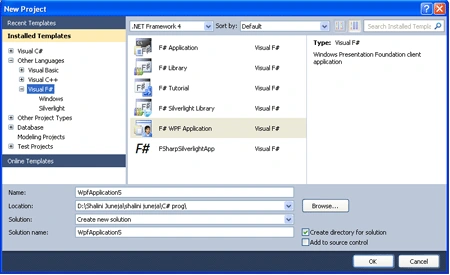
Step 1: Firstly Open a new project in F# using Visual Studio 2010. Select F# WPF application template and give name to it like below image.
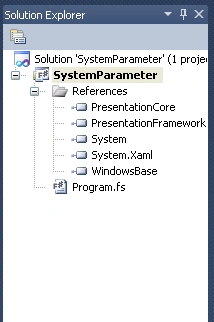
Step 2: Now add the below define references to the project by right clicking on project in solution explorer.
PresentationCore
PresentationFramework
System
System.Xaml
WindowsBase
Step 3: When you will add all these refrences your Solution Explorer will look like below image.
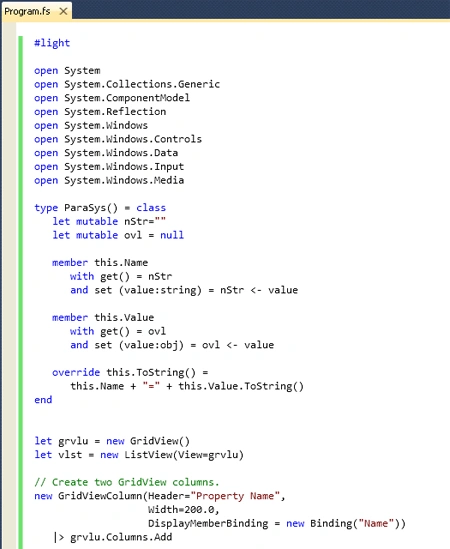
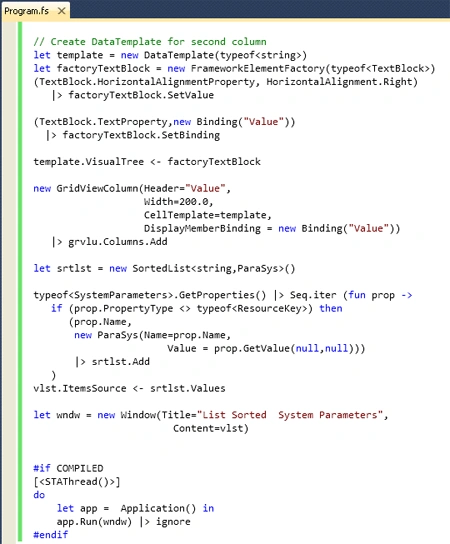
Step 4: Now click on Program.fs file in solution explorer and write below code in Program.fs window, your window will look like below image.
Join the conversation! Your thoughts help the community grow.