

Introduction
If you’re new to web development and wondering how to take your project online using AWS, you’re in the right place. In this guide, I’ll walk you through every step of hosting different types of web projects on an AWS EC2 instance, including Node.js, React apps, and static HTML/CSS sites. We’ll go from launching the instance to accessing your project live on the internet.
What We’ll Cover
- What is AWS EC2?
- Creating and Configuring an EC2 Instance
- Connecting to Your EC2 Instance
- Installing Required Software (Node.js, NGINX, PM2, etc.)
- Uploading & Organizing Projects
- Running Projects on Different Ports
- Using PM2 for Process Management
- Auto-Starting Projects After Reboot
- Accessing Projects via IP Address
What is AWS EC2?
Amazon EC2 (Elastic Compute Cloud) provides scalable virtual servers in the cloud. You can use it to host websites, applications, or anything that needs computing power.
Why EC2 for Beginners?
- Free tier available for 12 months (750 hours/month)
- Customizable
- Secure
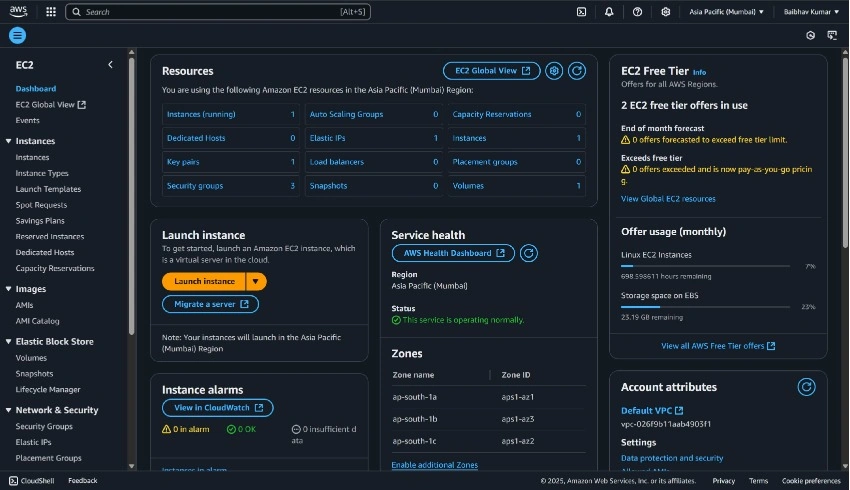
Creating and configuring an EC2 Instance
Steps
- Go to the EC2 Console.
- Click Launch Instance.
- Choose an OS (select Ubuntu 22.04).
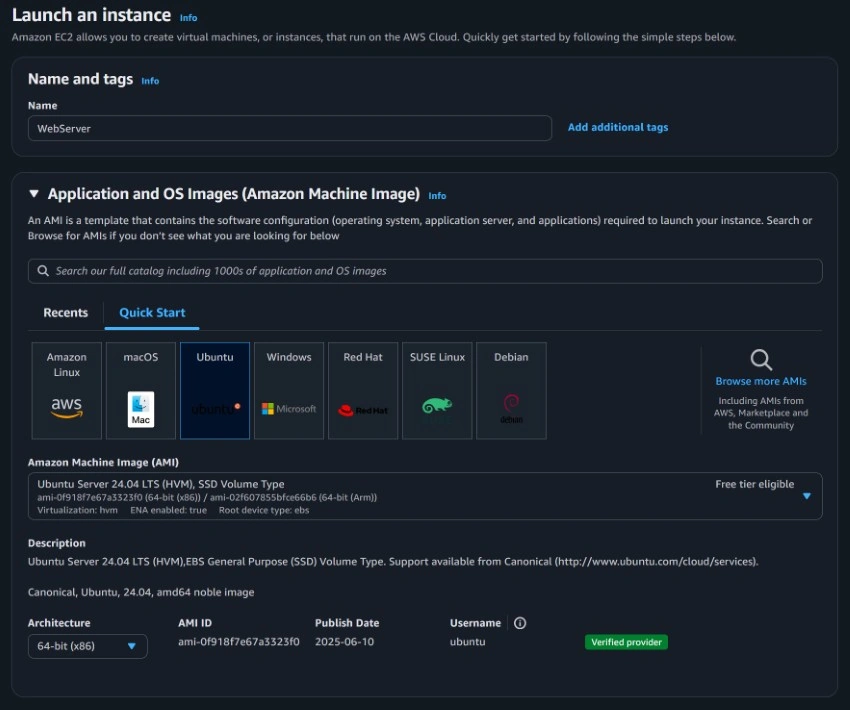
- Choose instance type (use t2.micro for the free tier).
- Add storage (default 8 GB is fine).
- Configure security group:
- Allow SSH (port 22)
- Allow HTTP (port 80)
- Add Custom TCP Rules: 3003 (As per Requirement)

- Create/download key pair (.pem) and launch instance.

Connecting to Your EC2 Instance
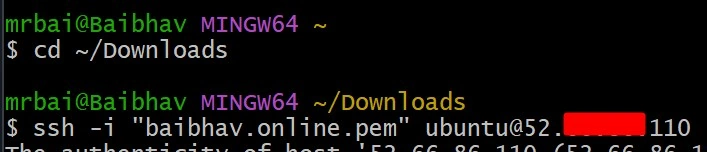
Use SSH to connect:
ssh -i baibhav.online.pem ubuntu@your-ec2-ip
Installing Required Software
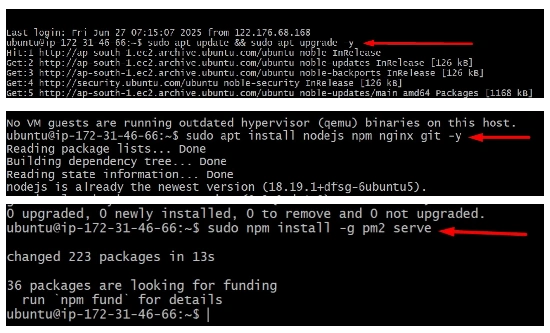
Once connected, run these:
sudo apt update && sudo apt upgrade -y
sudo apt install nodejs npm nginx git -y
sudo npm install -g pm2 serve
Uploading & Organizing Projects
Cloning Your Project from GitHub
If your code is hosted on GitHub, you can directly clone it into your EC2 instance using git clone.
- Go to your project directory on GitHub.
- Copy the HTTPS or SSH clone URL.
- Run the following command in your EC2 terminal:
# Example using HTTPS
git clone https://github.com/itsbaibhavkr/HFIS-Website.git hfiswebsite

# OR using SSH (only if you've set up SSH keys)
git clone [email protected]:itsbaibhavkr/HFIS-Website.git hfiswebsite
This will create a folder with your project name in the current directory.
Running Projects on Different Ports
#HFISWebsite
cd ~/hfiswebsite
pm2 start npx --name hfiswebsite -- serve -s . -l 3003
Output

Using PM2 for Process Management
PM2 keeps your apps running even after the terminal closes:
pm2 save
pm2 startup
Output

Copy the command PM2 gives and run it.
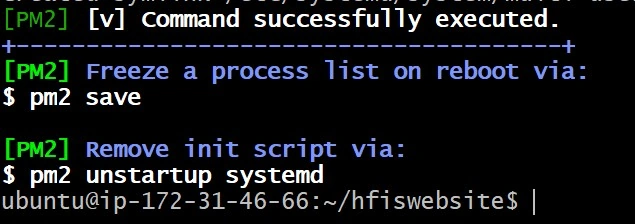
Auto-Starting Projects After Reboot
PM2 needs to be saved and registered as a system service:
pm2 save
sudo env PATH=$PATH:/home/ubuntu/.nvm/versions/node/v18.0.0/bin pm2 startup systemd -u ubuntu --hp /home/ubuntu
Output
Accessing Projects via IP Address
Let’s say your EC2 IP is 52.66.86.110, access them like this:
- http://52.66.86.110:3003 → HFISWebsite
The website is live now.

Conclusion
Hosting your projects on AWS might look technical, but with this guide, it becomes beginner-friendly. Whether it’s a Node app, a React frontend, or a simple static site, you now know how to:
- Launch a server
- Install the tools
- Upload and run projects
- Keep them alive using PM2
Join the conversation! Your thoughts help the community grow.