
Today I am discussing about the WPF colorizer using F#. The application will show that how you can change color of rectangles by editing edge colors and main colors in combination of Red, Green, Blue (r,g,b). You can add more colors to the F# colorizer by this application.Steps for edit colors in colorizer are given below.
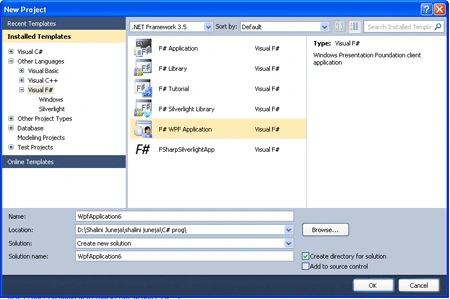
Step 1: Firstly open a new project in F# using Visual Studio 2011. Select F# WPF application template and give name to the project like below Image.
Step 2: Now add below define References to the Project by right clicking on the Project in Solution Explorer.
PresentationCore
PresentationFramework
System
System.Xml
UIAutomationTypes
WindowsBase
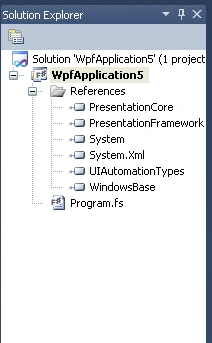
Step 3: When you add all
these references your solution explorer will look like below image.
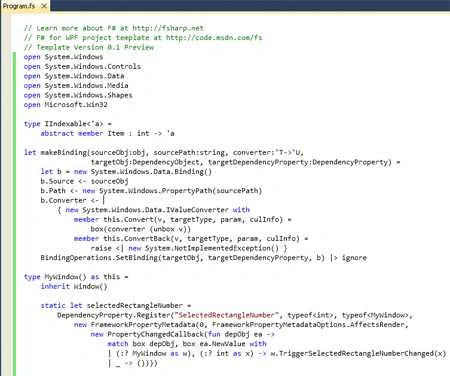
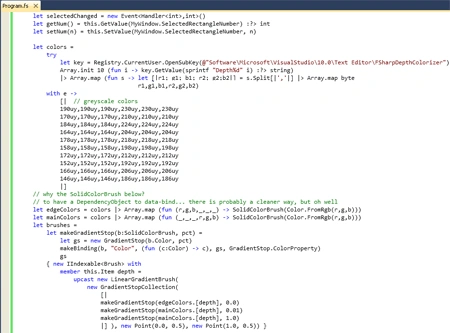
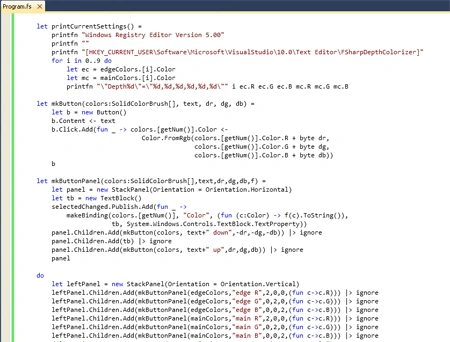
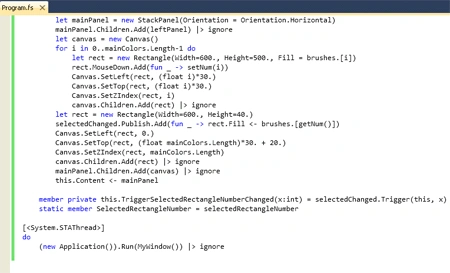
Step 4: Now click on Programe.fs file and write below Code in that like below image.
open
System.Windows
open
System.Windows.Controls
open
System.Windows.Data
open
System.Windows.Media
open
System.Windows.Shapes
open
Microsoft.Win32
type
IIndexable<'a> =
abstract
member Item : int -> 'a
let
makeBinding(sourceObj:obj, sourcePath:string, converter:'T->'U,
targetObj:DependencyObject,
targetDependencyProperty:DependencyProperty) =
let b = new
System.Windows.Data.Binding()
b.Source <- sourceObj
b.Path <- new
System.Windows.PropertyPath(sourcePath)
b.Converter <-
{ new
System.Windows.Data.IValueConverter with
member this.Convert(v,
targetType, param, culInfo) =
box(converter (unbox v))
member this.ConvertBack(v,
targetType, param, culInfo) =
raise <| new
System.NotImplementedException() }
BindingOperations.SetBinding(targetObj, targetDependencyProperty, b)
|> ignore
type
MyWindow() as this =
inherit Window()
static let
selectedRectangleNumber =
DependencyProperty.Register("SelectedRectangleNumber",
typeof<int>, typeof<MyWindow>,
new
FrameworkPropertyMetadata(0, FrameworkPropertyMetadataOptions.AffectsRender,
new
PropertyChangedCallback(fun depObj ea
->
match box depObj, box
ea.NewValue with
| (:? MyWindow as w),
(:? int as x) ->
w.TriggerSelectedRectangleNumberChanged(x)
| _ -> ())))
let selectedChanged =
new Event<Handler<int>,int>()
let getNum() =
this.GetValue(MyWindow.SelectedRectangleNumber) :?> int
let setNum(n) =
this.SetValue(MyWindow.SelectedRectangleNumber, n)
let colors =
try
let key =
Registry.CurrentUser.OpenSubKey(@"Software\Microsoft\VisualStudio\10.0\Text
Editor\FSharpDepthColorizer")
Array.init 10 (fun i
-> key.GetValue(sprintf
"Depth%d" i) :?> string)
|> Array.map (fun s
-> let [|r1;
g1; b1; r2; g2;b2|] = s.Split[|','|] |>
Array.map byte
r1,g1,b1,r2,g2,b2)
with e
->
[| // greyscale colors
190uy,190uy,190uy,230uy,230uy,230uy
170uy,170uy,170uy,210uy,210uy,210uy
184uy,184uy,184uy,224uy,224uy,224uy
164uy,164uy,164uy,204uy,204uy,204uy
178uy,178uy,178uy,218uy,218uy,218uy
158uy,158uy,158uy,198uy,198uy,198uy
172uy,172uy,172uy,212uy,212uy,212uy
152uy,152uy,152uy,192uy,192uy,192uy
166uy,166uy,166uy,206uy,206uy,206uy
146uy,146uy,146uy,186uy,186uy,186uy
|]
// why the SolidColorBrush below?
// to have a DependencyObject to
data-bind... there is probably a cleaner way, but oh well
let edgeColors = colors |>
Array.map (fun (r,g,b,_,_,_)
-> SolidColorBrush(Color.FromRgb(r,g,b)))
let mainColors = colors |> Array.map
(fun (_,_,_,r,g,b) ->
SolidColorBrush(Color.FromRgb(r,g,b)))
let brushes =
let
makeGradientStop(b:SolidColorBrush, pct) =
let gs =
new GradientStop(b.Color, pct)
makeBinding(b, "Color", (fun
(c:Color) -> c), gs, GradientStop.ColorProperty)
gs
{ new IIndexable<Brush>
with
member this.Item depth =
upcast
new LinearGradientBrush(
new
GradientStopCollection(
[|
makeGradientStop(edgeColors.[depth], 0.0)
makeGradientStop(mainColors.[depth], 0.01)
makeGradientStop(mainColors.[depth], 1.0)
|] ), new
Point(0.0, 0.5), new Point(1.0, 0.5)) }
let printCurrentSettings() =
printfn "Windows Registry Editor
Version 5.00"
printfn ""
printfn "[HKEY_CURRENT_USER\Software\Microsoft\VisualStudio\10.0\Text
Editor\FSharpDepthColorizer]"
for i
in 0..9 do
let ec =
edgeColors.[i].Color
let mc = mainColors.[i].Color
printfn "\"Depth%d\"=\"%d,%d,%d,%d,%d,%d\""
i ec.R ec.G ec.B mc.R mc.G mc.B
let mkButton(colors:SolidColorBrush[],
text, dr, dg, db) =
let b =
new Button()
b.Content <- text
b.Click.Add(fun _
-> colors.[getNum()].Color <-
Color.FromRgb(colors.[getNum()].Color.R +
byte dr,
colors.[getNum()].Color.G +
byte dg,
colors.[getNum()].Color.B +
byte db))
b
let
mkButtonPanel(colors:SolidColorBrush[],text,dr,dg,db,f) =
let panel =
new StackPanel(Orientation =
Orientation.Horizontal)
let tb =
new TextBlock()
selectedChanged.Publish.Add(fun _
->
makeBinding(colors.[getNum()],
"Color", (fun
(c:Color) -> f(c).ToString()),
tb, System.Windows.Controls.TextBlock.TextProperty))
panel.Children.Add(mkButton(colors, text+"
down",-dr,-dg,-db)) |> ignore
panel.Children.Add(tb) |> ignore
panel.Children.Add(mkButton(colors, text+"
up",dr,dg,db)) |> ignore
panel
do
let leftPanel =
new StackPanel(Orientation =
Orientation.Vertical)
leftPanel.Children.Add(mkButtonPanel(edgeColors,"edge
R",2,0,0,(fun c->c.R)))
|> ignore
leftPanel.Children.Add(mkButtonPanel(edgeColors,"edge
G",0,2,0,(fun c->c.G)))
|> ignore
leftPanel.Children.Add(mkButtonPanel(edgeColors,"edge
B",0,0,2,(fun c->c.B)))
|> ignore
leftPanel.Children.Add(mkButtonPanel(mainColors,"main
R",2,0,0,(fun c->c.R)))
|> ignore
leftPanel.Children.Add(mkButtonPanel(mainColors,"main
G",0,2,0,(fun c->c.G)))
|> ignore
leftPanel.Children.Add(mkButtonPanel(mainColors,"main
B",0,0,2,(fun c->c.B)))
|> ignore
//let printButton = new Button(Content="Print
current settings to console")
//printButton.Click.Add(fun _ ->
printCurrentSettings())
//leftPanel.Children.Add(printButton)
|> ignore
let mainPanel =
new StackPanel(Orientation =
Orientation.Horizontal)
mainPanel.Children.Add(leftPanel) |> ignore
let canvas =
new Canvas()
for i
in 0..mainColors.Length-1 do
let rect =
new Rectangle(Width=600., Height=500., Fill =
brushes.[i])
rect.MouseDown.Add(fun _
-> setNum(i))
Canvas.SetLeft(rect, (float i)*30.)
Canvas.SetTop(rect, (float i)*30.)
Canvas.SetZIndex(rect, i)
canvas.Children.Add(rect) |> ignore
let rect =
new Rectangle(Width=600., Height=40.)
selectedChanged.Publish.Add(fun _
-> rect.Fill <- brushes.[getNum()])
Canvas.SetLeft(rect, 0.)
Canvas.SetTop(rect, (float mainColors.Length)*30. + 20.)
Canvas.SetZIndex(rect, mainColors.Length)
canvas.Children.Add(rect) |> ignore
mainPanel.Children.Add(canvas) |> ignore
this.Content <- mainPanel
member
private this.TriggerSelectedRectangleNumberChanged(x:int) =
selectedChanged.Trigger(this, x)
static member
SelectedRectangleNumber = selectedRectangleNumber
[<System.STAThread>]
do
(new
Application()).Run(MyWindow()) |> ignore
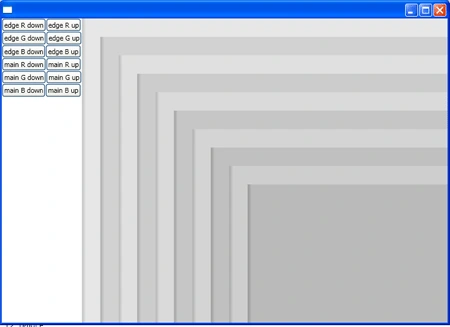
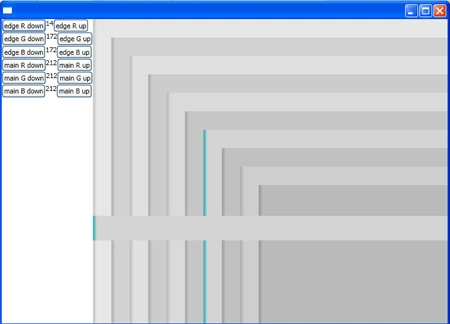
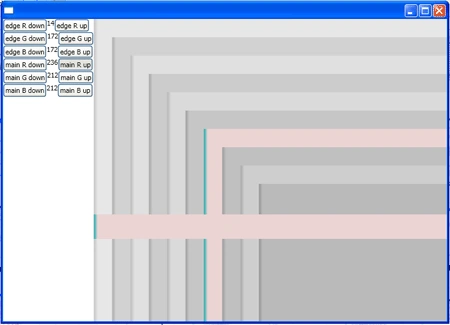
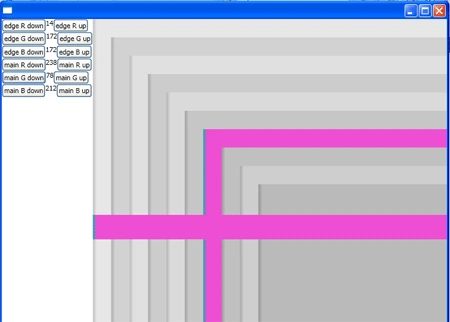
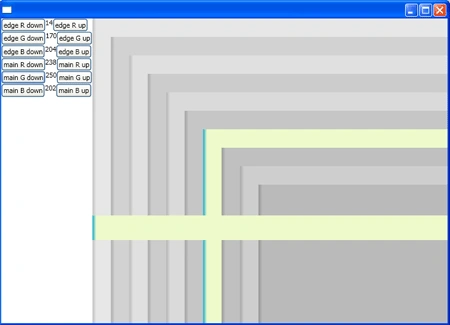
Step 5: Now press F5 to execute the code and your application is ready.
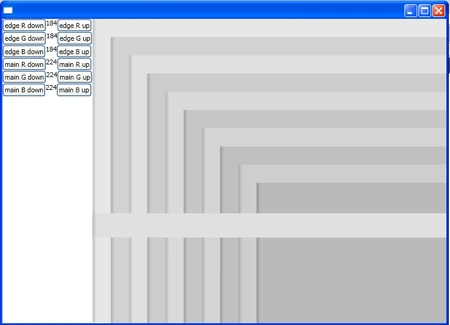
Firstly click on any of the rectangle than select edge color or main color your color will be edited.
Output
Summary
In this article I have discussed that how can you create a colorizer in WPF using F#.
Join the conversation! Your thoughts help the community grow.