

Introduction
This article describes how to open any website through the browser in Automation Anywhere using the community edition.
Website to open in a new window
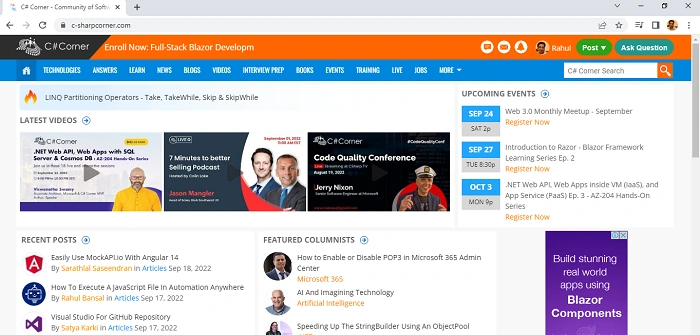
We will open the c-sharpcorner website through a bot in a new window.
Now I need to create a bot to execute this code a get sum of values. If you are a beginner then need to check this article Getting Started Robotic Process Automation using Automation Anywhere to create an environment of Automation Anywhere.
Create a New bot
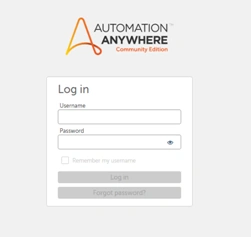
After logging Automation anywhere account through the cloud community edition link,
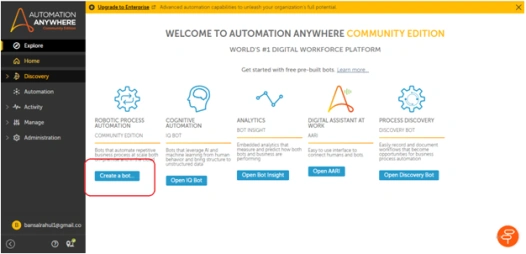
You will see a Dashboard as shown below image and you can create a new bot through the highlighted button ‘create a bot’-
Bot Configuration
After clicking on the ‘create a bot’ button, you will get a popup window. It will ask for some information about the bot which you want to create like-
- Name of bot
- Description of bot(optional)
- Folder location of the bot

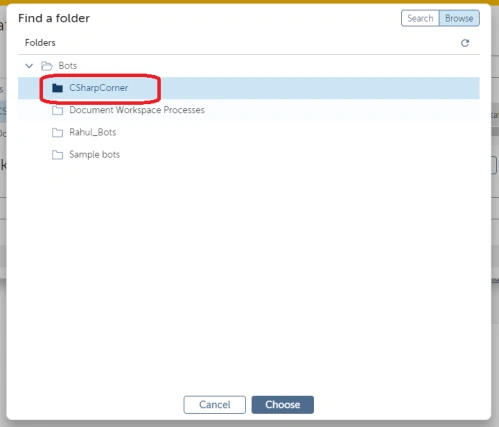
After clicking on choose option, a popup window will come where you can browse the ‘CSharpCorner’ folder and click on choose to set a default location for your new bot.
Browser Action
Let’s go to the ‘Browser’ action and drag & drop ‘open’ into the workspace, to open any website in the browser through the bot.
- Select the ‘New window’ tab to open a new window
- Select browser name as ‘Google Chrome'
- Add URL as ‘https://www.c-sharpcorner.com/’ to open in a new window
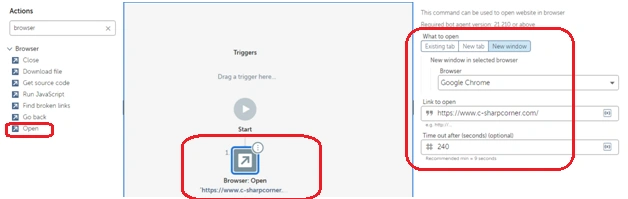
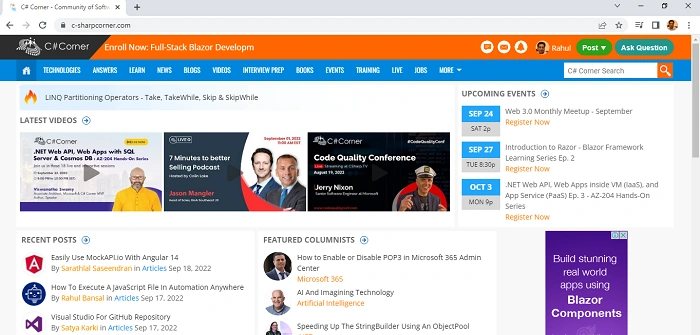
Just save the above settings of the browser ‘open’ action and run the bot, which will open the ’c-sharpcorner’ website in a new window.
Note: You can also close the window through the ‘Browser->Close’ option and select a specific window to close in the settings of ‘Close’.
Conclusion
This article, how to open any website through the browser in an environment of Automation Anywhere.
Join the conversation! Your thoughts help the community grow.