

Hi Guys. I am back with my next article where we'll learn how to host an ASP.Net MVC 5.0 application to Localhost or IIS. So let's see first how to create a website on Visual Studio 2015 with ASP.Net MVC 5.0 so read my previous articles to learn more about ASP.Net MVC Framework. Links.
- Article Part 1: Getting Started With ASP.Net MVC
- Article Part 2: First ASP.Net MVC 5.0 Application
So let's start.
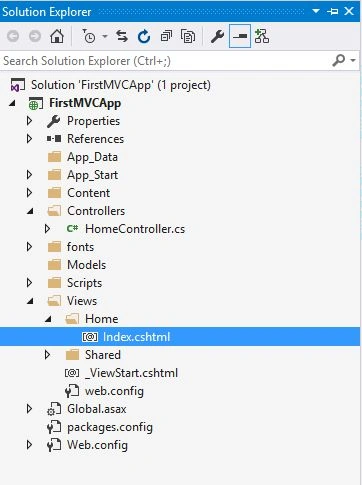
We have an ASP.NET MVC 5.0 application in Visual Studio 2015 so open the website solution and see, if we already have a controller and view that is already running but not on IIS, running on IISExpress.
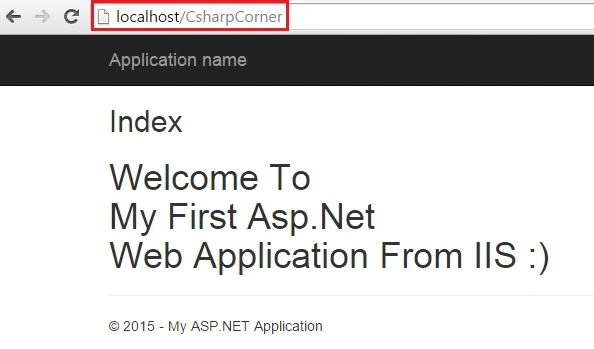
And this is the view output in the browser.
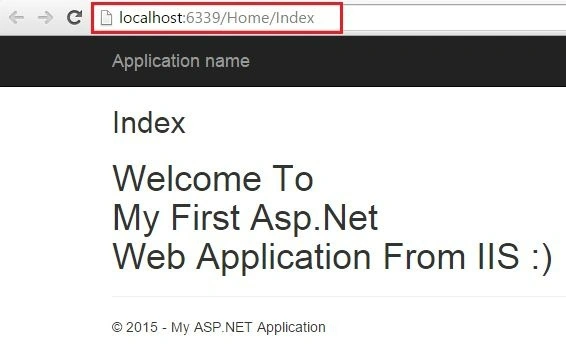
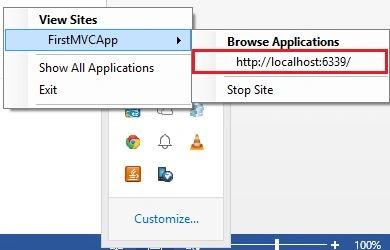
The URL is http://localhost:6339/Home/Index. It can be anything because it's run by IISExpress. That is, it allows you to run each website on a unique port number. If you want to see that then you may open the IISExpress Taskbar.
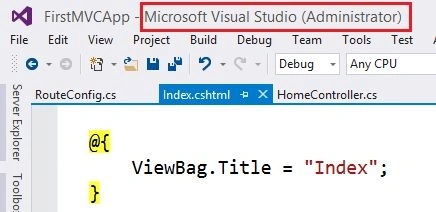
So now if you want to publish your website to IIS (Localhost) then check your Visual Studio to ensure it is running in Administrator mode because we can use IIS only in Administrator mode. If it is not running in Administrator mode then restart your Visual Studio to “Run as Administrator” and open your existing website.
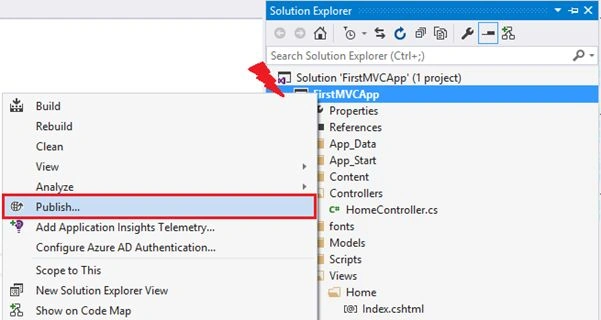
Now open Solution Explorer right-click on the project file and click on Publish.
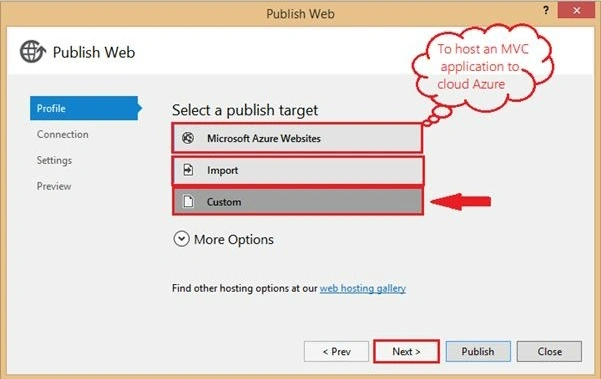
In the new window, there will be three options to publish a website.
Microsoft Azure Website
We can use this option if we want to publish my website directly to a Microsoft Windows Azure Cloud Server as a Web App. We'll see this option in the next article on how to publish on Windows Azure.
Import
We can use this option if we have directly a “.publishsettings” extension file with all the settings to define the server IP address and all the required settings for a website. Since we already have a web app on Windows, download the publish settings file import that file into this window, and just publish it so there is no need to define anything more, just click on publish after selecting that file and use it from anywhere.
Custom
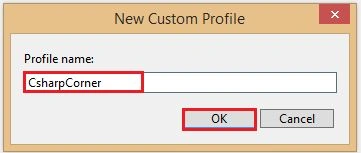
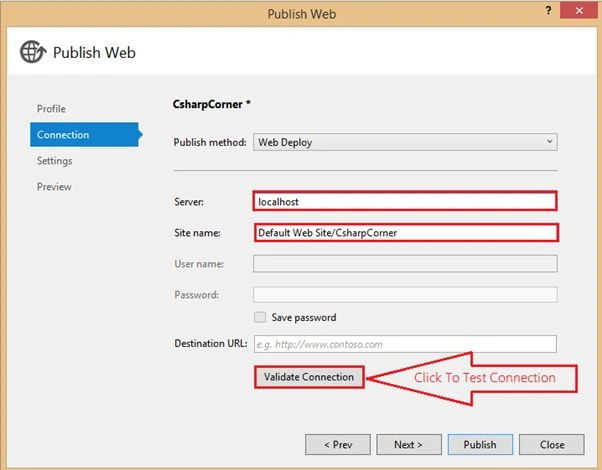
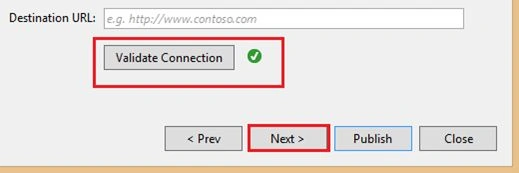
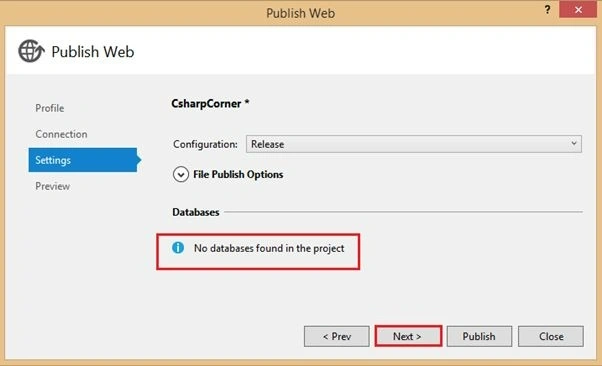
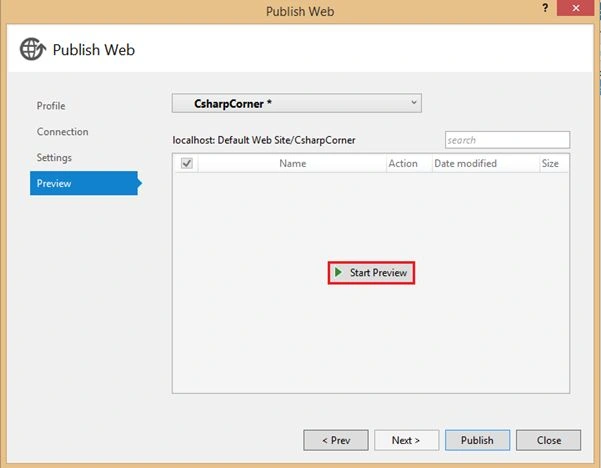
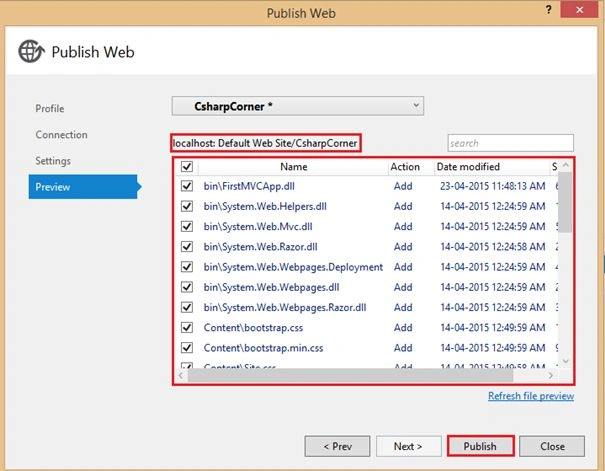
We'll use this option when we need to define all the server publish settings manually, like Server Name, website name, location, and more.
shubhangi waghmarePosted Dec 3, 2018, 11:48 PM
HTTP Error 404. The requested resource is not found.
Siva PrasadPosted May 29, 2018, 3:20 AM
Thanks! Really good one and a step by step explanation.
mohamed masroojPosted May 16, 2018, 10:01 AM
Access to the path 'C:\inetpub\wwwroot\Content\Images\UserImages\Name' is denied. after depolyment in local im getting this error help me?
Vishal MahajanPosted Jun 30, 2017, 4:21 AM
After Follow the same steps i find Error :- HTTP Error 404. The requested resource is not found. Please help me ????
Aminuddin JohariPosted Jun 7, 2017, 5:47 PM
Hi, Nice article but I have a question. When I publish the apps, there are broken path which cannot be reached. The path not include the IIS virtual directory that I made e.g www.xyz.com/test/content/... but the published path www.xyz.com/content/...
Pradeep SahooPosted May 18, 2016, 12:55 PM
Good share..........
Debasis SahaPosted Mar 12, 2016, 1:00 AM
Good one
Humayun Kabir MamunPosted Mar 5, 2016, 11:12 PM
Nice...
Amit Kumar SinghPosted Feb 20, 2016, 7:00 AM
Nice One
Safayat ZisanPosted Apr 25, 2015, 12:10 AM
nice article.
Karthik Muthu KaruppanPosted Apr 24, 2015, 10:54 AM
Good
Santhakumar MunuswamyPosted Apr 23, 2015, 11:27 PM
Good work