

So far in this series, I wrote:
- Getting Started with Power BI Desktop
- Create SQL Reports with Power BI
- Create Power BI Report with Microsoft Access Database
This article explains how to publish a BI Report from a local something to a BI server and how to open that report live.
Getting Started
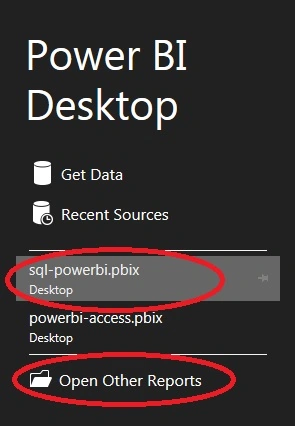
Start Power BI Desktop and click on the Open Other Reports or select a recent report from the list in the left side bar as you can see in Figure 1.
I have opened my report that displays SQL data.

Figure 2
Now click on the Publish toolbar on top of Power BI.

Figure 3
You need Power BI login details and for that Sign in.
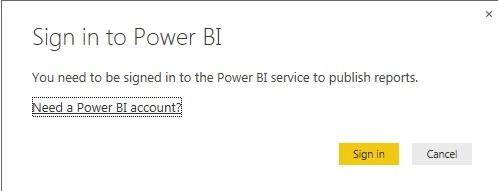
Figure 4
Enter the login credentials and click the Sign in button.
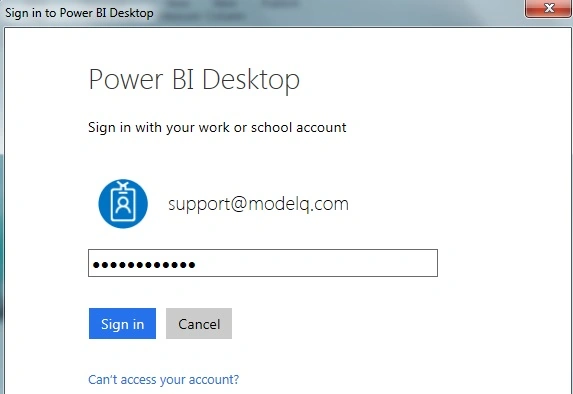
Figure 5
Here you go. Your report is published to Power BI
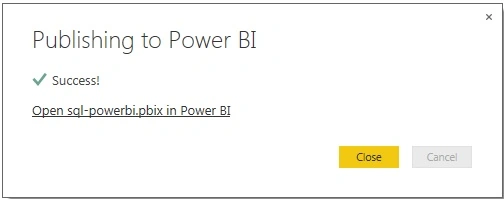
Figure 6
If you want to view your report, click on the link as in the screenshot in Figure 7.
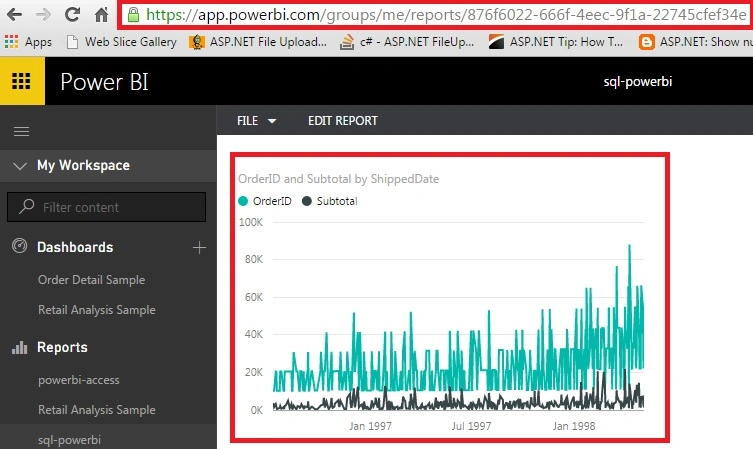
Figure 7
As you can see, the URL is your published report.
Summary
In this article we saw how to publish a Power BI Report to Power BI.
Rajeesh MenothPosted Aug 27, 2015, 2:14 AM
Thank you for sharing
Gowtham KPosted Aug 26, 2015, 11:11 AM
Nice share
Raj KumarPosted Aug 26, 2015, 10:27 AM
Thanks Guys
Debasis SahaPosted Aug 26, 2015, 10:18 AM
Good One..
Pankaj Kumar ChoudharyPosted Aug 26, 2015, 6:34 AM
Nice Explain Sir..............
Yashwanth MuthineniPosted Aug 26, 2015, 6:12 AM
Nice Share
Vaikesh K PPosted Aug 26, 2015, 5:32 AM
Thanks :)
Karthikeyan KPosted Aug 26, 2015, 5:26 AM
Thanks for share sir...