
Bookmark Brief Introduction
In different environments, bookmarks has different definitions. When reading a book, a bookmark is a piece of paper that is inserted in a book to record which page we have read to. When browsing websites, we can add some interesting and useful webpages as bookmarks to conveniently and quickly return to another time. In MS Office, a bookmark is a function to help users go to a specified location quickly and easily. This article focuses on how to realize a bookmark function in MS Excel.
Preparation
In my example, I prepare two workbooks.
Workbook 1
This workbook is a sales report. It includes many worksheets. From worksheet 2 to 6, it shows vendor sales reports, while the latter worksheets show a commission report.
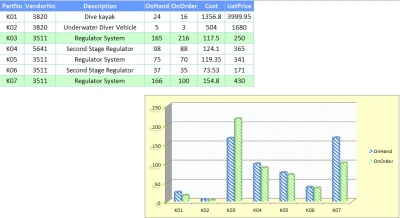
Vendor sales information includes two parts, Parts and Orders. Orders information is related to Parts. For example, the fourth worksheet shows orders information about PartNo K01-07. Commission report includes information in year 2010 and 2011.
Workbook 2
This workbook just has only one worksheet which saves information about staff.
Bookmark List
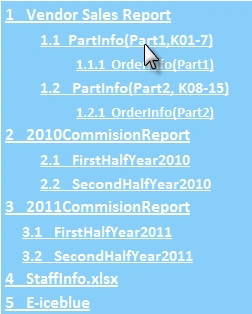
What I will do is to create a bookmark in the first worksheet of Workbook 1. There are five main bookmark titles, vendor sales report, 2010 commission report, 2011 commission report, Staff information and e-iceblue (a website). Also, I set some other vice bookmark titles under the main bookmarks.
The effect will be as in the following image:
Step
1. Write sub-methods for calling them in the main method.
DrawInternalHyperlink
If we want to move to other worksheets once clicking relevant bookmark title, we need to draw hyperlink for titles. Select bookmark range and add hyperlink in worksheet. Then, set type. Because the bookmark points to internal worksheet, so set type as workbook. Finally, set hyperlink text and jump to where after clicking it.
- static private void DrawInternalHyperlink(Worksheet sheetSource, Worksheet sheetDest, int rowIndex, string text)
- {
- CellRange range = sheetSource.Range[rowIndex, 2];
- HyperLink hyperlink = sheetSource.HyperLinks.Add(range);
- hyperlink.Type = HyperLinkType.Workbook;
- hyperlink.Address = text;
- hyperlink.SubAddress = sheetDest.Range["A1"].RangeGlobalAddress;
- }
DrawExternalHyperlink
The fourth bookmark title points to Workbook 2, so set external hyperlink. Also, select range, add hyperlink and set hyperlink type as file. After setting text, add a file path.
- static private void DrawExternalHyperlink(Worksheet sheetSource, int rowIndex, string text)
- {
- CellRange range = sheetSource.Range[rowIndex, 2];
- HyperLink hyperlink = sheetSource.HyperLinks.Add(range);
- hyperlink.Type = HyperLinkType.File;
- hyperlink.TextToDisplay = text;
- hyperlink.Address = @"C:\Users\lenovo\Desktop\bookmark\bookmark\StaffInfo.xlsx";
- }
DrawUrlHyperlink
The fifth bookmark title moves us to a website, so draw a URL hyperlink. Select range, add a hyperlink and set hyperlink type as URL. Add text and website address.
- static private void DrawUrlHyperlink(Worksheet sheetSource, int rowIndex, string url)
- {
- CellRange range = sheetSource.Range[rowIndex, 2];
- HyperLink hyperlink = sheetSource.HyperLinks.Add(range);
- hyperlink.Type = HyperLinkType.Url;
- hyperlink.TextToDisplay = "5 E-iceblue";
- hyperlink.Address = url;
- }
SetFormat
This method is used to set bookmark list format, including font style, background color and indentation.
- static private void SetFormat(Worksheet sheet, int rowIndex,float fontSize,int indent)
- {
- sheet.Range[rowIndex, 2].Style.Font.Size = fontSize;
- sheet.Range[rowIndex, 2].Style.Font.IsBold = true;
- sheet.Range[rowIndex, 2].Style.IndentLevel = indent;
- sheet.Range[rowIndex, 2].Style.Font.Color = Color.AliceBlue;
- sheet.Range[rowIndex, 2].Style.Font.FontName = "Calibri";
- sheet.Range[rowIndex, 2].Style.Color = Color.LightSkyBlue;
- }
2. Load the file from the computer and set the source sheet. Then, define rowindex initial value, which means that the bookmark list will be input from which row.
- Workbook workbook = new Workbook();
- workbook.LoadFromFile(@"..\..\bookmark list.xlsx", ExcelVersion.Version2010);
- Worksheet sheetSource = workbook.Worksheets[0];
- int rowIndex = 2;
3. Draw bookmark list 1. Bookmark list 1 includes one main bookmark, two sub-bookmarks and two third-bookmarks. The main bookmark is linked to worksheet 2. The two sub-bookmarks are linked to worksheet 2 and 4 respectively. The two third-bookmarks are linked to worksheet 3 and 5. All the bookmark titles are worksheet name.
- DrawInternalHyperlink(sheetSource, workbook.Worksheets[1], rowIndex++, String.Format("1 {0}", workbook.Worksheets[1].Name));
- SetFormat(sheetSource, 2, 13, 0);
- DrawInternalHyperlink(sheetSource, workbook.Worksheets[2], rowIndex++, String.Format("1.1 {0}", workbook.Worksheets[2].Name));
- SetFormat(sheetSource, 3, 12, 4);
- DrawInternalHyperlink(sheetSource, workbook.Worksheets[3], rowIndex++, String.Format("1.1.1 {0}", workbook.Worksheets[3].Name));
- SetFormat(sheetSource, 4, 11, 8);
- DrawInternalHyperlink(sheetSource, workbook.Worksheets[4], rowIndex++, String.Format("1.2 {0}", workbook.Worksheets[4].Name));
- SetFormat(sheetSource, 5, 12, 4);
- DrawInternalHyperlink(sheetSource, workbook.Worksheets[5], rowIndex++, String.Format("1.2.1 {0}", workbook.Worksheets[5].Name));
- SetFormat(sheetSource, 6, 11, 8);
4. Draw bookmark lists 2 and 3. Bookmark list 2 and 3 also
point to worksheets in Workbook 1. Therefore, draw it as the above step.
- DrawInternalHyperlink(sheetSource, workbook.Worksheets[6], rowIndex++, String.Format("2 {0}", workbook.Worksheets[6].Name));
- SetFormat(sheetSource, 7, 13,0);
- DrawInternalHyperlink(sheetSource, workbook.Worksheets[7], rowIndex++, String.Format("2.1 {0}", workbook.Worksheets[7].Name));
- SetFormat(sheetSource, 8, 12,4);
- DrawInternalHyperlink(sheetSource, workbook.Worksheets[8], rowIndex++, String.Format("2.2 {0}", workbook.Worksheets[8].Name));
- SetFormat(sheetSource, 9, 12,4);
- DrawInternalHyperlink(sheetSource, workbook.Worksheets[9], rowIndex++, String.Format("3 {0}", workbook.Worksheets[9].Name));
- SetFormat(sheetSource, 10, 13,0);
- DrawInternalHyperlink(sheetSource, workbook.Worksheets[10], rowIndex++, String.Format("3.1 {0}", workbook.Worksheets[10].Name));
- SetFormat(sheetSource, 11, 12,2);
- DrawInternalHyperlink(sheetSource, workbook.Worksheets[11], rowIndex++, String.Format("3.2 {0}", workbook.Worksheets[11].Name));
- SetFormat(sheetSource, 12, 12,2);
5. Draw bookmark list 4. Bookmark list 4 is linked to
Workbook 2. Set its location, title, and format.
- DrawExternalHyperlink(sheetSource, rowIndex++, "4 StaffInfo.xlsx");
- SetFormat(sheetSource, 13, 13,0);
6. Draw bookmark list 5. Bookmark list 5 is linked to a
website. Set its location and add site address. Then set the format.
- DrawUrlHyperlink(sheetSource, rowIndex++, "http://www.e-iceblue.com");
- etFormat(sheetSource, 14, 13,0);
7. Set column width and row height.
- sheetSource.AllocatedRange.AutoFitColumns();
- heetSource.AllocatedRange.RowHeight = 18;
8. Save and launch file
- workbook.SaveToFile(@"..\..\result.xlsx", ExcelVersion.Version2010);
- ystem.Diagnostics.Process.Start(@"..\..\result.xlsx");
Conclusion
In this article, I show a method about how to realize bookmark function in MS Excel. The bookmark can point to worksheet in one workbook, in other workbook and website. After clicking bookmark title, we can get the relevant contents about this title shows.
Note:
Spire.XLS
is used in this method to help me realize this function.
*Workbook 1, workbook 2 and the whole project will be packed. You can download to get details on coding.
Stelia JacksonPosted Jan 19, 2012, 11:11 PM
vry nicely presented
Stelia JacksonPosted Jan 19, 2012, 11:10 PM
vry nicely presented
Sanjoli GuptaPosted Jan 19, 2012, 3:39 AM
hmm very nicely presented...
Sonakshi SinghPosted Jan 19, 2012, 3:19 AM
Useful article for people who works on Excel.
Amit MaheshwariPosted Jan 18, 2012, 5:38 PM
It's a auspicious effort to accomplish such type of task and it's very helpful to us so please keep it up......
Abhi KumarPosted Jan 16, 2012, 11:17 PM
Very useful article.
Adora KrausePosted Jan 16, 2012, 11:02 PM
You have presented your article very nicely.
Jimmy UnderwoodPosted Jan 16, 2012, 5:29 PM
Thanks
Arjun PanwareditedPosted Jan 16, 2012, 5:12 PMEdited Jan 17, 2012, 2:29 PM
appreciation for this article