

In this article, we’ll explore how to limit record access for logged-in users in Power Pages. This is a common security requirement: users should only see their own records after logging in to the site.
For example:
A customer should only see their own requests.
An agent should only see records assigned to them.
A partner should only see records related to their contact.
Key Components used in this demo
Dataverse Table (user request)
Contact table (with newly created contact records)
Contact lookup relationship between Contact and the user request table.
Table Permissions
Web Roles
Site Settings
Understanding Contact-Based Record Restriction
Power Pages identifies authenticated users through the Contact table, and every logged-in user is mapped to a Contact record. when a Dataverse table has a lookup column to Contact, Power Pages can restrict access using that relationship.
This is called Contact access type in the Table Permissions dialog.
Let's take a Demo in action
Step 1 : Create a relationship with the Contact table
Make sure you have create lookup column of Contact table in your demo table.
Example:
Table: User request

Lookup Column: User
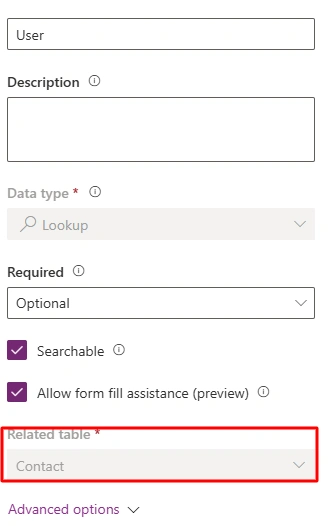
Relationship will be Many - to - One : Many requests can done by one user.
Step 2: Add sample user records in Contact table

There are 3 ways to create contact records in Contact table
Using Registration in Power Pages site ( Recommended ).
Add manually record in Contact table.
Through Contacts under Security in Power Pages Management.
If you want more details on how to create Contact records using Registration and Power Pages Management (Admin), you can read more here .
Step 3: Configure Site settings
Power Pages require specific site settings to properly implement table permissions.
Navigate to : Power Pages Management -> Site Settings
Required site settings for this demo:
| Name | Value |
|---|---|
| WebApi/Enabled | True |
| WebApi/EntityPermissionsEnabled | True |
| Webapi/cr399_userrequest/enabled | True |
| Webapi/cr399_userrequest/fields | * |
If you want to learn how to configure the Web API and site settings & Table Permissions in Power Pages before starting any development, you can refer to this detailed guide here .
Step 4: Configure Table Permission & Assign Web roles to table
Table Permission for User request table
This is core step where record restriction happens.
Navigate to : Power Pages Management → Table Permissions
General Information:
Table Name: User Request
Website: Select site
Access Type: Contact
Contact Relationship : cr399_userrequest_User_contact
Privileges: Read, Create etc.. (whatever you need in your development)
Assign Web Role to Table
For the permission to take effect, the logged-in user’s Contact record must have the Web Role assigned.
Navigate to Power Pages studio -> Security -> Table Permissions -> Select your table - Assign Role
Displaying Logged-in User records using Web API - Code explantation
After configuring site settings, table permissions, and web roles, the next step is to display data on the Power Pages site. In this demo, we use HTML, Liquid, and JavaScript (Web API) to fetch and show only the logged-in user’s records.
HTML code
<div class="row sectionBlockLayout text-start" style="min-height: auto; padding: 8px;">
    <div class="container" style="display: flex; flex-wrap: wrap;">
      {% if user %}
      <h2>User Request</h2>
        <table id="table-data">
        <thead>
          <tr>
            <th>Request Name</th>
            <th>Request Type</th>
            <th>Status</th>
            <th>User</th>
          </tr>
        </thead>
        <tbody id="table-body"></tbody>
      </table>
      {% else %}
        <h1>Sorry, You are not Authenticated</h1>
      {% endif %}
    </div>
  </div>
What is {% %} in Power Pages?
The {% %} syntax comes from Liquid, a templating language used in Power Pages.
{% %} is used for logic and control statements
It does not display anything on the page
It is mainly used for conditions, loops, and checks
In simple words, this syntax helps Power Pages decide what should be shown and when.
What is user in Power Pages?
The user object is a built-in Liquid object in Power Pages.
It represents the currently logged-in user
It is automatically available when authentication is enabled
It is linked to the Contact table in Dataverse
What does this check do?
If a user is logged in → user exists → condition is true.
If a user is not logged in → user is null → condition is false.
What content shown to Logged -in users?
      <h2>User Request</h2>
        <table id="table-data">
        <thead>
          <tr>
            <th>Request Name</th>
            <th>Request Type</th>
            <th>Status</th>
            <th>User</th>
          </tr>
        </thead>
        <tbody id="table-body"></tbody>
      </table>
This will UI will be shown (based on logged-in user record)
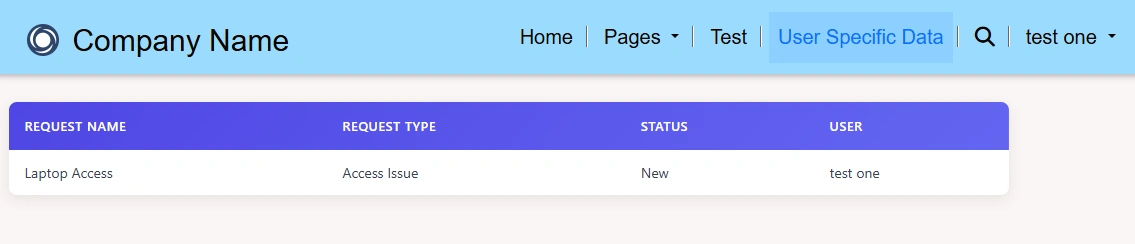
This section is displayed only when the user is authenticated.
A heading is shown
A table structure is created to display user-related records
What content shown if user is not logged in site?
<h1>Sorry, You are not Authenticated</h1>This UI will be shown

If the user is not logged in, the page displays a simple message instead of data.
JS Code
(function (webapi, $) {
    function safeAjax(ajaxOptions) {
        var deferredAjax = $.Deferred();
        shell.getTokenDeferred().done(function (token) {
            if (!ajaxOptions.headers) {
                $.extend(ajaxOptions, {
                    headers: {
                        "__RequestVerificationToken": token
                    }
                });
            } else {
                ajaxOptions.headers["__RequestVerificationToken"] = token;
            }
            $.ajax(ajaxOptions).done(function (data, textStatus, jqXHR) {
                validateLoginSession(data, textStatus, jqXHR, deferredAjax.resolve);
            }).fail(deferredAjax.reject);
        }).fail(function () {
            deferredAjax.rejectWith(this, arguments);
        });
        return deferredAjax.promise();
    }
    webapi.safeAjax = safeAjax;
})(window.webapi = window.webapi || {}, jQuery)


// let userFullName = "{{ user.fullname }}"
let userId = "{{ user.contactid }}"
console.log(userId);

function getUserData(){
    webapi.safeAjax({
        type: "GET",
        url: `/_api/cr399_userrequests?$filter=_cr399_user_value eq ${userId}`,
        contentType: "application/json",
        success: function (res){
            console.log(res)
            const tableBody = document.getElementById("table-body");
            const response = res.value
            const tableData = response.map(item => (
                `
                    <tr>
                        <td>${item.cr399_requestname}</td>
                        <td>${item.cr399_requesttype}</td>
                        <td>${item["[email protected]"]}</td>
                        <td>${item["[email protected]"]}</td>
                    </tr>
                `
            )).join("")
            tableBody.innerHTML = tableData
        }
    })
}

getUserData();
What (function (webapi, $) {}() do?
The safeAjax function is a secure wrapper around $.ajax(). Power Pages does not allow direct AJAX calls to Dataverse unless a security token is included.
This function automatically handles that requirement.
Understand Web API url structure
url: `/_api/cr399_userrequests?$filter=_cr399_user_value eq ${userId}`, Here,
cr399_userrequests: set name of User request table.
$filter is used to return only records that match a specific condition.
_cr399user_value: This represents the lookup column that links the User Request table to the Contact table.
eq: it is equal which is used to compare values.
userId: It represents Contact ID of logged-in user.
Test the Implementation
Go to your site and sign in with your user credentials (username & password).

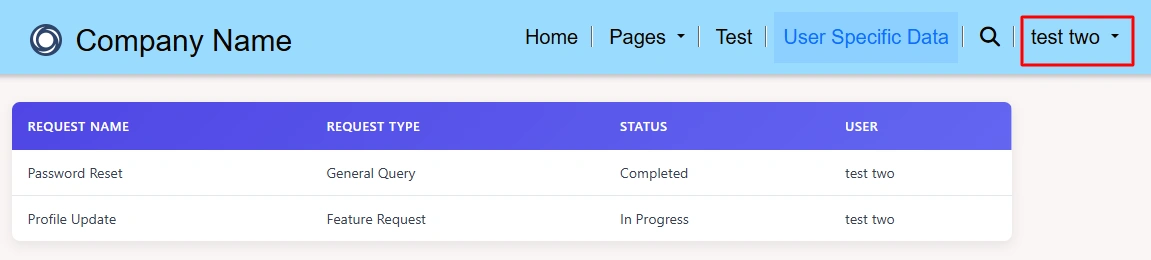
User Request Table
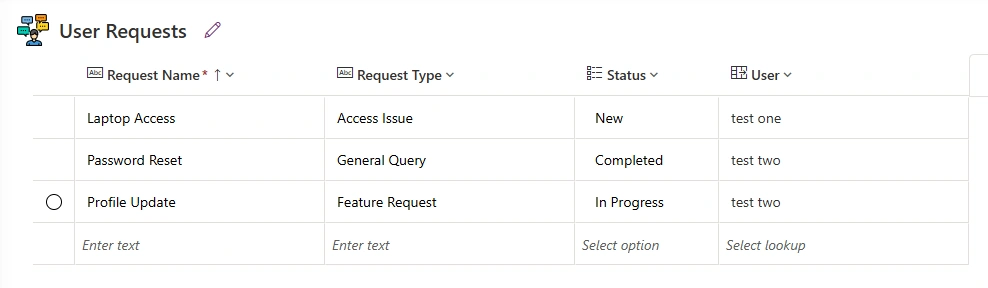
Test Scenarios
1 - Test one user logs in : it will see only records linked to test one user.
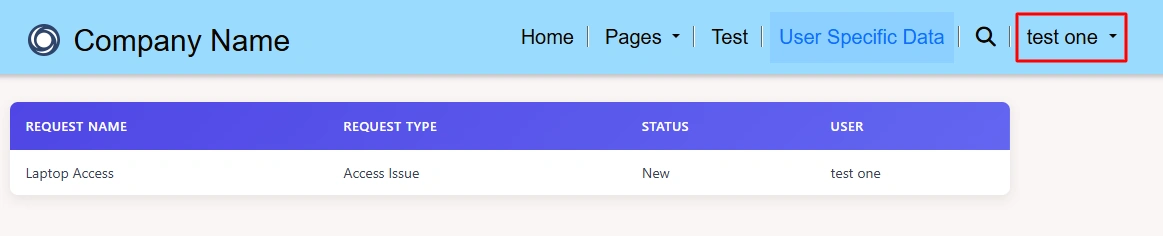
2 - Test two user logs in: it will see only records linked to test two user.
Conclusion
By using Liquid, Web API, and Contact-based table permissions, we can securely limit Dataverse records in Power Pages so that logged-in users see only their own data. This approach make sure proper data security, improves performance, and follows Microsoft-recommended best practices for building secure Power Pages applications.
Join the conversation! Your thoughts help the community grow.