

In this article you will see how to set item level permission using a NINTEX workflow in SharePoint.
Introduction
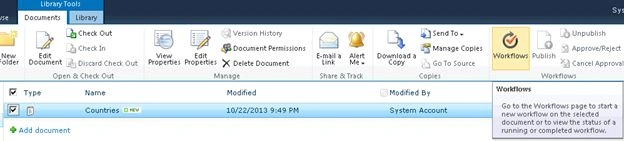
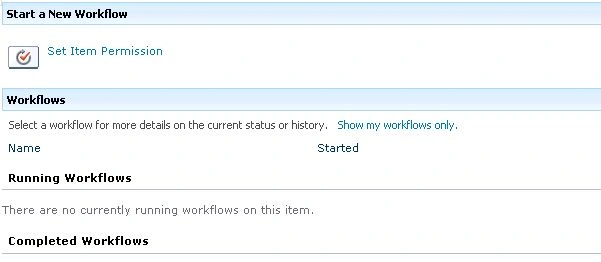
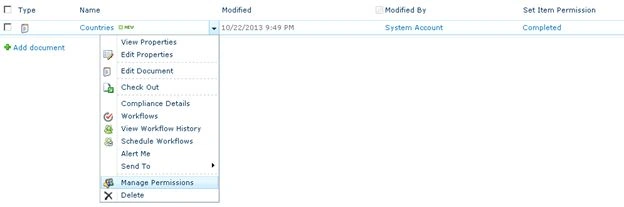
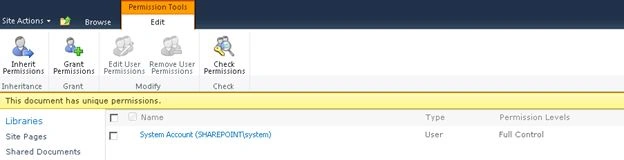
In this article you will see how to set item level permission using a NINTEX workflow in SharePoint. I want to set item level permission for the documents that are uploaded in the Shared Documents. I will stop inheriting permission from the parent and "Full Control" permission will be given to the "Created By" user to the document. This can be done using the "Set item permissions" NINTEX workflow action.
Set item permission workflow
The following will set the item permission workflow:
- Navigate to the Shared Documents.
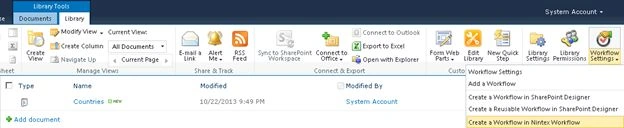
- Click on the "Library" tab and then click on "Workflow Settings".
- Click on "Create a Workflow" in the Nintex Workflow.
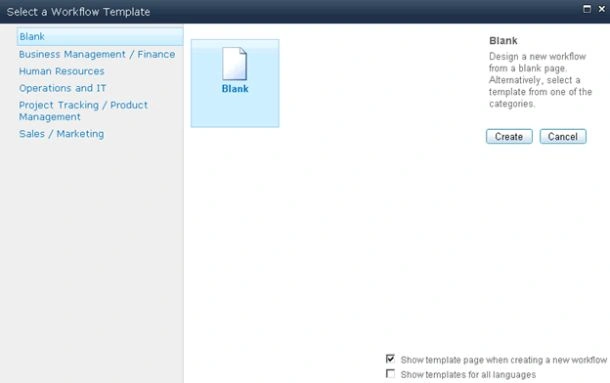
- Click on "Cancel".
- Drag and drop the "Set item permissions" action from the "Libraries and lists" section.
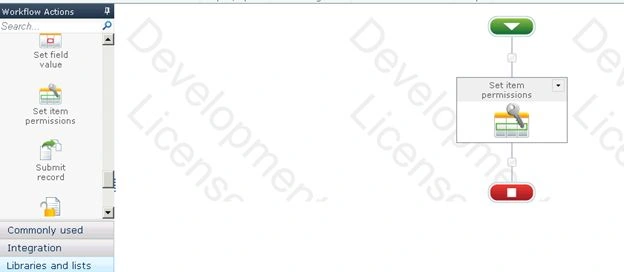
- Click on "Configure" from the drop down list in the "Set item permissions" action.
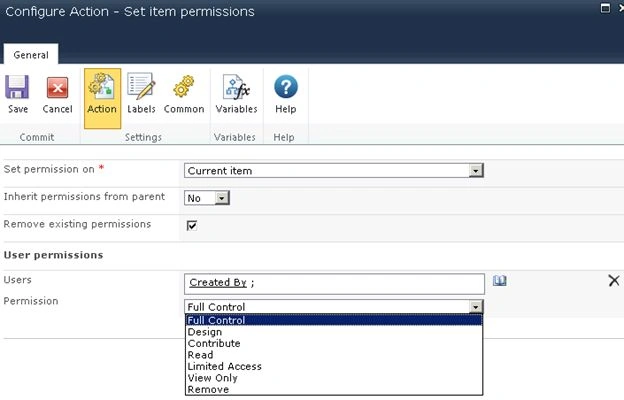
- Select "Current item" from the "Set permission" on the drop down list.
- Select "No" for the "Inherit permissions from parent".
- Click on the "Address book" button for users.
- Expand the Lookup section and click on the "Created by" property that is available under the Item properties.
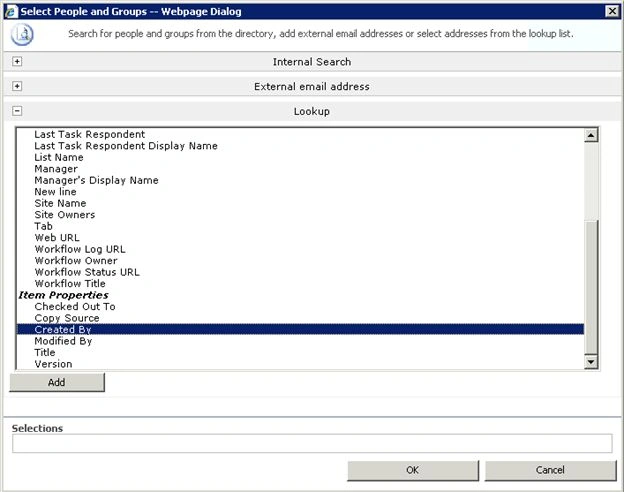
- Click on "Add".
- Click on "Ok".
- Select the permission level for the user and then click on "Save".
Publish the workflow

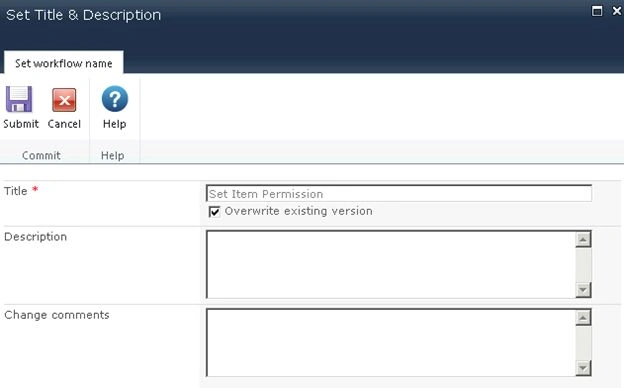
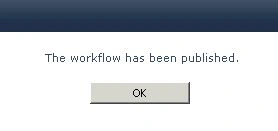
Neo AlphaPosted Feb 4, 2014, 12:37 AM
How do i add item level permission using workflow in share-point 2007?