

Introduction
In web development, there are many scenarios where you might want to show or hide content dynamically based on user interactions. This can be achieved using JavaScript, which allows you to manipulate the Document Object Model (DOM) in real time. In this article, we will walk through a step-by-step guide on how to create a simple yet effective show/hide functionality using HTML, CSS, and JavaScript. We will also discuss the importance of each part of the code and how they work together to achieve the desired result.
HTML Structure
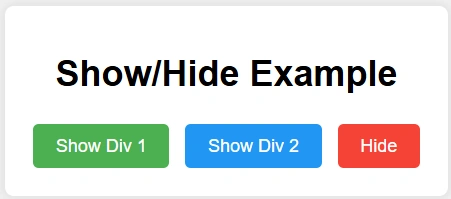
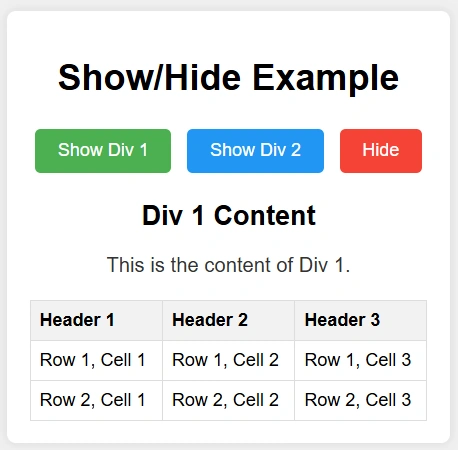
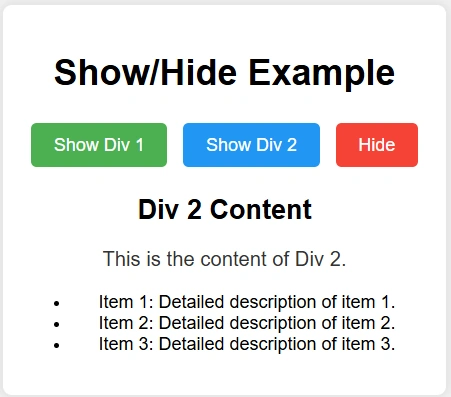
The HTML code defines the structure of the webpage, including the buttons and content sections. Each content section is wrapped in a div with a unique ID to allow for individual control, which will be present in the full code below.
First, let's start with the HTML structure. The HTML code provides the basic structure of the webpage, including the buttons and the content that will be shown or hidden.
<body>
    <div class="container">
        <h1>Show/Hide Example</h1>
        <button class="btn btn-show1" onclick="showContent('content1')">Show Div 1</button>
        <button class="btn btn-show2" onclick="showContent('content2')">Show Div 2</button>
        <button class="btn btn-hide" onclick="hideContent()">Hide</button>

        <div class="content" id="content1">
            <h2>Div 1 Content</h2>
            <p>This is the content of Div 1.</p>
            <table>

                <tr>
                    <th>Header 1</th>
                    <th>Header 2</th>
                    <th>Header 3</th>
                </tr>

                <tr>
                    <td>Row 1, Cell 1</td>
                    <td>Row 1, Cell 2</td>
                    <td>Row 1, Cell 3</td>
                </tr>

                <tr>
                    <td>Row 2, Cell 1</td>
                    <td>Row 2, Cell 2</td>
                    <td>Row 2, Cell 3</td>
                </tr>

            </table>
        </div>

        <div class="content" id="content2">
            <h2>Div 2 Content</h2>
            <p>This is the content of Div 2.</p>

            <ul>
                <li>Item 1: Detailed description of item 1.</li>
                <li>Item 2: Detailed description of item 2.</li>
                <li>Item 3: Detailed description of item 3.</li>

            </ul>
        </div>
    </div>

</body>
CSS Styling
The CSS code is used to style the HTML elements, making the webpage visually appealing. It includes styles for the container, buttons, and content sections.
JavaScript Code
The JavaScript code is responsible for the dynamic behavior of the webpage. It includes functions to show and hide the content based on user interactions.
Explanation
CSS Styling: The CSS code styles the webpage elements, ensuring a clean and modern look. It includes styles for the container, buttons, and content sections, making the UI visually appealing.
 body {

    font-family: Arial, sans-serif;
    background-color: #f0f0f0;
    display: flex;
    justify-content: center;
    align-items: center;
    height: 100vh;
    margin: 0;
}

.container {

    background-color: #fff;
    padding: 20px;
    border-radius: 8px;
    box-shadow: 0 0 10px rgba(0, 0, 0, 0.1);
    text-align: center;
}

.content {
    display: none;
    margin-top: 20px;
}

.btn {
    padding: 10px 20px;
    margin: 5px;
    border: none;
    border-radius: 5px;
    cursor: pointer;
    font-size: 16px;
}

.btn-show1 {
    background-color: #4CAF50;
    color: white;

}

.btn-show2 {
    background-color: #2196F3;
    color: white;
}

.btn-hide {
    background-color: #f44336;
    color: white;
}

.content img {
    max-width: 100%;
    height: auto;
    border-radius: 8px;
}

.content p {
    font-size: 18px;
    color: #333;
}

.content table {
    width: 100%;
    border-collapse: collapse;
    margin-top: 20px;
}

.content table, .content th, .content td {
    border: 1px solid #ddd;
}

.content th, .content td {
    padding: 8px;
    text-align: left;
}

.content th {
    background-color: #f2f2f2;
}
JavaScript Functions
The JavaScript code includes two functions: showContent and hideContent. The showContent function takes a divId parameter, hides all content sections, and then displays the specified content section. The hideContent function hides all content sections.
function showContent(divId) {
    document.getElementById('content1').style.display = 'none';
    document.getElementById('content2').style.display = 'none';
    document.getElementById(divId).style.display = 'block';
}

function hideContent() {

    document.getElementById('content1').style.display = 'none';
    document.getElementById('content2').style.display = 'none';

}
Full Code
Join the conversation! Your thoughts help the community grow.