

When integrating SharePoint and Dataverse using Power Automate, mapping Choice columns can be confusing. Although both platforms display the same labels (such as Approved, Pending, or Rejected), Dataverse stores Choice values as integers, while SharePoint provides the label as text.
Because of this difference, directly mapping a SharePoint Choice column to a Dataverse Choice column often results in errors or incorrect data.
In this article, we'll learn how to correctly map SharePoint Choice values to Dataverse Choice values using Power Automate.
Goal
Create choice values from SharePoint to Dataverse table.
As i have choice column in SharePoint Document Library and same i have choice column in Dataverse table.
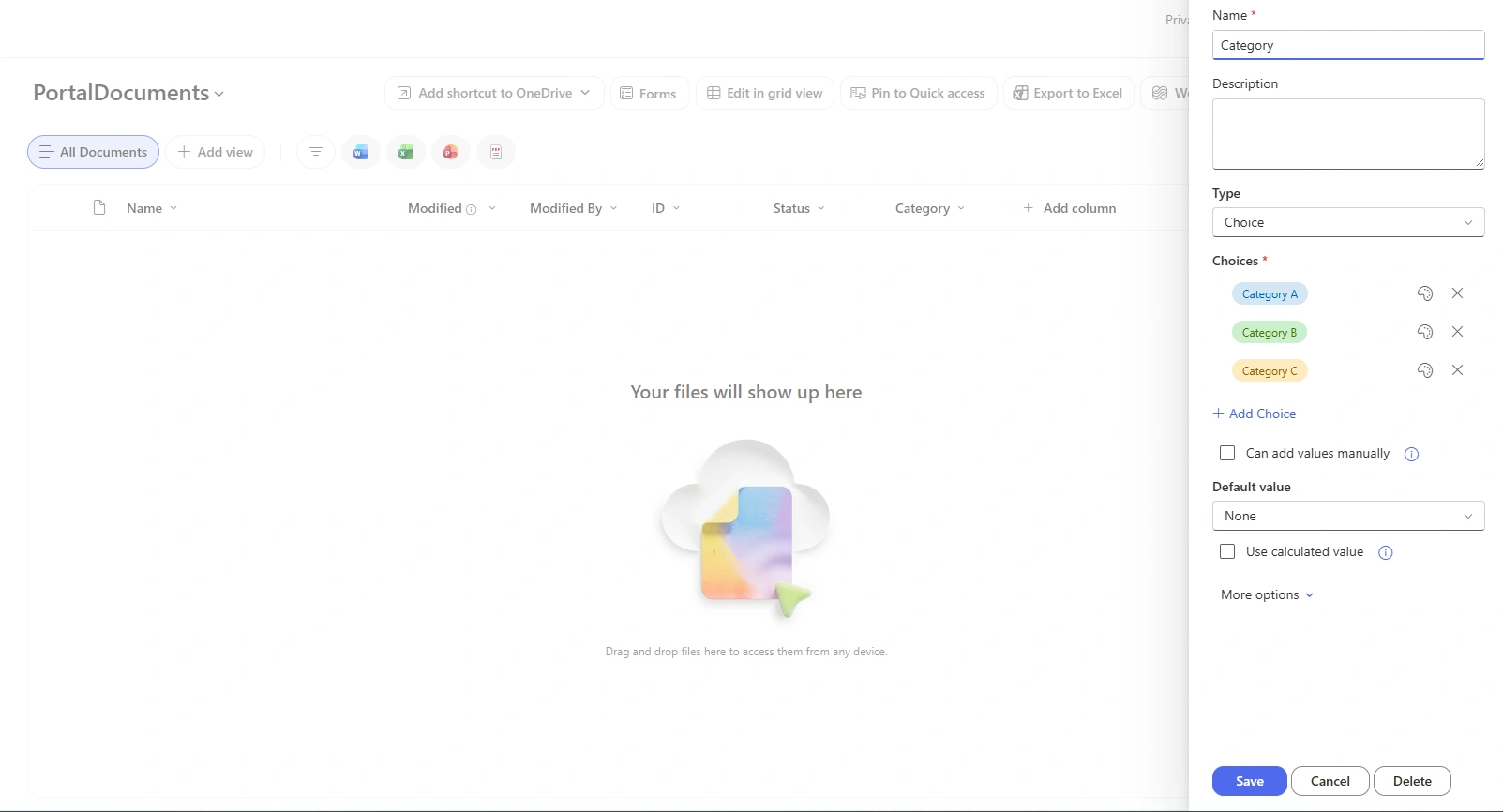
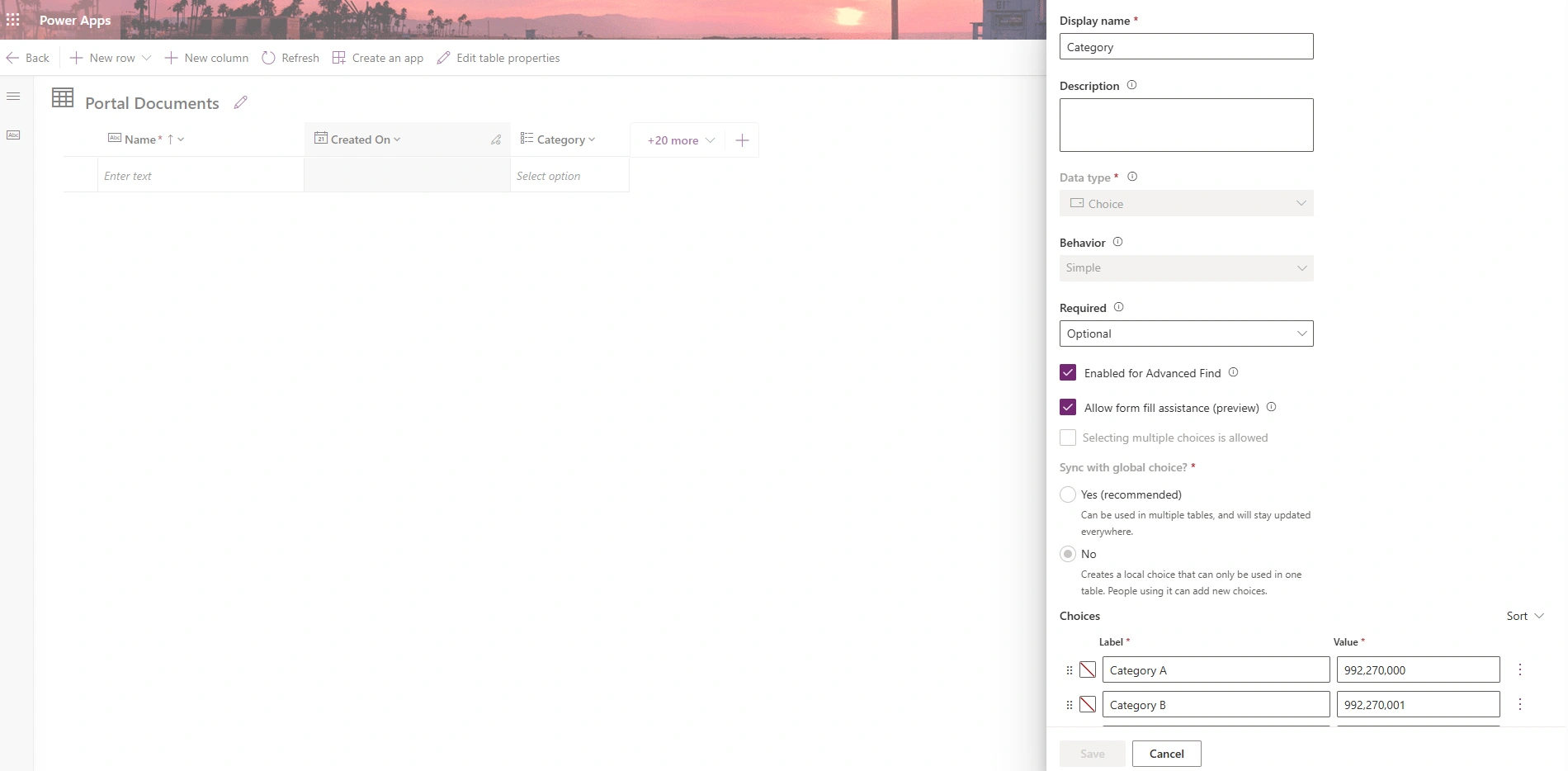
Stepwise Implementation
Create a power automate flow, as you can choose any flow type based on your requirement
After that, add Dataverse action - list rows and enter string map table. (an Internal system table for choice columns)
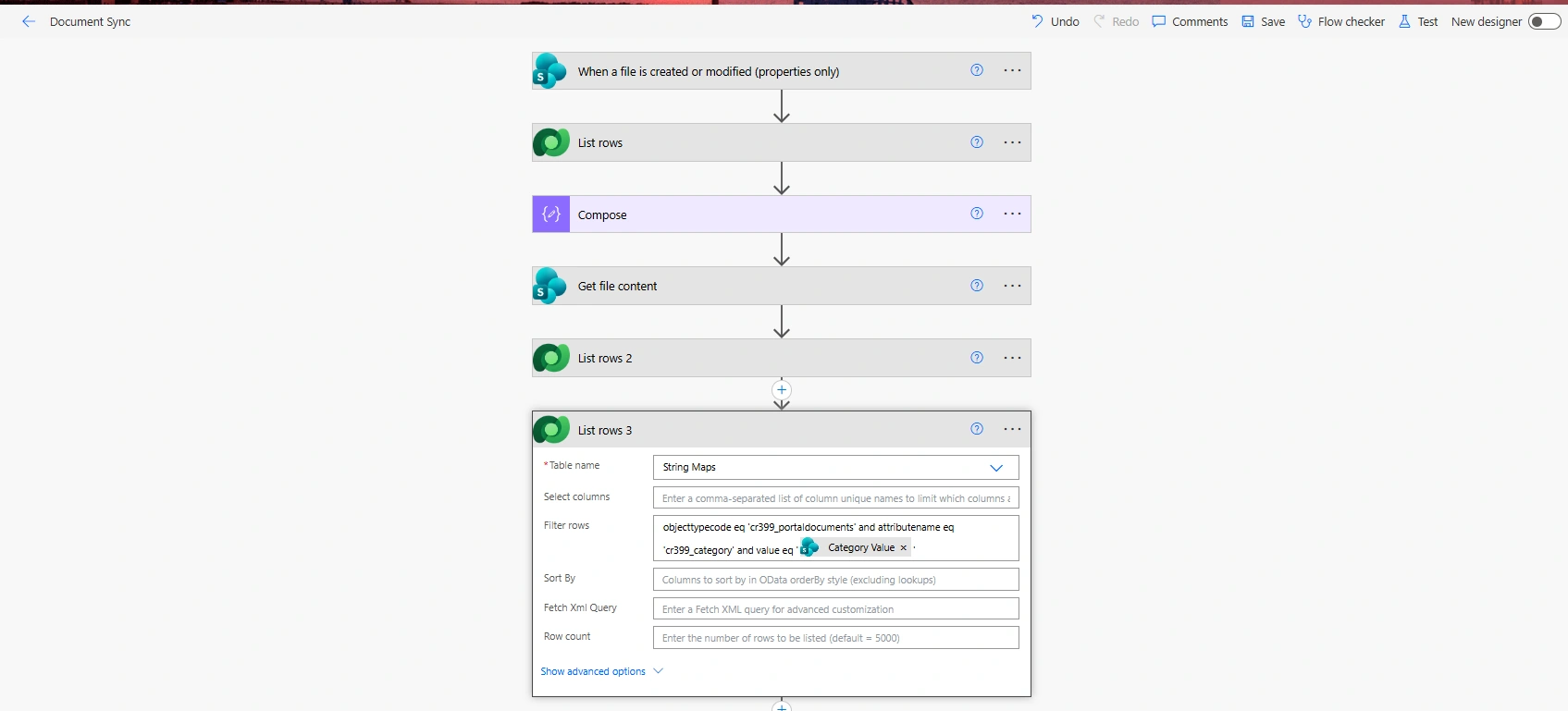
Understanding Query
objecttypecode eq 'cr399_portaldocuments' and attributename eq 'cr399_category' and value eq '@{triggerOutputs()?['body/Category/Value']}'where cr399_portaldocuments is logical name of dataverse table.
cr399_category is logical name of choice column.
value is choice value from sharepoint document library.
Add dataverse action based on your need whether you want to update or add new in dataverse table, here i have added - Add new row.
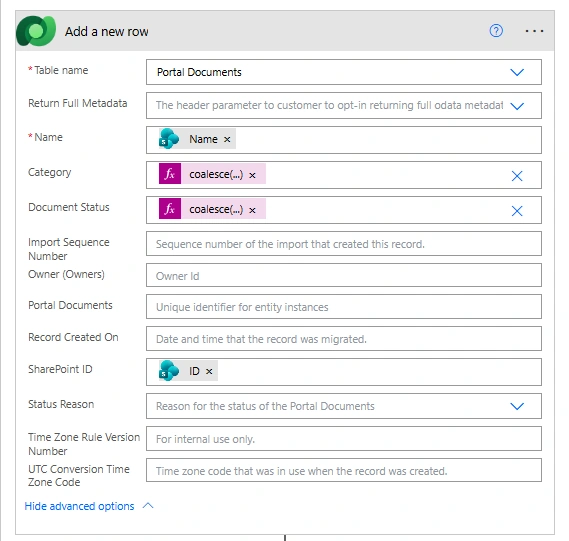
Where i have written this expression for Category (Choice) -
coalesce(first(outputs('List_rows_3')?['body/value'])?['attributevalue'],null)
Sample Response of list rows - string map table
 "value": [
      {
        "@odata.etag": "W/\"9683177\"",
        "[email protected]": "1,033",
        "langid": 1033,
        "value": "Category B",
        "attributename": "cr399_category",
        "organizationid": "d75684od8b-afcc-ef11-b8e4-6045bd056903",
        "[email protected]": "2",
        "displayorder": 2,
        "[email protected]": "Portal Documents",
        "objecttypecode": "cr399_portaldocuments",
        "stringmapid": "3bd6768e-8c90-f111-8077-7ced8d7128ed",
        "[email protected]": "9,683,177",
        "versionnumber": 9683177,
        "[email protected]": "992,270,001",
        "attributevalue": 992270001
      }
    ]
Conclusion
Here we have learnt how we can Sync SharePoint Choice values with Dataverse Choice columns can be achieved efficiently by using the StringMap table in Power Automate. Instead of hardcoding Choice values or maintaining manual mappings, the StringMap table provides the corresponding Dataverse integer value for a given Choice label.
Join the conversation! Your thoughts help the community grow.