

Introduction
In this article, we will learn how to add color picker in the Vue.js application.
Prerequisites
- Basic knowledge of Vue.js
- Visual Studio Code IDE should be installed on your system.
- Basic knowledge of HTML and CSS
Create Vue.js project
Create a Vue.js project by using the following command.
vue create multiselectdropdown
Open the newly created project in Visual Studio Code and install Synfusion colorpicker library using the following command.
npm install @syncfusion/ej2-vue-inputs
Now Open , 'App.vue'. Add the following code to this component.
<template>
  <div class="col-lg-12 control-section">
    <div class="row" style="margin:10px">
      <div class="col-sm-12 btn btn-info">How to use ColorPicker In Vue.js </div>
    </div>
    <div id="colorpicker-control">
      <div class="row">
        <h4>Choose a color</h4>
        <ejs-colorpicker id="color-picker"></ejs-colorpicker>
      </div>
    </div>
  </div>
</template>
<!-- custom code start -->
<style scoped>
    #colorpicker-control {
        margin: 30px auto;
        padding-top: 50px;
        text-align: center;
    }
    #colorpicker-control .row {
        width: 100%;
    }
    #colorpicker-control h4 {
        margin-bottom: 20px;
    }
    .fluent-dark #colorpicker-control h4 {
        color: #fff;
    }

    .e-bigger #colorpicker-control h4 {
        font-size: 20px;
    }
</style>
<script>
import { ColorPickerComponent } from "@syncfusion/ej2-vue-inputs";

export default {
    components: { 'ejs-colorpicker': ColorPickerComponent }
};
</script>
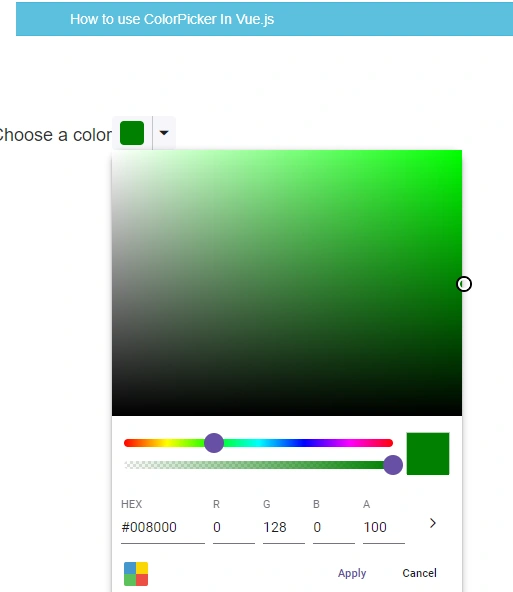
Now run the project using the 'npm run serve' command.
Summary
In this article, we learned how to add Color picker in the Vue.js application.
Join the conversation! Your thoughts help the community grow.