

Introduction
What is IFTTT?
-
Channels
Channels are the basic building blocks of IFTTT. Each Channel has its own Triggers and Actions. - Triggers The ‘this’ part of a Recipe is a Trigger. Some examples Triggers are “I’m tagged in a photo on Facebook” or “I check in on Foursquare".
- Actions
The ‘that’ part of a Recipe is an Action. Some examples of Actions are “send me a text message” or “create a status message on Facebook”.
- Ingredients
Pieces of data from a Trigger are called Ingredients. For example, the Ingredients of an Email Trigger could be: subject, body, attachment, received date, and the sender’s address.
- Recipes
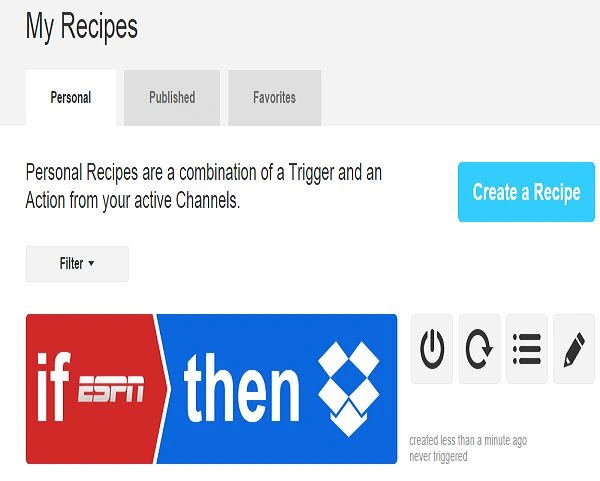
Personal Recipes are a combination of a Trigger and an Action from your active channels.
- On / Off
Personal Recipes can be turned on and off. When turned back on, they pick up as if you had just created them. - Polling Period
Most Personal Recipes check for new Trigger data every 15 minutes, some are even faster. Let’s look at the process of creating an IFTTT service.
- Firstly, you need to sign or register for the service from here.
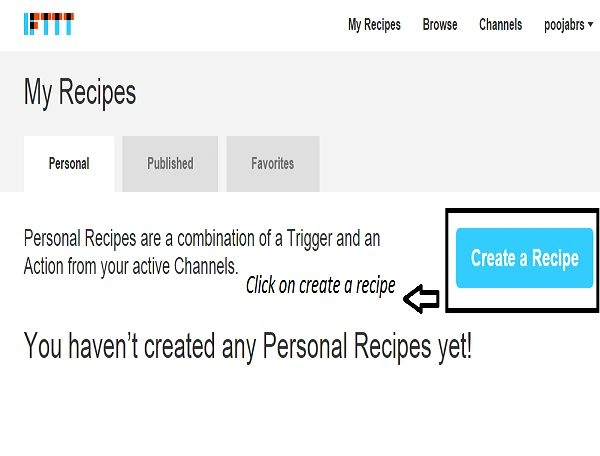
To start with you need to create a recipe.
- Conditional statements to start with THIS option. It is a way to create the logic of the web service we are planning to do the whole process of creating a recipe goes through a series of steps. THIS is a start point of activating the trigger. After that, you are followed by activating the trigger.
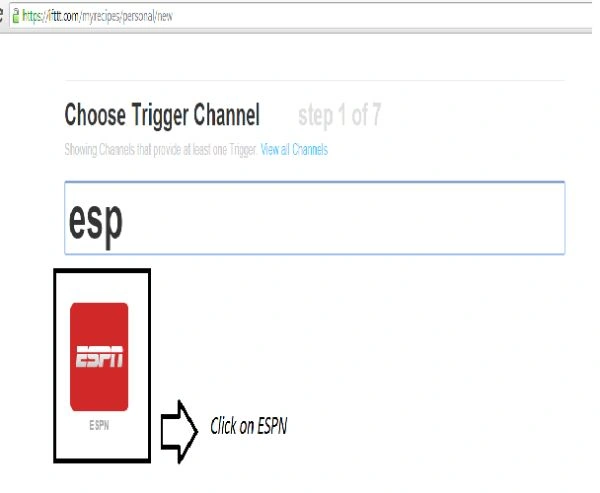
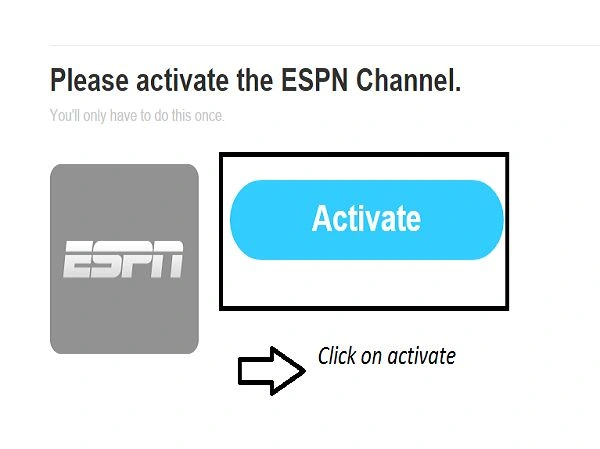
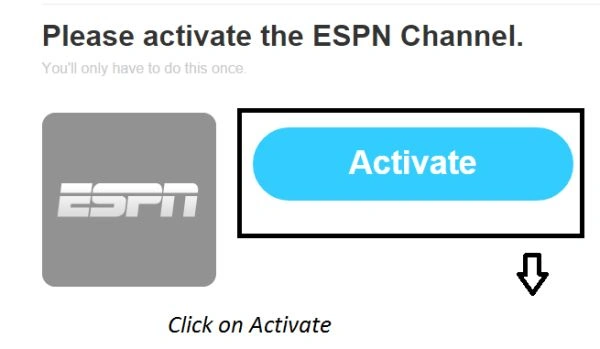
- Now you have to select a channel for a trigger. There are about 148 channels to choose from. As you choose the channel you need to activate the channel for the trigger.
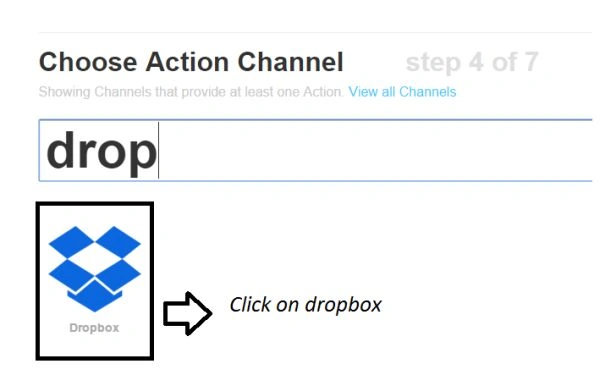
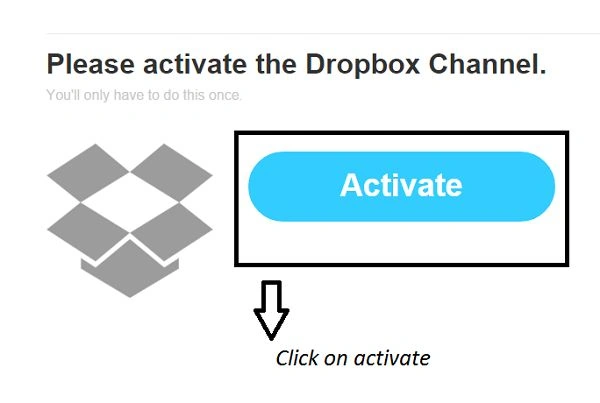
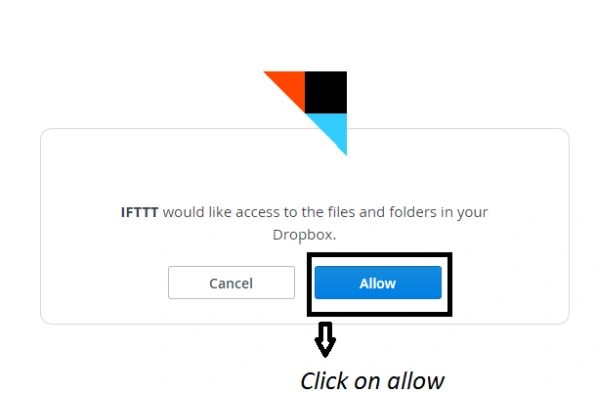
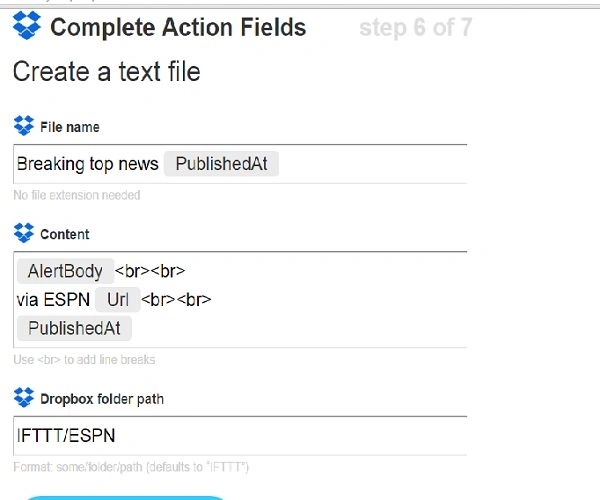
- To complete the logic of THAT we need to create an Action channel. You have to choose from the Action channels available. We need to fill up the Action fields then create the Action and the logic of the Web Service will be complete.
Here is the flow of the entire logic
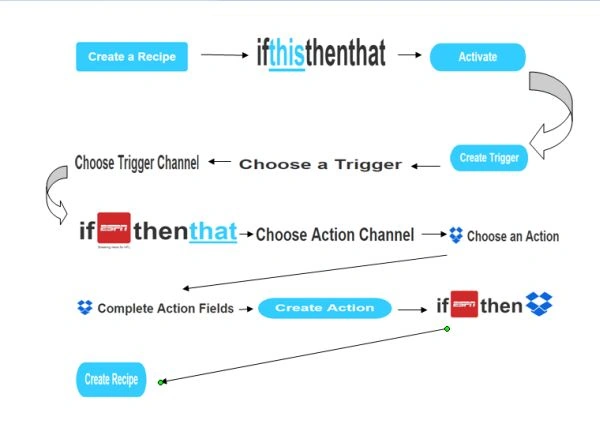 Now what we will do is create a simple web service with IFTTT to see what we can do with it.
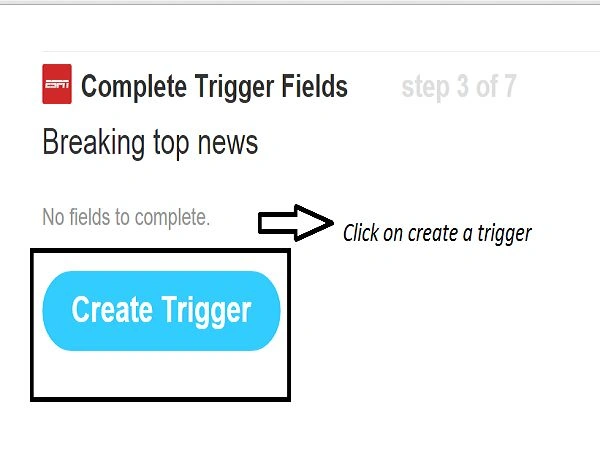
We will go through creating a trigger.
We follow the same methodology with Conditional Statements
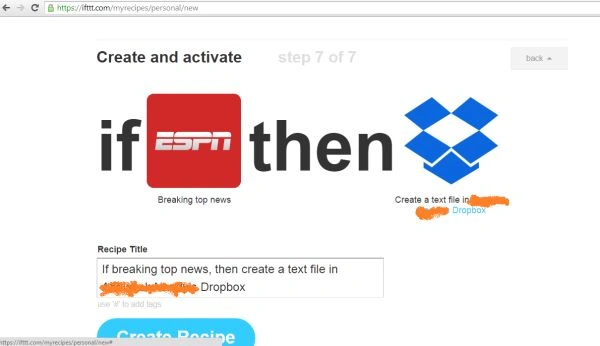
where IF is our ESPN Channel and that is our Dropbox service.
Step 1: Joining the IFTTT service.
Now what we will do is create a simple web service with IFTTT to see what we can do with it.
We will go through creating a trigger.
We follow the same methodology with Conditional Statements
where IF is our ESPN Channel and that is our Dropbox service.
Step 1: Joining the IFTTT service.
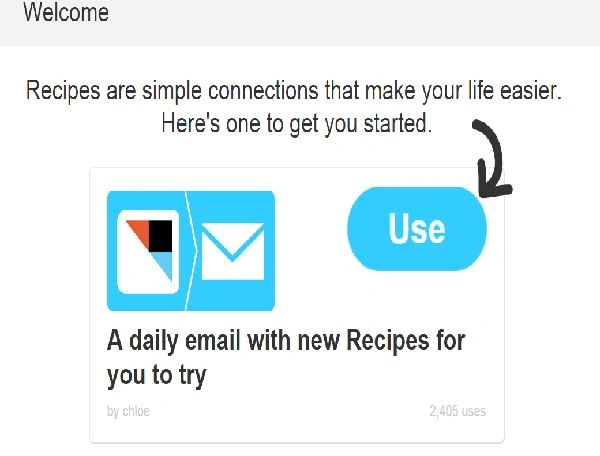
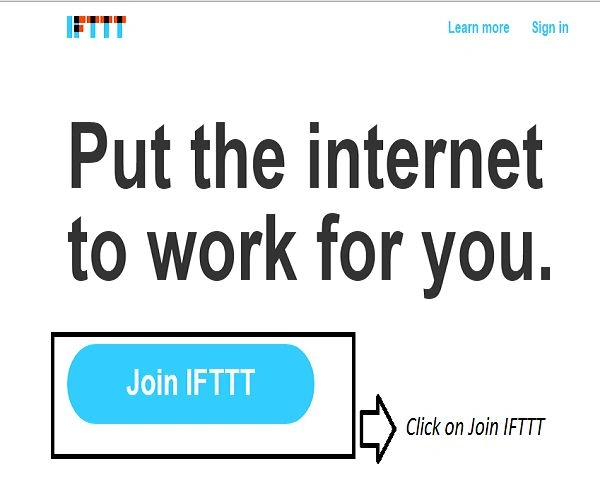 Step 2: You need to create an account:








- A hosted Website(using Visual Studio)
- Dropbox account
- Arduino/Intel Galileo Board
- Button
- Hookup Board, Resistors and mini Bread board
As I don’t have an Arduino/Galileo board here with me now I will not be able to test it but as soon I get one my work will continue. This is the logic behind working of IFTTT with Arduino and we have referenced it from Bigbutton.com and Instructables.com.
TIPS AND TRICKS
- The whole process of creating a recipe involves using the Conditional statements IF and THAT
- You can easily use the web service and start talking to IoT based devices
- Remember you cannot use the same Channels for IF and THAT conditional Statements.
- IFTTT comprises of certain buttons for the service
Turn recipe off-> It will turn off the recipe we are using.
Check recipe now-> It checks the working of the recipe. When you click the button it will show a green light that suggests the recipe is working.
View recipe logs-> It will show the logs of the recipe when it was triggered.
Edit recipe, delete, view its logs-> This will show the total working of the recipe and all possible modifications we can do.
References
- https://ifttt.com/
- http://www.instructables.com/id/E-mail-Button-Connecting-Arduino-to-IFTTT-to-send-/?ALLSTEPS
- http://bigbuttonfun.com/content/email-button-connecting-arudino-ifttt-and-beyond
Harshad PansuriyaPosted Nov 1, 2015, 10:57 PM
Nice one
Mahesh ChandPosted Nov 1, 2015, 11:54 AM
There is also an app.
Praveen KumarPosted Nov 1, 2015, 11:47 AM
Nice