

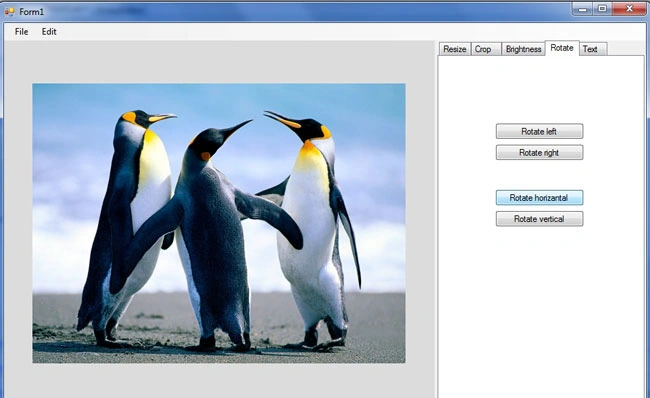
This article is the next part of how to make an image editor in VB.Net. In this article we will discuss how to rotate and flip an image and save it.
Form Designer:
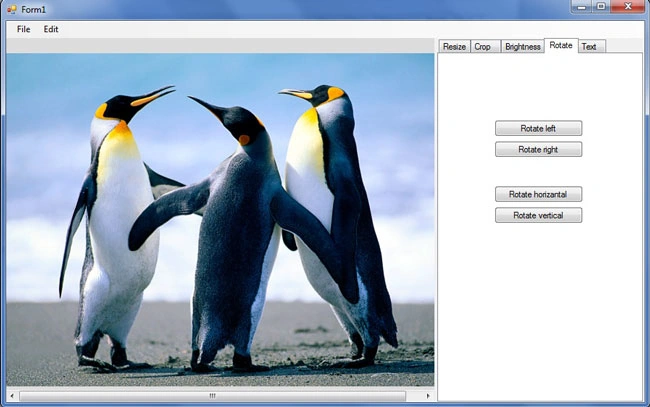
Put four buttons on the form like this:
Code:
We are using here the RotateFlip() method for rotaing images. The RotateFlip method accepts the RotateFlipType enumeration that has these members (Ref: MDSN):
|
Rotate90FlipNone |
Specifies a 90-degree clockwise rotation without flipping. |
|
Rotate180FlipNone |
Specifies a 180-degree clockwise rotation without flipping. |
|
Rotate270FlipNone |
Specifies a 270-degree clockwise rotation without flipping. |
|
RotateNoneFlipX |
Specifies no clockwise rotation followed by a horizontal flip. |
|
Rotate90FlipX |
Specifies a 90-degree clockwise rotation followed by a horizontal flip. |
|
Rotate180FlipX |
Specifies a 180-degree clockwise rotation followed by a horizontal flip. |
|
Rotate270FlipX |
Specifies a 270-degree clockwise rotation followed by a horizontal flip. |
|
RotateNoneFlipY |
Specifies no clockwise rotation followed by a vertical flip. |
|
Rotate90FlipY |
Specifies a 90-degree clockwise rotation followed by a vertical flip. |
|
Rotate180FlipY |
Specifies a 180-degree clockwise rotation followed by a vertical flip. |
|
Rotate270FlipY |
Specifies a 270-degree clockwise rotation followed by a vertical flip. |
|
RotateNoneFlipXY |
Specifies no clockwise rotation followed by a horizontal and vertical flip. |
|
Rotate90FlipXY |
Specifies a 90-degree clockwise rotation followed by a horizontal and vertical flip. |
|
Rotate180FlipXY |
Specifies a 180-degree clockwise rotation followed by a horizontal and vertical flip. |
|
Rotate270FlipXY |
Specifies a 270-degree clockwise rotation followed by a horizontal and vertical flip. |
Join the conversation! Your thoughts help the community grow.