

This is the next article of the 'How to make Image editing tool' project. In first article we have learnt how to show or open image file in our vb.net application with very professionally look.
Image Editing Tool in VB.Net: Part 1
Now in this article we will learn about resizing
of the image
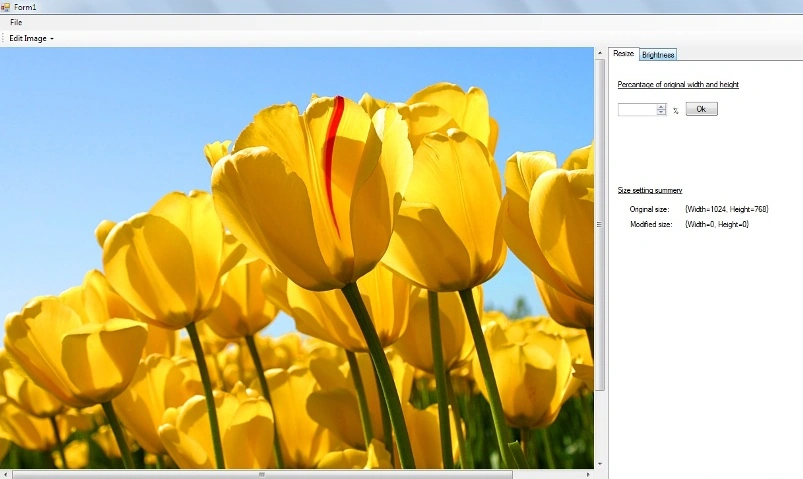
Design Right panel with the help of tabcontrol, and DomainUpDown control, so
that user can input percentage of original size of image
Put the values 1 to 1000 in domainupdown control
Private Sub BindDomainIUpDown()
For i As Integer = 1 To 999
DomainUpDown1.Items.Add(i)
Next
DomainUpDown1.Text = 100
End Sub
We declare two another variables modifiedSize and originalSize, OriginalSize refers to original width and height of image and modifiedSize refers to width and height of image after DomainUpDown control's value selection.
Private OriginalImageSize As Size
Private ModifiedImageSize As Size
We can calulate original size of the image like this
Dim imgWidth As Integer = Img.Width
Dim imghieght As Integer = Img.Height
OriginalImageSize = New Size(imgWidth, imghieght)
And modifiedSize:
Private Sub DomainUpDown1_SelectedItemChanged(ByVal sender As System.Object, ByVal e As System.EventArgs) Handles DomainUpDown1.SelectedItemChanged
Dim percentage As Integer = 0
Try
percentage = Convert.ToInt32(DomainUpDown1.Text)
ModifiedImageSize = New Size((OriginalImageSize.Width * percentage) \ 100, (OriginalImageSize.Height * percentage) \ 100)
SetResizeInfo()
Catch ex As Exception
MessageBox.Show("Invalid Percentage")
Exit Sub
End Try
End Sub
Resizing image:
Now We have to resize image according to modifiedSize
Private Sub btnOk_Click(ByVal sender As System.Object, ByVal e As System.EventArgs) Handles btnOk.Click
Dim bm_source As New Bitmap(PictureBox1.Image) ' Make a bitmap for the result.
Dim bm_dest As New Bitmap(CInt(ModifiedImageSize.Width), CInt(ModifiedImageSize.Height))
' Make a Graphics object for the result Bitmap.
Dim gr_dest As Graphics = Graphics.FromImage(bm_dest) ' Copy the source image into the destination bitmap.
gr_dest.DrawImage(bm_source, 0, 0, bm_dest.Width + 1, bm_dest.Height + 1) ' Display the result.
PictureBox1.Image = bm_des
End Sub
Picturebox will show image after resizing
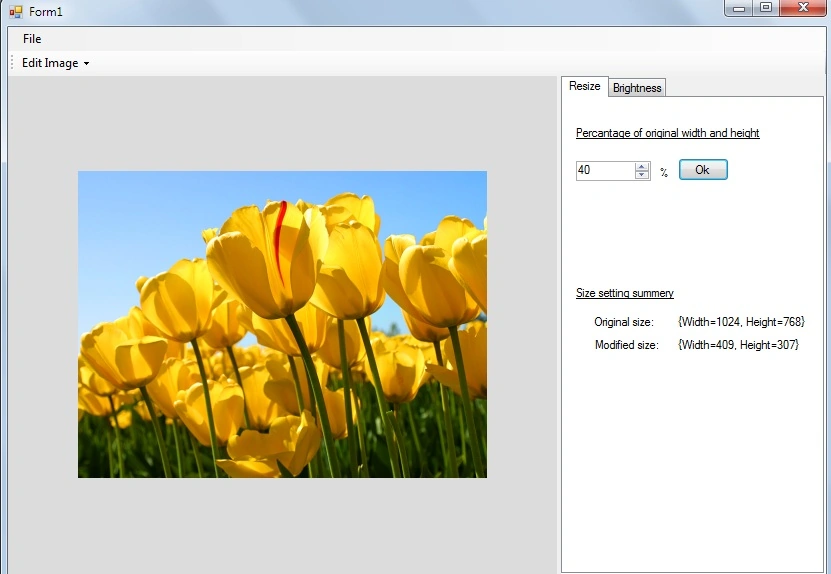
So this is very easy to do this you can download sourcecode for better
understanding.
Join the conversation! Your thoughts help the community grow.