

In SharePoint 2013 when we create a new site you would have seen the nicely arranged tiles on the home page of the site. SharePoint 2013 brought in a new list template called Promoted Links. Using this template it is possible to promote some of the important links to the site’s home page. Below you can see the default Tile view in a newly created SharePoint 2016 Site.

Implementation of the above Tiles View is a two-step process.
- Create a promoted Links List.
- Add the Promoted Links List web part to the SharePoint Page.
Step 1: Add the promoted links app.
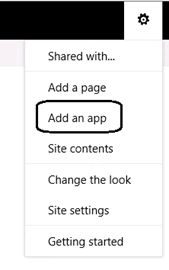
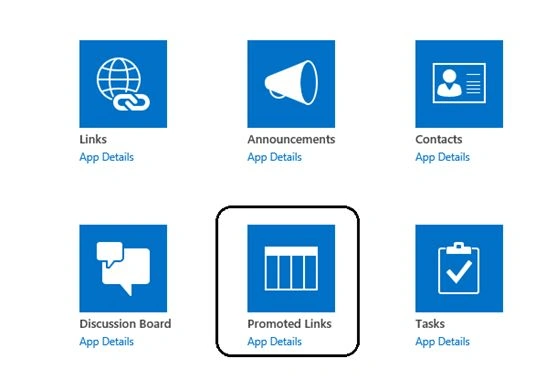
From the top bar Settings menu click on add an app and select Promoted Links.
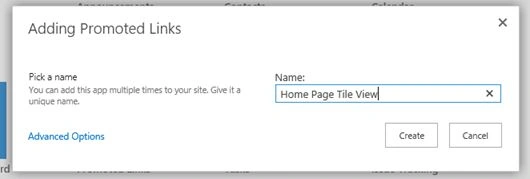
Specify a name for the Promoted Links app.
The new app has come up in the site contents.
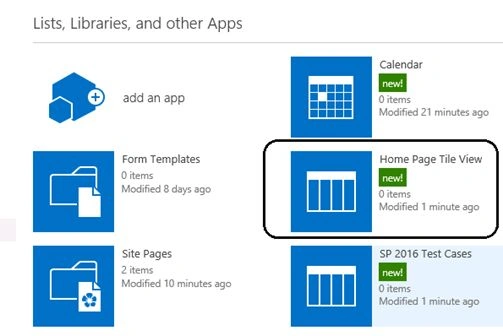
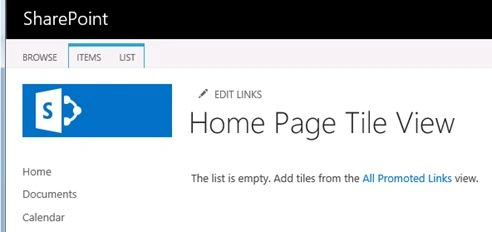
On Clicking the app It shows the below screen. It is currently empty lets add links to the app.
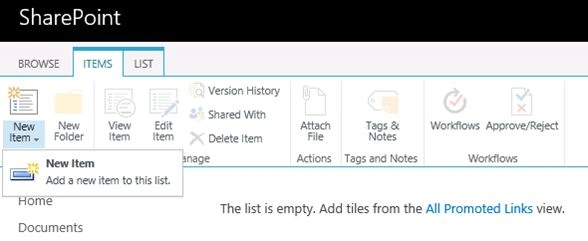
Click on Items menu and select the New Item option from it.
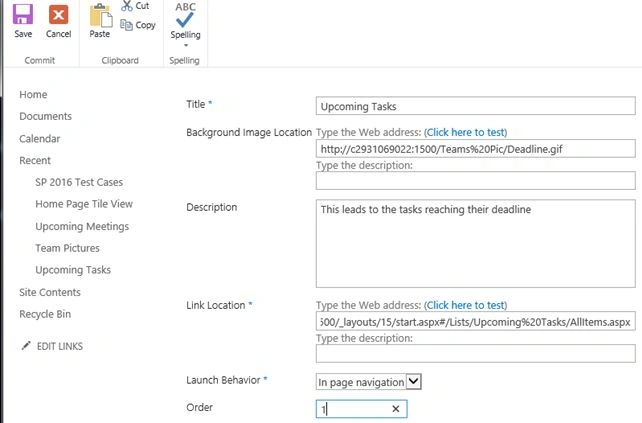
Fill up the following values in the New Form:
- Title will be the link name that appears over the tile image.
- Background Image Location is the tile image that will be displayed on the page.
- Description is the short overlay description that appears over the tile image when you hover over it.
- Link Location is the hyperlink to which the control should navigate to, upon clicking the image.
- Launch behavior specifies how the new hyperlink page should open up when the image is clicked.
- Order indicates the chronological order of the image in the tiles list.
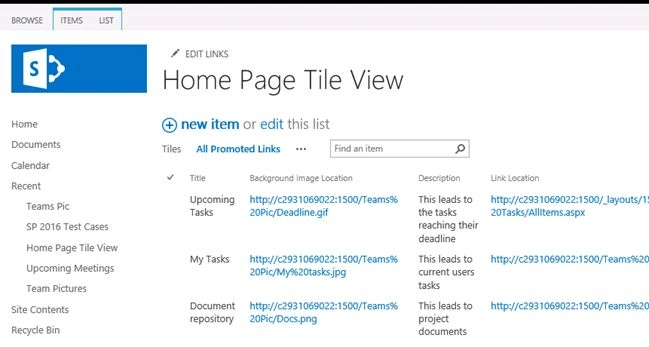
Similarly add the remaining links by clicking on the new item. Once all the links have been added, the list will now look like the following:
Now let’s add the Web part to the home page and see how the look and feel is like.
Step 2: Add the Promoted Links Web part on to the page.
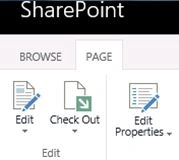
Click on ‘Page’ menu item and select ‘Edit’.
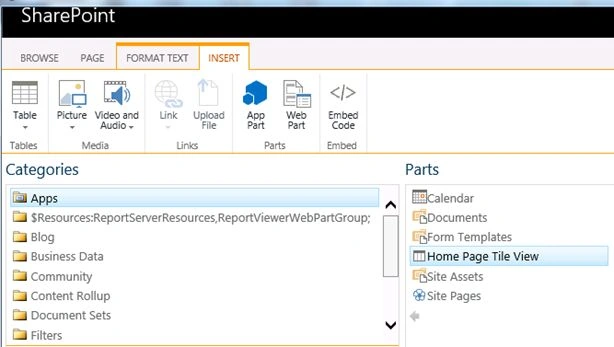
From ‘Insert’ click on ‘Web part’.

From ‘Apps’ select the recently created Promoted Links App ‘Home Page Tile View’ and ‘Add’ it to the page.
The Promoted link list will be displayed as a tile view as in the following screenshot:

Thus the links are shown in a cool tile view format. However as you can see when the number of items in the list exceeds 6 there is a scroll bar that come up towards the right which is not that cool. This is a default SharePoint behavior. However we have workarounds for this which will be discussed in one of the upcoming article.
In this article we saw how to create a promoted links list and display it as a tiles view web part in the SharePoint Page.
Santhakumar MunuswamyPosted Oct 18, 2015, 5:24 AM
Good one
Ankit BansalPosted Oct 8, 2015, 12:51 AM
nice one..
Rupali ShindePosted Oct 8, 2015, 12:13 AM
good 1 ..
Vinodh NarayananPosted Oct 7, 2015, 1:19 PM
Thanks for sharing
Rajeesh MenothPosted Oct 7, 2015, 11:25 AM
Thanks for sharing
Priyaranjan K SPosted Oct 7, 2015, 9:25 AM
Thanks Nilesh Jadav
Rahul SuryawanshiPosted Oct 7, 2015, 9:24 AM
Nice!
Nilesh JadavPosted Oct 7, 2015, 9:15 AM
good !
Priyaranjan K SPosted Oct 7, 2015, 8:53 AM
Thanks Harshad Pansuriya
Harshad PansuriyaPosted Oct 7, 2015, 7:16 AM
Nice one