

Introduction
In this article, I will explain how to install Windows 8 on VMware Player. Before installing Windows 8, we first install the VMware Player. VMware player is the virtual machine running on Windows 7 that provides the Windows 8 Preview. The Windows 8 Preview is straight forward and uneventful. VMware Player is a simple way to run multiple operating systems in your system at the same time. The VMware Player supports Windows 8 as a guest operating system. The latest version of VMware 4.0 supports the Windows 8 Developer Preview and supports the 64 GB memory for the guest operating system.
Step by step installation of the Windows 8 on VMware Player
Now first install the VMware Player. With the help of the following link, you can download the VMware player and follow the instruction.
Download the VMware Player from http://downloads.vmware.com/d/info/desktop_end_user_computing/vmware_player/4_0
Download the Windows 8 Consumer Preview from http://windows.microsoft.com/en-IN/windows-8/download
After installing the VMware player, the following are step by step instructions for installing Windows 8.
Step 1
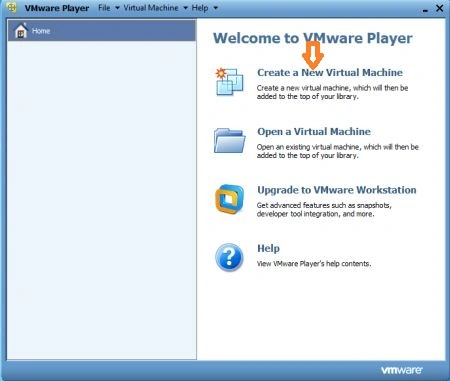
In step 1 you run the VMware Player and click in the right pane on the new virtual machine and go to the next step.
Step 2
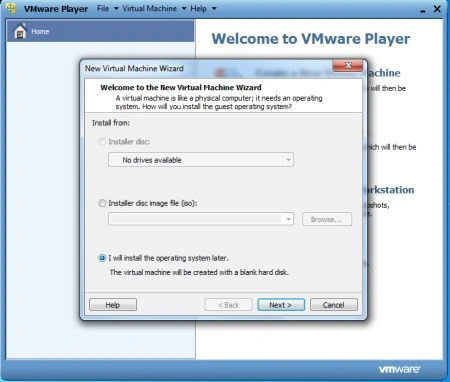
In this step, show the new virtual machine wizard and click on install the operating system then click on next.
step 3
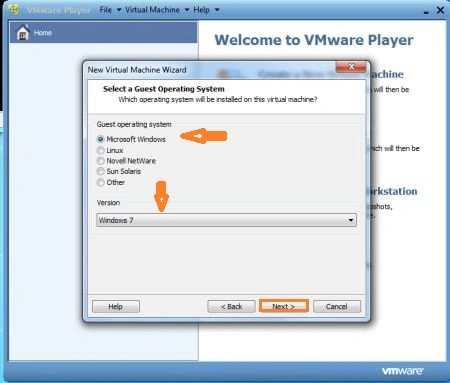
In this step show the guest operating system and choose the Microsoft Windows and select the version Windows 7 (if have a 32 bit) and then click on next.
Step 4
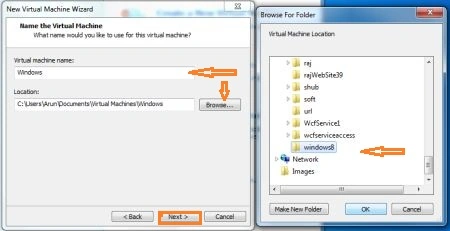
In this step type the virtual machine name like Windows 8 and click Browse the location and select the folder that you want to install to and then click on next.
Step 5
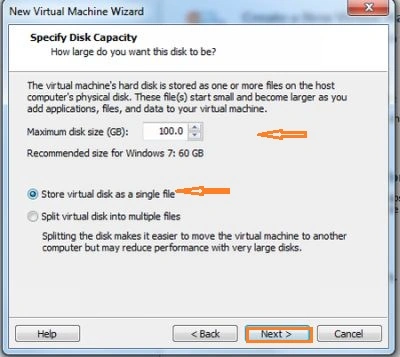
In this step, specify the disk capacity and that you want to maximize the virtual size virtual disk and select the virtual disk and click on next.
Step 6
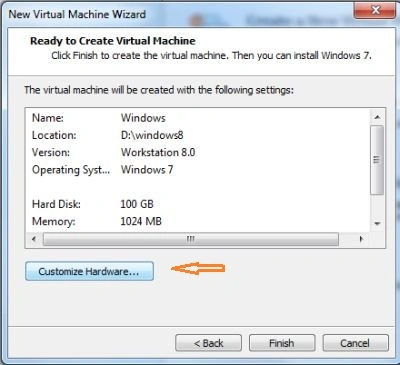
In this step, show the ready to create a virtual machine and click on the customize hardware button.
Step 7
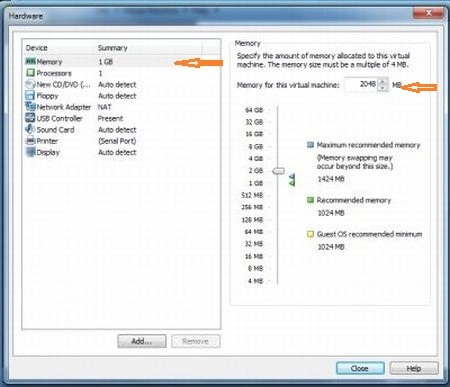
In this step click on memory and select in your computer capacity.
Step 8
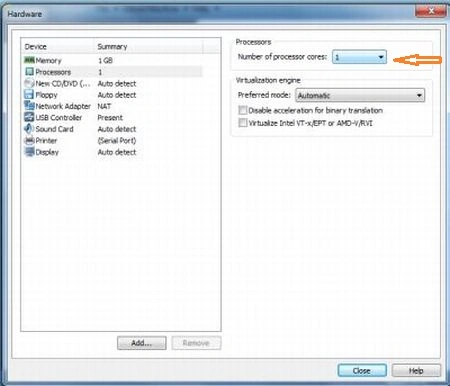
In this step click on the processor and select how many computer processors and select the number of processor cores.
Step 9
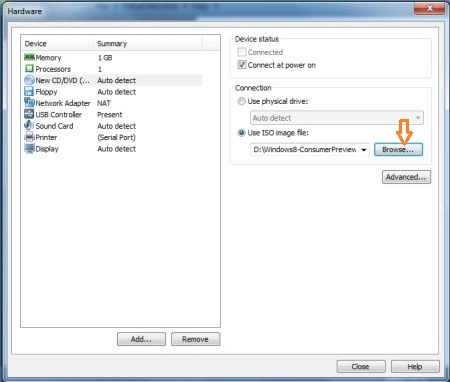
In this step click on CD/DVD click (dot) use the image file and click to browse and select the Windows 8 and then close.
Step 10
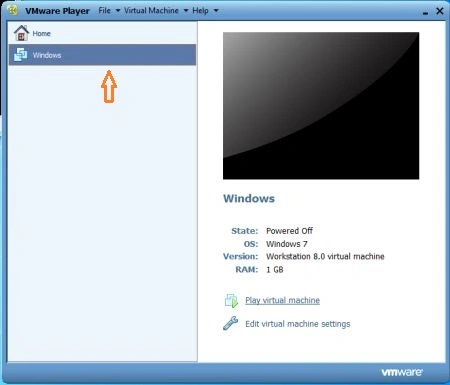
In this step, double-click on Windows 8 to start the Windows 8 Consumer Preview.
Step 11
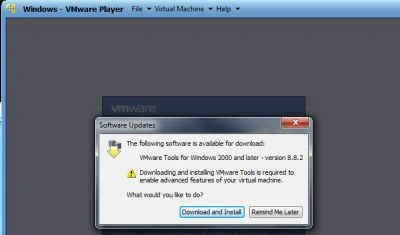
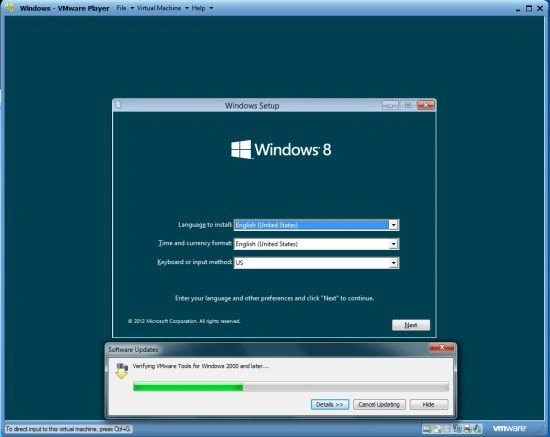
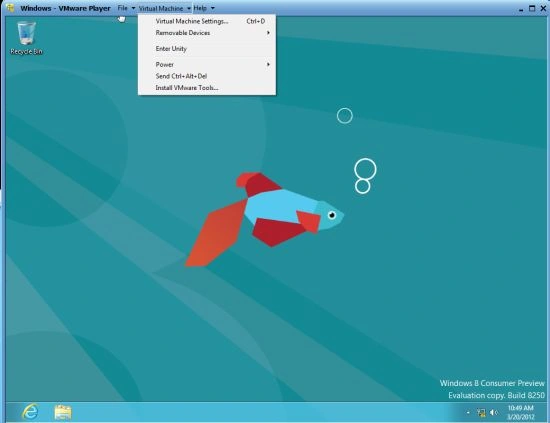
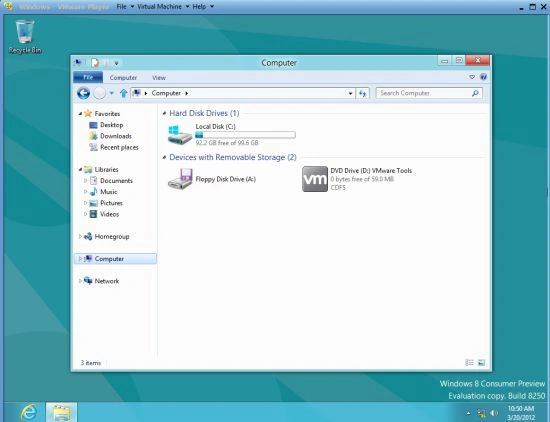
In this step, install the VMware tool for Windows 2000 and later and click on Download and Install and then close.


Join the conversation! Your thoughts help the community grow.