
Microsoft Azure is a cloud computing platform and infrastructure created by Microsoft for building, deploying, and managing applications and services.
WordPress is Web software you can use to create a Web sites, blog, or apps. The core software is built by hundreds of community volunteers, and when you’re ready for more, there are thousands of plugins and themes available to transform your site into almost anything you can imagine.
We can install WordPress on our local computers to develop Web sites, blogs, or theme plugins; or we can install it on the cloud where everyone can access our Web sites.
Installing and Running WordPress
Login to manage.windowsazure.com to access you Azure portal,
Click on WEB APPS and here's what it will look like:

Click on CREATE A WEB APP or +NEW button in the portal.

You can select QUICK CREATE and then upload it from your computer.
On clicking Gallery the model window will appear where you can find WordPress by scrolling (or navigating to BLOGS, then WordPress).

Select the WordPress and click next. Fill the required Information.
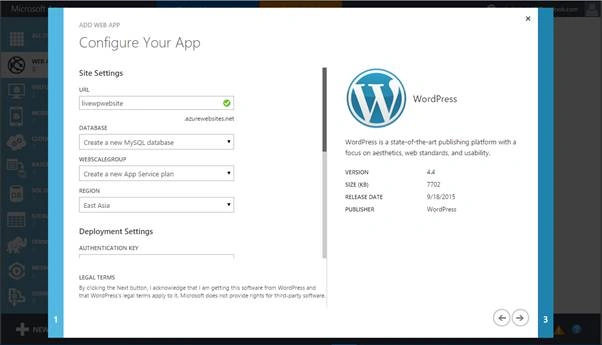
URL: it’s the domain you want for your Web site. The green arrow shows that this domain is available.
Database: Database for our Web ssite and you can select existing database or create new MySQL Database.
Region: The physical location where you want your Web site to be placed on servers.
Deployment setting: To secure your Web site you have to provide 8 combinations of unique strings. You can fill them out or just ignore them for the time.
Click on Next
Fill in information about MySQL database. Azure will choose the unique name of your database and region to place the database physically,

Make sure you check the legal term checkbox and hit next. It may take a few minutes to complete and will show you a notification while completing the creation.
The asynchronous property of Azure portal allows you to do any task during the creation of a Web app.

We have successfully created a Web app. How do we use it now? Click on browse and you are live now. Browser will be navigated to our Web site where we will install WordPress.
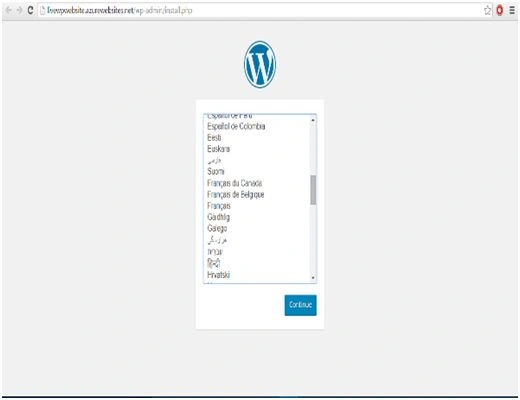

Enter username and password and then click Install WordPress.

Click Login and WordPress Dashboard will appear. You can navigate your Web site by typing url from any computer connected to the Internet. Every change you make and publish will be reflected to your live Web site. You can import your existing WordPress content, post by selecting Settings, then Import. Or develop a new Web site with custom posts and media.

Type URL in address bar for my website.

To learn more about Web apps, MySQL database stay tuned.

Installing And Running WordPress In Azure
Join the conversation! Your thoughts help the community grow.
Sign in to leave a comment
It is the same account you read, post and publish with — and you will come straight back to this page.
Sourav Kumar DasPosted Jan 17, 2020, 10:55 AM
Nice and useful article. Thanks for sharing.
Santhakumar MunuswamyPosted Jan 17, 2016, 2:08 PM
Thanks for nice share
Humayun Kabir MamunPosted Jan 16, 2016, 10:41 PM
Nice...
Ayyaz AhmadPosted Jan 16, 2016, 1:35 PM
thank you :)
Shubham KumarPosted Jan 16, 2016, 1:10 PM
nice! not read fully but i do asap :)