

Slack
Slack is a free messaging app for teams. It is designed to help teams to improve their communication. Not just your messages, but all your files, images, PDFs, documents, and spreadsheets can be dropped right into Slack and shared with anyone you want.
Slack helps you work in the moment, making it faster and easier to communicate with your team and with all the collective knowledge at your fingertips. Using Slack is nothing but more productivity, more transparency, and less email.
The following are the features of Slack:
- Group Conversation
- File Sharing
- Deep, Contextual search.
- Always in sync
- Over 80 integrations
- Security
Need of Integration
All your tools in one place: Connect all the tools you use to Slack and avoid all that constant switching among apps. Set up your integration so that you get all your notifications directly within Slack.
Slack integrates with over 80 external services to help you pull information from outside tools in a way that’s timely, relevant and always searchable. No more switching among apps. Bring it all together in one simple place.
How to Integrate
To integrate your application with Slack, you need to use the following procedure:
- If you haven’t registered an account on Slack then you need to first register on Slack. To register on Slack go to www.slack.com. And then click on Sign up for free link.
- To sending notifications to the Slack you must have the Incoming Webhooks integration enabled. To enable Incoming Webhooks use the following procedure:
- Go to the following URL and click on the Incoming Webhooks link api.slack.com as shown in the figure.
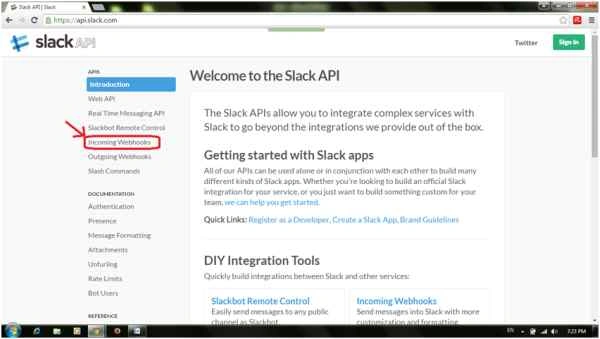
- Now click on the link incoming webhook integration.
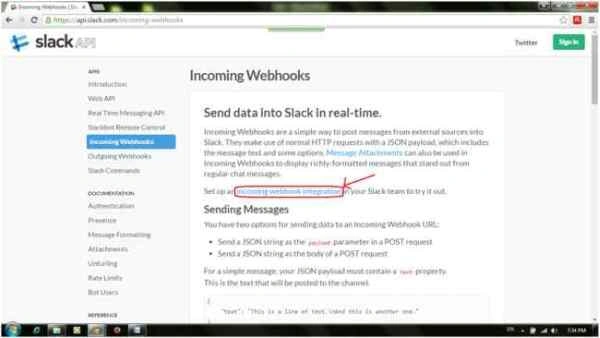
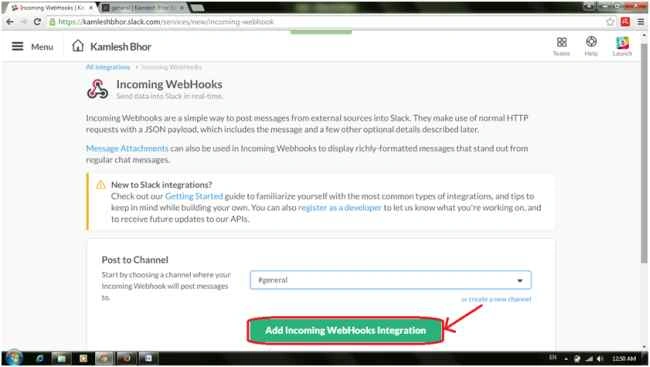
- If you have already signed in then there is no need to sign in again otherwise to proceed further you are asked to sign in here. After signing in you will see the following window:
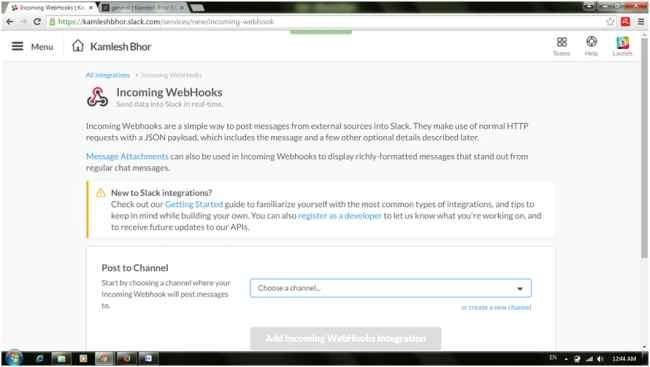
- Now click on the choose a channel drop down list and select a channel where you want to send notifications to.
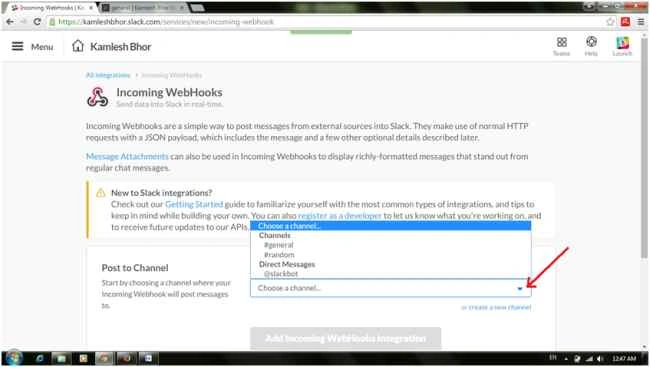
- And click on Add Incoming Webhooks Integration.
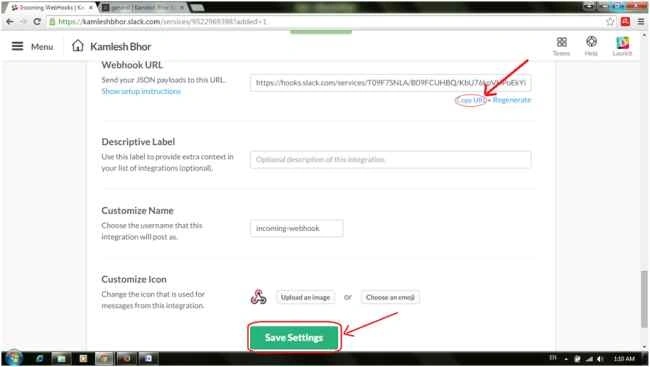
- Now you get the window where you can see Setup Instructions, Message Attachments and Integration Settings options. In the Integration settings option you can change the Channel name, you can provide a descriptive label and can customize the name and the icon. Now click on Copy URL so that we can use that URL in our C# code. Finally click on the Save Settings button available at the end.
- Go to the following URL and click on the Incoming Webhooks link api.slack.com as shown in the figure.
- Now write a C# class to post messages to a Slack channel. This class uses the Newtonsoft Json.NET serializer available via NuGet.
To install Jason.NET, open your project in Visual Studio. Then right-click on the project name in Solution Explorer and select Manage Nuget Packages. You will see a new window. In that choose Online and search for a Newtonsoft as shown in the following image. You will get Json.NET. Now click on the Install button.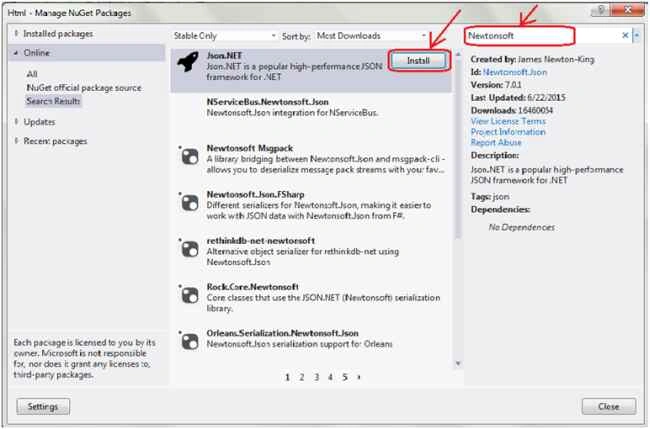
- Now write the SlackClient class as follows:
- using Newtonsoft.Json;
- using System;
- using System.Collections.Specialized;
- using System.Net;
- using System.Text;
- //A simple C# class to post messages to a Slack channel
- //Note: This class uses the Newtonsoft Json.NET serializer available via NuGet
- public class SlackClient
- {
- private readonly Uri _uri;
- private readonly Encoding _encoding = new UTF8Encoding();
- public SlackClient(string urlWithAccessToken)
- {
- _uri = new Uri(urlWithAccessToken);
- }
- //Post a message using simple strings
- public void PostMessage(string text, string username = null, string channel = null)
- {
- Payload payload = new Payload()
- {
- Channel = channel,
- Username = username,
- Text = text
- };
- PostMessage(payload);
- }
- //Post a message using a Payload object
- public void PostMessage(Payload payload)
- {
- string payloadJson = JsonConvert.SerializeObject(payload);
- using (WebClient client = new WebClient())
- {
- NameValueCollection data = new NameValueCollection();
- data["payload"] = payloadJson;
- var response = client.UploadValues(_uri, "POST", data);
- //The response text is usually "ok"
- string responseText = _encoding.GetString(response);
- }
- }
- }
- //This class serializes into the Json payload required by Slack Incoming WebHooks
- public class Payload
- {
- [JsonProperty("channel")]
- public string Channel { get; set; }
- [JsonProperty("username")]
- public string Username { get; set; }
- [JsonProperty("text")]
- Public
- Now write SlackClientTest.cs as follows:
- void TestPostMessage()
- {
- string urlWithAccessToken = "https://{your_account}.slack.com/services/hooks/incoming-webhook?token={your_access_token}";
- SlackClient client = new SlackClient(urlWithAccessToken);
- client.PostMessage(username: "kamleshbhor",
- text: "THIS IS A TEST MESSAGE!!",
- channel: "#general");
- }
- Now paste in the Webhook URL you copied instead of {your_access_token} in the TestPostMessage() method and test the code.
saurabh srivastavaPosted Feb 24, 2022, 7:28 AM
Please help! Thanks.
saurabh srivastavaPosted Feb 24, 2022, 7:28 AM
I want to retrieve all the messages haiving keyword "Feedback" in them & then store them in excel sheet. A slack scraper in C# with VS code
Ravi KashyapPosted Apr 9, 2021, 10:11 PM
Thanks, Brother. You made it so easy
Luis SotoPosted Jun 11, 2018, 10:56 AM
How can I post to private channels?
Vanshita TilwaniPosted Jun 13, 2017, 12:32 AM
How can I post buttons to my slack channel?
Ankit BhanavadiaPosted Jul 21, 2016, 3:38 AM
How can i test the above written code in my slack account?
Ali DURSUnPosted Apr 24, 2016, 10:22 AM
C# uwp does not contain WebClient class anymore, HttpClient exists instead. Do you have info about how to send with http client and what is the best method instead of UpdateValues()
Asfend YarPosted Feb 28, 2016, 11:57 AM
keep it up
Asfend YarPosted Feb 28, 2016, 11:57 AM
good
Pes ErpPosted Feb 4, 2016, 1:37 AM
Hey Kamlesh, i need all slack channel, all Teams and Team Members in my websites , i dont know where to start please help me out here...
Sujeet SumanPosted Oct 16, 2015, 7:10 AM
Nice Article...........................
Yashwanth MuthineniPosted Sep 1, 2015, 2:37 AM
Nice Share
Juan Ricalde PovedaPosted Aug 24, 2015, 10:03 AM
great!!
Ankit BansalPosted Aug 24, 2015, 5:34 AM
nice...
Anand MorePosted Aug 24, 2015, 5:32 AM
Good Work...!! Thanks for sharing.
Gowtham KPosted Aug 24, 2015, 3:00 AM
Good one
Sumit JoshiPosted Aug 24, 2015, 2:29 AM
Thanks for sharing...
Kamlesh BhorPosted Aug 24, 2015, 1:02 AM
Thank you Rajeesh Sir....
Rajeesh MenothPosted Aug 24, 2015, 12:47 AM
Good One
Kamlesh BhorPosted Aug 24, 2015, 12:06 AM
Thank you Karthikeyan Sir...
Kamlesh BhorPosted Aug 24, 2015, 12:06 AM
Thank you Mohammed Sir...
Karthikeyan KPosted Aug 23, 2015, 11:18 PM
Good one...
Mohammed IbrahimPosted Aug 23, 2015, 10:50 PM
nice