

In this article you will interact with thefollowing things:
- Introduction to MVC
- Sample program - Friend
What is MVC
MVC = Model View Controller
Model: Model define fields of view. There are two types of Model.
- Model (Entity): Directly interacted with table structure.
- ViewModel: Specially created for displaying the data that is VIEW.
View: Its visual representation of a model for Input and View activities.
Controller: Junction point of Model and View. The link between the view and model. It receive the request and take care of response. The deciding on which action execute.
In this article, we have used Visual Studio 2012.
- Create a new MVC 4 Project.
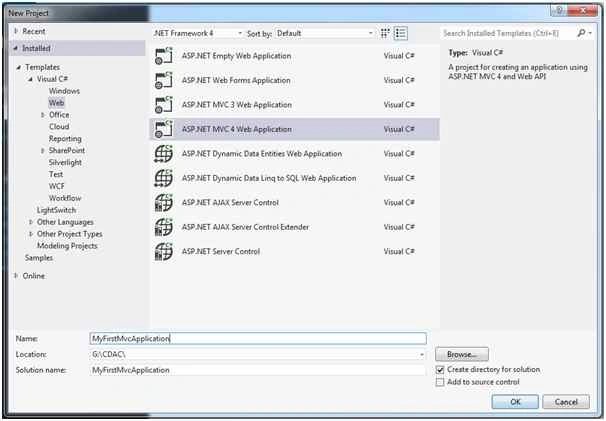
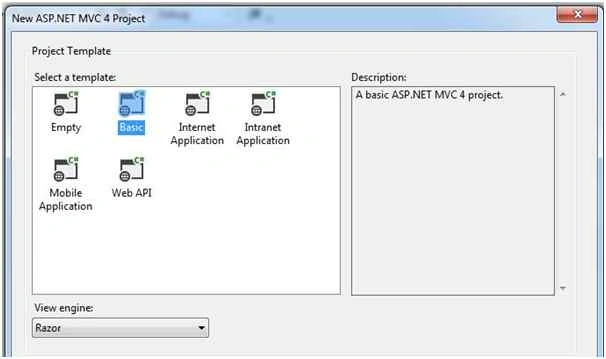
- Select a Template: Basic
- Default folder structure of MVC 4 Basic application.
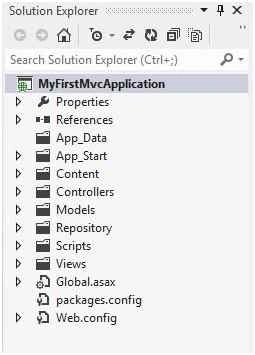
- By default following directory/folder are created.
- App_Data
- App_Start
- Content
- Controllers
- Models
- Scripts
- Views
- Create the following table in your database,Add connection string inside WEB.CONFIG
- SET ANSI_NULLS ON
- GO
- SET QUOTED_IDENTIFIER ON
- GO
- SET ANSI_PADDING ON
- GO
- CREATE TABLE [dbo].[tblFriends](
- [FriendID] [int] IDENTITY(1,1) NOT NULL,
- [FriendName] [varchar](50) NULL,
- [Place] [varchar](25) NULL,
- [Mobile] [varchar](15) NULL,
- [EmailAddress] [varchar](150) NULL
- ) ON [PRIMARY]
- GO
- SET ANSI_PADDING OFF
Model:- <connectionStrings>
- <add name="MemberCDACConnectionString" connectionString="Data Source=191.161.1.50\sa;Initial Catalog=MBKTest;User ID=sa;Password=server" providerName="System.Data.SqlClient"/>
- </connectionStrings>
- Right click on MODELS and add class file named [FriendModel.cs]
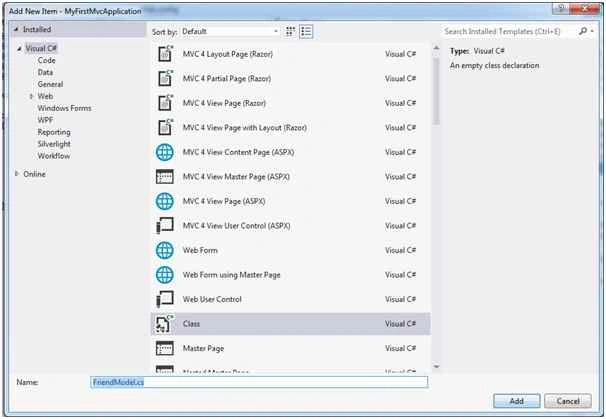
Note: Good practice to write suffix MODEL or VIEWMODEL after name.
E.g. : FriendModel
Now we will discuss in detail about MODEL.
Data annotation Validation Attributes help to validate the model data in view while we submit the form. Data annotation attributes derived from using System.ComponentModel.DataAnnotations; this namespace.
| DATA ANNOTATION ATTRIBUTE FOR MODEL | DESCRIPTION |
| [KEY] e.g.: [Key] public int FriendID { get; set; } | Primary key, this helpful even using EntityFramework CodeFirst also. Here we just marked as primary key purpose. [This article we are using ADO.NET]. |
| DisplayName e.g.: [Display(Name = "Friend Name")] public string FriendName { get; set; } | To display title name for a property in view. |
| DataType e.g.: [DataType(DataType.Text)] public string FriendName { get; set; } [DataType(DataType.EmailAddress)] public string EmailAddress { get; set; } | To define a datatype for a property. Three are following type of datatype like: Currency Custom Date DateTime Duration EmailAddress Html ImageUrl Multiline Text Password Phone Number Text Time Url |
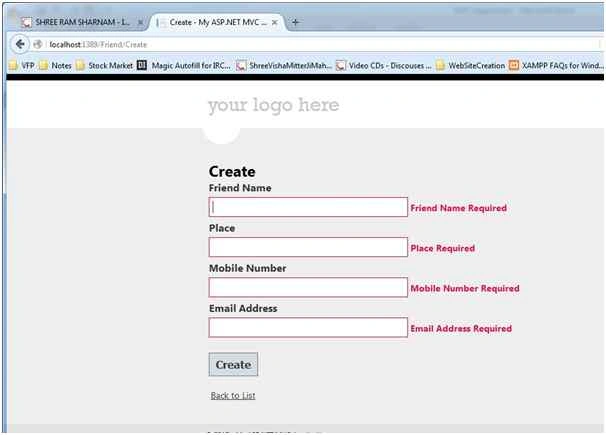
| Required e.g.: [Required(ErrorMessage="Friend Name Required") ] public string FriendName { get; set; } [Required(ErrorMessage="Place Required") ] public string Place { get; set; } [Required(ErrorMessage="Mobile Number Required") ] public string Mobile { get; set; } [Required(ErrorMessage="Email Address Required") ] public string EmailAddress { get; set; } | To define mandatory / compulsory property to submit a (model) form to further process. ErrorMessage : To display error message if this property blank. |
| MaxLength e.g.: [MaxLength(50, ErrorMessage = "Friend name not more than 50 characters")] public string FriendName { get; set; } [MaxLength(25, ErrorMessage = "Place name not more than 25 characters")] public string Place { get; set; } [MaxLength(15, ErrorMessage = "Mobile Number not more than 15 characters")] public string Mobile { get; set; } [MaxLength(150, ErrorMessage = "Email Address not more than 150 characters")] public string EmailAddress { get; set; } |
Model file code: FriendModel.cs
- using System;
- using System.Collections.Generic;
- using System.ComponentModel.DataAnnotations;
- using System.Linq;
- using System.Web;
- namespace MyFirstMvcApplication.Models
- {
- public class FriendModel
- {
- [Key]
- [Display(Name = "Friend ID")]
- public int FriendID
- {
- get;
- set;
- }
- [Required(ErrorMessage = "Friend Name Required")]
- [Display(Name = "Friend Name")]
- [DataType(DataType.Text)]
- [MaxLength(50, ErrorMessage = "Friend name not more than 50 characters")]
- public string FriendName
- {
- get;
- set;
- }
- [Required(ErrorMessage = "Place Required")]
- [Display(Name = "Place")]
- [DataType(DataType.Text)]
- [MaxLength(25, ErrorMessage = "Place name not more than 25 characters")]
- public string Place
- {
- get;
- set;
- }
- [Required(ErrorMessage = "Mobile Number Required")]
- [Display(Name = "Mobile Number")]
- [DataType(DataType.Text)]
- [MaxLength(15, ErrorMessage = "Mobile Number not more than 15 characters")]
- public string Mobile
- {
- get;
- set;
- }
- [Required(ErrorMessage = "Email Address Required")]
- [Display(Name = "Email Address")]
- [DataType(DataType.EmailAddress)]
- [MaxLength(150, ErrorMessage = "Email Address not more than 150 characters")]
- public string EmailAddress
- {
- get;
- set;
- }
- }
- }
Right click on Project and create new folder named [REPOSITORY].
Now right click on [REPOSITORY] and add a new class file named [FRIENDREPOSITORY.CS].
Before going further, please build your project.
Under Repository we will create the following method which interact with DATABASE - from-to for data.
| REPOSITORY METHOD | DESCRIPTION |
| GetAllFriends | Return data in IEnumerable format. |
| InsertNewFriend | To create a new entry of friend. |
| GetFreindByFriendID | To fetch a particular friend data by friend ID. Helpful for implement Update and Delete functionalities. |
| UpdateFriendByFriendID | To update changes of friend data by Friend ID. |
| DeleteFriendByFriendID | To delete a friend by friend ID. |
Before starting coding in REPOSITORY, first we discuss about namespaces required to achieve functionalities.
Check System.Configuration in References folder, if its not there then first give reference of system.configuration.dll.
Namespace Required
| Namespace | Functionalities |
| Using System.Data | To get ado.net data handling classes. |
| Using System.Data.SqlClient | To connect to Microsoft Sql server. |
| Using Systen.Configuration | To fetch configuration settings and connectionstrings from app.config. |
| Using MyFirstMvcApplication.Models | To work with models inside repository, we have to give reference of folder. MyFirstMvcApplication = This is our project name. |
Controllers
Before going further, please build your project.
Create a new controller.
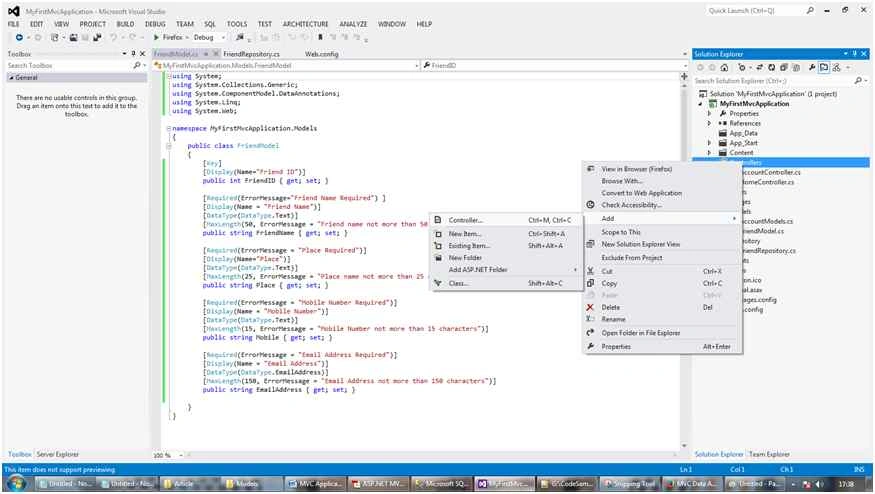
By right click on CONTROLLER folder, click Add, Controller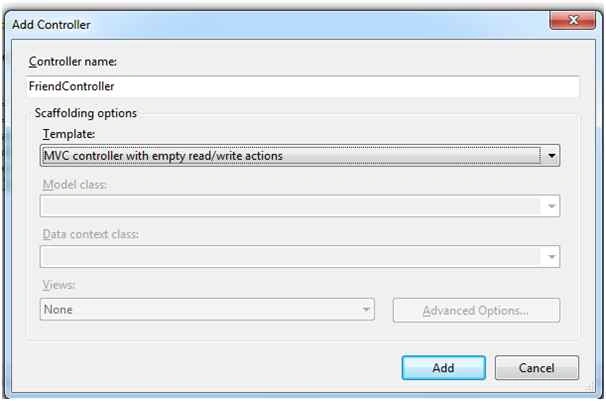
Note: Here I had selected MVC Controller with empty read/write actions.
By default in controller the following methods will be created:
| CONTROLLER METHOD | DESCRIPTION |
| Index | Use for view of friends in list. |
| Details | Use for view the particular friend detail. |
| Create | Use for create a new friend. |
| Edit | Use for edit/modify/change particular friend detail. |
| Delete | Use for delete/erase particular friend. |
In friend controller we have to pass namespace.
Namespace Required
| Namespace | Functionalities |
| Using MyFirstMvcApplication.Repository | To access repository method in controller. |
| Using MyFirstMvcApplication.Models | To work with models inside repository, we have to give reference of folder. MyFirstMvcApplication = This is our project name. |
And create instance of Friend Repository.
*Friend Repository
Now we are going step by step to implement the Methods of Repositories, Controllers and Views.
Repository:
GetAllFriends : To fetch all friends from the database.
- public IEnumerable < FriendModel > GetAllFriends()
- {
- SqlConnection con = new SqlConnection(ConStr);
- SqlCommand cmd = new SqlCommand("Select * From tblFriends", con);
- con.Open();
- SqlDataReader reader = cmd.ExecuteReader();
- List < FriendModel > list = new List < FriendModel > ();
- while (reader.Read())
- {
- FriendModel _friend = new FriendModel();
- _friend.FriendID = Convert.ToInt16(reader["FriendID"]);
- _friend.FriendName = Convert.ToString(reader["FriendName"]);
- _friend.Mobile = Convert.ToString(reader["Mobile"]);
- _friend.Place = Convert.ToString(reader["Place"]);
- _friend.EmailAddress = Convert.ToString(reader["EmailAddress"]);
- list.Add(_friend);
- }
- IEnumerable < FriendModel > data = list;
- return data;
- }
Index method implementation.
- public ActionResult Index()
- {
- //Friend Repositry fetch records of friend.
- var dataList = _friendRepository.GetAllFriends();
- return View(dataList);
- }
Index view of friends list implementation.
Before going further, please build your project.
Right click on friend’s controller index method.
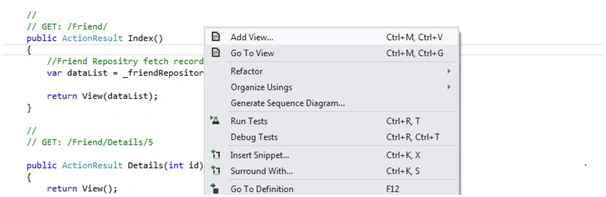
Select Add View from above said menu.

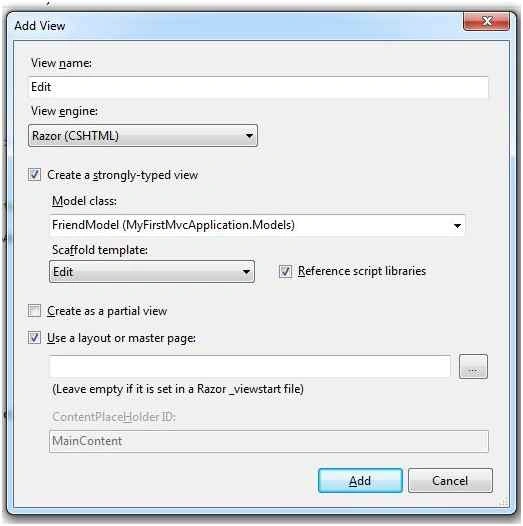
Now here you can unde stand the above Add View dialogue box:
- View Name: Index
- View Engine: Razor
- Select Check Box: Create a strongly-typed view.
- Model Class: FriendModel
- Scaffold Template: List.
Scaffold Template: This is an option that what kind of view you want to create. By default scaffold template have the following options:
- Create
- Delete
- Details
- Edit
- Empty
- List
After pressing ADD button, inside VIEW folder FRIEND folder will be created because this view is part of FRIEND CONTROLLER. Inside the FRIEND folder this INDEX.CSHTML view will be created.
View
Index.cshtml
- @model IEnumerable < MyFirstMvcApplication.Models.FriendModel > @
- {
- ViewBag.Title = "Index";
- } < h2 > Index < /h2>< p > @Html.ActionLink("Create New", "Create") < /p>< table >< tr >< th > @Html.DisplayNameFor(model => model.FriendName) < /th>< th > @Html.DisplayNameFor(model => model.Place) < /th>< th > @Html.DisplayNameFor(model => model.Mobile) < /th>< th > @Html.DisplayNameFor(model => model.EmailAddress) < /th>< th >< /th>< /tr>
- @foreach(var item in Model)
- { < tr >< td > @Html.DisplayFor(modelItem => item.FriendName) < /td>< td > @Html.DisplayFor(modelItem => item.Place) < /td>< td > @Html.DisplayFor(modelItem => item.Mobile) < /td>< td > @Html.DisplayFor(modelItem => item.EmailAddress) < /td>< td > @Html.ActionLink("Edit", "Edit", new
- {
- id = item.FriendID
- }) | @Html.ActionLink("Details", "Details", new
- {
- id = item.FriendID
- }) | @Html.ActionLink("Delete", "Delete", new
- {
- id = item.FriendID
- }) < /td>< /tr>
- } < /table>
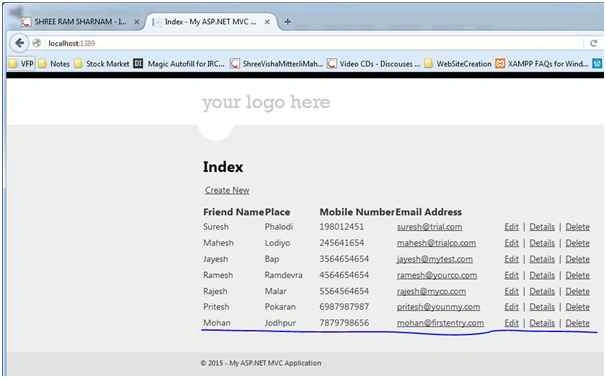
http://localhost:????/friend/index
E.g.: http://localhost:1389/friend/index
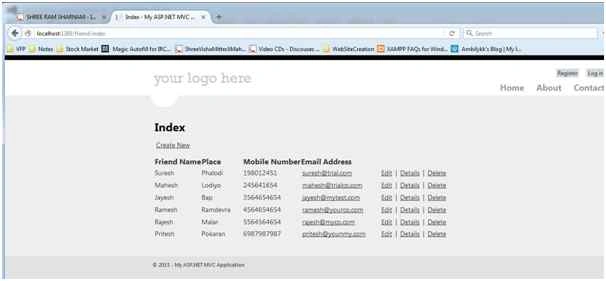
In above image you can see Email Address coming with mailto: and underline also because we have marked DataType as EmailAddress in Model.
GETALLFRIENDS implemented successfully. Above output should come.
Next Task is : INSERT A NEW FRIEND
INSERT FRIEND implementations in REPOSITORY, CONTROLLER and VIEW.
Repository
InsertNewFriend method code:
- /// <summary>
- /// To insert a new friend.
- /// </summary>
- public void InsertNewFriend(FriendModel _friend)
- {
- SqlConnection con = new SqlConnection(ConStr);
- con.Open();
- SqlCommand cmd = new SqlCommand("Insert into tblFriends (FriendName,FriendImage,Place,Mobile) Values(@FriendName,@FriendImage,@Place,@Mobile)", con);
- cmd.Parameters.AddWithValue("@FriendName", _friend.FriendName);
- cmd.Parameters.AddWithValue("@Place", _friend.Place);
- cmd.Parameters.AddWithValue("@Mobile", _friend.Mobile);
- cmd.Parameters.AddWithValue("@EmailAddress", _friend.EmailAddress);
- cmd.ExecuteNonQuery();
- }
In friend controller you can see two methods named CREATE.
Submission kind of thing you should use two methods.
- HTTPGET: First load on browser.
- HTTPPOST: After submission of form.
I had marked manually [HttpGet] on the first method of CREATE, by default [HttpPost] comes on second method of CREATE.
Now right click on httpget method of create and click on add view same as we created a index view.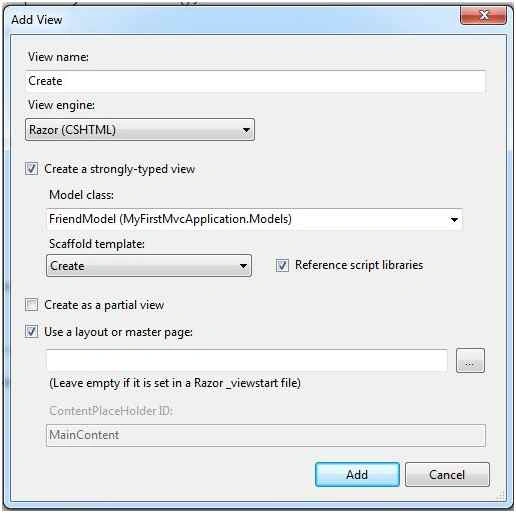
Now we will understand the above AddView dialogue box for CREATE.
- View Name: Create
- View Engine: Razor
- Select Check Box: Create a strongly-typed view.
- Model Class: FriendModel
- Scaffold Template: Create.
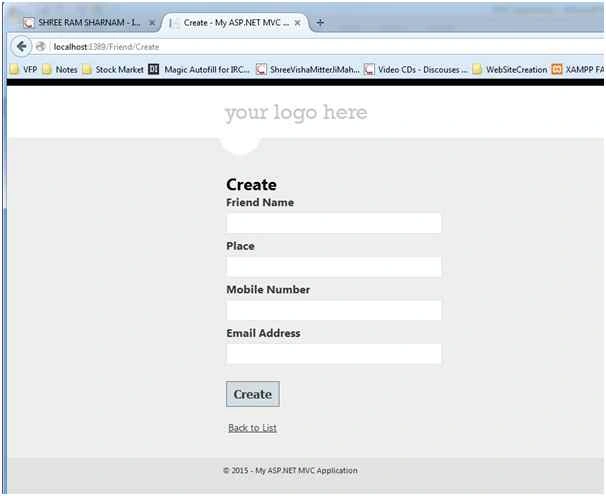
After pressing ADD button, inside VIEW folder of FRIEND there is CREATE.CSHTML view will be created.
- //
- // GET: /Friend/Create
- [HttpGet]
- public ActionResult Create()
- {
- return View();
- }
Now we create code of HttpPost for Create method.
- //
- // POST: /Friend/Create
- [HttpPost]
- public ActionResult Create(FormCollection collection)
- {
- try
- {
- // TODO: Add insert logic here
- return RedirectToAction("Index");
- }
- catch
- {
- return View();
- }
- }
Above code is the default code which we had changed to this, because we are using model.
- //
- // POST: /Friend/Create
- [HttpPost]
- public ActionResult Create(FriendModel _friendModelData)
- {
- try
- {
- _friendRepository.InsertNewFriend(_friendModelData);
- return RedirectToAction("Index");
- }
- catch
- {
- return View();
- }
- }
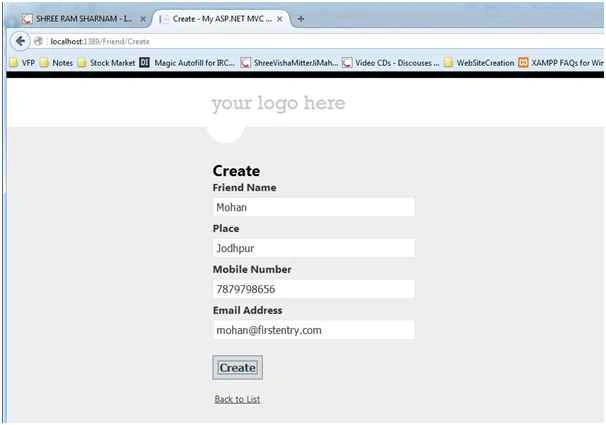
Try Catch we had used because if new friend data store is successful, then we are calling INDEX view.
RedirectToAction: To redirect on other view.
View
Create.cshtml
- @model MyFirstMvcApplication.Models.FriendModel
- @
- {
- ViewBag.Title = "Create";
- } < h2 > Create < /h2>
- @using(Html.BeginForm())
- {
- @Html.ValidationSummary(true) < fieldset >< legend > FriendModel < /legend>< div class = "editor-label" > @Html.LabelFor(model => model.FriendName) < /div>< div class = "editor-field" > @Html.EditorFor(model => model.FriendName)
- @Html.ValidationMessageFor(model => model.FriendName) < /div>< div class = "editor-label" > @Html.LabelFor(model => model.Place) < /div>< div class = "editor-field" > @Html.EditorFor(model => model.Place)
- @Html.ValidationMessageFor(model => model.Place) < /div>< div class = "editor-label" > @Html.LabelFor(model => model.Mobile) < /div>< div class = "editor-field" > @Html.EditorFor(model => model.Mobile)
- @Html.ValidationMessageFor(model => model.Mobile) < /div>< div class = "editor-label" > @Html.LabelFor(model => model.EmailAddress) < /div>< div class = "editor-field" > @Html.EditorFor(model => model.EmailAddress)
- @Html.ValidationMessageFor(model => model.EmailAddress) < /div>< p >< input type = "submit"
- value = "Create" / >< /p>< /fieldset>
- } < div > @Html.ActionLink("Back to List", "Index") < /div>
- @section Scripts
- {
- @Scripts.Render("~/bundles/jqueryval")
- }
http://localhost:????/friend/Index
Or you can change FRIEND Controller as your default startup controller.
To set your FRIEND controller as startup controller
Click on App_Start folder and double click on RouteConfig.cs file.
As you can see default controller is HOME and default action is INDEX.
Change to FRIEND and INDEX.
RouteConfig.cs
- using System;
- using System.Collections.Generic;
- using System.Linq;
- using System.Web;
- using System.Web.Mvc;
- using System.Web.Routing;
- namespace MyFirstMvcApplication
- {
- public class RouteConfig
- {
- public static void RegisterRoutes(RouteCollection routes)
- {
- routes.IgnoreRoute("{resource}.axd/{*pathInfo}");
- routes.MapRoute(name: "Default", url: "{controller}/{action}/{id}", defaults: new
- {
- controller = "Friend", action = "Index", id = UrlParameter.Optional
- });
- }
- }
- }
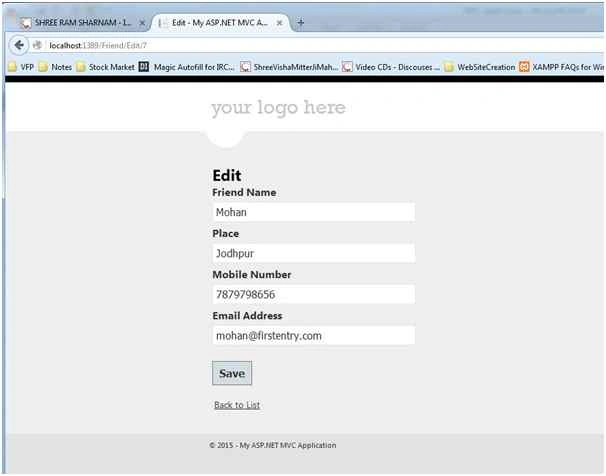
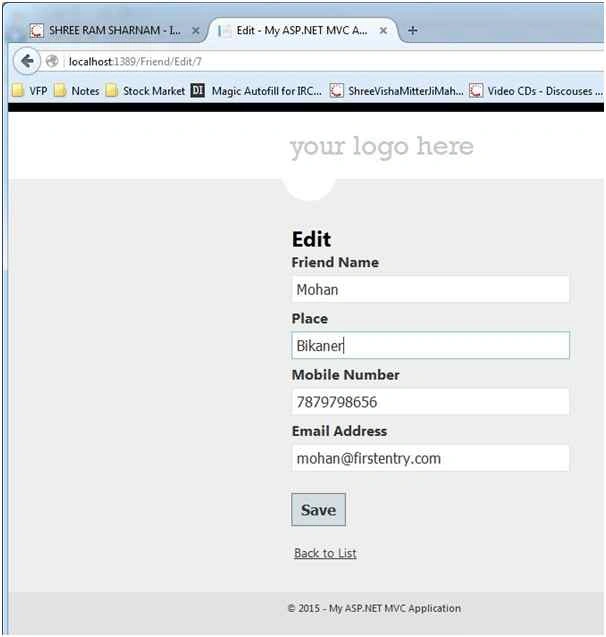
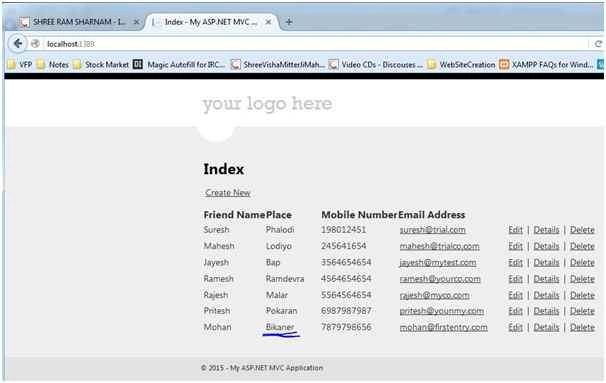

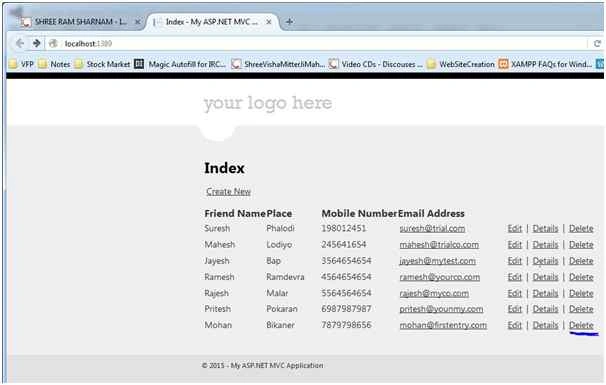



Santhakumar MunuswamyPosted Jun 25, 2016, 1:07 AM
Nice share
Vetri Chelvan IndrajithPosted Jun 21, 2016, 2:25 PM
Thanks for your all feedback
Kuppurasu NagarajPosted Jun 21, 2016, 12:44 PM
Nice Sharing..
Thiruppathi RPosted Jun 21, 2016, 1:24 AM
Nice.
Francis SusaimichaelPosted Jun 21, 2016, 12:25 AM
Good start buddy! I just want to highlight some points in your above article. 1. IS MVC a language? No. It's an architectural pattern. 2.IS MVC a new technology? No. It's an little bit old. It's available since 1970. https://en.wikipedia.org/wiki/Model%E2%80%93view%E2%80%93controller 3. MVC is a pure HTML development environment. I'm not fully agree with it. The view part in MVC support this. What about controller and models?
Asad AliPosted Jun 20, 2016, 7:09 AM
nice article
Vignesh ManiPosted Jun 20, 2016, 6:36 AM
Nice
PaulPosted Jun 20, 2016, 1:08 AM
good explanation...
Debasis SahaPosted Jun 20, 2016, 12:47 AM
Good One..
RajaPosted Jun 20, 2016, 12:06 AM
Nice Share...