

Nowadays, Smartwatches are mandatory to be used in our daytoday life. If you ask me a question since we already have Smartphone,s so why we need Smartwatches, then I will answer as it’s important to use Smartwatch as well Smartphones in today’s busy world. For example, let’s consider now we are in a meeting and at the same time we are getting some continues calls. Wwe couldn’t check who’s calling at the moment. If suppose it’s a very important and urgent call then we will be missing it without seeing who’s calling. Consider, if we are using the Smartwatch, then without disturbing the meeting we can check who’s calling and if it’s an important call, we can attend it.
In this article we will see in detail:
- Prerequisites need to install for developing Samsung gear App.
- Create Simple Samsung gear App to display Text and Image.
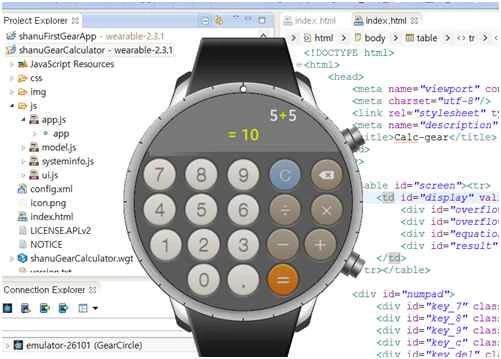
- Create and run Sample Template available for Samsung Gear Calculator and Touch Paint App.
Prerequisites need to install for developing Samsung gear App
To start developing our first App for Samsung Gear we need the fallowing software to be installed.
- Tizen SDK (Tizen is consist of set of tools for Developing Tizen web and native applications. It contains IDE for developing our applications and Emulator to view our outputs).
- SDK Image
You can find this Tizen SDK and SDK image from http://developer.samsung.com/gear/ . Here I have been using STANDALONE TIZEN SDK as this article is mainly dealing with Samsung Gear development.
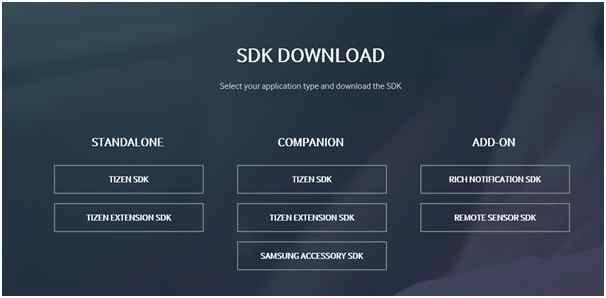
From the above link, click on the TIZEN SDK for STANDALONE which redirects to https://developer.tizen.org/development/tools/download?langswitch=en.
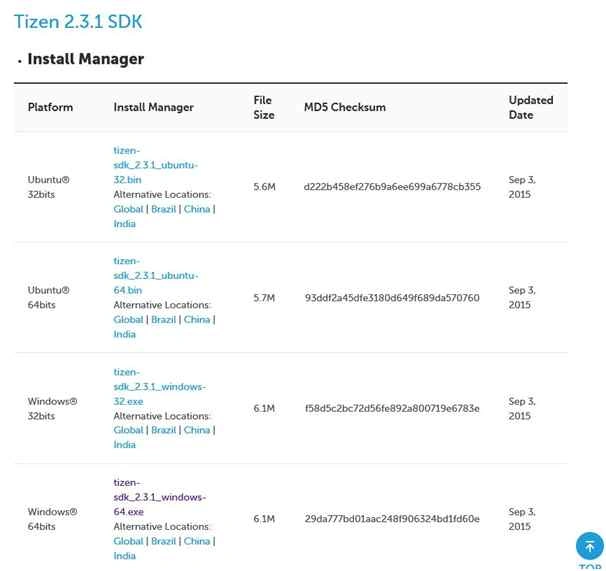
Download the Tizen SDK: Download Tizen SDK as per the requirement of Operating System you are using. Here from this list I have downloaded for Windows 64 bits as my Operating System is Windows 8 with 64 bit.
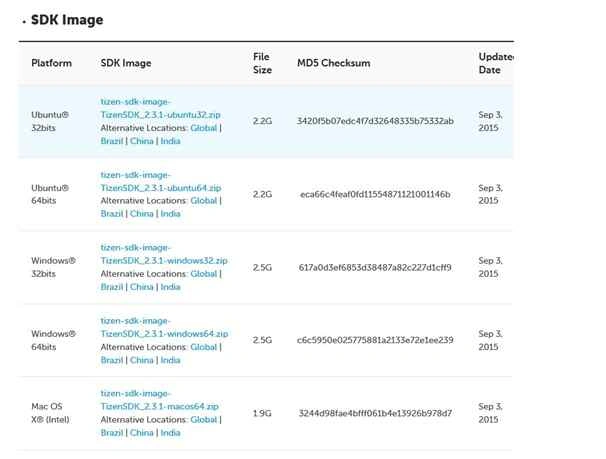
Download SDK Image: After downloaded the Tizen SDk from the same web page you can find SDK Image. Select as per your Operating System and save it to your local computer. Here I have downloaded for Windows 64 bits, since my Operating System is Windows 8 with 64 bit.
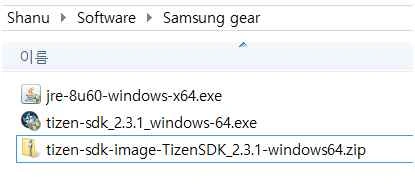
After downloading both Tizen SDK and SDK Image, from your saved folder run the Tizen SDK Exe to install it on your computer.
When you start installing the Tizen SDK and if you didn’t install Java Runtime Environment on your computer you will get the following error message:
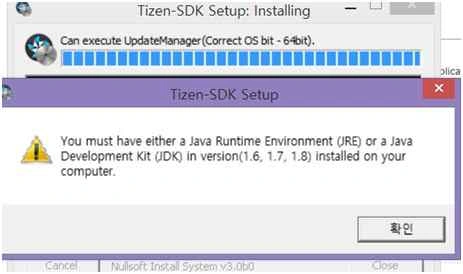
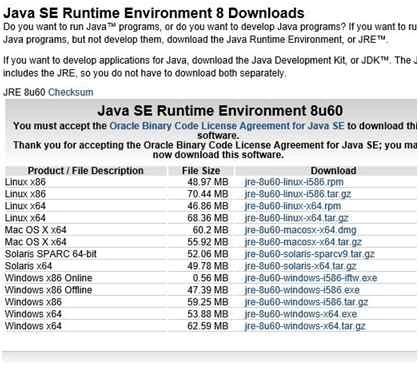
Download the Java Runtime Environment and install it on your computer. You can download JRE from this link. Download as per your Operating System requirement and install it.
After Installing the JRE now you are ok to install Tizen SDK. Again run the exe and install it on your computer.
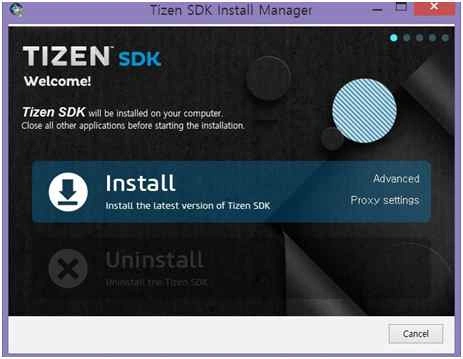
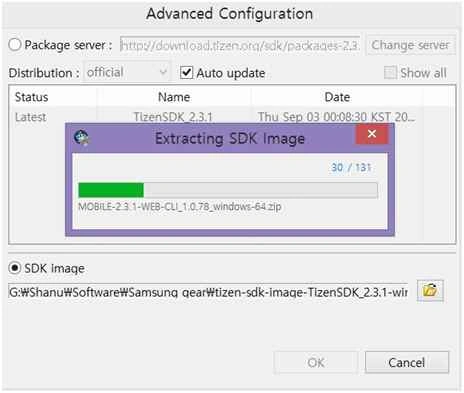
Note: Before installing you need to select and install the SDK Image which you downloaded and saved in your computer. To Install the SDK image click on Advanced label before installing the Tizen SDK.
When you click on Advanced label, popup window will open and from there click SDK image radio button .
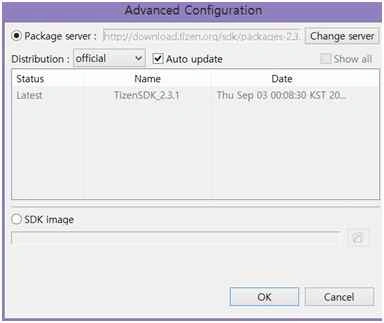
Browse for your folder where you downloaded the SDK Image. Select the SDK Image zip file and click OK.
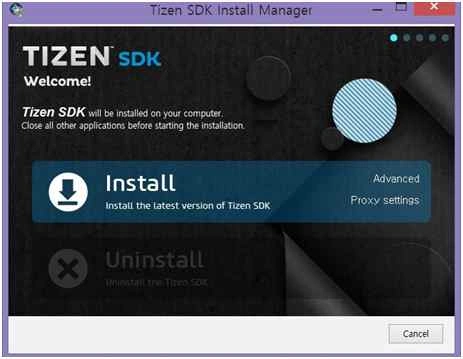
After installing the SDK Image, click Install to install the Tizen SDK
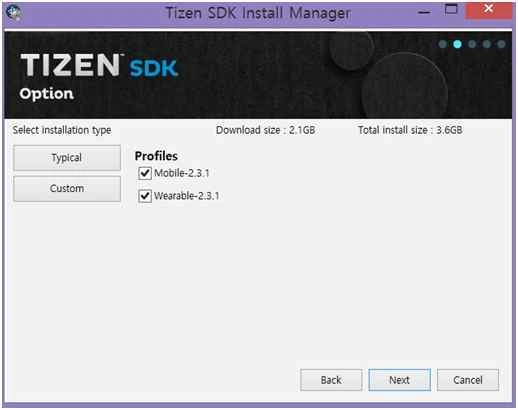
Here you can select as per your requirement as Mobile or Wearable. Since we are developing Samsung Gear App I have only selected wearable from here. After that click Next.
Click INSTALL to install your TIZEN SDK.
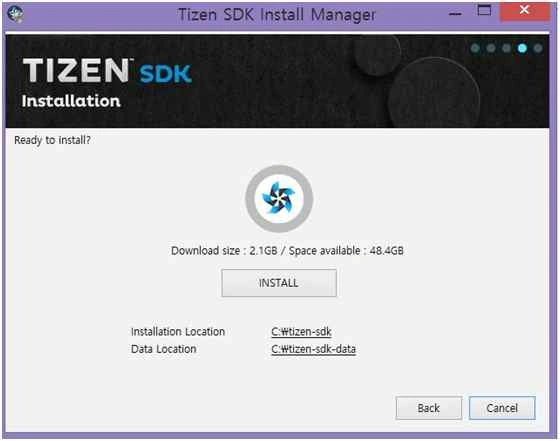
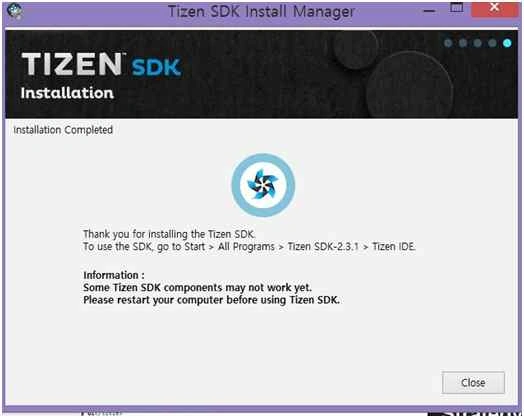
After successful installation now you are ready to develop your Samsung Gear App for smartwatches. Before start working restart your computer.
Code Part
After installing the Tizen SDK from your program files click Tizen IDE to create your first Samsung Gear App.
Click - Start programs, then Tizen IDE.
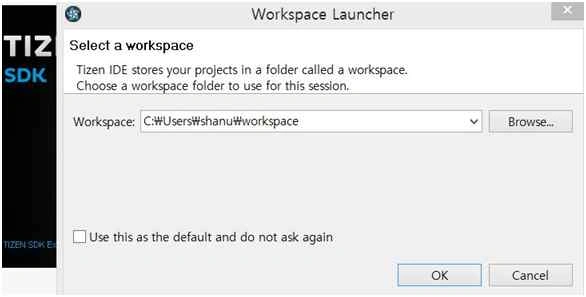
For the first time it will as to select your Workspace. You can browse and select folder to create all your project under the folder. Click OK to start your new project.
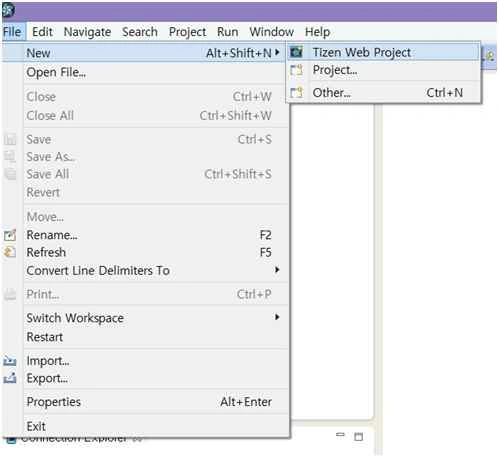
Once you have done click on File, New, then Tizen Web project.
Yes the main advantage was been that the Tizen project we can develop using HTML and JavaScript. So this will be a big advantage for Web developer.
Creating our First Wearable UI Template
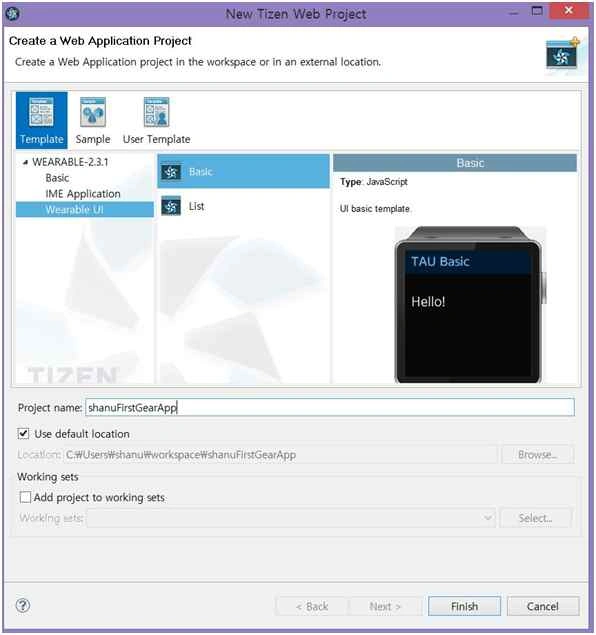
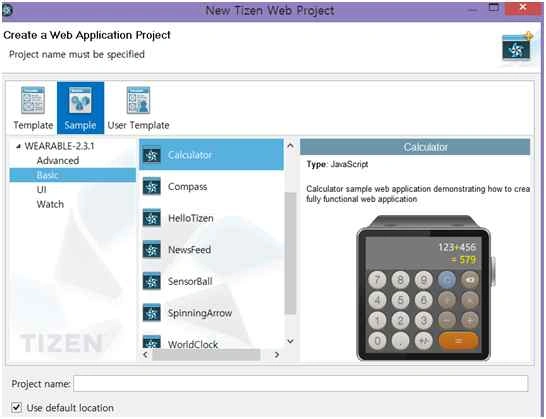
We can see a window like the following. Firstly, we start with Wearable UI Template. Select the Template and Wearable UI and click on Basic. Give name for your project and click Finish.
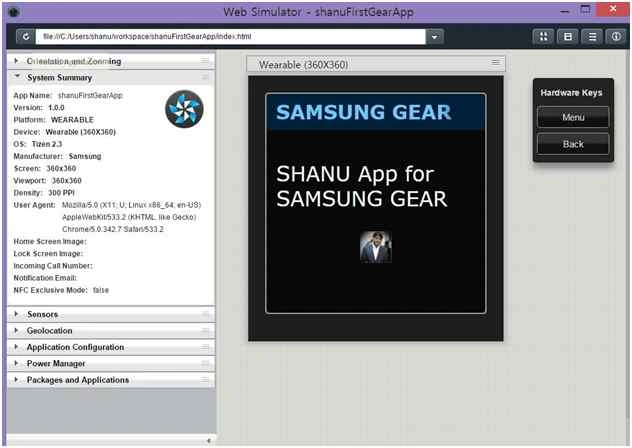
Once you have created you can see your Project in the left side of Project Explorer. I have added my Image in this project to display a Image on our Gear App.
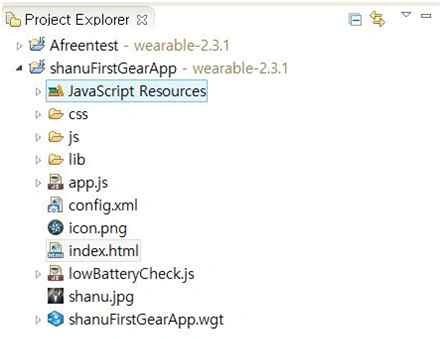
You can see index.html file. Open the html file to write your hello text and add image in that.
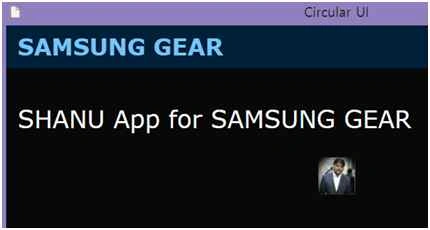
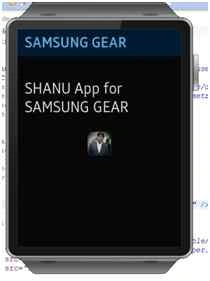
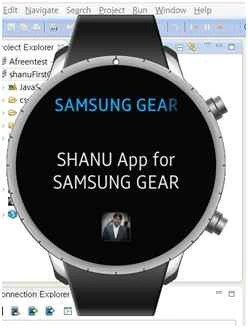
When you double click on the html file, the file will be open in editor window where you can add your own text and image to be displayed. Here I have changed the Title, text and added the image.
By default the html will add the JavaScript file which we will see in detail in my next part.


Mohammed IbrahimPosted Sep 29, 2015, 3:28 PM
nice
Vaikesh K PPosted Sep 28, 2015, 9:05 AM
I will do something interesting with Xamarin and Samsung Gear and publish here soon ;)
Vaikesh K PPosted Sep 28, 2015, 9:03 AM
Hey bro it's a nice one. I'm so interested in it. :)
James CroftPosted Sep 28, 2015, 3:55 AM
Fantastic post and a great way to get started with developing wearable apps on the Gear! Thanks!
Rahul Kumar SaxenaPosted Sep 28, 2015, 3:05 AM
Super One..
Ankit BansalPosted Sep 28, 2015, 12:52 AM
nice one..thanks ..
Harshad PansuriyaPosted Sep 28, 2015, 12:39 AM
Nice Article Thanks For Share
RakeshPosted Sep 27, 2015, 12:36 AM
Nice article share sir