

Prerequisites
- Azure account.
Recently, Microsoft has announced the availability of an in-browser query tool that provides an efficient way to execute queries on your Azure SQL Databases and SQL Data Warehouses, without leaving the Azure Portal. In this editor, we can access and query our database without needing to connect from a client tool or configure firewall rules.
Note - This SQL Database Query Editor is now in public preview on the Azure Portal.
Before reading this article, please go through the articles' links, mentioned below.
- Creating Azure SQL Database Logical Server - Part One
- Create A New Azure SQL Database – Part Two
- Create A New Azure SQL Server-Level Firewall - Part Three
- Working With Azure SQL Database Threat Detection - Part Four
- How To Modify Database Size Of An Existing Azure SQL Database
- Setting Up Transparent Data Encryption With Existing Azure SQL Database
- How To Connect Excel To Azure SQL Database And How To Work On It
- How To Connect And Work With Azure SQL Database Using Visual Studio
- How To Set Dynamic Data Masking in Azure SQL Database
- How To Export An Azure SQL Database With The Azure Portal
- How To Create A Copy Of Azure SQL Database, Via Azure Portal
How to start Query Editor
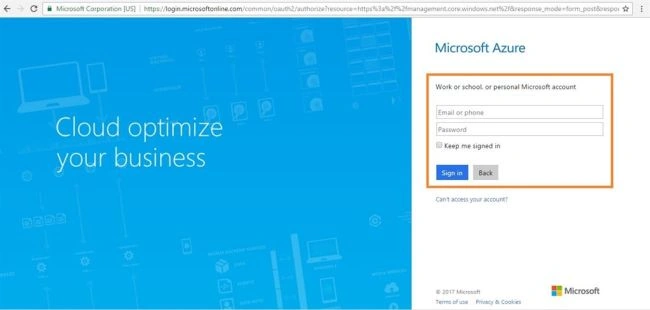
First, sign into the online Microsoft Azure Portal.
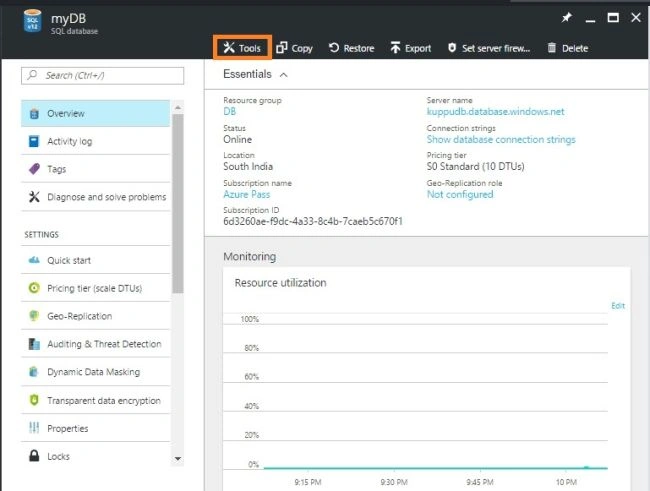
Next, open new or existing SQL database account and click the "Tools" tab.
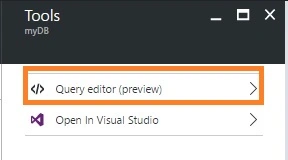
Now, choose Query Editor (preview) option in "Tools" menu.
Before getting SQL Query Editor, we need to accept the preview terms, then we will get SQL Query Editor.

Connect to your database
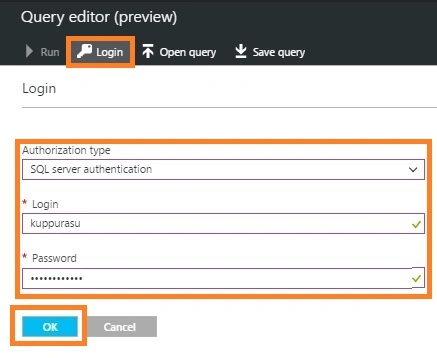
Before executing queries against our database, we must login with either of our SQL Server credentials.
Write T-SQL Scripts
We can run many common queries in this editor, such as create new database, table, display table data, edit table data, create a stored procedure, or drop table.
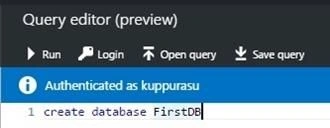
Execute T-SQL Scripts
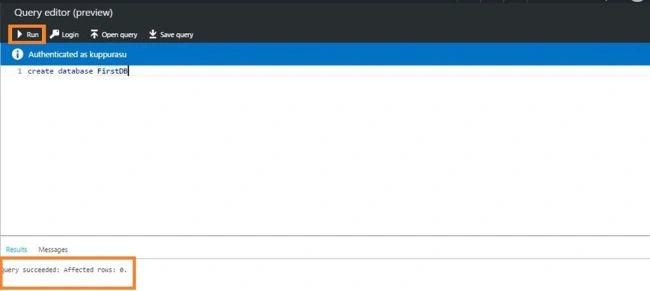
After entering our queries, we need to click the Run button for executing those queries.
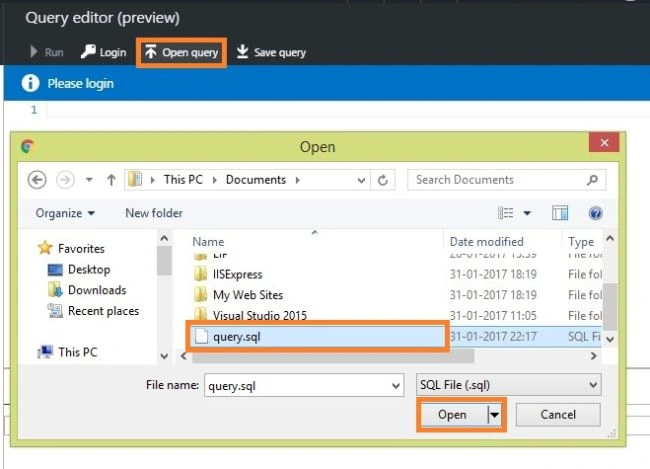
In addition, we can easily load an existing query file into the Query Editor or save our current script in this editor to our local machine.
Manage query results
We can resize the "Results" pane to get the needed ratio between the Editor and Results sections. We can also filter the results by keyword rather than having to scroll through all the output.
Summary
In this article, we discussed how to use SQL Database Query Editor on Azure Portal.
Anu VPosted Feb 1, 2017, 11:44 PM
Thanks for sharing... Nice article..