

TAG Helpers
- What are tag helpers? Advantages
- Tag helper vs HTML helper.
- Why use tag helpers?
- Tag helper example.
- Tag helper steps.
- Tag helper class.
- Html tag helpers.
- Complex tag helper.
What are Tag Helpers? Advantages of HTML Helper
In our view we need some controls are HTML elements like form controls are heading elements that help us to build View. Tag helpers help us to create HTML elements, we can extend existing HTML elements or we can have our own custom tags, Tag Helpers enable server-side code to participate in creating and rendering HTML elements in Razor files.
Examples of tag helpers
<a asp-action="ActionName" asp-controller="ControllerName" class="customCssClass">
</a>
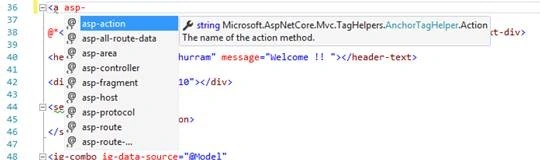
We already have some built-in tag helpers which help us to have eat and clean Views. Like Label, Anchor, and Form Controls like input type, select, etc.
The advantage of using tag helper over HTML Helper is that it makes things really neat in the above example we use a simple html tag attribute class=”customCssClass” but in the case of HtmlHelper we need to use special characters like
new {@class="caption"}
Some advantages of using Tag Helpers
- An HTML-friendly development experience.
- A rich IntelliSense environment for creating HTML and Razor markup.
- A way to make you more productive and able to produce more robust, reliable, and maintainable code using information only available on the server.
Scope of Tag Helpers, How can we use them in our project?
You should have Microsoft.AspNetCore.Mvc.TagHelpers to use tag helpers in your project, whenever you create a project from a template Razor tools are installed so you don’t need to worry about it.
To use tag helpers in your view you need to have a namespace in your views, It is good to import the namespace in the _ViewImports.cshtml file.
@addTagHelper *, Microsoft.AspNetCore.Mvc.TagHelpers
Now you have intelligent support of tag helper in your views.
If you have your custom tag defined in the folder “TagHelpers” in your project then you can import the tag helpers folder like.
@addTagHelper *, Tag_Helpers
This “Tag_Helpers” is the main namespace. Now it imports folders in views so you can declare your own custom tag helpers in view without worrying about including reference on each view.
@addTagHelper "*, projectname"
@removeTagHelper can also used to remove specific tag helpers of a namespace.
We can say that there are different types of Tag Helper
- Tag helper that extends existing HTML tag.
- We have already used an anchor tag that takes asp-action and asp-controller as a tribute and we render links according to the provided attributes.
- Custom tag helper.
- Later in this, we will define a custom tag helper that renders a list of objects. We will use a custom tag helper for that, which takes a list of strings as the parameter.
- Tag helper that helps to do some operations seamlessly and update some existing tags or their attributes.
- These tag helpers are link environments, in the environment tag we can have a group of files that need to be included on the basis of the environment if the environment is developed get a local javascript file but in the case of production get files from CDN.
Custom Tag Helper
Custom tag helper can help you to have a tag helper that can perform some operations as if you want to have a header tag just for example.
Step 1. Decide what Is your target tag and then create a class that should inherit from TagHelper. Please note that naming convention is important, if you have multiple words in a name like mygrid then it can be used as my-grid in view (Kebab-Style). MyGridTagHelper class makes the runtime target the tag like my-grid. If you have a simple class name like AlertTagHelper then you can simply use alert as the tag name.
Step 2. Override the Process or ProcessAsync method that gives you output context to perform the operation.
- TagHelperContext This parameter contains information about the tag addressed by the tag helper including all its attributes and children elements.
- TagHelperOutput is Used to generate the tag output.
Step 3. Use the tag in your view and pass the required attribute.
Custom tag helper example
- Target the div element which has an info-message attribute.
- Check the properties and render the bootstrap info message.
using Microsoft.AspNetCore.Razor.TagHelpers;
using System;
using System.Collections.Generic;
using System.Diagnostics;
using System.Linq;
using System.Threading.Tasks;

namespace Tag_Helpers.TagHelpers
{
    [HtmlTargetElement("div", Attributes = InfoMessageAttributeName)]
    public class AlertMessageTagHelper : TagHelper
    {
        private const string InfoMessageAttributeName = "info-message";
        private const string MessageAttributeName = "message";
        private const string HideAttributeName = "visible";
        private const string AlertTypeAttributeName = "alert-type";

        [HtmlAttributeName(MessageAttributeName)]
        public string Message { get; set; }

        [HtmlAttributeName(HideAttributeName)]
        public bool Visible { get; set; }

        [HtmlAttributeName(AlertTypeAttributeName)]
        public string AlertType { get; set; }

        public override void Process(TagHelperContext context, TagHelperOutput output)
        {
            string className = string.Empty;
            if (Visible)
            {
                className = "show";
            }
            else
            {
                className = "hidden";
            }
            Debug.WriteLine("========================>" + context.UniqueId);
            string InfoMessageContent = $@"
                <div id='{context.UniqueId}' onclick='hideContent(this)' class='infoMessage alert alert-dismissable {AlertType} {className}'>
                    <a href='#' class='close' data-dismiss='alert' aria-label='close'>×</a>
                    <strong>Information:</strong><span id='statusMessage'>{Message}</span>
                </div>";
            string js = "<script type='text/javascript'>function hideContent(e) { $(e).removeClass('show').addClass('hidden'); } function showMessage(message) { var control = $('[info-message]'); $(control).find('span').text(message); }</script>";
            output.Content.AppendHtml(js + InfoMessageContent);
            base.Process(context, output);
        }
    }
}
Let me share how it can be used in View,
@using Tag_Helpers.Controllers;
@model IEnumerable<Tag_Helpers.Controllers.Data>
{
    ViewData["Title"] = "Home Page";
}
<script type="text/javascript">
    function UpdateMessageContent() {
        var message = $("#txt1").val();
        showMessage(message);
    }
</script>
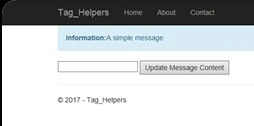
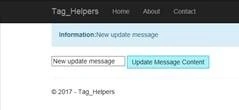
<div info-message message="A simple message" visible="true" alert-type="alert-info"></div>
<input type="text" id="txt1" />
<input type="button" onclick="UpdateMessageContent()" value="Update Message Content" />
Output
Khuram ShahzadPosted Oct 25, 2018, 1:43 AM
You are always welcome.
Hardik DeshaniPosted Oct 9, 2018, 11:32 PM
Nice one thnx for sharing