

Introduction
With the new release of Visual Studio.NET and Microsoft.NET framework, new features are added to the underlying technologies.
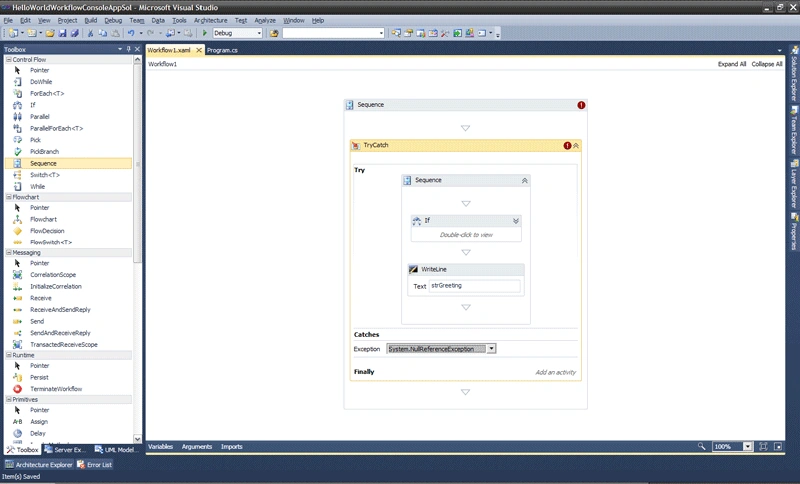
In this article, I want to illustrate the programming model, engine and tools to build workflow-based applications using Windows Workflow 4.0. As you know workflows are a way to execute business processes and in today's applications supporting business processes we are frequently using Windows Workflow technologies as the key technical solution. The example in this article is the traditional Hello World application in order to illustrate the creation, hosting and running of a workflow. Then we're going to extend the business process with a conditional activity to print a different message depending on the context and finally I will show how to handle exceptions in Windows Workflow 4.0.
Getting started with the solution
First of all, let's open the Visual Studio.NET 2010 and create a new Workflow Console Application (see Figure 1).
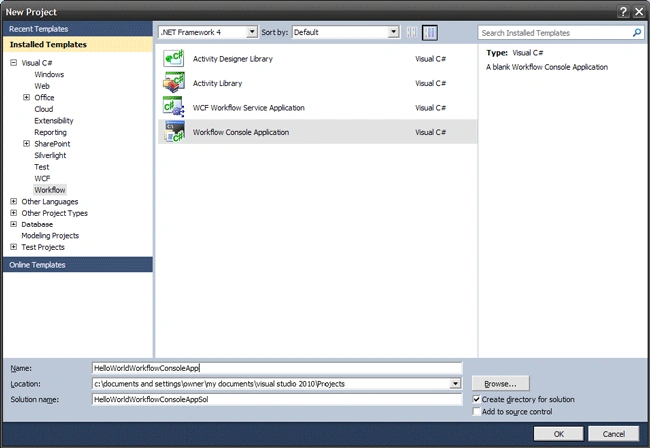
Figure 1
Then the Workflow1.xaml file is open on the Windows Workflow Designer. Since our business process is just one activity (print a message on the console), let's drag and drop a WriteLine activity from the Toolbox onto the workflow designer. Then select the Text property and enter the string "Hello World" string (see Figure 2).
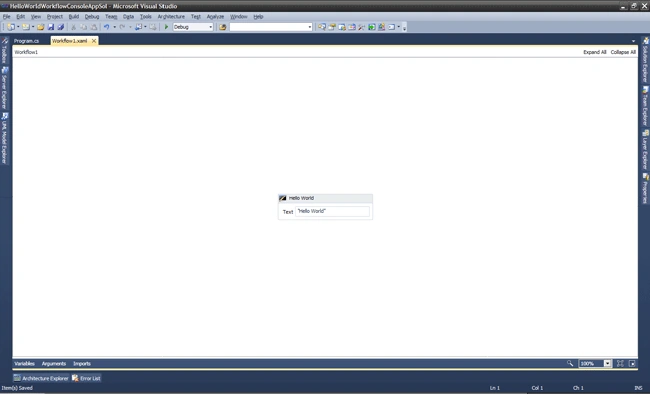
Figure 2
In order to run this workflow, we need a host engine. The easiest way is to create an instance of the WorkflowInvoker class passing a reference to an instance of the workflow (see Listing 1).
using System;
using System.Linq;
using System.Activities;
using System.Activities.Statements;
namespace HelloWorldWorkflowConsoleApp
{
class Program
{
static void Main(string[] args)
{
WorkflowInvoker.Invoke(new Workflow1());
}
}
}
Listing 1
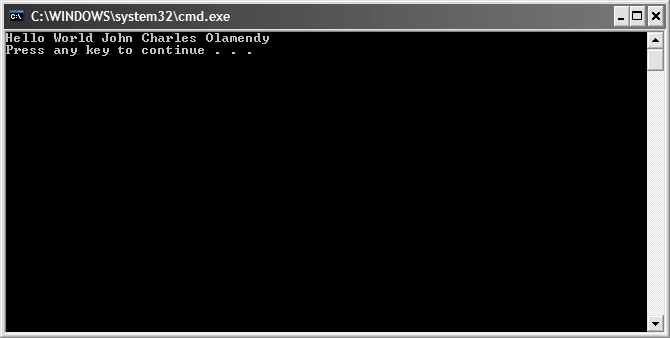
After you run the application, you will receive the text on the console (see Figure 3).
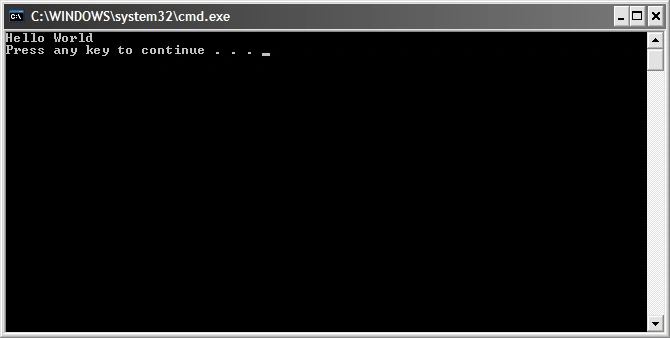
Figure 3
Another way to invoke a workflow is with the WorkflowApplication class. This class allows you to run a workflow on a separate thread and to supply delegates that will be invoked when the workflow completes, goes idle, terminates or has an unhandled exception. This allows you to create multi-threaded server or client programs more easily than you can without workflows.
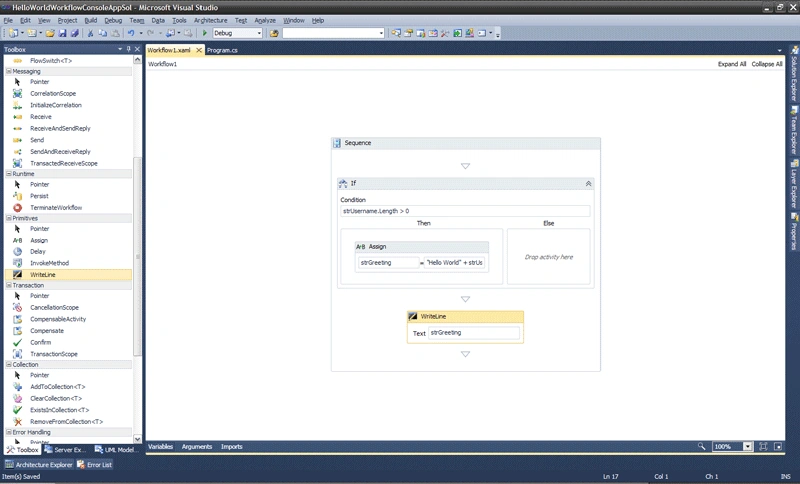
Now let's add some complex logic to the workflow. Let's suppose our business process dictates that if we pass a parameter with a username, then the greeting is customized, otherwise the greeting is generic.
Delete the WriteLine activity and drag and drop a Sequence activity from the Toolbox onto the designer. In order to pass data into and out of the workflow, we use Arguments (you can see in the bottom of the workflow designer). Variables represent the storage of data. Now click on the variables button (while selecting the Sequence activity) and add a strGreeting variable, setting as the default value the string "Hello World" (see Figure 4).
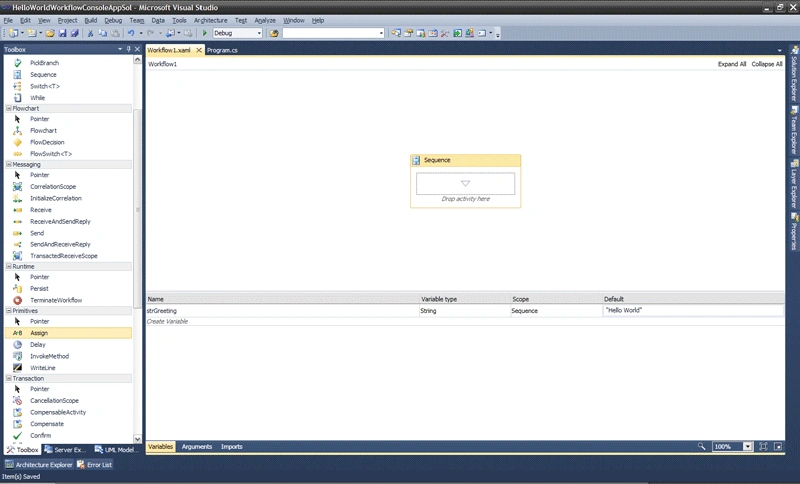
Figure 4
Then, let's add the strUsername argument (see Figure 5).
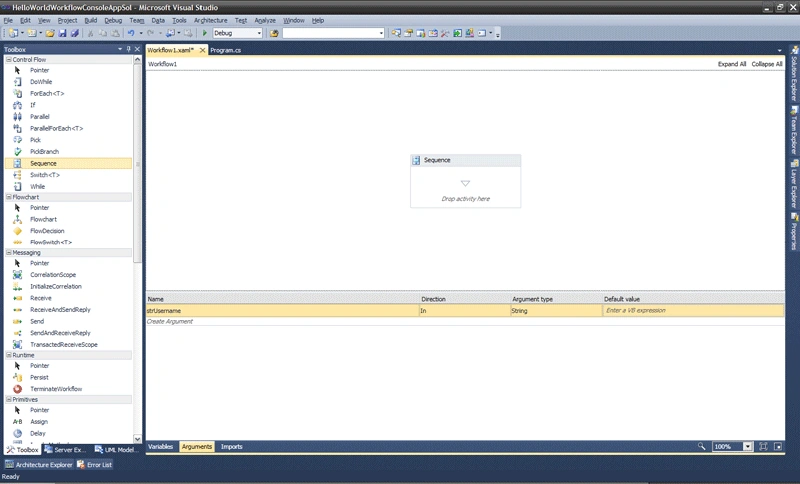
Figure 5
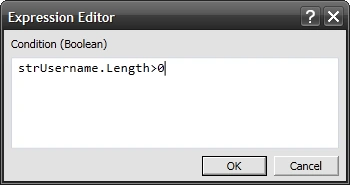
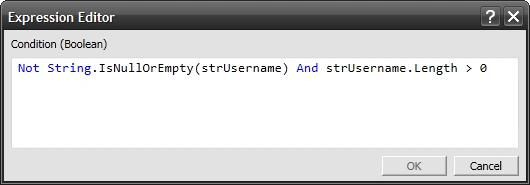
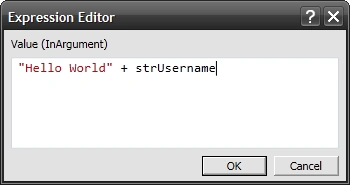
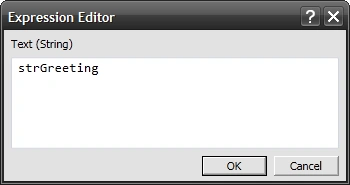
The next step is to test the value of the strUsername argument. Drag and drop the IF activity from the toolbox inside the Sequence activity in the workflow designer. Then click on the Condition to set the logical condition (see Figure 6).
Shalini JunejaPosted Jul 11, 2011, 12:08 AM
Useful Article
Eric ManneditedPosted Jan 20, 2011, 4:14 PMEdited Jan 20, 2011, 4:16 PM
Hi John, I tried to get your example workflow application to work but I ran into a problem. When I try to set up the host as it is in your example I get the following error message: Error 1 'Hello_Workflow.Workflow1' does not contain a definition for 'strUserName' and no extension method 'strUserName' accepting a first argument of type 'Hello_Workflow.Workflow1' could be found (are you missing a using directive or an assembly reference?) \\mcso-file01.mcso.local\users\manne\documents\visual studio 2010\Projects\Hello Workflow\Hello Workflow\Program.cs 14 25 Hello Workflow Here is my host code: namespace Hello_Workflow { class Program { static void Main(string[] args) { Workflow1 objWorkflow = new Workflow1(); objWorkflow.strUserName = "Eric Mann"; // This variable is not available WorkflowInvoker.Invoke(objWorkflow); Console.Read(); } } } and my two variables are strGreeting and strUserName, What am I doing wrong or what step did I miss in your example. Any help would be appreciated. Eric Mann
Gymson VientePosted Nov 16, 2010, 3:50 AM
good starting point.!!