

Introduction
In this step-by-step article series next, we are going to learn about the Environments features of the postman. Before going to learn about the environments, please read the previous article of this series for a better understanding:
This article covers the following topics,
- Environments
- Variable Scope
- Create the Environments and Variables
- Access the environment variables
- Set and Get environment variable from script
Environments
The environments are nothing but the set of variables defined, variables are stored in the form of key-value pairs and to use in the postman request. You can create the environments like Development, Staging, Production, etc., and define the variables.
Syntax - To access the environment variables.
{{variable_name}}
There is a scope defined for each environment variable as below,
- Local variable
It is the temporary variable used for the particular request or collection, it is no longer available once the request is complete. It is used when you want to override the value for variables to a particular request. - Global variable
It enables us to access the variable values across the workspace. - Environment variable
It enables us to access the variable values for different environments like dev, prod, stage, etc. At a time only a single environment can be active. It is best suited for role-based access. - Collection variable
It is available for the requests from a collection, best suited for a single environment or an independent environment. It is not changed in the case of the environment. - Data variable
It comes from external files like CSV and JSON. It contains the current values for a particular request or the collection.
Create the Environments and Variables
Let's create the environments and variables in it, as in the below steps:
Step 1
Open the Postman web version or the desktop app and select 'Environments' from the left side as below screenshot:
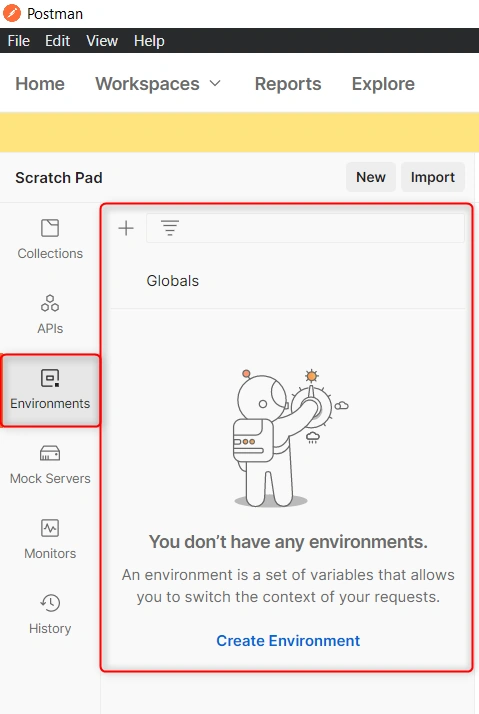
In the above screenshot, the right side portion is empty because there are no environments currently.
Step 2
Next, create an environment. For that you need to click on the plus icon or the bottom 'Create Environment' link as below:
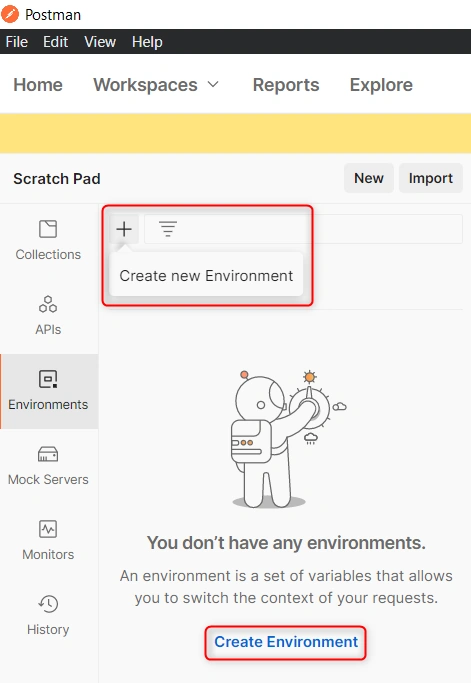
Once you click, it opens the screen for creating an environment on the right side portion as below:

Step 3
Next, provide the values as shown below and click on the Save button at the end:

- Variable - It is the value used in the postman requests.
- Type - It contains two values default and secret. The secret type is used to store the sensitive data in it and keeps its values masked on the screen.
- Initial Value - This value is synced when you work with the team in the workspace.
- Current Value - This value is used when we send the request and it is not synced. If we haven't set the current value, it automatically takes the initial value as current.
- Persist All - It replaces all initial values with current values.
- Reset All - It replaces all current values with the initial values.
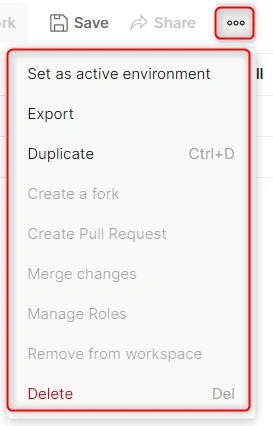
In the above screenshot, when you click on the top three dots it shows the option such as Set as active environment, Export, Duplicate, Delete, etc. as shown in the above screenshot.
Step 4
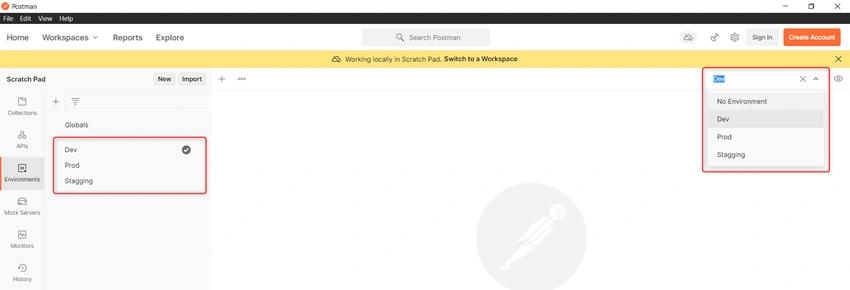
Next, once you created the environments that list you can see them in two places first on the left side Environments tab and on the right side top dropdown, and set the default environment as 'Dev' as below:
Access the environment variables
Let's see how can we access those environment variables in the request as below steps:
Step 1
Click on the plus icon to create a request as below:

Step 2
It will open the create request page on the right side and provide the details as below:
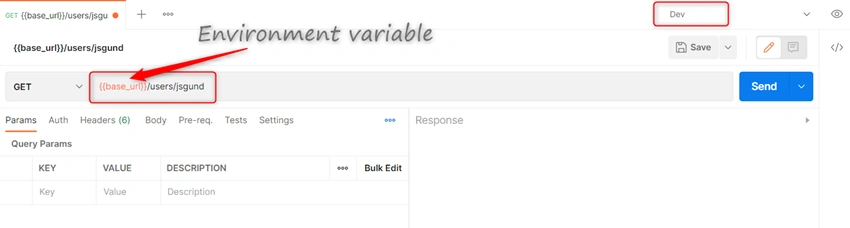
In the above screenshot, you can see the URL we have used for GET request as '{{base_url}}/users/jsgund'. Here '{{base_url}}' means the environment variable and when we click on send, it will replace the variable with the actual value as 'https://api.github.com'. On the right-side top dropdown, you can see the selected environment for this request as 'Dev'.
Step 3
Next, if you want to check the environment variables for the selected 'Dev', click on the right-side eye icon to view the variables as above:
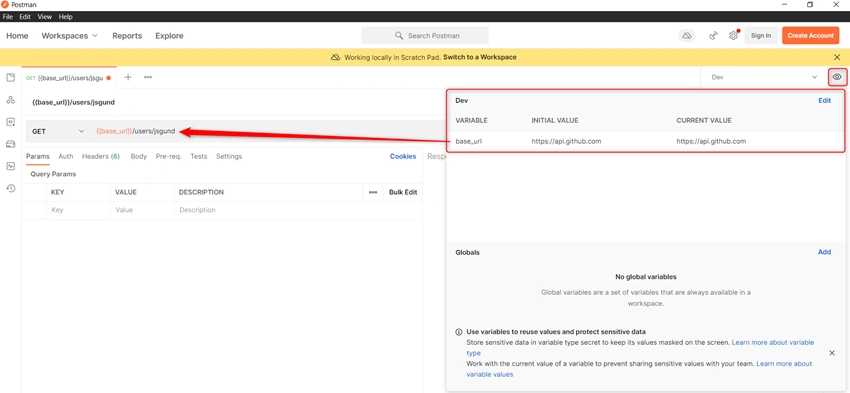
Or just mouse over on the '{{base_url}}' environment variable you can get the details about that variable as below:

Step 4
Next, just click on the send button, and let's see the result we get as below:
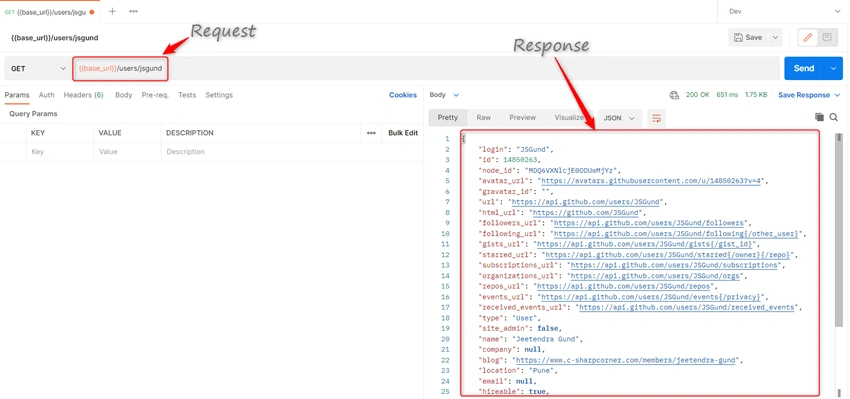
The environment variables are easy to use and update in one place and it will use the updated value for that environment.
Set and Get environment variable from script
There is another way also to set or create the environment variable in the 'Pre-req' and 'Test' script as below:
The syntax for Set:
pm.environment.set("base_url", "https://api.github.com");
The syntax for Get:
pm.environment.get("variable_key");
In the above code you can see the 'pm' object, using this you can access and manipulate the variables in Postman using the 'pm' API.
Stay tuned to learn new things about Postman….
Conclusion
In this article, we learned about Environment and Variables, the scope of variables, and creating and using in the request. If you have any suggestions or queries regarding this article, please contact me.
“Learn It, Share it.”
Read Next - Learn Postman Step By Step - Preset Headers
Sarathlal SaseendranPosted Apr 22, 2022, 1:54 PM
Interesting article about Postman