
Introduction
A Microsoft Visio solution combines shapes and automation to solve various business and technical problems, as well as improve productivity. The off-the-shelf Visio product contains numerous drawing templates that meet the basic needs of most users for creating organizational charts, space plans, flow charts, network diagrams, and more.
One of the main strengths of Visio products is that the platform enables developers to create customized Visio environments. This article demonstrates the flexibility of Visio products as a development platform by describing the following customized business solutions:
Using the native functionality in Visio as a launch pad for a custom solution, you can develop your application in less time-and with potentially more feature-than if you started from scratch with a traditional programming language. The Visio environment includes the intelligent and powerful functionality of Smart Shapes symbols, the Shape Sheet, and templates. You can customize menu commands and toolbars, publish data to the Web, print properly formatted drawings, and integrate your solution with other applications. You can integrate customized Visio solutions with the following applications: Microsoft Word, Microsoft Excel, and ODBC (Open Database Connectivity) or LDAP (Lightweight Directory Access Protocol) databases like Microsoft Access, Microsoft SQL Server, Oracle's database server, and Microsoft Active Directory. You can develop applications using any programming language that supports Automation such as Microsoft Visual Basic or C/C++. Visio solutions can also integrate with custom programs such as engineering analysis tools and rules-based product configuration applications.
Customizing Visio
For the purpose of this article, the term Automation refers to the extension of Visio functionality through custom development and integration. Through Automation, you can add new forms to Visio, connect externally to a database, create Smart Shapes symbols enforcing rules and bounds on drawings, and integrate with other applications. You can use the Visio graphics engine, the core of Visio, for your own program's graphics, custom user interfaces, data management, and file management environments. The graphics engine also exposes Visio objects (for example, shapes, masters, menus, and toolbars), properties, methods, and events. Figure 1 shows the Visio development environment.
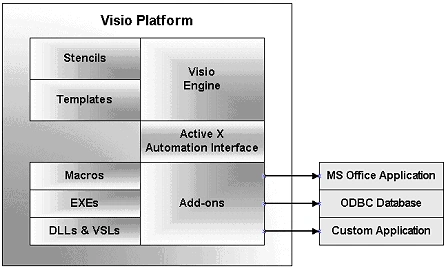
Figure 1. A diagram of the Visio platform and its components
As a developer, you need to determine how much native Visio functionality can be used as the basis for your custom solution and how much new functionality you must develop. Typically, you'll get superior results in less time by leveraging the built-in functionality in Visio. If your solution is complex, however, you should consider developing a custom interface using Visual Basic (.DLL), VBA, or C++ (.VSL), to better control the look, feel, and functionality of the application and shapes. Also custom interface can be developed on .NET platform for Visio 2003.
Modifying Visio Native Functionality
This section briefly describes some of the functionality native to Visio, such as Smart Shapes symbols, the Shape Sheet window, templates, custom properties, and database connectivity that you modify or build on to create your own customized solutions. There are many other Visio features in addition to those described within this article that you can use to enhance your application. For more information on Visio development capabilities, see the Recommended Reading section.
SmartShapes
Shapes are drawing components used to construct or assemble a diagram. The end user simply drags the shape to a drawing page. A shape can represent a real-world object, or an easily recognized symbol, so that a user quickly understands what object to select and how an object should be used. Visio Smart Shapes symbols, generally referred to as shapes, may contain programmed intelligence that enables them to behave on a drawing page as you expect the real-world object to behave. For example, a shape representing a computer system or a piece of office furniture can be built to represent standard industry dimensions, and they can be locked against resizing so that a user cannot inadvertently change the shape's dimensions.
Use the following methods to customize a shape and its behavior, defining how the shape appears on the screen, how the shape responds when you select it, and how its text behaves:
- Define Custom Properties, available from the shape's shortcut menu.
- Modify formulas in a shape's Shape Sheet spread sheet.
- Add a command to a shape's or drawing page's shortcut menu.
- Associate an event with a shape. For example, you can define an action to occur when the user double-clicks the shape.
- Write a program that uses Automation to control your shapes. For example, create a Visio drawing automatically or populate a form that is displayed to the user from data in an ODBC compliant database.
Consider the following tips when you create customized Smart Shapes symbols:
- Depending on the complexity of your application, shape design and creation can be a significant part of your development effort. You can build a more flexible solution that requires less coding and maintenance in the long run if you carefully design your shapes. Put as much functionality as possible into your shapes but do not make them unnecessarily complex or layer them too deeply. Decide how the shape is to be used in the application and design as much intelligence into the shape as possible. However, very complex shapes can take longer to display when dragged onto the drawing page.
- Avoid adding behaviors to a shape that are inconsistent with the shape's expected role because doing so may confuse your user. For example, in a manufacturing scenario, some equipment may only be installed in a vertical orientation, and enabling the user to rotate that shape may result in drawings that don't make sense. In some cases, a simpler shape is better, and may actually perform better in Visio than a more complicated shape.
- Ensure that the shape is correctly sized and oriented with regard to other shapes on the drawing page. Make sure the shape connects correctly to other shapes and that you prevent shapes that have no relationship from being inadvertently connected by the user. Consider whether one shape can fit inside another shape on the drawing page, and if so, establish rules restricting the user from resizing the smaller shape.
- Ask the user how the shape will be used in the application. Will the shape portray an asset (a patrol car, for example)? Do you want informational shapes, and if so, can the information be represented in a Text box instead? How many different ways will the shape be used within the product?
- You can create new shapes in several ways. You can draw the new shape freehand using the Visio drawing tools, or you can import graphics from other programs, convert metafiles into shapes, or scan images to use as shapes. You can also use Shape Operations to create more advanced shapes not easily drawn with the arc and line drawing tools found on the toolbar in Visio products. Shape Operations lets you merge together multiple simple shapes, like squares and triangles, into a single more complex shape using commands like Combine, Intersect, Join, Trim and Subtract.
Sun Yuan Sun YuanPosted Aug 30, 2010, 3:22 AM
My mail is [email protected]
Sun Yuan Sun YuanPosted Aug 30, 2010, 3:21 AM
Microsoft office Visio it is based on the platform of what? How to get a green visio version? I am now doing a visio system is based on the environment. But let me not install the system visio can run. How should I get inside the startup engine visio?
suresh kapisettyPosted Jul 23, 2010, 7:44 AM
HI sir/madam, I am developing the Load analysis tool with the same features mentioned above.so please send me any sample application already done form ur side as a reference to my mail is [email protected] Thanks, Suresh kapisetty