

Indexer is an advanced feature of C# Language which enables us to build custom types that provide access to internal sub items using an array like syntax. The C# language provides the capability to design custom classes and structures that may index just like a standard array by defining.
Indexer Method
The most important things to know about the Indexer methods are the following,
Syntax of Indexer method
[ access modifier ]< space > [ return type ] < space > this[ parameter-type]
- {
- get;
- set;
- }
- public string this[string value]
- {
- get;
- set;
- }
- Indexer is defined by it's signature while property is defined by it's name
- A property can be a static member whereas an Indexer is always an instance.
- There is no name of Indexer method, it's accessible by the name of their Type either class, structure or interface
- At the place of method name, it accepts keyword "this" with indexer operator( [ ] ) .
Please mind that, by the convention indexer is a method but it is very different to a method/function because indexer must have at least one parameter and two indexer methods of a class could not have same parameter(s). Suppose we have an Indexer method with single parameter of integer type so we can not declare another method with the same type and parameter.
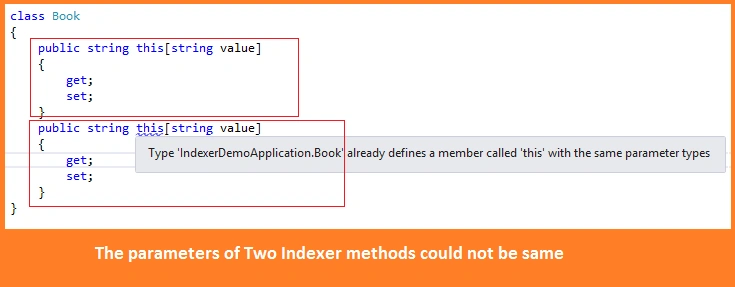
If we add multiple Indexer Methods with same type parameters, it will show compile time error. It doesn't care about return type, it's return type may be same or different but the parameter(s) never same. The following snapshot of program in which we're trying to use parameters of two indexer methods with same type, says that "already defines a member called 'this' with same parameter types".
Example
- private List<People> myContactList = new List<People>();
- myContactList.Add(new People("Ram", "[email protected]", "9797225566", "New Delhi"));
- myContactList.Add(new People("Shyam", "[email protected]", "8484225599", "Mumbai"));
- myContactList.Add(new People("Rajesh", "[email protected]", "8888225458", "New Delhi"));
- myContactList.Add(new People("Dilip", "[email protected]", "7777225522", "New Delhi"));
- myContactList.Add(new People("Rama", "[email protected]", "9718185511", "Delhi"));
- private List < People > myContactList = new List < People > ();
- public People this[string peopleName]
- {
- get
- {
- foreach(People p in myContactList)
- {
- if (p.FullName.ToLower() == peopleName.ToLower())
- {
- peopleDetail = new People(p.FullName,
- p.Email,
- p.Contact,
- p.City);
- break;
- }
- }
- return peopleDetail;
- }
- }
- private List<People> searchResultList = new List<People>();
- public List<People> this[string peopleName]
- {
- get
- {
- foreach (People p in myContactList)
- {
- if (p.FullName.ToLower()==peopleName.ToLower())
- {
- searchResultList.Add(p);
- }
- }
- return searchResultList;
- }
- }
Let us create a demo application to know about the real implementation of indexer method. We will know about the implementation in indexer methods in Console Application & Web Application. So firstly we're going to create a class library type project where our entire logic of Indexer Methods resides, after that we will use the same logic in our both applications by referencing the .dll file.
Class Library
Now we are going to create a common project of type windows class library which will help us to use the same logic into different applications. Because in this article we'll use this "Common Library Project" with the following type of applications:
- Console Application
- Web Application
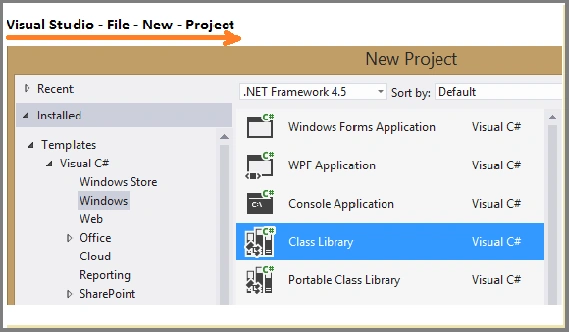
Step 2: Now add the class People and write the following properties inside the People class.
Code Snippet [ People ]
- //Class
- public class People
- {
- public string FullName
- {
- get;
- set;
- }
- public string Email
- {
- get;
- set;
- }
- public string Contact
- {
- get;
- set;
- }
- public string City
- {
- get;
- set;
- }
- public People(string fullName, string email, string contact, string city)
- {
- FullName = fullName;
- Email = email;
- Contact = contact;
- City = city;
- }
- }
Code Snippet [ Phonebook ]
- public class Phonebook
- {
- private List<People> myContactList = new List<People>();
- private List<People> searchResultList = new List<People>();
- People peopleDetail;
- public Phonebook()
- {
- myContactList.Add(new People("Ram", "[email protected]", "9797225566", "New Delhi"));
- myContactList.Add(new People("Shyam", "[email protected]", "8484225599", "Mumbai"));
- myContactList.Add(new People("Rajesh", "[email protected]", "8888225458", "New Delhi"));
- myContactList.Add(new People("Dilip", "[email protected]", "7777225522", "New Delhi"));
- myContactList.Add(new People("Rama", "[email protected]", "9718185511", "Delhi"));
- }
- }
In above code snippet, we have created an object named "myContactList" of type List<People> as well as added five dummy records into this collection. Now we're going to write some "Indexer methods" to access these records/contact list according to our indexer methods.
1. Add an Indexer method within the class Phonebook to display all contacts list.
- //1. Indexer Method: To show all records
- public List < People > this[bool isShowAll]
- {
- get
- {
- if (isShowAll == true)
- {
- foreach(People p in myContactList)
- {
- searchResultList.Add(p);
- }
- }
- return searchResultList;
- }
- }
In the above code snippet we have added an indexer method with Boolean type parameter. According to this code snippet if we pass the parameter as "true" then it will display all records available into this phone-book otherwise nothing.
- public class Phonebook
- {
- private List < People > searchResultList = new List < People > ();
- private List < People > myContactList = new List < People > ();
- //2. Indexer Method: To show record by name
- public People this[string peopleName]
- {
- get
- {
- foreach(People p in myContactList)
- {
- if (p.FullName.ToLower() == peopleName.ToLower())
- {
- peopleDetail = new People(p.FullName,
- p.Email,
- p.Contact,
- p.City);
- break;
- }
- }
- return peopleDetail;
- }
- }
- }
This indexer method will display the record which Name match (exact match) with input parameter otherwise not.
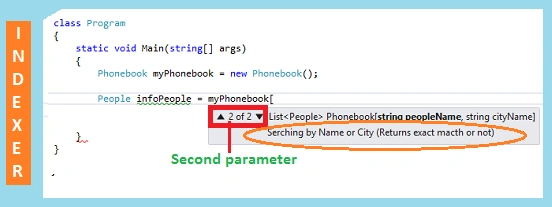
3. Add another Indexer method to search the record by the name or city of people,
- public class Phonebook
- {
- private List < People > searchResultList = new List < People > ();
- private List < People > myContactList = new List < People > ();
- //3. Indexer Method: To show record by match by name or city
- public List < People > this[string peopleName, string cityName]
- {
- get
- {
- foreach(People p in myContactList)
- {
- if (p.FullName.Contains(peopleName))
- {
- searchResultList.Add(p);
- }
- else if (p.City.Contains(cityName))
- {
- searchResultList.Add(p);
- }
- }
- return searchResultList;
- }
- }
- }
Now our project library is ready to use with any project. The following are the complete code snippet which is written inside this project library.
[Code Snippet]
- using System;
- using System.Collections.Generic;
- using System.Linq;
- using System.Text;
- using System.Threading.Tasks;
- namespace MyPhonebook
- {
- //Class
- public class People
- {
- public string FullName { get; set; }
- public string Email { get; set; }
- public string Contact { get; set; }
- public string City { get; set; }
- public People(string fullName, string email, string contact, string city)
- {
- FullName = fullName;
- Email = email;
- Contact = contact;
- City = city;
- }
- }
- //Class
- public class Phonebook
- {
- private List<People> myContactList = new List<People>();
- private List<People> searchResultList = new List<People>();
- People peopleDetail;
- public Phonebook()
- {
- myContactList.Add(new People("Ram", "[email protected]", "9797225566", "New Delhi"));
- myContactList.Add(new People("Shyam", "[email protected]", "8484225599", "Mumbai"));
- myContactList.Add(new People("Rajesh", "[email protected]", "8888225458", "New Delhi"));
- myContactList.Add(new People("Dilip", "[email protected]", "7777225522", "New Delhi"));
- myContactList.Add(new People("Rama", "[email protected]", "9718185511", "Delhi"));
- }
- /// <summary>
- /// Display all contacts list
- /// </summary>
- /// <param name="peopleName"></param>
- /// <returns></returns>
- public List<People> this[bool isShowAll]
- {
- get
- {
- if (isShowAll == true)
- {
- foreach (People p in myContactList)
- {
- searchResultList.Add(p);
- }
- }
- return searchResultList;
- }
- }
- /// <summary>
- /// Searching by Name (By Exact match)
- /// </summary>
- /// <param name="peopleName"></param>
- /// <returns></returns>
- public People this[string peopleName]
- {
- get
- {
- foreach (People p in myContactList)
- {
- if (p.FullName.ToLower() == peopleName.ToLower())
- {
- peopleDetail = new People(p.FullName, p.Email, p.Contact, p.City);
- break;
- }
- }
- return peopleDetail;
- }
- }
- /// <summary>
- /// Serching by Name or City (Returns exact macth or not)
- /// </summary>
- /// <param name="name"></param>
- /// <param name="cityName"></param>
- /// <returns></returns>
- public List<People> this[string peopleName, string cityName]
- {
- get
- {
- foreach (People p in myContactList)
- {
- if (p.FullName.Contains(peopleName))
- {
- searchResultList.Add(p);
- }
- else if (p.City.Contains(cityName))
- {
- searchResultList.Add(p);
- }
- }
- return searchResultList;
- }
- }
- }
- }
Now we're going to
create a website in which we will put the reference of the same library to know the usage of indexer
method with web application.
Firstly we are going to add a website into current solution and add the reference of "MyPhonebook.dll" by "Right Click" on website and select "Add Reference..." from the popup window, after that a new window will appear on the screen where we may find and select our library .dll file.
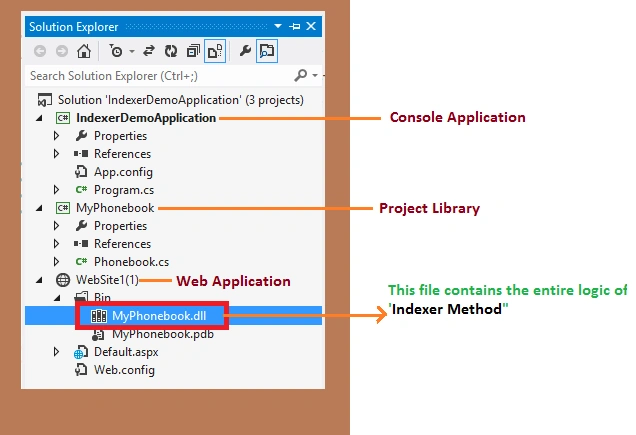
Now we need to add a web page where we will call the Indexer methods to show the result for each type. Suppose we have added a Default.aspx page in our web application. Now add the following code inside the <form> tag,
- <form id="form1" runat="server">
- <div class="main-box">
- <h2>Indexer Method</h2>
- <p>Demo Application</p>
- <br />
- <div class="Filter">
- <asp:Button ID="btnAll" runat="server" CssClass="button" Text="All" OnClick="btnAll_Click"></asp:Button>
- <asp:Button ID="btnByName" runat="server" CssClass="button" Text="By Name" OnClick="btnByName_Click"></asp:Button>
- <asp:Button ID="btnByBoth" runat="server" CssClass="button" Text="Name & City" OnClick="btnByBoth_Click"></asp:Button>
- </div>
- <br style="clear: both;" />
- <table class="searchBox">
- <tr id="panelSearchByName" runat="server" visible="false">
- <td>
- <asp:TextBox ID="txtSerchByName" runat="server" placeholder="Name"></asp:TextBox>
- <asp:Button ID="btnSearchByName" runat="server" Text="Go" OnClick="btnSearchByName_Click" />
- </td>
- </tr>
- <tr id="panelSearchByNameandCity" runat="server" visible="false">
- <td>
- <asp:TextBox ID="TextBoxName" runat="server" placeholder="Name"></asp:TextBox>
- <asp:TextBox ID="TextBoxCity" runat="server" placeholder="City"></asp:TextBox>
- <asp:Button ID="btnByNameAndCity" OnClick="btnByNameAndCity_Click" runat="server" Text="Go" />
- </td>
- </tr>
- </table>
- <p id="headingText" runat="server">All Contacts</p>
- <asp:Repeater ID="GridViewPhonebook" runat="server">
- <ItemTemplate>
- <div class="record-list">
- <img src="" alt="People Photo" />
- <div class="right">
- <span class="name"><%# DataBinder.Eval(Container.DataItem,"FullName") %></span>
- <span class="mobile"><%# DataBinder.Eval(Container.DataItem,"Contact") %></span>
- <span class="email"><%# DataBinder.Eval(Container.DataItem,"Email") %></span>
- <span class="city"><%# DataBinder.Eval(Container.DataItem,"City") %> </span>
- </div>
- </div>
- </ItemTemplate>
- </asp:Repeater>
- <asp:Label ID="Message" runat="server" Text="No Record Found" ForeColor="Red" Visible="false"></asp:Label>
- </div>
- </form>
I have used some style sheet classes to design the form layout which is not available in above code of Default.aspx page. To display the list of all records, write the following method at Default.aspx.cs page and call this method at Page_Load event.
- private void BindAllContact()
- {
- List < People > myPhonebookList = phonebook[true];
- if (myPhonebookList != null)
- {
- DataTable dataTable = new DataTable();
- dataTable.Columns.Add("FullName");
- dataTable.Columns.Add("Email");
- dataTable.Columns.Add("Contact");
- dataTable.Columns.Add("City");
- foreach(People people in myPhonebookList)
- {
- dataTable.Rows.Add(people.FullName, people.Email, people.Contact, people.City);
- }
- GridViewPhonebook.DataSource = dataTable;
- GridViewPhonebook.DataBind();
- headingText.InnerText = "All Contact";
- Message.Visible = false;
- }
- else
- {
- Message.Visible = true;
- }
- }
In the above method we called the indexer method which accepts the single parameter of Boolean type, according to our logic which is written inside the indexer method, if you pass the parameter as true it will show the entire records otherwise no record.
Now call this method BindAllContact() on Page_Load, it will display the list of records like the following image.
The following image shows the list of all records which is available in our phonebook.
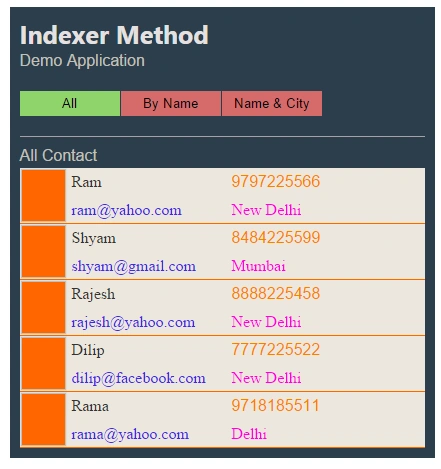
In this web page we have added the following three buttons according to our indexer methods.
- All : (It shows all records)
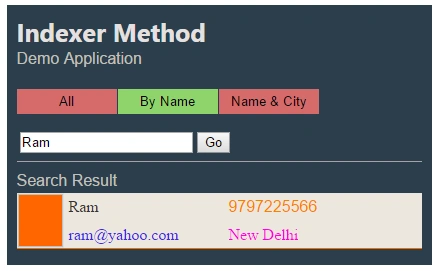
- By Name: (It shows the records whoes name match exactly)
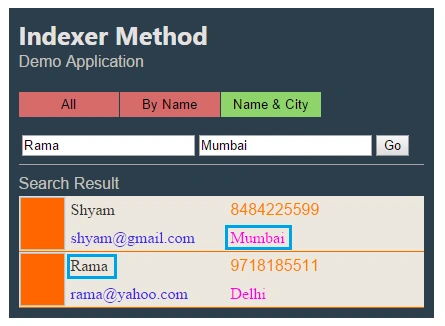
- By Name & City : (It shows the all records whose name or city match)
Search By Name
Now add the following methods at Default.aspx.cs and call this method on Button_Click on which you want to show the resultant list. For this article we will call this method on the click of button Go.- private void BindListByName(People people)
- {
- headingText.InnerText = "Search Result";
- if (people != null)
- {
- DataTable dataTable = new DataTable();
- dataTable.Columns.Add("FullName");
- dataTable.Columns.Add("Email");
- dataTable.Columns.Add("Contact");
- dataTable.Columns.Add("City");
- dataTable.Rows.Add(people.FullName, people.Email, people.Contact, people.City);
- GridViewPhonebook.DataSource = dataTable;
- GridViewPhonebook.DataBind();
- Message.Visible = false;
- }
- else
- {
- GridViewPhonebook.DataSource = null;
- GridViewPhonebook.DataBind();
- Message.Visible = true;
- }
- }
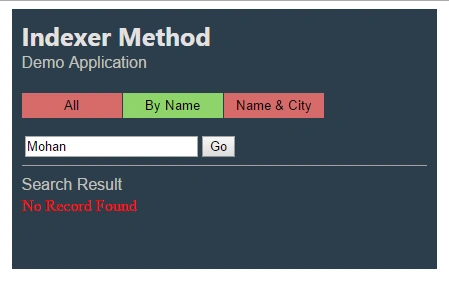
Now we'll search the name which is not available in this phonebook, it shows a message "No Record Found" which represents that the name we're trying to search is not available in this phonebook.
Serch By Name & City
Now add the following methods at Default.aspx.cs and call this method on Button_Click on which you want to show the resultant list. For this article we will call this method on the click of button Go.
[Code Snippet]
- private void BindListByNameAndCity(List < People > people)
- {
- headingText.InnerText = "Search Result";
- if (people != null)
- {
- DataTable dataTable = new DataTable();
- dataTable.Columns.Add("FullName");
- dataTable.Columns.Add("Email");
- dataTable.Columns.Add("Contact");
- dataTable.Columns.Add("City");
- foreach(People p in people)
- {
- dataTable.Rows.Add(p.FullName, p.Email, p.Contact, p.City);
- }
- GridViewPhonebook.DataSource = dataTable;
- GridViewPhonebook.DataBind();
- Message.Visible = false;
- }
- else
- {
- GridViewPhonebook.DataSource = null;
- GridViewPhonebook.DataBind();
- Message.Visible = true;
- }
- }
Console Application
Now we are going to create a console application in which we will use the class library to represent the "Indexer Methods".
Step I: Create a console application or add a new project into existing solution.
Step II: Now refer the class library project into this console application, to do so, we may follow the following steps. Right Click on application name and select "Add Reference..." and browse your library project.
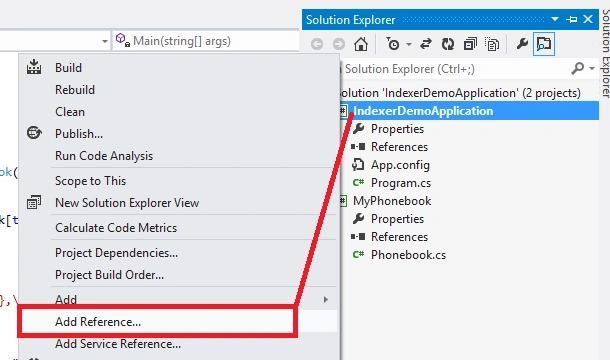
Now we will see the
following window, where we select our project,
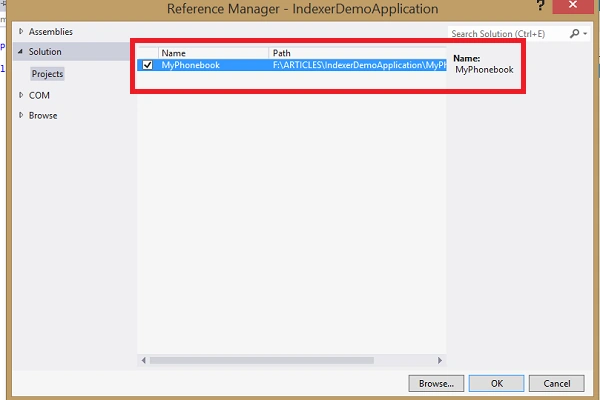
Now we can see the
our library project named "MyPhonebook" is listed under the references directory or our application.
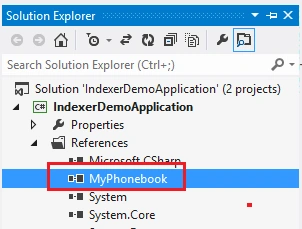
Now call the Indexer method to display all records which is available into this phonebook.
[Code Snippet]
- {
- static void Main(string[] args)
- {
- Phonebook myPhonebook = new Phonebook();
- List < People > allPeople = myPhonebook[true];
- if (allPeople != null)
- {
- foreach(People p in allPeople)
- {
- Console.WriteLine("Name: {0},\nE-mail:{1},\nContact: {2}, \nCity: {3}",
- p.FullName,
- p.Email,
- p.Contact,
- p.City);
- Console.WriteLine("\n........");
- }
- }
- else
- {
- Console.WriteLine("\n No Contact Found.");
- }
- Console.ReadLine();
- }
- }
Output Window
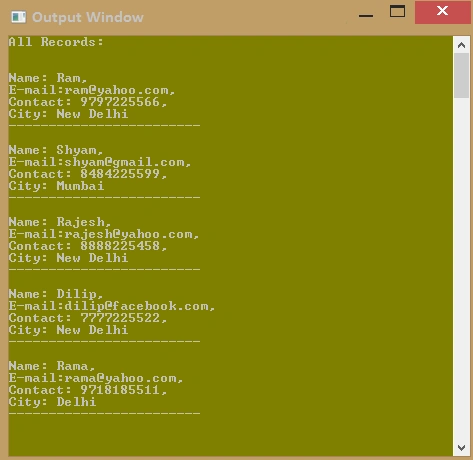
Now call the indexer method to search the record whose Name is Ram.
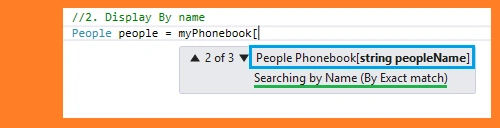
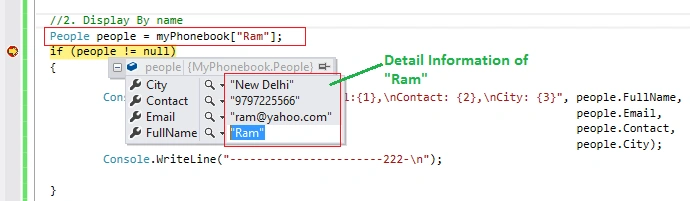
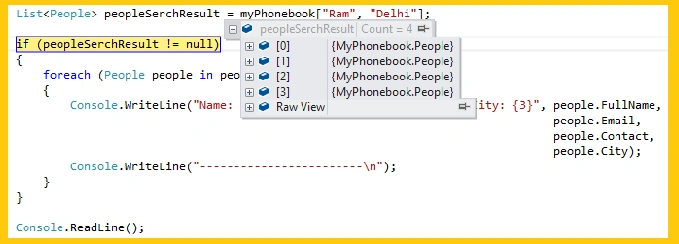
Now we're going to call the indexer method to search the record whose name have "Ram" and city have "Delhi".
Search Result (in debug mode)
In this article we read about the "Indexer Methods" in C# programming, how it is different from a general method of C# as well as what are the benefits of Indexer Method.
Mahmoud ZaatarPosted Jan 17, 2020, 8:31 PM
That's what I call it a could explanation.
Luca Spano'Posted Dec 16, 2015, 5:45 PM
Very nice share!
Ankur MistryPosted Dec 15, 2015, 11:45 AM
nice share
Praveen KumarPosted Dec 15, 2015, 8:22 AM
Thank you very much Jaipal Reddy, Abhishek Arora, Raja T
Raja TPosted Dec 15, 2015, 6:58 AM
Nice, Thanks for sharing
Abhishek AroraPosted Dec 15, 2015, 4:06 AM
Nice one..
Jaipal ReddyPosted Dec 15, 2015, 3:50 AM
Nice work.
Lalit KumarPosted Dec 15, 2015, 3:44 AM
Great! Praveen Kumar
Humayun Kabir MamunPosted Dec 15, 2015, 2:45 AM
Nice...