

Welcome to an article on how to manage audiences under user profiles at the SharePoint Admin Center on Office 365. Sharing has always been an important part of SharePoint. Here in this article, we will see what options are available for us to Manage Audiences of User Profiles at the SharePoint Admin Center.
To see that, you need to be a tenant admin. If you are, Let’s see how we can do it,
- Click on the left corner of your SharePoint site to view the apps.
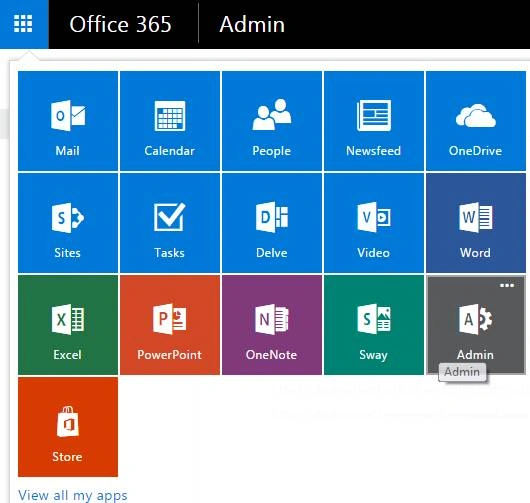
- Click on Admin.
- You will come to the “SharePoint admin center”.
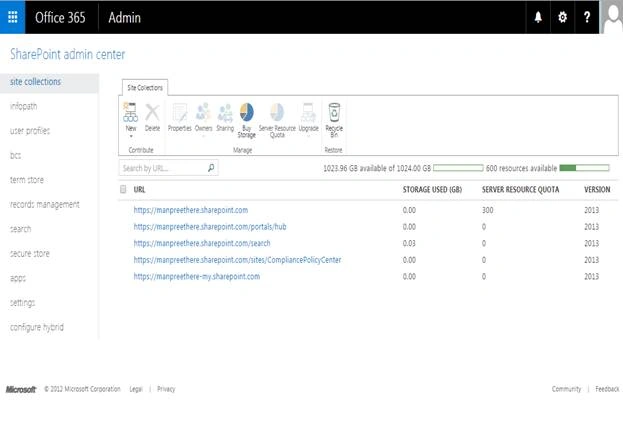
- Select user profiles on the left navigation.
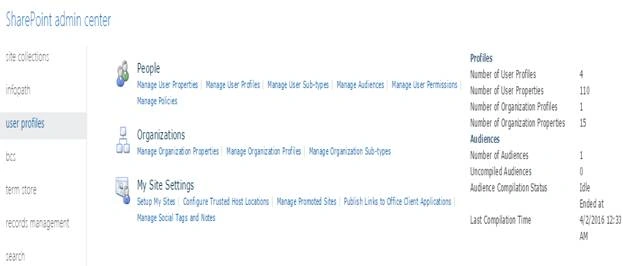
Manage Audiences: Use this page to manage audiences for the profiles.
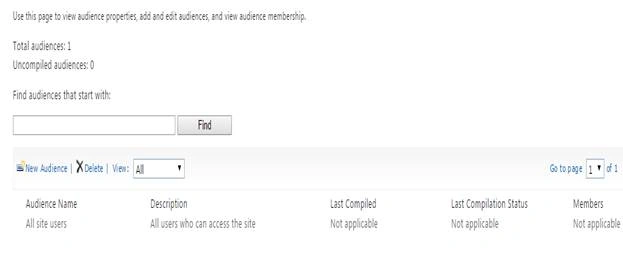
- Use this section to create or delete Audiences in SharePoint Office 365.
- Let’s click on ‘New Audience’.
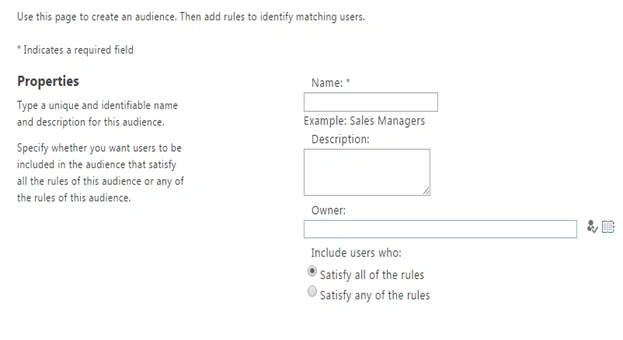
- Here under properties, you can create new audiences.
a. Name: Provide a name for your audience.
b. Description : Provide a description to your created audience.
c. Owner: Assign a owner to the audience.
d. Rules: Set rules as who should be attached to this audience whether they should satisfy all rules or any of them.
Rules
Once you create an audience, you reach to apply rules.
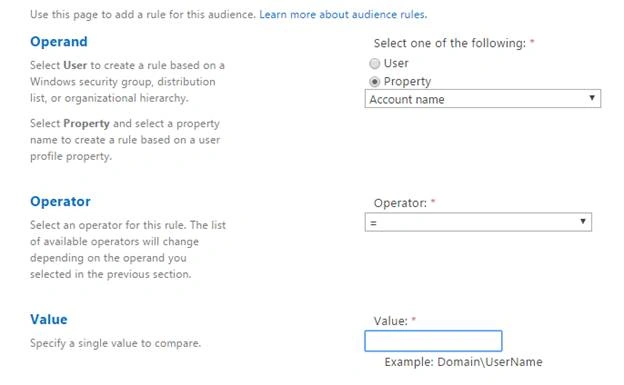
- Operand:
Select an operand as a user or a property from the list below to assign to your rule.
If it’s a user, you don’t have to select anything but if it’s a property you have to select from the following list. For example, here are the user properties.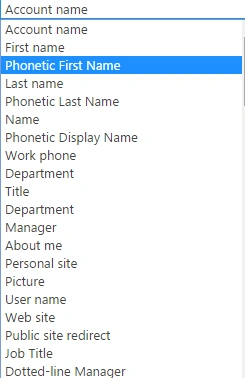
- Operator:
Then comes the operator which you would use for comparison. If you have selected,
a. User as Operand
Your options are ‘Reports Under’ or ‘Member Of’,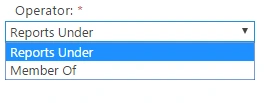
b. Property as Operand
If you choose property as operand, you have the following operators.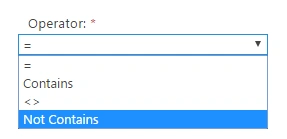
- Value:
Lastly, you have value where you need to compare your operand with the operator.
• If the Operand is a user, you need to update the user name.
• If the Operand is a property, you need to provide a username with your domain.
Once you configure this rule, all the users who fulfill this rule will get attached to this Audience.
Here in this article we learned how to manage audiences under User Profiles at the SharePoint Admin Center on Office 365.
Keep reading and keep learning!
Humayun Kabir MamunPosted Apr 10, 2016, 11:47 PM
Nice...
NitinPosted Apr 10, 2016, 1:13 AM
nice
Debasis SahaPosted Apr 9, 2016, 2:03 AM
Good share..
Rahul Kumar SaxenaPosted Apr 8, 2016, 10:29 PM
Nice one
Vignesh ManiPosted Apr 8, 2016, 5:14 PM
Nice