
Without coding we can do the re-index of SharePoint List, Document library.
What is Re-index?
In SharePoint Online, content is automatically crawled based on a defined crawl schedule. The crawler picks up content that has changed since the last crawl and updates the index. In some cases, you may want to manually request crawling and full re-indexing of a site, a document library, or a list.
Steps
Here are the steps to re-index the SharePoint list,
Step 1: Open list in SharePoint site,
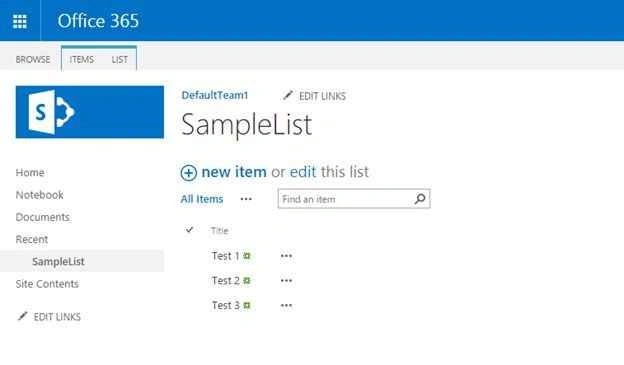
Step 2: Then select the List from the ribbon bar as in the following screenshot:
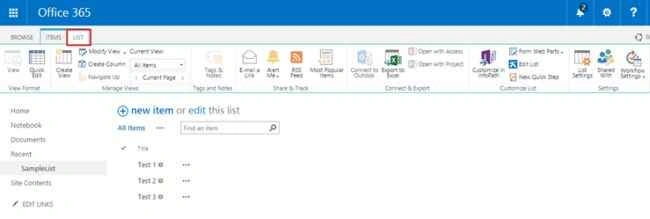
Step 3: On the ribbon click on the “List Settings” to go to the advanced list settings.

Step 4: Then you will navigate to list settings page as in the following screenshot:
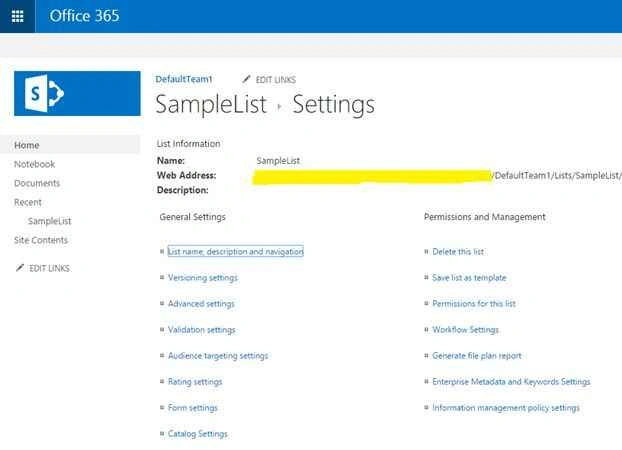
Step 5: Click on “Advanced Settings” in list settings page,
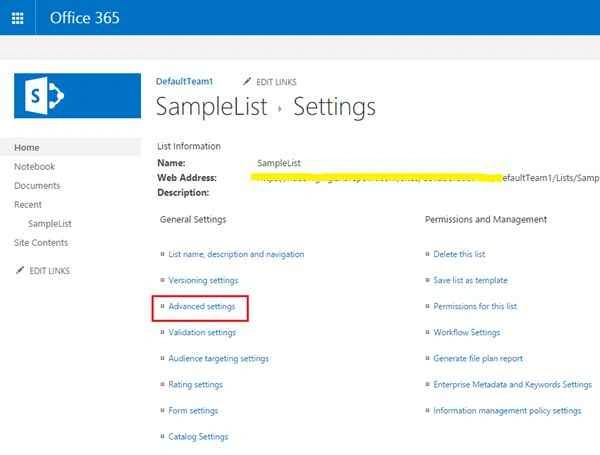
Step 6: On Advanced Settings page click on the “Re-index List” button
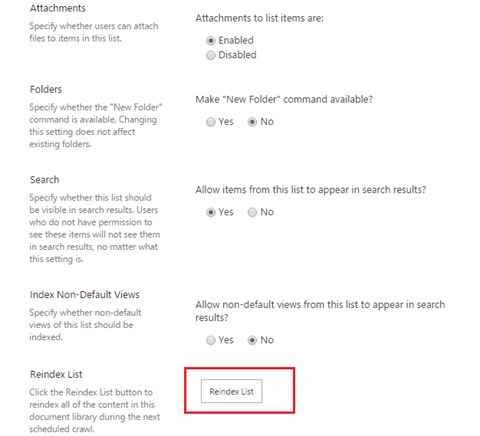
Step 7: Then you will get the popup as in the following screenshot:
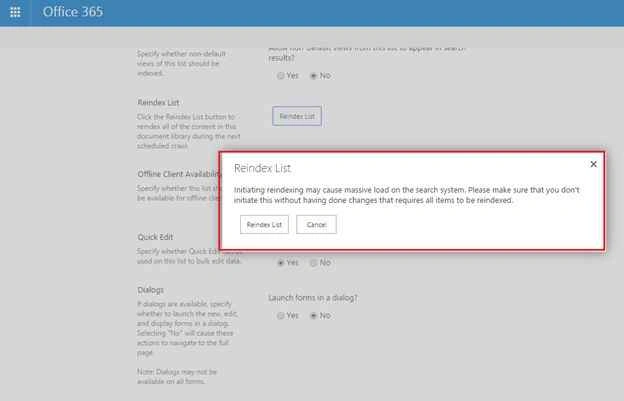
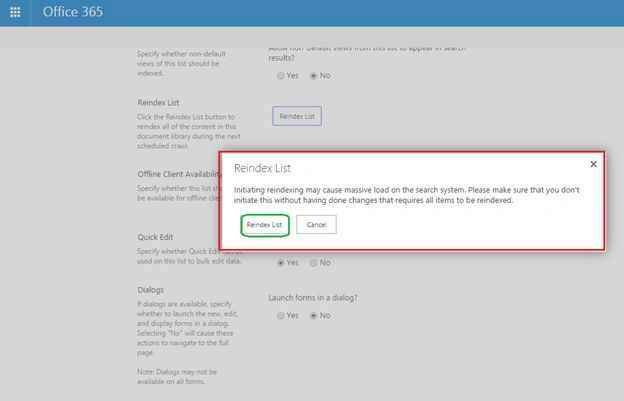
Step 8: Click on the “Re-index List” button on the pop up.
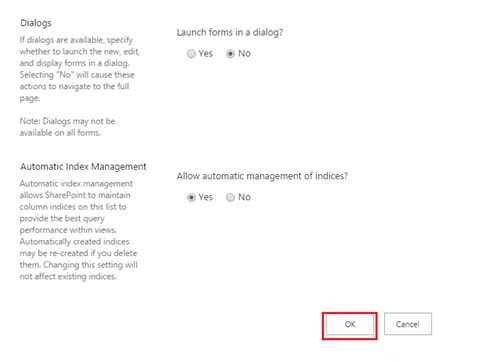
Your SharePoint list will be re-indexed successfully, then Click “Ok” to navigate the settings page.
Summary
In this article we have explored how to Re-index the list in SharePoint Online without any code. I hope this article is useful for who are learning to start the SharePoint Search.
Reference

Manually Re-Index The List In SharePoint
Join the conversation! Your thoughts help the community grow.
Sign in to leave a comment
It is the same account you read, post and publish with — and you will come straight back to this page.
Rajkiran SwainPosted Jul 28, 2016, 2:24 AM
Nice Article,.
Kaviya BalasubramanianPosted Sep 23, 2015, 12:23 AM
Thank you Santhakumar :)
Santhakumar MunuswamyPosted Sep 22, 2015, 3:06 PM
Nice Article. Thanks for sharing
Kaviya BalasubramanianPosted Sep 22, 2015, 12:56 AM
Thank you karthikeyan
Karthikeyan KPosted Sep 21, 2015, 11:39 PM
Good one...Thanks for sharing
Kaviya BalasubramanianPosted Sep 21, 2015, 10:40 AM
Thank you Rakesh
RakeshPosted Sep 21, 2015, 10:04 AM
Good Share
Kaviya BalasubramanianPosted Sep 21, 2015, 7:46 AM
Thank you all :)
Nilesh JadavPosted Sep 21, 2015, 6:27 AM
Nice work on Sharepoint!!
Ankit BansalPosted Sep 21, 2015, 6:14 AM
good one...
Vinodh NarayananPosted Sep 21, 2015, 5:53 AM
nice sharep