

Introduction
A high-level AI orchestration service for managing the entire application lifecycle and incident response.
AWS revolutionized cloud operations by moving the AWS DevOps Agent into General Availability. Unlike traditional "agents" that you install on a server to collect logs, the AWS DevOps Agent is a frontier agent—an autonomous, AI-powered system designed to act as an "on-call engineer."
It doesn't just monitor; it investigates, triages, and mitigates incidents across AWS, hybrid, and multi-cloud environments (including Azure and on premises)
Key Capabilities
Autonomous Investigation: Automatically analyzes CloudWatch alarms to find the root cause of spikes or failures.
Cross-Cloud Operations: Uses the Model Context Protocol (MCP) to manage resources in Azure and on-premises data centers alongside AWS.
Incident Triage: Identifies duplicate tickets and links them to central investigations to reduce "alert fatigue."
Skill Learning: Learns your team's specific troubleshooting patterns and custom runbooks over time
How to Set Up the AWS DevOps Agent
Setting up the agent is different from traditional software installation. Since it functions as a managed service, "setup" primarily involves provisioning its Agent Space and granting it the necessary permissions to observe your infrastructure
Follow step by step approach present in diagram
Step 1: Enable the Agent Space
The "Agent Space" is a secure environment where the agent's reasoning and investigation logs reside.
Navigate to the AWS DevOps Agent console (under Developer Tools or Management & Governance).
Select Enable Agent.
Choose your Deployment Region (e.g., US East, Frankfurt, or Tokyo).
Choose the option mentioned in image and press create button
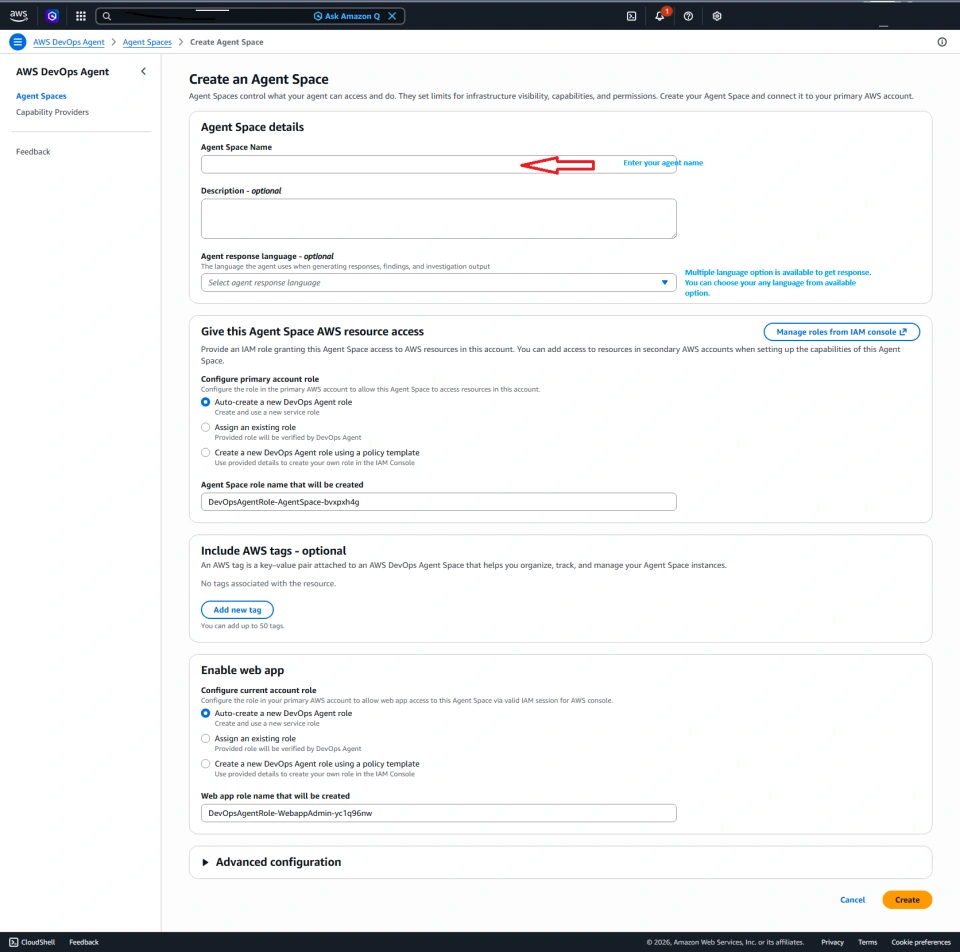
Step 2: After creating agent will display like below

Step 3: Click view details, it will display like below. This agent will take some time to display Relationships mapped via analysis of your AWS account
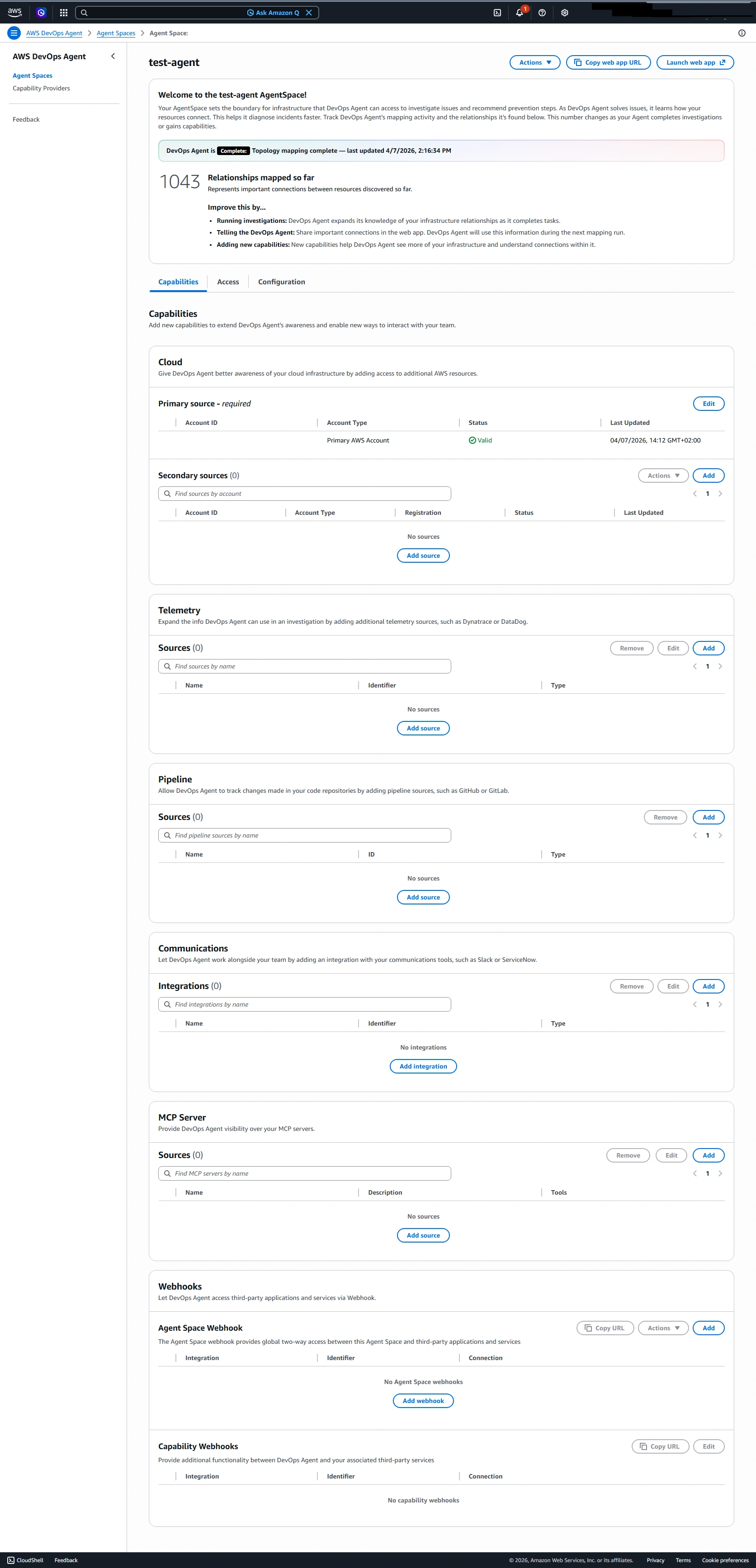
Step 4: Top right corner of pervious image is showing option Launch web app Click on it.

It will launch AWS DevOps Agent Web App.
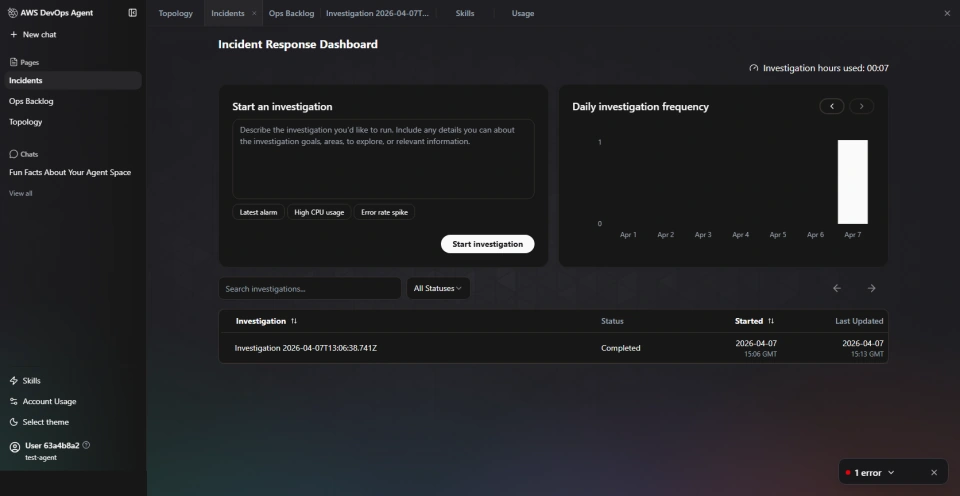
Step 5:
In previous screen shot we can see Start investigation option along with sample questions. Choose high CPU usage option
In few minute it will look into all instance and services for high CPU usage and investigate root cause.
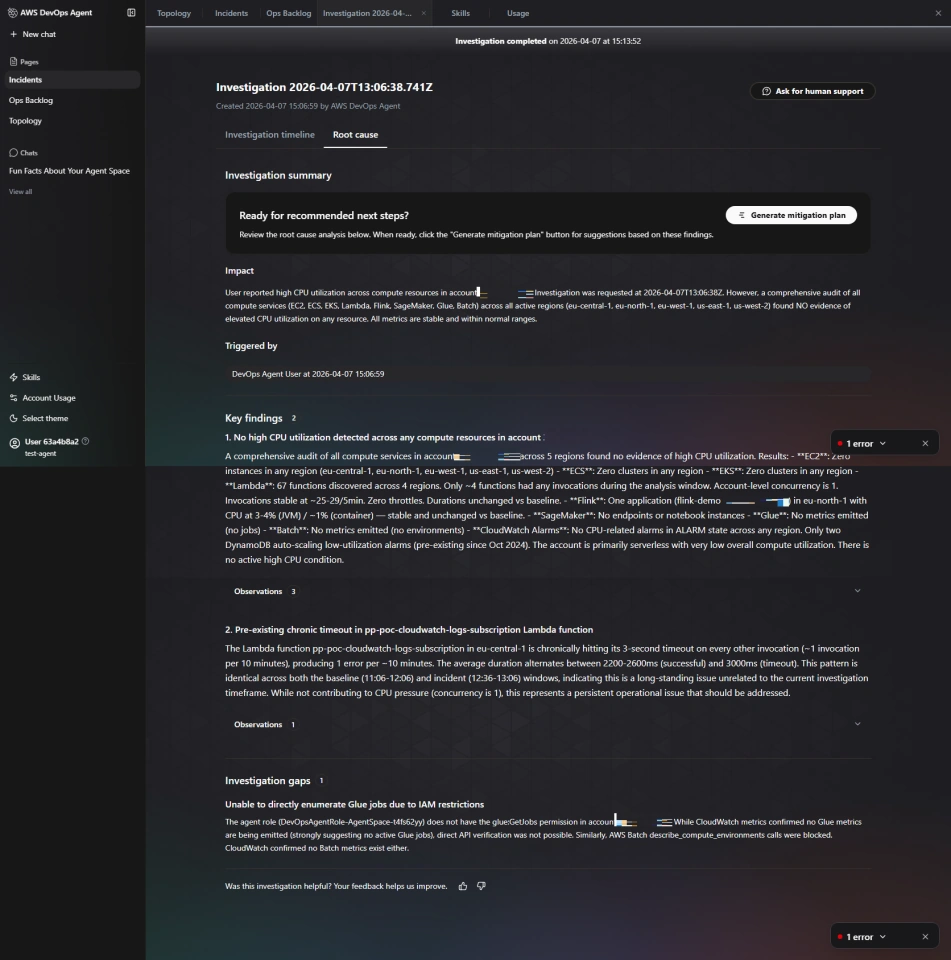
Step 6:
We can see two tab Investigation timeline & Root cause. This will show detailed analysis of Investigation.
Conclusion
Implementing a self-hosted agent on AWS marks a significant step toward DevOps maturity. By moving away from generic environments, we have tailored our infrastructure to meet our specific application needs. This configuration provides the necessary isolation for sensitive data while providing the high availability required for a continuous deployment culture. We are now prepared to scale our development operations with confidence and precision.
KingPosted Apr 28, 2026, 3:38 AM
I want to Publish Article Any one help me