

Now, we have the MIM installed and configured for the SharePoint Server and have applied the connection filter. Now, we want to import the custom AD attribute in SharePoint.
In our company, we have a couple of custom attributes, which we want to import and display in SharePoint 2016. In this example, we will use the employeeNumber property, which is already created by our Active Directory Admin (I am not covering here). Employee Number will be String type with a size of 100.
To import custom AD attribute, we have to perform the steps, mentioned below.
- Create the New User profile property in the User Profile Service.
- Create a matching property in the Metaverse Designer.
- Map the Custom Property in the ADMA.
- Refresh the Schema for SPMA.
- Map the Custom Property in the SPMA.
- Run Full Sync.
Create Property in the UPA
- Please log in on the central admin with Farm administrator account.
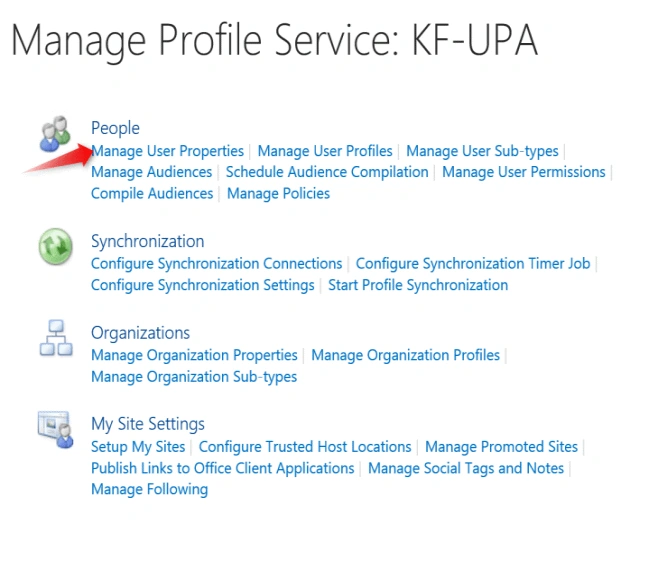
- Go to Central Admin > Application Management > Manage Service Application > Click on the User Profile Service. On this page, click on the Manage User Properties.
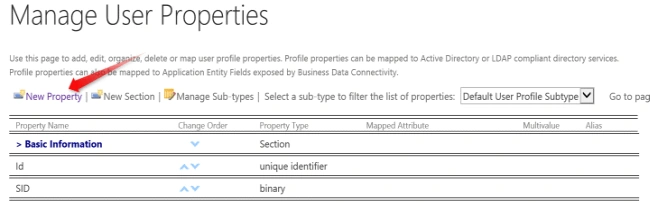
- Click New
- On this page, please enter the information, mentioned below.
- Name employeeNumber
- Display Name Employee Number
- Type String(Single Value)
- Length 100
- Sub-type of profile check this
- User Description
- Policy Settings
Select the value as per your requirement.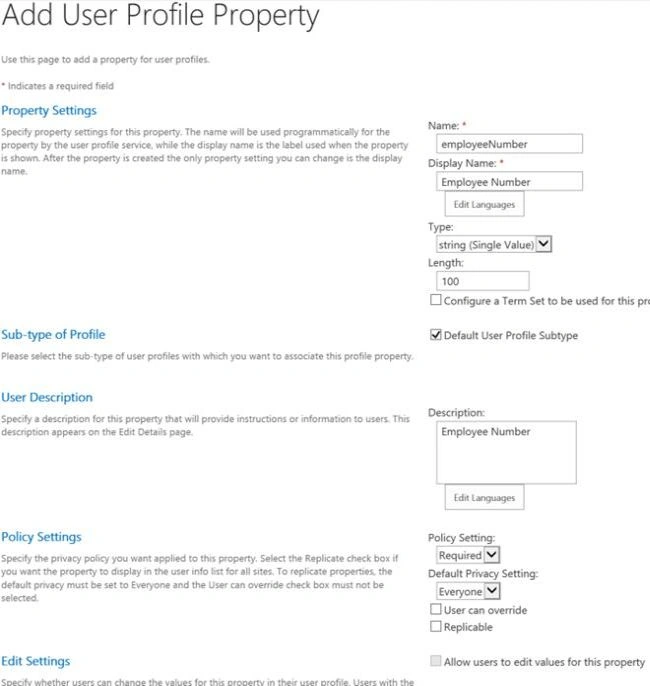
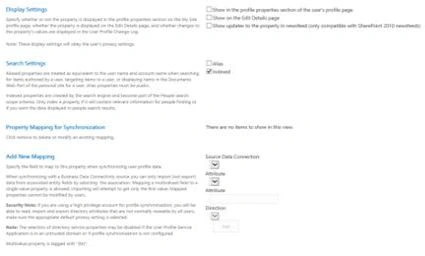
- Click OK, Now, you will see the new property.

Create a matching property in the Metaverse
- Click Start Windows and click Synchronization Service.
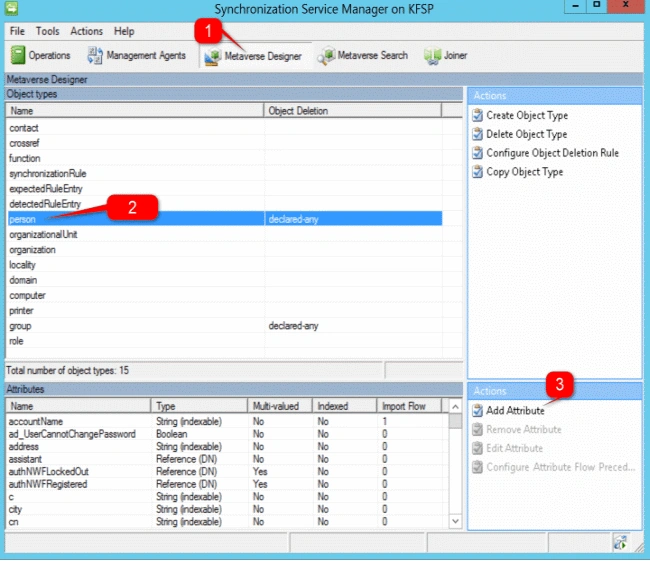
- Click Metaverse Designer(1) and click On Person(2) followed by clicking on Add Attribute(3).
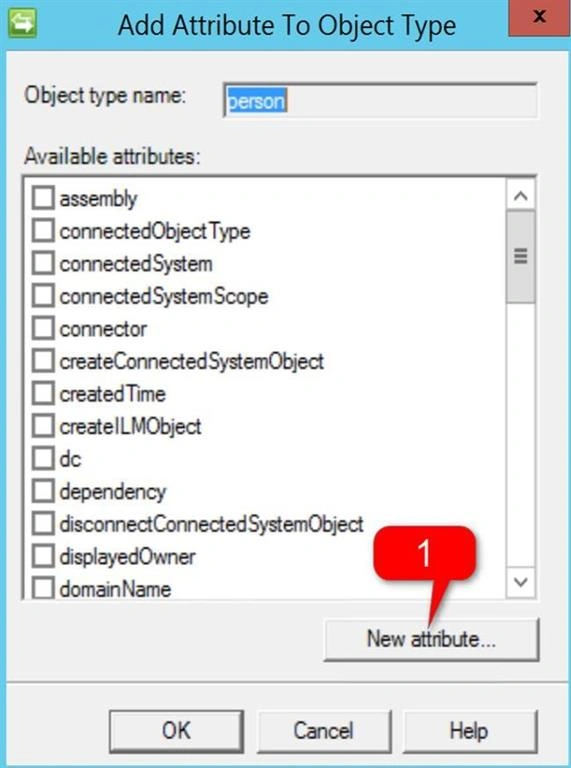
- Click New Attribute(1).
- On this, enter the
- Attribute name
- Attribute type
- I selected Index
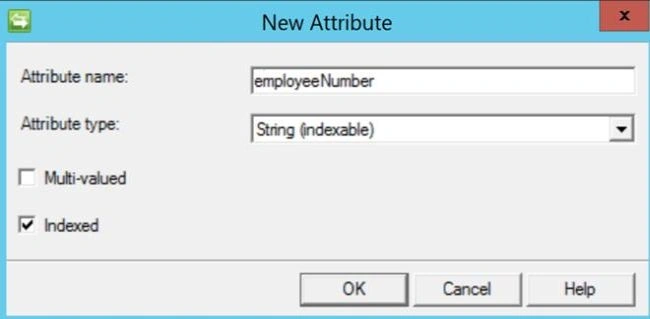
- Click OK.
Create the Mapping in the ADMA
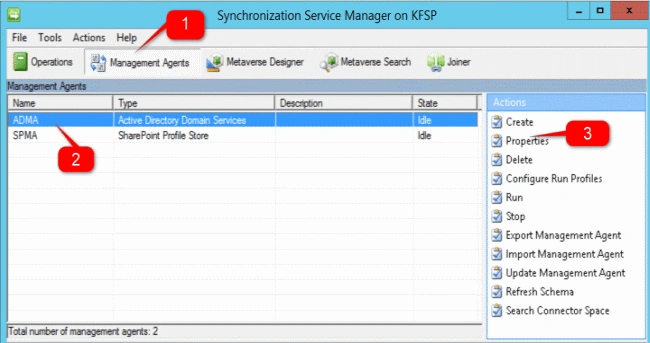
- On the Synchronization Service manager, click Management Agents(1) then ADMA(2) and click on Properties(3).
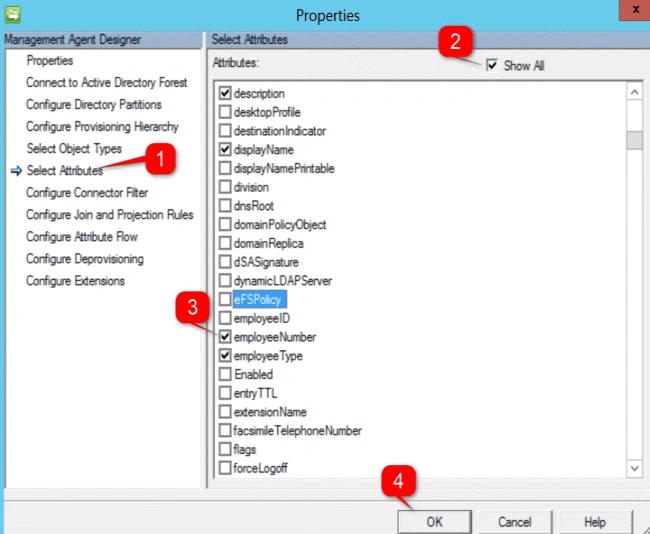
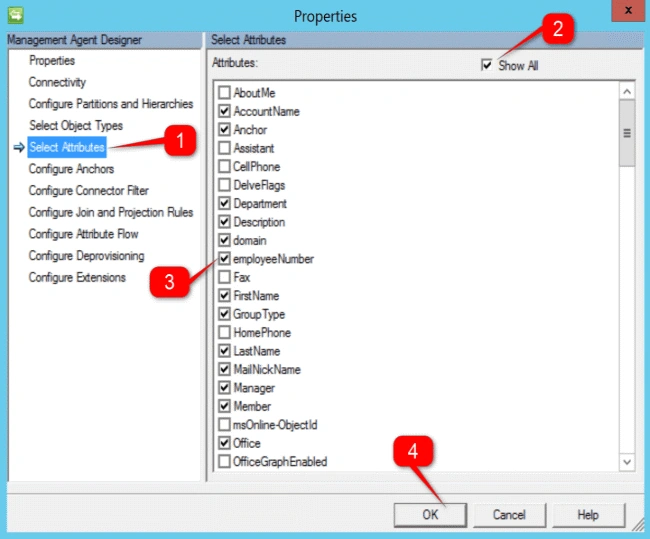
- Click Select Attribute(1) followed by checking the Show All(2). Check the Employee Number(3) followed by clicking OK.
- Reopen the ADMA Properties.
- Select the following information.
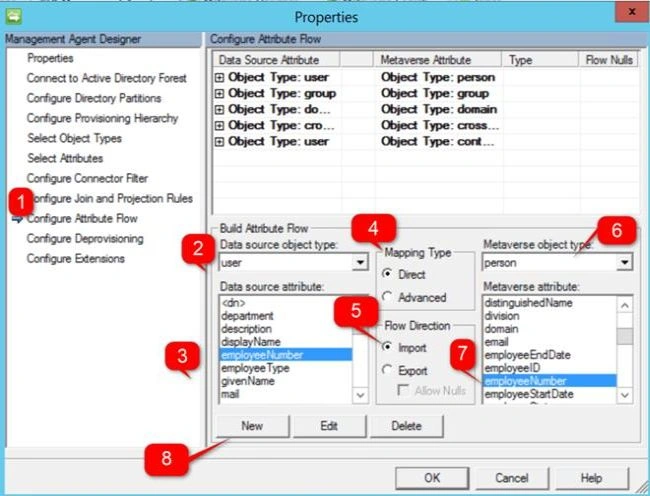
- Click Configure Attribute Flow
- Data source object Type : User
- Data Source Attribute : employeeNumber
- Mapping type: Direct
- Flow Detection: Import
- Metaverse Object Type: Person
- MetaVerse Attribute employeeNumber
- Click New.
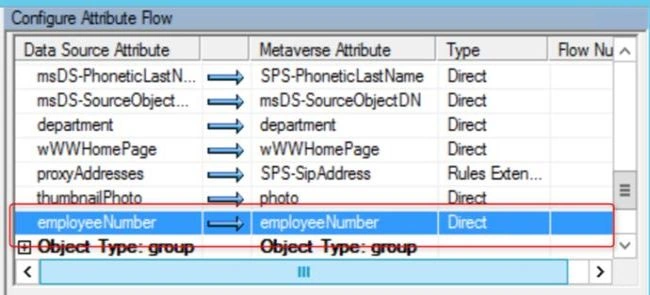
- Now, you will see new mapping under the Configure Attribute Flow, as shown below.
Now, you need to refresh the schema for SPMA in order to see the employee number. Whenever you create/ map a brand new property in the ADMA or user profile, you have to refresh schema in order to see the attribute.
Refresh the Schema for SPMA
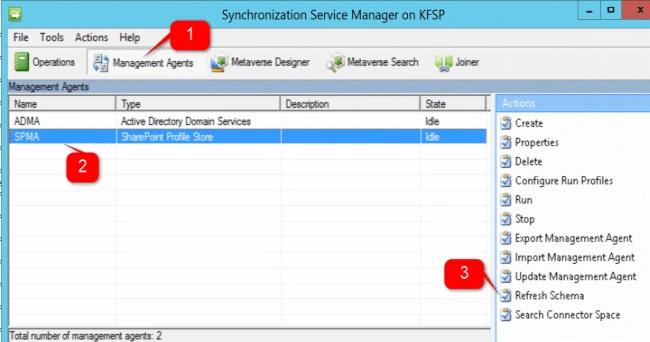
- On the Synchronization Service manager, click Management Agents(1) followed by SPMA(2). Subsequently, click Refresh Schema(3).
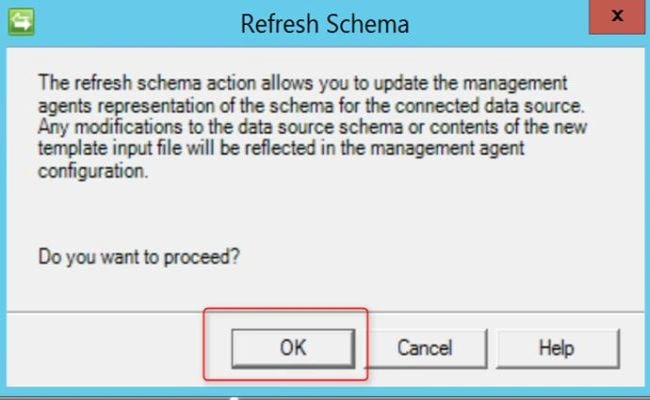
- Click OK on the Refresh Schema Pop-Up.
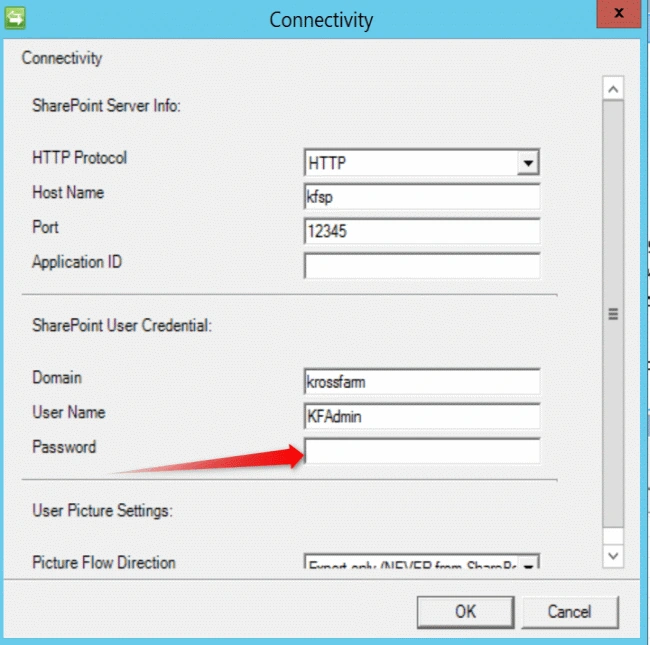
- Now, you have to enter the password for the account, which we configure during the configuration of MIM. Click OK.
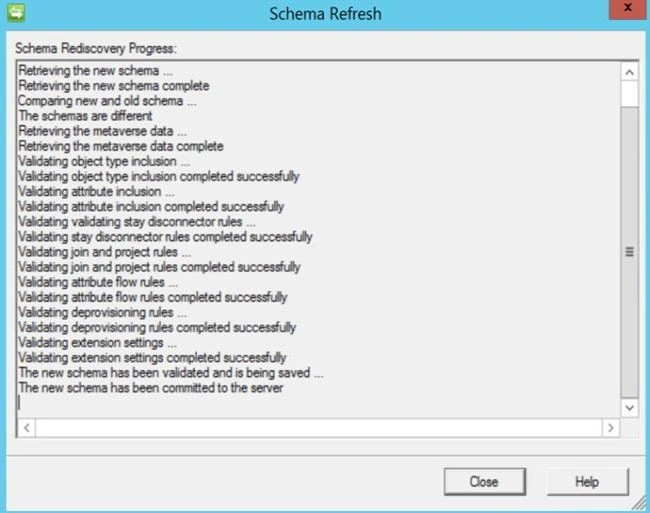
- You will see the message ”The New Schema Has Been committed to the server”. Click Close.
Create the Mapping in the SPMA
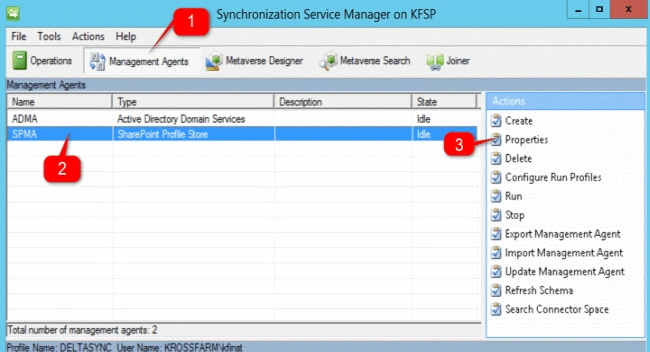
- On the Synchronization Service manager, click Management Agents(1) followed by SPMA(2) and click Properties(3).
- Click Select Attribute(1) followed by checking the Show All(2) and checking the Employee Number(3) and click OK.
- Reopen the ADMA Properties.
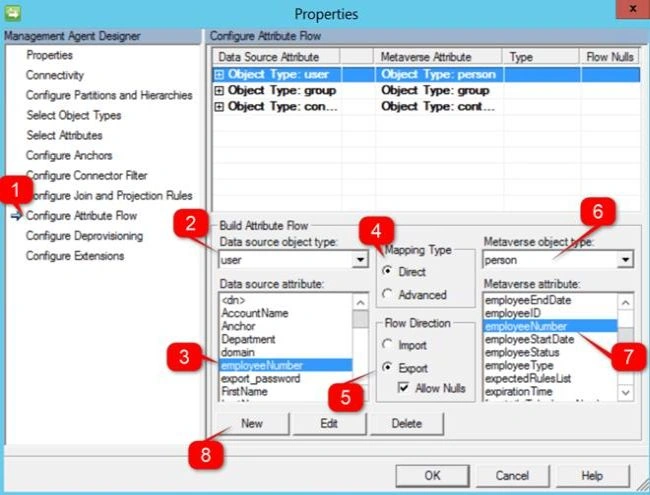
- Select the following information.
- Click Configure Attribute Flow
- Data source object Type : User
- Data Source Attribute : employeeNumber
- Mapping type: Direct
- Flow Detection: Export, Allow Nulls
- Metaverse Object Type: Person
- MetaVerse Attribute : employeeNumber
- Click New.
- Now, you will see new mapping under the Configure Attribute Flow, as shown below.
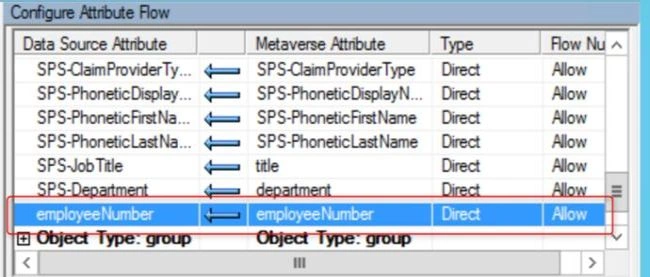
- Click OK.
Now, it's time to run the Full Sync.This step will validate our effort and also import the values from AD into the user profile. Please run full Synchronization, using the Start-SharePointSync (as we learned here).
If you want to import multiple custom properties, then you have to repeat the steps, mentioned above, every time. Now, let’s move to the last part called the importing the additional domains.
See Also
Please follow the articles, mentioned below for the subsequent steps.
- Step by Step: Installation of Microsoft Identity Manager for SharePoint 2016 User profile Service
- Step by Step: Configuration of Microsoft Identity Manager for SharePoint 2016 User Profile
- SharePoint 2016 User profile Service and MIM: Apply the Connection Filter
- MIM 2016 with SharePoint 2016 User Profile service: Import Custom Property from Active Directory – Part – 4
- MIM with SharePoint Server 2016 User profile: Add more Active Directory Domain for Synchronization. Part - 5
Priyaranjan K SPosted Nov 29, 2016, 11:13 PM
Great article series on MIM