

Introduction
In this article we are going to explore the WebBrowser control in Windows Phone 7. Afterr that we will learn in details about the WebBrowser control; how it is used in Windows Phone 7, with an example. As we know, a browser is used to access internet sites by providing the URL of the site. Also in this application we will see we have a TextBox control and a Button control and you will have to drag and drop a control named WebBrowser to navigate to the site. In this application you will see that you just provide an URL of the preferred site that you want; it is just written in the TextBox and then click on the search button; after clicking on it you will see that the home page of that URL site which you have provided is accessed. To do that you should use the steps given below.
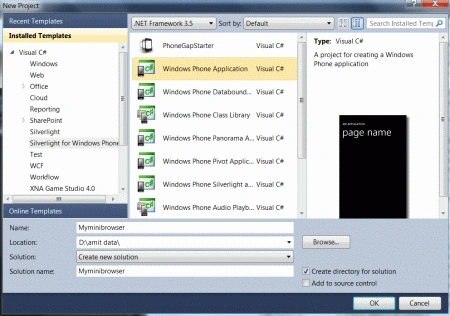
Step 1: In this step, first of all we have to open a Windows Phone application; let's see how to open it.
- Go to Visual Studio 2010
- File->New->Project
- Select the template named Silverlight for Windows Phone
- Select the Windows Phone application
- Give it a name as you want.

Step 2: In this step you will add a TextBox control, Button and a WebBrowser control inside the Grid container; when you drag and drop the WebBrowser control, it will look as shown below:
Code:
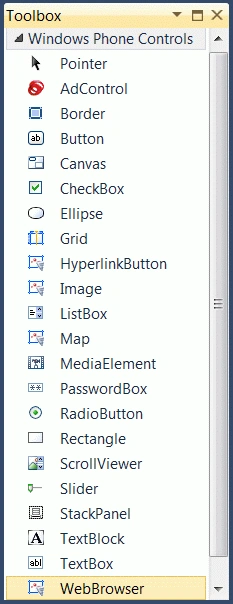
<phone:WebBrowser HorizontalAlignment="Stretch" Margin="0,107,0,6" Name="MywebBrowser1" VerticalAlignment="Stretch" />

Step 3: In this step you will see the code for the layout which is shown below:
Code:
<Grid x:Name="ContentPanel" Grid.Row="1" Margin="12,0,12,12">
<TextBox Height="Auto" HorizontalAlignment="Stretch" Margin="-10,4,92,0" Name="textBox1" Text="http://www.c-sharpcorner.com" VerticalAlignment="Top"
FontFamily="Comic Sans MS" FontSize="24">
<TextBox.Background>
<LinearGradientBrush EndPoint="0.5,1" StartPoint="0.5,0">
<GradientStop Color="Black" Offset="0" />
<GradientStop Color="#FFFFA9A4" Offset="1" />
</LinearGradientBrush>
</TextBox.Background>
</TextBox>
<Button Content="Search" Height="70" HorizontalAlignment="Right" Margin="0,6,-12,0" Name="button1"
VerticalAlignment="Top" Width="118" Click="button1_Click" FontSize="20" FontFamily="Comic Sans MS">
<Button.Background>
<LinearGradientBrush EndPoint="1,0.5" StartPoint="0,0.5">
<GradientStop Color="Black" Offset="0" />
<GradientStop Color="#FF63A5BB" Offset="1" />
</LinearGradientBrush>
</Button.Background>
</Button>
<phone:WebBrowser HorizontalAlignment="Stretch" Margin="0,107,0,6" Name="webBrowser1" VerticalAlignment="Stretch" />
</Grid>
Step 4: In this step you will see the code for the button click which is given below.
Code:
private void button1_Click(object sender, RoutedEventArgs e)
{
string Mysiteurl;
Mysiteurl = textBox1.Text;
MywebBrowser1.Navigate(new Uri(Mysiteurl, UriKind.Absolute));
}
Step 5: In this step you just see the complete code for the MainPage.xaml file which is given below.
Code:
<phone:PhoneApplicationPage
x:Class="Myminibrowser.MainPage"
xmlns="http://schemas.microsoft.com/winfx/2006/xaml/presentation"
xmlns:x="http://schemas.microsoft.com/winfx/2006/xaml"
xmlns:phone="clr-namespace:Microsoft.Phone.Controls;assembly=Microsoft.Phone"
xmlns:shell="clr-namespace:Microsoft.Phone.Shell;assembly=Microsoft.Phone"
xmlns:d="http://schemas.microsoft.com/expression/blend/2008"
xmlns:mc="http://schemas.openxmlformats.org/markup-compatibility/2006"
mc:Ignorable="d" d:DesignWidth="480" d:DesignHeight="768"
FontFamily="{StaticResource PhoneFontFamilyNormal}"
FontSize="{StaticResource PhoneFontSizeNormal}"
Foreground="{StaticResource PhoneForegroundBrush}"
SupportedOrientations="Portrait" Orientation="Portrait"
shell:SystemTray.IsVisible="True">
<!--LayoutRoot is the root grid where all page content is placed-->
<Grid x:Name="LayoutRoot" Background="Transparent">
<Grid.RowDefinitions>
<RowDefinition Height="Auto"/>
<RowDefinition Height="*"/>
</Grid.RowDefinitions>
<!--TitlePanel contains the name of the application and page title-->
<StackPanel x:Name="TitlePanel" Grid.Row="0" Margin="12,17,0,28">
<TextBlock x:Name="PageTitle" Text="My Mini Browser App" Margin="9,-7,0,0" Style="{StaticResource PhoneTextTitle1Style}" FontFamily="Comic Sans MS" FontSize="40">
<TextBlock.Foreground>
<LinearGradientBrush EndPoint="0.5,1" StartPoint="0.5,0">
<GradientStop Color="Black" Offset="0" />
<GradientStop Color="#FFF5FFB5" Offset="1" />
</LinearGradientBrush>
</TextBlock.Foreground>
</TextBlock>
</StackPanel>
<!--ContentPanel - place additional content here-->
<Grid x:Name="ContentPanel" Grid.Row="1" Margin="12,0,12,12">
<TextBox Height="Auto" HorizontalAlignment="Stretch" Margin="-10,4,92,0" Name="textBox1" Text="http://www.c-sharpcorner.com" VerticalAlignment="Top"
FontFamily="Comic Sans MS" FontSize="24">
<TextBox.Background>
<LinearGradientBrush EndPoint="0.5,1" StartPoint="0.5,0">
<GradientStop Color="Black" Offset="0" />
<GradientStop Color="#FFFFA9A4" Offset="1" />
</LinearGradientBrush>
</TextBox.Background>
</TextBox>
<Button Content="Search" Height="70" HorizontalAlignment="Right" Margin="0,6,-12,0" Name="button1"
VerticalAlignment="Top" Width="118" Click="button1_Click" FontSize="20" FontFamily="Comic Sans MS">
<Button.Background>
<LinearGradientBrush EndPoint="1,0.5" StartPoint="0,0.5">
<GradientStop Color="Black" Offset="0" />
<GradientStop Color="#FF63A5BB" Offset="1" />
</LinearGradientBrush>
</Button.Background>
</Button>
<phone:WebBrowser HorizontalAlignment="Stretch" Margin="0,107,0,6" Name="MywebBrowser1" VerticalAlignment="Stretch" />
</Grid>
</Grid>
</phone:PhoneApplicationPage>
Step 6: In this step I will write the code for the MainPage.xaml.cs file which is shown below.
Code:
using System;
using System.Collections.Generic;
using System.Linq;
using System.Net;
using System.Windows;
using System.Windows.Controls;
using System.Windows.Documents;
using System.Windows.Input;
using System.Windows.Media;
using System.Windows.Media.Animation;
using System.Windows.Shapes;
using Microsoft.Phone.Controls;
namespace Myminibrowser
{
public partial class MainPage : PhoneApplicationPage
{
// Constructor
public MainPage()
{
InitializeComponent();
}
private void button1_Click(object sender, RoutedEventArgs e)
{
string Mysiteurl;
Mysiteurl = textBox1.Text;
MywebBrowser1.Navigate(new Uri(Mysiteurl, UriKind.Absolute));
}
}
}
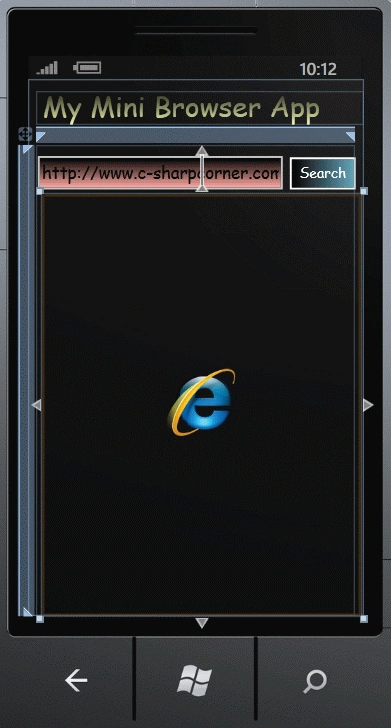
Step 7: In this step you will see the design of the MainPage.xaml page which is shown in the figure given below.
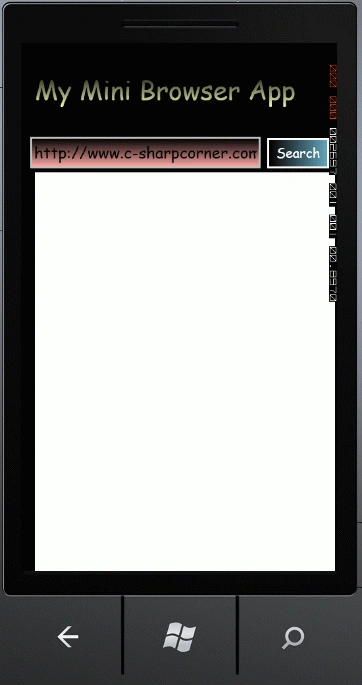
Step 8: In this step I am going to run the application by pressing F5 and the output regarding that is given below.
Output 1: Whenever you run the application by default output is shown in the figure given below.
Output 2: Whenever you enter any site URL in the TextBox then it will navigate to that site such as take as an example c-sharpcorner.com and the output regarding it is shown below.

Output 3: Also you can enter any site for the URL in the TextBox and then it will navigate to that site such as take as another example yahoo.com and the output regarding it is shown below.

Here are some other useful resources which may help you
How to embed HTML file in Windows Phone 7
Installing Application from Marketplace
WebBrowser Control With ProgressBar in Windows Phone 7
Understanding Launchers and Choosers in Windows Phone 7
Application Bar Inside Video Application in Windows Phone 7
Vijay PrativadiPosted Mar 20, 2012, 11:21 PM
Good!!