

Introduction
This article is about using Mobile_ Joystick_Controller in Unity.
Prerequisites
Unity Environment version 2018.4.19f1
Create the project
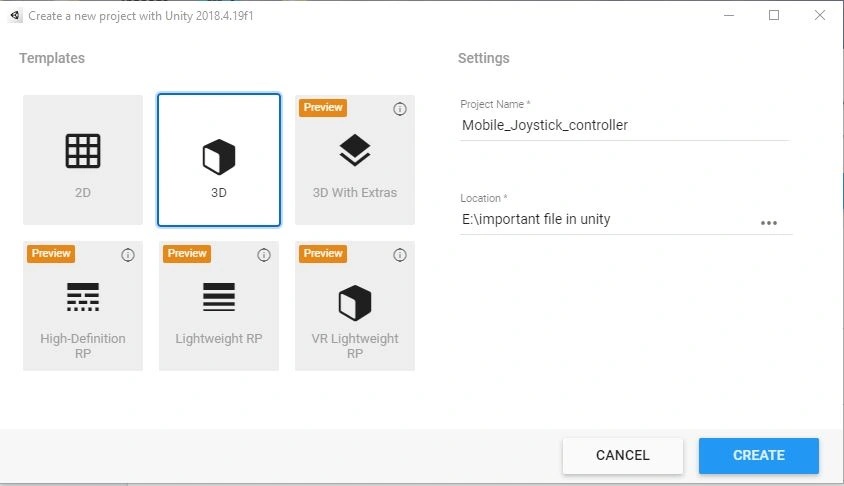
First, you have to open the Unity project. Create a plane in your project.
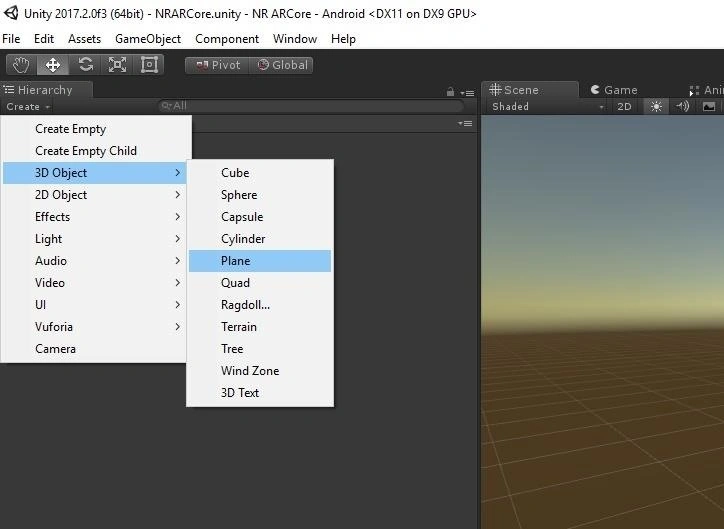
Create a sphere in your project.
Click on the "GameObject" menu in the menu bar. Select Create 3D object (Sphere). The Create Sphere will be added to the scene View.
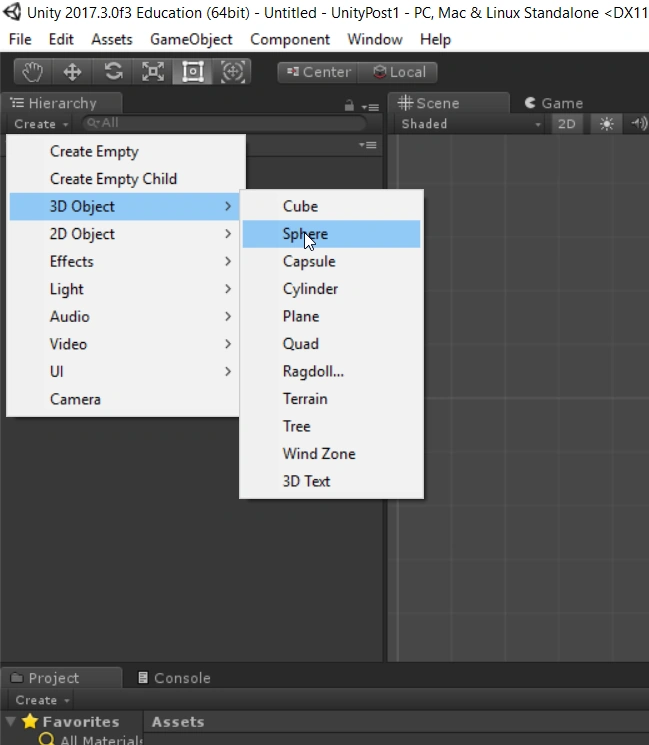
Create the Canvas
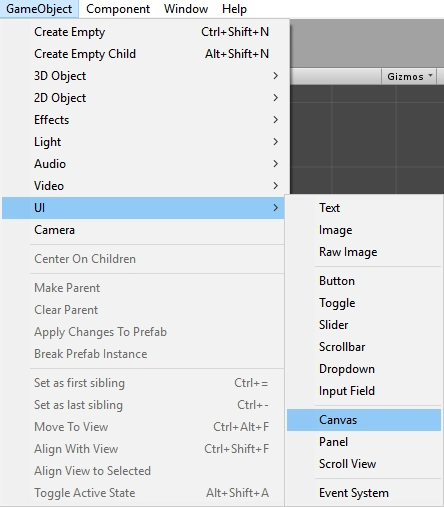
Click on the "GameObject" menu in the menu bar. Select Create UI (Canvas). The Create canvas will be added to the scene View.
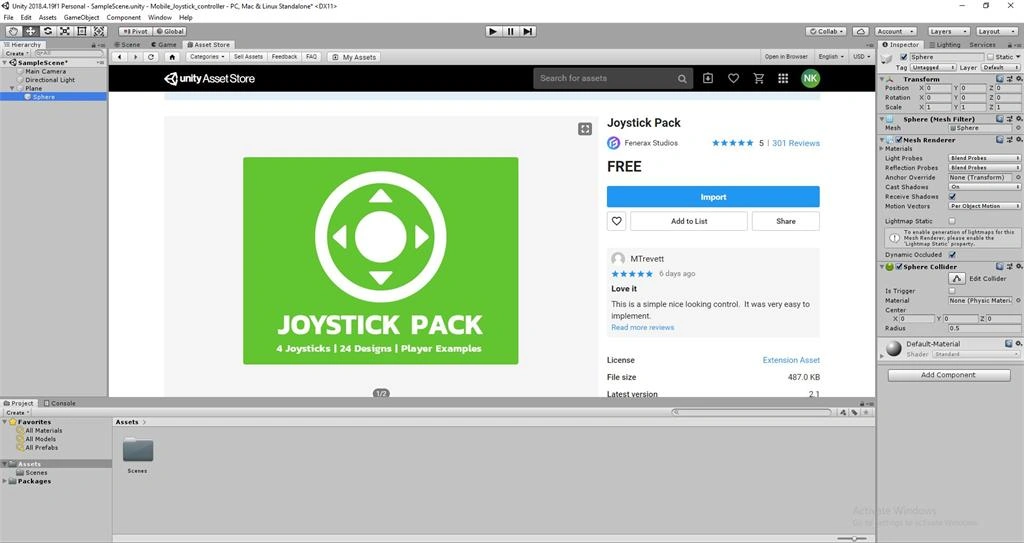
Click on the Asset Store. Click on the "Import Joystick Pack".
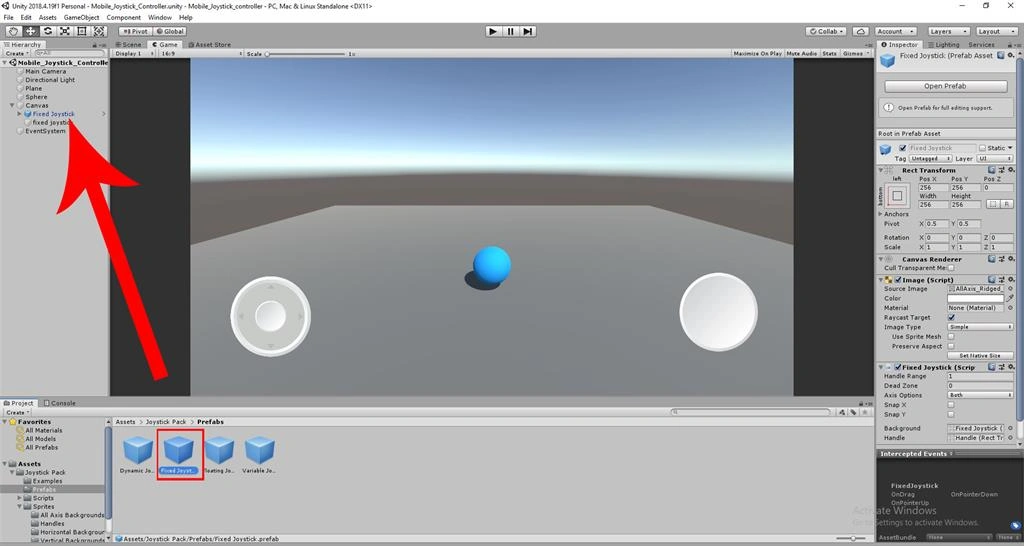
Drag and drop the Fixed Joystick scripts to Canvas in this scene view.
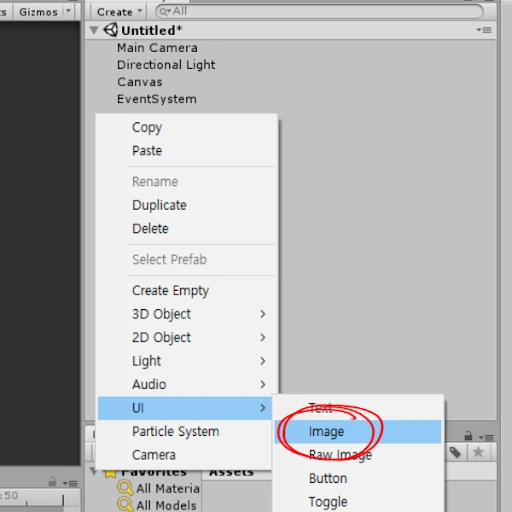
Click on the "GameObject" menu in the menu bar. Select Create UI (Image). The Create Image will be added to the scene View.
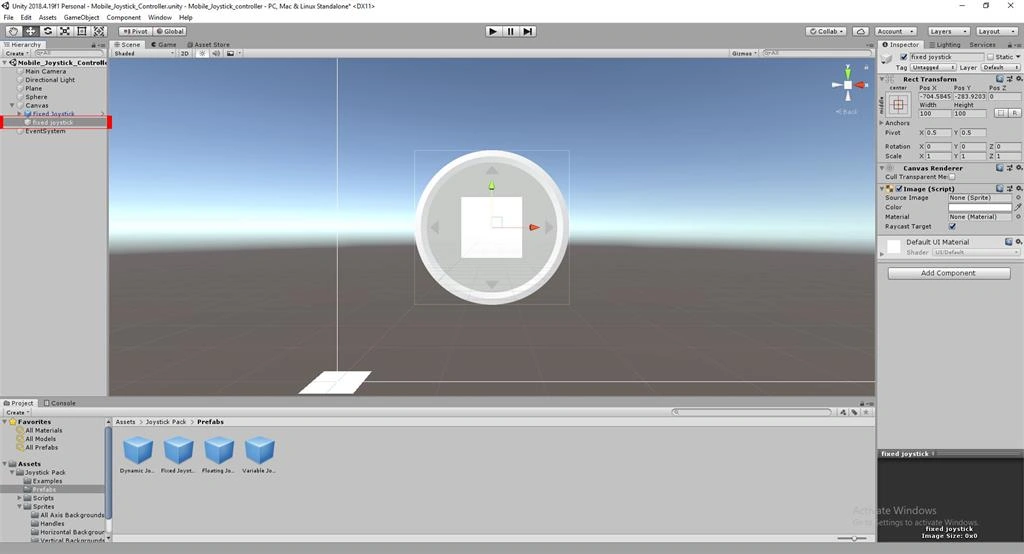
Rename the Image as fixed joystick
Create C# Script
Right click on Assets. Select Create >> C# script
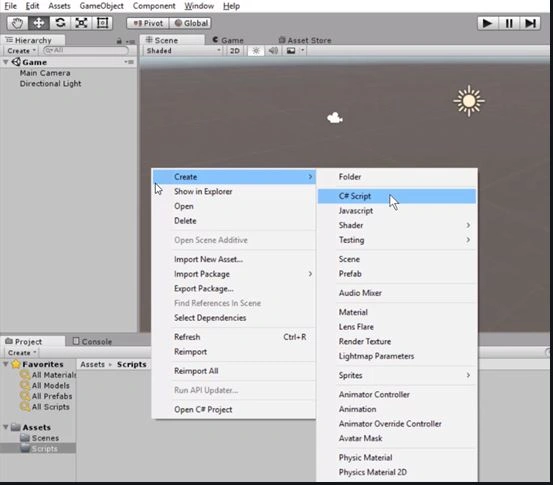
Rename the script as Joybutton & My scripts.
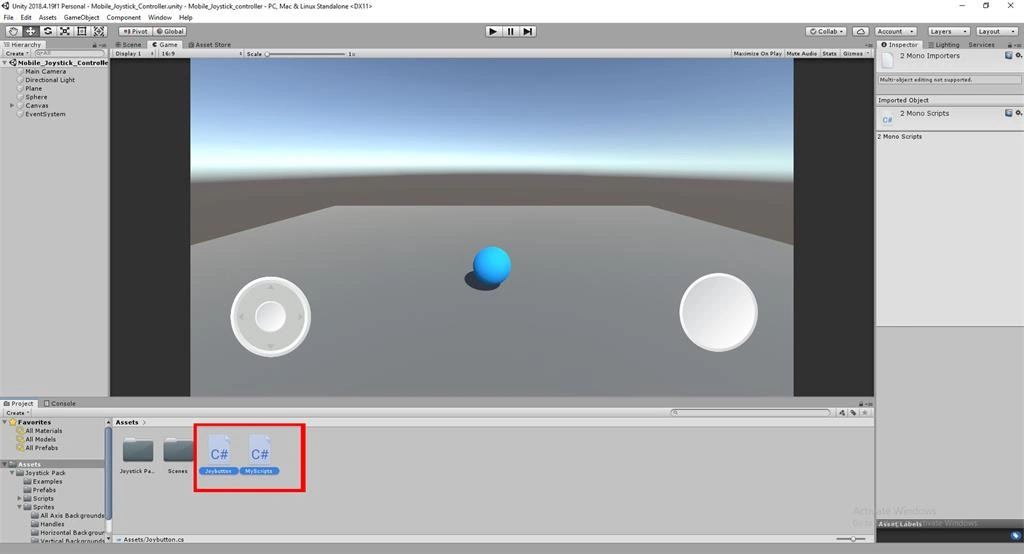
Write the coding like the following,
Double click on the Joybutton. The MonoDevelop-Unity editor will open up.
- using UnityEngine;
- using UnityEngine.EventSystems;
- public class Joybutton: MonoBehaviour, IPointerUpHandler, IPointerDownHandler {
- [HideInInspector]
- public bool pressed;
- // Start is called before the first frame update
- void Start() {}
- // Update is called once per frame
- void Update() {}
- public void OnPointerDown(PointerEventData eventData) {
- pressed = true;
- }
- public void OnPointerUp(PointerEventData eventData) {
- pressed = false;
- }
- }
Save the program.
Drag and drop the Joybutton scripts to Fixed Joystick in Mobile_Joystick_Controller scene view.
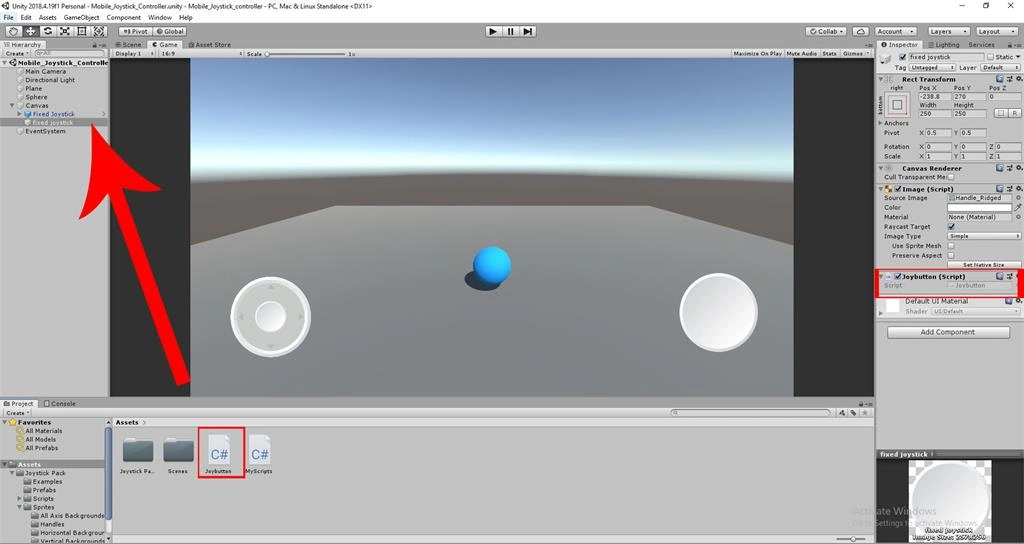
Write the coding like the following,
Double click on the Myscripts . The MonoDevelop-Unity editor will open up
- using System.Collections;
- using System.Collections.Generic;
- using UnityEngine;
- public class MyScripts: MonoBehaviour {
- protected Joystick joystick;
- protected Joybutton joybutton;
- protected bool jump;
- //public float Horizontal { get; private set; }
- // Start is called before the first frame update
- void Start() {
- joystick = FindObjectOfType < Joystick > ();
- joybutton = FindObjectOfType < Joybutton > ();
- }
- // Update is called once per frame
- void Update() {
- var rigidbody = GetComponent < Rigidbody > ();
- rigidbody.velocity = new Vector3(joystick.Horizontal * 10 f + (Input.GetAxis("Horizontal") * 10 f), rigidbody.velocity.y, joystick.Vertical * 10 f + Input.GetAxis("Vertical") * 10 f);
- if (!jump && (joybutton.pressed || Input.GetButton("Fire2"))) {
- jump = true;
- rigidbody.velocity += Vector3.up * 10 f;
- }
- if (jump && !joybutton.pressed || Input.GetButton("Fire2")) {
- jump = false;
- }
- }
- }
Save the program.
Go back to Unity. Click on the Myscripts script.Drag and drop the Myscripts script to Sphere in Mobile_Joystick_Controller scene view.
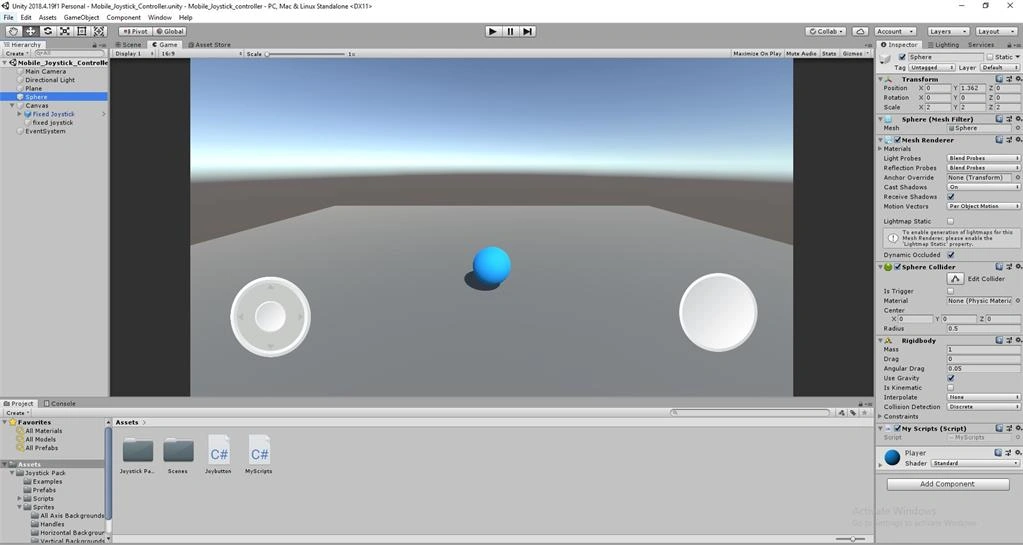
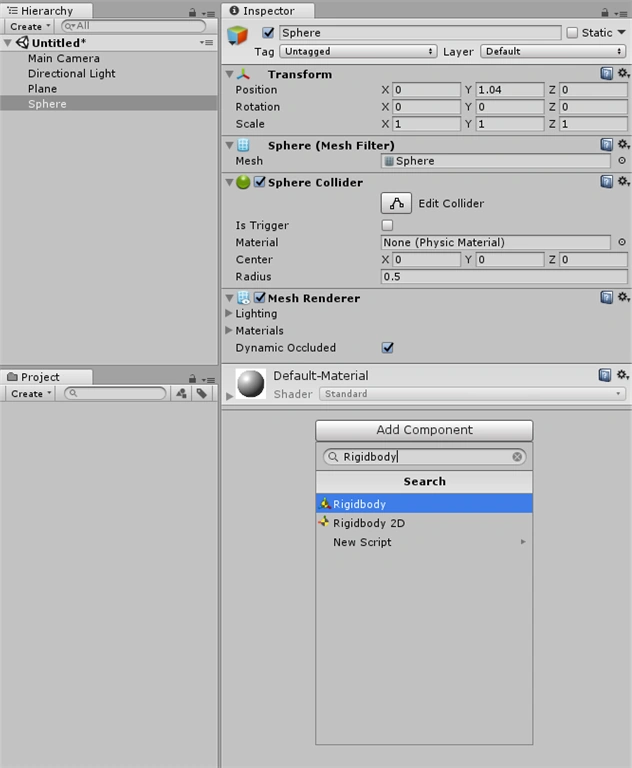
Add the rigidbody onto the Sphere
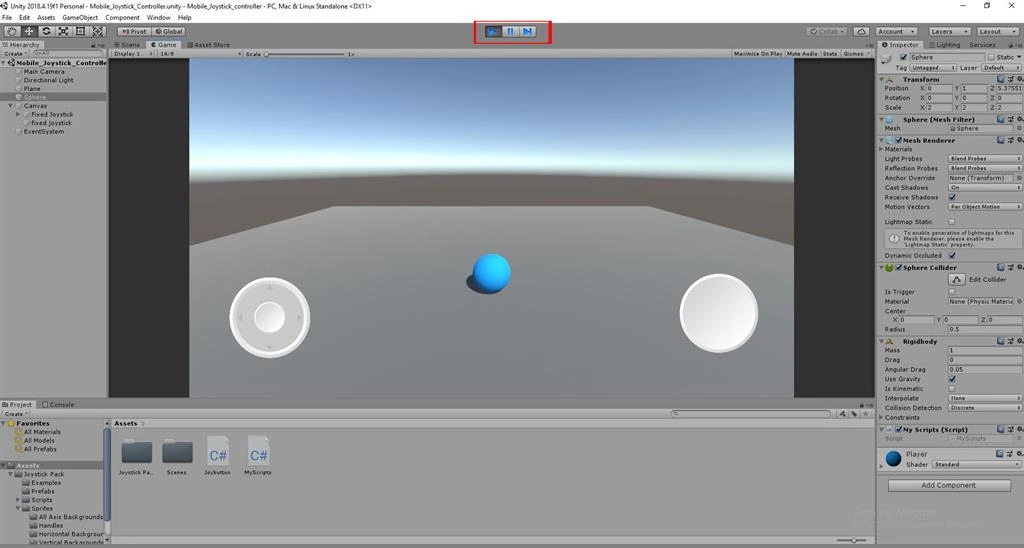
Run the app, and you will able to see a floating Mobile_Joystick_Controller.
Summary
I hope you understood how to input through Mobile_Joystick_Controller in Unity.
Rikam PalkarPosted Jun 17, 2020, 10:53 AM
Good one Nitin