

- MongoDB - Day 2 (Install MongoDB in Windows)
- MongoDB - Day 3 (Database Basics)
- MongoDB - Day 4 (Basics of Collection)
- MongoDB - Day 5 (Data Types in MongoDB)
- MongoDB - Day 6 (Insert Method)
- MongoDB - Day 7 (Find Method Part 1)
- MongoDB - Day 8 (Find Method Part 2)
- MongoDB- Day 9 (Update Method)
- MongoDB- Day10 (Remove Method)
- MongoDB - Day 11 (Collection Methods)
- MongoDB - Day12 (Cursor Methods)
- MongoDB - Day13 (Indexing)
- MongoDB - Day 14 (Aggregations)
- MongoDB - Day 15 (Replication)
- MongoDB - Day 16 (Sharding)
In this article we will describe the process of creating and restoring the database using mongodump and mongorestore command. Besides these two methods, MongoDB provides various ways to backup and restore the database, some methods are given below:
- Backup by copying underlying data files.
- Backup using mongodump tool.
- MongoDB Cloud manager backup.
- Ops Manager Backup Software.
Today we will discuss backup using Mongodump tool.
Mongodump Tool
The mongodump tool reads data from a MongoDB database and creates high fidelity BSON files. The mongorestore tool can populate a MongoDB database with the data from these BSON files. The Mongodump and mongorestore utilities works for BSON data dumps. Mongodump and mongorestore tools provide efficient backup for small MongoDB deployments, but not efficient for backup of large system. Mongodump doesn’t capture content of a database, instead mongodump captures documents of database. During backup process, mongodump reduces the performance of mongod. Not only mongodump create a traffic for running database instance but also force the database to read all data through memory.
During Backup or Restore process consider the following guidelines.
- Make sure that backup and restore contains a consistence data state. Sometimes backup and restore impact the data integrity or consistency if an update process running during the backup process.
- Don’t import or export data if backup or restore process generates an adverse effect on database or production system.
- Use a reliable file name for backup database so that we can easily identity the content of backup at the time of importing backup files.
- Import or export database only when it is required because backup and restore process slow the mongod process.
Basic mongodump Operations
The mongodump utility takes the backup of current running mongod or mongos instance. Using mongodump utility we can take back entire server, database, collection or a specific part of a selected collections. We will discuss each scenario with examples.
The mongodump command without any arguments
When we run mongodump without any arguments, mongodump takes the backup of mongod instance that is connected to the local system(127.0.0.1) and port number 27017. This method stores the database backup in current directory with dump/ named.
Syntax
mongodump
Method
Step 1: Open a command prompt and run “mongod” command. This command runs a mongod instance on the localhost (127.0.0.1) and port number 27017.
Step 2: Open another command prompt and run “mongodump” command.
Example
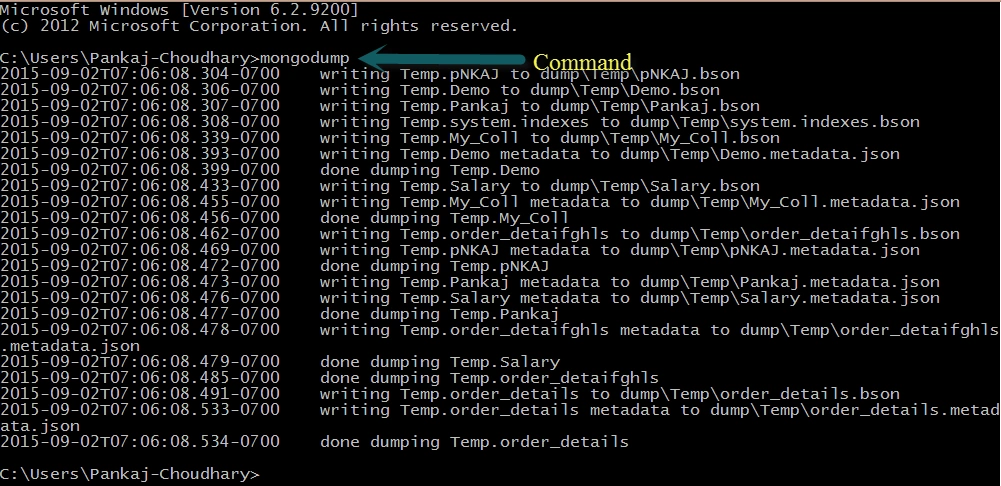
Figure 1: Command Prompt
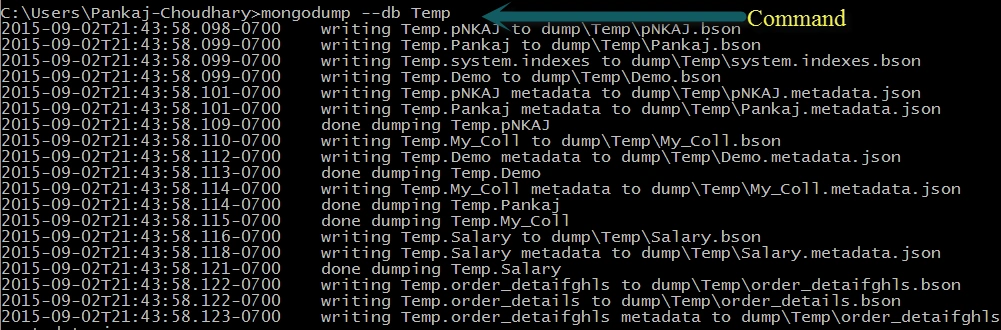
In above example we run a “mongodump” command, this command created the backup of all the database and stored in “C:\users\Pankaj-Choudhary” directory with “dump” named.
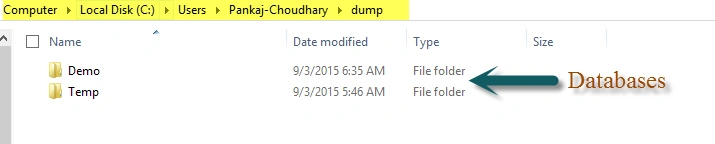
Figure 2: Create a Backup
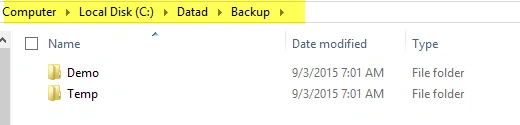
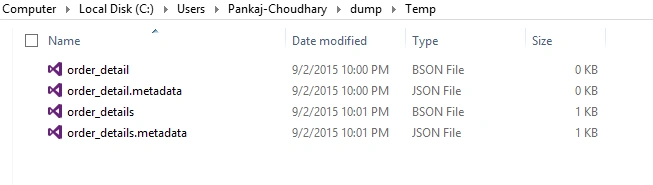
In above image we can see that backup of all the databases has been created and store in “dump\Temp” directory. Here “Demo” and “Temp” are name of database.
Run Mongodump for a Specific Port
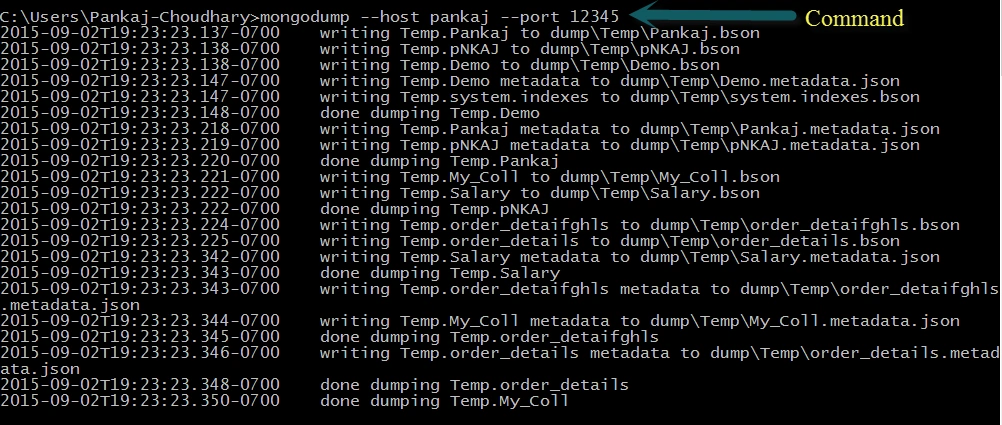
If we don’t define the port number in mongodump command, it connects to the MongoDB instance on the local host or 127.0.0.0 , port number 27017 and create the backup in /dump directory. But we can specify the hostname and port number in mongodump command using --host and --port parameters.
Syntax
mongodump --host hostname –-port port_number
Example




Santhakumar MunuswamyPosted Sep 5, 2015, 4:07 AM
Good show..
Rajeesh MenothPosted Sep 4, 2015, 1:58 AM
Good Buddy
Mohammed IbrahimPosted Sep 3, 2015, 11:37 AM
thanks for sharing information...
Pankaj Kumar ChoudharyPosted Sep 3, 2015, 8:09 AM
Thanks Sibeesh Venu sir..........
Pankaj Kumar ChoudharyPosted Sep 3, 2015, 8:08 AM
Thanks Rakesh Chavda Sir........
Pankaj Kumar ChoudharyPosted Sep 3, 2015, 8:08 AM
Thanks Karthikeyan K Sir.......
RakeshPosted Sep 3, 2015, 5:12 AM
Good one
Sibeesh VenuPosted Sep 3, 2015, 4:54 AM
Nice
Karthikeyan KPosted Sep 3, 2015, 3:41 AM
Good one Pankaj..Thanks for sharing