

These days we are extensively using a Datepicker (Calendar) in our websites. Because time is very important to everyone. So there are various ways to use a Calendar in websites. The jQuery datepicker is one of the most popular datepicker plug-ins.
This article explains how to use jQuery Date, Date Time, Time picker and more advanced activities on date picker.
- Implementing jQuery date picker
- Disable future and past dates
- Disable specific dates
- Highlight specific dates
- Display dates for multiple months
- Select multiple dates in Calendar
Before starting we need to add js and CSS references to the webpage (.html/.aspx/.cshtml/.jsp/.cfm/.php).
1. jQuery
- <script src="https://ajax.googleapis.com/ajax/libs/jquery/1.11.3/jquery.min.js"></script>
2. jQuery UI JS
- <script src="http://code.jquery.com/ui/1.11.4/jquery-ui.js"></script>
3. jQuery UI CSS
- <link href="http://code.jquery.com/ui/1.11.4/themes/smoothness/jquery-ui.css" rel="stylesheet" type="text/css" />
If you need jQueryUI js and css files in your machine then it is available at http://jqueryui.com/download/. But it is recommended to to load JavaScript files from CDN (Content Delivery Network).
Implement jQuery date picker
Once references are properly added, add a textbox to the page.
Note: This textbox will be used in the next activities.
- <input type="text" id="datepicker">
Add the following JavaScript code to display a datepicker in a textbox.
- <script src="https://ajax.googleapis.com/ajax/libs/jquery/1.11.3/jquery.min.js"></script>
- <script src="http://code.jquery.com/ui/1.11.4/jquery-ui.js"></script>
- <link href="http://code.jquery.com/ui/1.11.4/themes/smoothness/jquery-ui.css" rel="stylesheet" type="text/css" />
- <script type="text/javascript">
- $(document).ready(function(){
- $("#datepicker").datepicker({
- showOn: 'button', // Calendar shows on button
- buttonText: 'Show Date', // On hover button it displays text as title
- buttonImageOnly: true, // Calendar show only button click
- buttonImage: 'calendar.gif', // On click o icon it displays calendar
- dateFormat: 'dd/mm/yy', // Set the date format
- constrainInput: true // Client can directly modify date in textbox?
- });
- });
- </script>
Output

Figure 1: Output of jQuery Date Picker
Often we need to display time, like hour, minute, second with a Calendar.
To do this we need to add two more additional plug-in references.
- <script src="http://trentrichardson.com/examples/timepicker/jquery-ui-timepicker-addon.js"></script>
- <link rel="stylesheet" href="http://trentrichardson.com/examples/timepicker/jquery-ui-timepicker-addon.css">
Complete Code
- <script src="https://ajax.googleapis.com/ajax/libs/jquery/1.11.3/jquery.min.js"></script>
- <script src="http://code.jquery.com/ui/1.11.4/jquery-ui.js"></script>
- <link href="http://code.jquery.com/ui/1.11.4/themes/smoothness/jquery-ui.css" rel="stylesheet" type="text/css" />
- <script src="http://trentrichardson.com/examples/timepicker/jquery-ui-timepicker-addon.js"></script>
- <link rel="stylesheet" href="http://trentrichardson.com/examples/timepicker/jquery-ui-timepicker-addon.css">
- <script type="text/javascript">
- $(document).ready(function(){
- $('#datepicker').datetimepicker({
- timeFormat: "hh:mm:ss tt"
- });
- });
- </script>
In the preceding code datetimepicker() is defined in jquery-ui-timepicker-addon.js that displays time with a Calendar. And we injected this method with a textbox (datepicker).
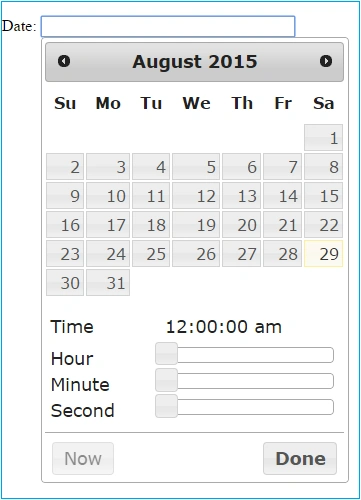
Figure 2: Output of jQuery Date Time Picker
Disable future and past dates
Often we get a requirement to disable future and past dates so that the user can’t select future and past dates. A real-life example to post an article to the C# Corner community and today is the 30th of August. So I should be able to choose the article release date for future dates only. I should not be able to choose a past date as article release date.
- <script src="https://ajax.googleapis.com/ajax/libs/jquery/1.11.3/jquery.min.js"></script>
- <script src="http://code.jquery.com/ui/1.11.4/jquery-ui.js"></script>
- <link href="http://code.jquery.com/ui/1.11.4/themes/smoothness/jquery-ui.css" rel="stylesheet" type="text/css" />
- <script type="text/javascript">
- $(document).ready(function(){
- var date = new Date();
- var currentMonth = date.getMonth();
- var currentDate = date.getDate();
- var currentYear = date.getFullYear();
- $(".ui-datepicker-today span").addClass("ui-state-hover");
- $('#datepicker').datepicker({
- minDate: new Date(currentYear, currentMonth, currentDate)
- maxDate: new Date(currentYear, currentMonth, currentDate)
- });
- });
- </script>
In the preceding code the jQuery date picker provides two properties, minDate and maxDate, to disable a future date and past date respectively. Figure 3 shows future dates in the Gray color. That means the user can't select those dates.
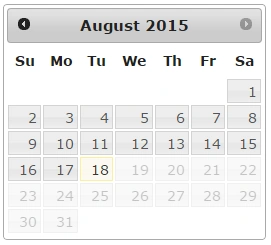
Figure 3: Output of jQuery Date Picker with disable future date
Disable specific dates in Calendar
Assume there is a requirement to disable specific dates due to some festival or some exceptional holidays. Let’s see how to do it.
In the following example I am disabling the 3rd, 11th, and 20th August of 2015. First we declared an array (disableddates) with all the dates that needs to be disabled. Then add one property beforeShowDay to call a user-defined function to disable a date. In this function we are receiving the current date and checking that it is present in the array. If it is present in the array then return false (to disable it only) otherwise true (to enable only).
- <script src="https://ajax.googleapis.com/ajax/libs/jquery/1.11.3/jquery.min.js"></script>
- <script src="http://code.jquery.com/ui/1.11.4/jquery-ui.js"></script>
- <link href="http://code.jquery.com/ui/1.11.4/themes/smoothness/jquery-ui.css" rel="stylesheet" type="text/css" />
- <script type="text/javascript">
- $(document).ready(function(){
- /** Days to be disabled as an array */
- var disableddates = ["8-3-2015", "8-11-2015", "8-20-2015"];
- function DisableSpecificDates(date) {
- var m = date.getMonth();
- var d = date.getDate();
- var y = date.getFullYear();
- // First convert the date in to the mm-dd-yyyy format
- // Take note that we will increment the month count by 1
- var currentdate = (m + 1) + '-' + d + '-' + y ;
- // We will now check if the date belongs to disableddates array
- for (var i = 0; i < disableddates.length; i++) {
- // Now check if the current date is in disabled dates array.
- if ($.inArray(currentdate, disableddates) != -1 ) {
- return [false];
- }
- }
- return [true];
- }
- $( "#datepicker").datepicker({
- beforeShowDay: DisableSpecificDates
- });
- });
- </script>
Figure 4 shows how to disable dates (3rd, 11th, 20th, 25th August 2015) in Gray so that the user can't select those dates.
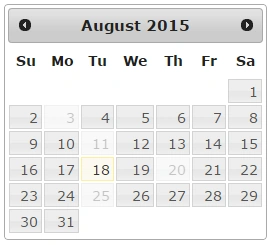
Figure 4: Output of jQuery Date Picker with disable specific dates
Highlight specific dates
Sometimes we get the requirement to highlight a specific date in a Calendar. The jQuery Date Picker provides a property beforeShowDay that helps us to implement that. And using that property we can implement custom logic and highlight specific dates. For instance the requirement to highlight a company's annual function event.
- <script src="https://ajax.googleapis.com/ajax/libs/jquery/1.11.3/jquery.min.js"></script>
- <script src="http://code.jquery.com/ui/1.11.4/jquery-ui.js"></script>
- <link href="http://code.jquery.com/ui/1.11.4/themes/smoothness/jquery-ui.css" rel="stylesheet" type="text/css" />
- <style type="text/css">
- .selected {
- background: red;
- }
- .selected a {
- background: lime !important;
- }
- </style>
- <script type="text/javascript">
- $(document).ready(function(){
- // Highlighted date from start date to end date
- $("#datepicker").datepicker({
- beforeShowDay: function(d) {
- var start = new Date(2015, 06, 05); // April 10, 2012
- var end = new Date(2015, 06, 07); // April 20, 2012
- return [true, start <= d && d <= end ? "selected" : ""];
- }
- });
- });
- </script>
In the preceding code we are disabling dates from the 5th August to the 7th August. Here it used the beforeShowDay property to implement custom logic and it is setting up CSS class (selected) based on conditions.
Output
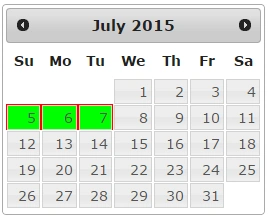
Figure 5: Output of jQuery Date Picker with highlighted dates
Display dates for multiple months
Assume there is a requirement to display multiple months at a time. In other words when I click on text it should show 3 months in the calendar. In a real life example you see in IRCTC, makemytrip site to see multiple at a time. See the following code, there is a property numberOfMonths to display no months in the Calendar.
- <script src="https://ajax.googleapis.com/ajax/libs/jquery/1.11.3/jquery.min.js"></script>
- <script src="http://code.jquery.com/ui/1.11.4/jquery-ui.js"></script>
- <link href="http://code.jquery.com/ui/1.11.4/themes/smoothness/jquery-ui.css" rel="stylesheet" type="text/css" />
- <script type="text/javascript">
- $(document).ready(function(){
- $('#datepicker').datepicker({
- beforeShowDay: $.datepicker.noWeekends, // For Disable weekends
- numberOfMonths: 3
- });
- });
- </script>
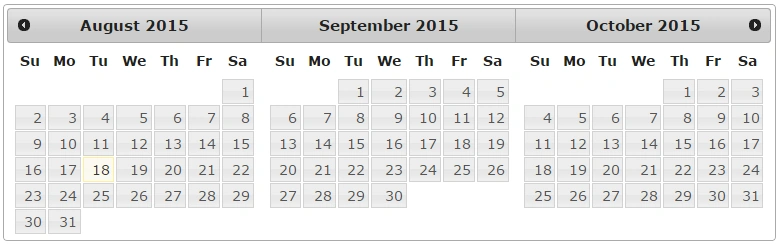
Figure 6: Output of jQuery Date Picker with advanced months
Select multiple dates in Date Picker
We can select multiple dates and those dates will display in a textbox as comma separated. In order to implement multiple date selections in a date picker we need to add one more additional plug-in.
- <script src="http://multidatespickr.sourceforge.net/jquery-ui.multidatespicker.js"/>
Add the following JavaScript code to display a date picker on focus of textbox. Here the multiDatesPicker() method provides the ability to select multiple dates injected with datePick (the id of the textbox). This method is defined in the jquery-ui.multidatespicker.js file.
Complete Code
- <link rel="stylesheet" type="text/css" href="http://code.jquery.com/ui/1.10.3/themes/smoothness/jquery-ui.css">
- <script src="http://ajax.googleapis.com/ajax/libs/jquery/1.10.1/jquery.min.js"/>
- <script src="http://code.jquery.com/ui/1.10.3/jquery-ui.js"/>
- <script src="http://multidatespickr.sourceforge.net/jquery-ui.multidatespicker.js"/>
- <script type="text/javascript">
- $(document).ready(function(}{
- $('#datepicker').multiDatesPicker();
- });
- </script>
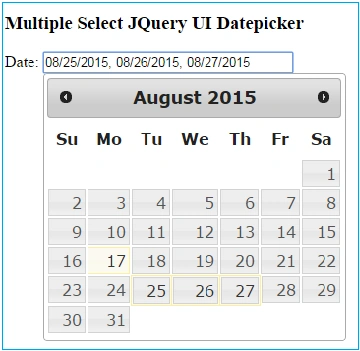
Figure 7: Output of jQuery Date Picker with multiple selected date.
Conclusion
jQuery Date Picker is simple to use but very powerful with advanced features.
I hope this article helps you how to implement the jQuery date picker and its advanced features.
Happy Coding!
Najaa BazilahPosted Oct 19, 2021, 3:55 AM
Hi, thank you for the article. It really help. Do you know how can I retrieve each of the selected date from multiple select jQuery UI datepicker to SQL Server ?
Asfend YarPosted Feb 29, 2016, 10:56 AM
nice
Mohammed IbrahimPosted Aug 31, 2015, 11:33 AM
nice
Sandeep KumarPosted Aug 31, 2015, 11:18 AM
good article sir :)
Rajeesh MenothPosted Aug 31, 2015, 8:26 AM
Nice Share
Yashwanth MuthineniPosted Aug 31, 2015, 7:42 AM
Nice Share
Amol JadhaoPosted Aug 31, 2015, 7:18 AM
Nice Share..
Sanjay SabariyaPosted Aug 31, 2015, 7:17 AM
nice article it's very helpful
Pankaj Kumar ChoudharyPosted Aug 31, 2015, 5:42 AM
Nice Article Manas Sir..............
Vipin TyagiPosted Aug 31, 2015, 4:37 AM
Helpful......
Ankit BansalPosted Aug 31, 2015, 4:25 AM
thanks for share..
Karthikeyan KPosted Aug 30, 2015, 12:45 PM
Good one sir...Thanks for share
Gowtham KPosted Aug 30, 2015, 11:33 AM
Good one