Hello folks,
Today, we will discuss about the development in ASP.NET MVC 5. We can develop a particular task with the different ways as we can present the data in the user interface in the form of tables, GridViews, etc. Some time ago, I was working on a project and in that I had to show the data in the partial view which I successfully did. Subsequently, I also wrote an article as
Paging, Sorting, And Filtering With Partial View In ASP.NET MVC 5 to show the data with the help of partial view.
I represented the paging in the main view and some small info, related to main view data, was presented in the partial view. In this article, we’ll display the data and perform paging in jQuery dialog with the help of partial view or we can say that we’ll pass the data in the partial view and represent it in jQuery dialog.
Getting Started
To start on this article, you must have the knowledge of MVC. There are some following prerequisites before start working on this.
- Visual Studio 2012 or later
- MVC 4 or later
So, let’s start with the following procedure,
- Creating solution
- Perform database operation
- Working with Microsoft Enterprise Library
- Creating User Interface
- Binding partial view with jQuery dialog
Creating Solution
In this section, we’ll create the project infrastructure. Thus, follow the steps given below to start.
Step 1
In Visual Studio 2013 Start screen, just click New Project.

Figure 1: Visual Studio Start Page
Step 2
In the next wizard, select the “Web” from the left pane and select ASP.NET Web Application”. Enter the relative name of the project.
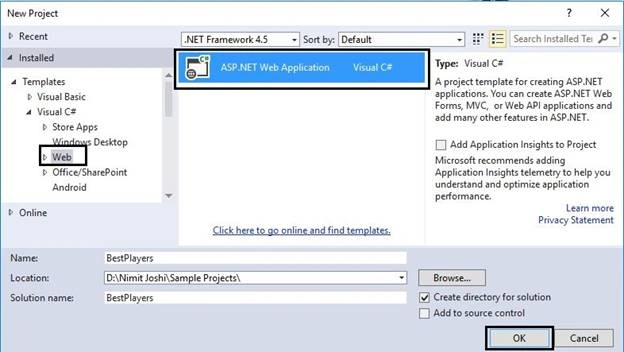
Figure 2: Create New Project
Step 3
In the next wizard, select MVC Project Template to create MVC project.
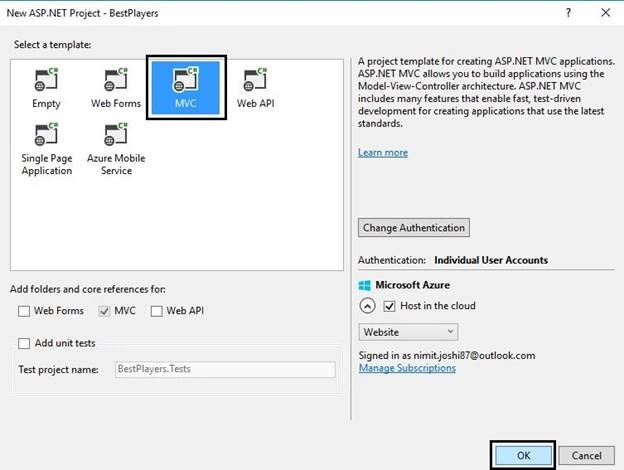
Figure 3: One ASP.Net Wizard
Now, your Web Application has created successfully.
Perform Database Operation
In this section, we’ll deal with our database. We will create the database according to the situation or you can use your database for the further operation. Follow the steps given below to perform the database operation.
Step 1
Create the database first from the following query.
- CREATE DATABASE Cricketer
Step 2
Now, let’s execute the query given below to proceed ahead.
- USE [Cricketer]
- GO
-
- SET ANSI_NULLS ON
- GO
- SET QUOTED_IDENTIFIER ON
- GO
- SET ANSI_PADDING ON
- GO
- CREATE TABLE [dbo].[CricketerProfile](
- [ID] [int] IDENTITY(1,1) NOT NULL,
- [Name] [varchar](50) NULL,
- [ODI] [int] NULL,
- [Tests] [int] NULL,
- [ODIRuns] [int] NULL,
- [TestRuns] [int] NULL,
- [Team] [int] NULL,
- CONSTRAINT [PK_CricketerProfile] PRIMARY KEY CLUSTERED
- (
- [ID] ASC
- )WITH (PAD_INDEX = OFF, STATISTICS_NORECOMPUTE = OFF, IGNORE_DUP_KEY = OFF, ALLOW_ROW_LOCKS = ON, ALLOW_PAGE_LOCKS = ON) ON [PRIMARY]
- ) ON [PRIMARY]
-
- GO
- SET ANSI_PADDING OFF
- GO
- SET ANSI_NULLS ON
- GO
- SET QUOTED_IDENTIFIER ON
- GO
- SET ANSI_PADDING ON
- GO
- CREATE TABLE [dbo].[Team](
- [ID] [int] IDENTITY(1,1) NOT NULL,
- [Name] [varchar](50) NULL,
- PRIMARY KEY CLUSTERED
- (
- [ID] ASC
- )WITH (PAD_INDEX = OFF, STATISTICS_NORECOMPUTE = OFF, IGNORE_DUP_KEY = OFF, ALLOW_ROW_LOCKS = ON, ALLOW_PAGE_LOCKS = ON) ON [PRIMARY]
- ) ON [PRIMARY]
-
- GO
- SET ANSI_PADDING OFF
- GO
- SET IDENTITY_INSERT [dbo].[CricketerProfile] ON
-
- GO
- INSERT [dbo].[CricketerProfile] ([ID], [Name], [ODI], [Tests], [ODIRuns], [TestRuns], [Team]) VALUES (1, N'Sachin Tendulkar', 463, 200, 18426, 15921, 1)
- GO
- INSERT [dbo].[CricketerProfile] ([ID], [Name], [ODI], [Tests], [ODIRuns], [TestRuns], [Team]) VALUES (2, N'Saurav Ganguly', 311, 113, 11363, 7212, 1)
- GO
- INSERT [dbo].[CricketerProfile] ([ID], [Name], [ODI], [Tests], [ODIRuns], [TestRuns], [Team]) VALUES (3, N'Rahul Dravid', 344, 164, 10889, 13228, 1)
- GO
- INSERT [dbo].[CricketerProfile] ([ID], [Name], [ODI], [Tests], [ODIRuns], [TestRuns], [Team]) VALUES (4, N'V.V.S. Laxman', 86, 134, 2338, 8781, 1)
- GO
- INSERT [dbo].[CricketerProfile] ([ID], [Name], [ODI], [Tests], [ODIRuns], [TestRuns], [Team]) VALUES (5, N'Virendar Sehwag', 251, 104, 8273, 8586, 1)
- GO
- INSERT [dbo].[CricketerProfile] ([ID], [Name], [ODI], [Tests], [ODIRuns], [TestRuns], [Team]) VALUES (6, N'Yuvraj Singh', 293, 40, 8329, 1900, 1)
- GO
- INSERT [dbo].[CricketerProfile] ([ID], [Name], [ODI], [Tests], [ODIRuns], [TestRuns], [Team]) VALUES (7, N'M. S. Dhoni', 283, 90, 9110, 4876, 1)
- GO
- INSERT [dbo].[CricketerProfile] ([ID], [Name], [ODI], [Tests], [ODIRuns], [TestRuns], [Team]) VALUES (8, N'Virat Kohli', 176, 53, 7570, 4209, 1)
- GO
- INSERT [dbo].[CricketerProfile] ([ID], [Name], [ODI], [Tests], [ODIRuns], [TestRuns], [Team]) VALUES (9, N'Harbhajan Singh', 236, 103, 1237, 2225, 1)
- GO
- INSERT [dbo].[CricketerProfile] ([ID], [Name], [ODI], [Tests], [ODIRuns], [TestRuns], [Team]) VALUES (10, N'Anil Kumble', 271, 132, 938, 2506, 1)
- GO
- INSERT [dbo].[CricketerProfile] ([ID], [Name], [ODI], [Tests], [ODIRuns], [TestRuns], [Team]) VALUES (11, N'Gautam Gambhir', 147, 58, 5238, 4154, 1)
- GO
- INSERT [dbo].[CricketerProfile] ([ID], [Name], [ODI], [Tests], [ODIRuns], [TestRuns], [Team]) VALUES (12, N'Rohit Sharma', 153, 21, 5131, 1184, 1)
- GO
- SET IDENTITY_INSERT [dbo].[CricketerProfile] OFF
- GO
- SET IDENTITY_INSERT [dbo].[Team] ON
-
- GO
- INSERT [dbo].[Team] ([ID], [Name]) VALUES (1, N'India')
- GO
- INSERT [dbo].[Team] ([ID], [Name]) VALUES (2, N'Australia')
- GO
- INSERT [dbo].[Team] ([ID], [Name]) VALUES (3, N'New Zeland')
- GO
- INSERT [dbo].[Team] ([ID], [Name]) VALUES (4, N'South Africa')
- GO
- INSERT [dbo].[Team] ([ID], [Name]) VALUES (5, N'West Indies')
- GO
- SET IDENTITY_INSERT [dbo].[Team] OFF
- GO
- SET ANSI_NULLS ON
- GO
- SET QUOTED_IDENTIFIER ON
- GO
- CREATE Proc [dbo].[BP_GetAllTeams]
-
- AS
- Begin
- select * from Team (NOLOCK)
- End
- GO
-
- SET ANSI_NULLS ON
- GO
- SET QUOTED_IDENTIFIER ON
- GO
-
-
-
- CREATE PROC [dbo].[BP_GetPlayersByTeam]
- @TeamId INT ,
- @PageNumber INT ,
- @PageSize INT
- AS
- BEGIN
- ;
- WITH PlayerCte
- AS ( SELECT ID ,
- Name ,
- ODI ,
- Tests ,
- ODIRuns ,
- TestRuns
- FROM dbo.CricketerProfile (NOLOCK)
- WHERE Team = @TeamId
- )
- SELECT * ,
- ( SELECT COUNT(*)
- FROM PlayerCte
- )AS TotalCount
- FROM PlayerCte
- ORDER BY PlayerCte.ID
- OFFSET @PageSize * ( @PageNumber - 1 ) ROWS
- FETCH NEXT @PageSize ROWS ONLY
- OPTION ( RECOMPILE );
- END;
- GO
Working with Microsoft Enterprise Library
In this section, we will categorize our Application into two parts or three parts. We can create the separate project for the models, but here I am adding the models in the same project. Therefore, let’s make it simpler by the procedure.
Step 1
At first, right click on the solution and go to Add-> New Folder and named Infrastructure.
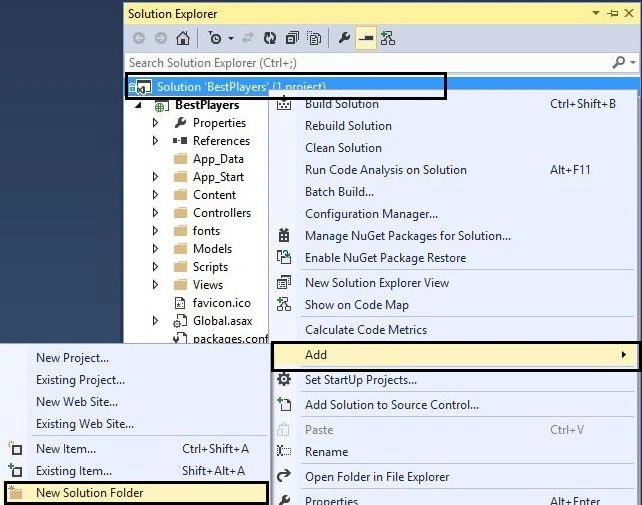
Figure 4: Adding New folder in the solution
Step 2
Add a “New Class Library Project” in the newly added folder as “BestPlayers.Core”.
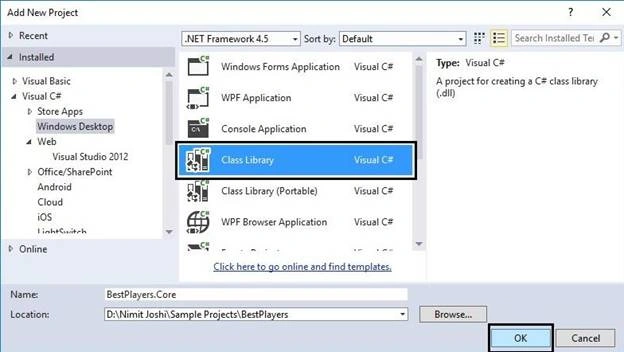
Figure 5: Adding Class Library Project
Step 3
Now, add the three folders in the project as “BL”, “DAL”, “Models”.
Step 4
Add a class and name it as “Team” in the Models folder and replace the code with the code.
- namespace BestPlayers.Core.Models
- {
- public class Team
- {
- #region Properties
-
-
-
- public int ID { get; set; }
-
-
-
- public string Name { get; set; }
- #endregion
- }
-
- public class Players
- {
- #region Properties
-
-
-
- public int ID { get; set; }
-
-
-
- public string Name { get; set; }
-
-
-
- public int ODI { get; set; }
-
-
-
- public int Tests { get; set; }
-
-
-
- public int ODIRuns { get; set; }
-
-
-
- public int TestRuns { get; set; }
- #endregion
- }
- }
Step 4
After building the project, just right click on the project and click Manage NuGet Packages.
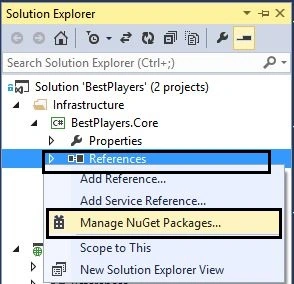
Figure 6: Manage NuGet Package
Step 5
Now, add the reference of “Microsoft Enterprise Library” in Core project.
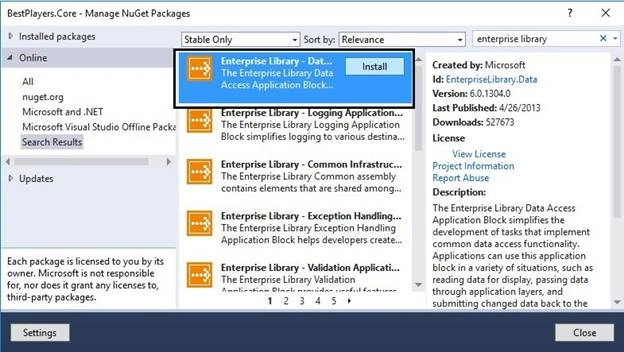
Figure 7: Adding Enterprise Library
Step 6
Now, add a class and name it as PlayersDAL in the DAL folder.
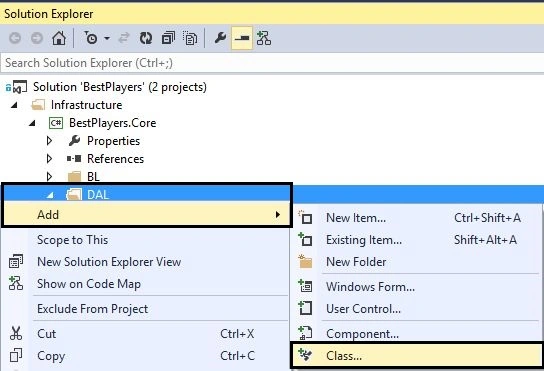
Figure 8: Adding Class
Step 7
Replace the code with the code given below.
- using BestPlayers.Core.Models;
- using Microsoft.Practices.EnterpriseLibrary.Data;
- using Microsoft.Practices.EnterpriseLibrary.Data.Sql;
- using System;
- using System.Collections.Generic;
- using System.Configuration;
- using System.Data;
- using System.Data.Common;
- using System.Linq;
- using System.Reflection;
-
- namespace BestPlayers.Core.DAL
- {
- public class PlayersDAL
- {
- #region Variable
-
-
-
- Database objDB;
- #endregion
-
- #region Database Method
- public List<T> ConvertTo<T>(DataTable datatable) where T : new()
- {
- List<T> Temp = new List<T>();
- try
- {
- List<string> columnsNames = new List<string>();
- foreach (DataColumn DataColumn in datatable.Columns)
- columnsNames.Add(DataColumn.ColumnName);
- Temp = datatable.AsEnumerable().ToList().ConvertAll<T>(row => getObject<T>(row, columnsNames));
- return Temp;
- }
- catch
- {
- return Temp;
- }
-
- }
- public T getObject<T>(DataRow row, List<string> columnsName) where T : new()
- {
- T obj = new T();
- try
- {
- string columnname = "";
- string value = "";
- PropertyInfo[] Properties;
- Properties = typeof(T).GetProperties();
- foreach (PropertyInfo objProperty in Properties)
- {
- columnname = columnsName.Find(name => name.ToLower() == objProperty.Name.ToLower());
- if (!string.IsNullOrEmpty(columnname))
- {
- value = row[columnname].ToString();
- if (!string.IsNullOrEmpty(value))
- {
- if (Nullable.GetUnderlyingType(objProperty.PropertyType) != null)
- {
- value = row[columnname].ToString().Replace("$", "").Replace(",", "");
- objProperty.SetValue(obj, Convert.ChangeType(value, Type.GetType(Nullable.GetUnderlyingType(objProperty.PropertyType).ToString())), null);
- }
- else
- {
- value = row[columnname].ToString();
- objProperty.SetValue(obj, Convert.ChangeType(value, Type.GetType(objProperty.PropertyType.ToString())), null);
- }
- }
- }
- }
- return obj;
- }
- catch
- {
- return obj;
- }
- }
- #endregion
-
-
-
-
-
- public List<Team> GetAllTeams()
- {
- List<Team> teams = new List<Team>();
- objDB = new SqlDatabase(ConfigurationManager.ConnectionStrings["PlayersConfiguration"].ConnectionString);
-
- using (DbCommand objCMD = objDB.GetStoredProcCommand("BP_GetAllTeams"))
- {
- try
- {
- using (DataTable dataTable = objDB.ExecuteDataSet(objCMD).Tables[0])
- {
- teams = ConvertTo<Team>(dataTable);
- }
- }
- catch (Exception ex)
- {
- bool rethrow = false;
- if (rethrow)
- {
- throw ex;
- }
- return null;
- }
- }
- return teams;
- }
-
-
-
-
-
-
-
- public List<Players> GetPlayersByTeam(int TeamId, string page, string pageSize)
- {
- List<Players> players = null;
- objDB = new SqlDatabase(ConfigurationManager.ConnectionStrings["PlayersConfiguration"].ConnectionString);
-
- using (DbCommand objCMD = objDB.GetStoredProcCommand("BP_GetPlayersByTeam"))
- {
- try
- {
- objDB.AddInParameter(objCMD, "@TeamId", DbType.Int32, TeamId);
- objDB.AddInParameter(objCMD, "@PageNumber", DbType.Int32, Convert.ToInt32(page));
- objDB.AddInParameter(objCMD, "@PageSize", DbType.Int32, Convert.ToInt32(pageSize));
-
- using (DataTable dataTable = objDB.ExecuteDataSet(objCMD).Tables[0])
- {
- players = ConvertTo<Players>(dataTable);
- }
- }
- catch (Exception ex)
- {
- bool rethrow = false;
- if (rethrow)
- {
- throw ex;
- }
- return null;
- }
- }
- return players;
- }
- }
- }
Step 8
Now, add a class and name it as PlayersBL in the BL folder and replace the code with the following code:
- using BestPlayers.Core.DAL;
- using BestPlayers.Core.Models;
- using System;
- using System.Collections.Generic;
-
- namespace BestPlayers.Core.BL
- {
- public class PlayersBL
- {
-
-
-
-
- public List<Team> GetAllTeams()
- {
- List<Team> teams = null;
- try
- {
- teams = new PlayersDAL().GetAllTeams();
- }
- catch (Exception ex)
- {
- bool rethrow = false;
- if (rethrow)
- {
- throw ex;
- }
- return null;
- }
- return teams;
- }
-
-
-
-
-
-
-
- public List<Players> GetPlayersByTeam(int teamId, string page, string pageSize)
- {
- List<Players> playersList = null;
- try
- {
- playersList = new PlayersDAL().GetPlayersByTeam(teamId, page, pageSize);
- }
- catch (Exception ex)
- {
- bool rethrow = false;
- if (rethrow)
- {
- throw ex;
- }
- return null;
- }
- return playersList;
- }
- }
- }
Step 9
Now Build the project. Now, we will proceed with our user interface part.
Creating User Interface
In this section, we’ll get the data from “BestPlayers.Core” project with the help of the controllers and then we will pass binded view with the controller by the help of models. We will add the controllers, views and partial views to create the user interface. Thus, let’s begin with the steps given below.
Step 1
Just right click on the project and click Add Reference to add the reference of Core project. Just perform, as shown below.
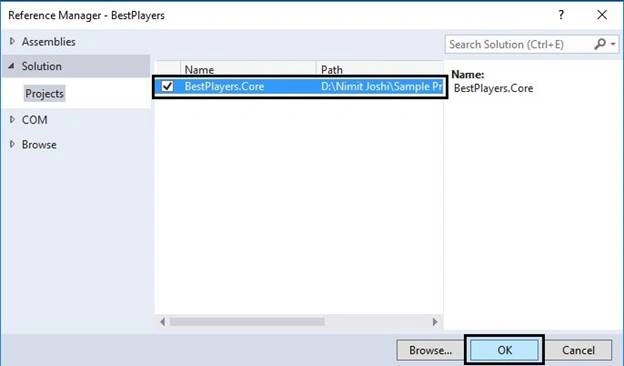
Figure 9: Adding Core Project Reference
Step 2
Now, right click on the Controllers folder and go to Add-> Controller.
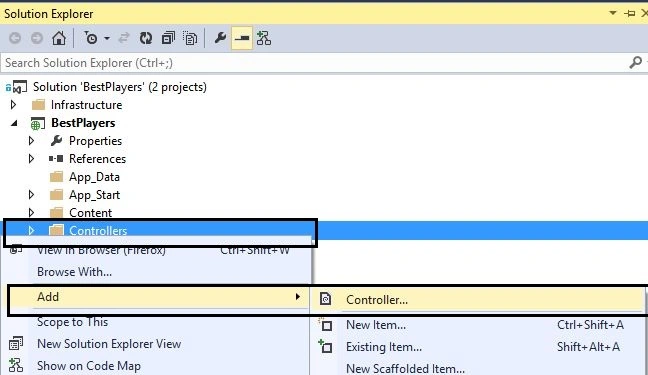
Figure 10: Adding Controller
Step 3
Select MVC Empty Controller from the next Add Scaffold wizard.
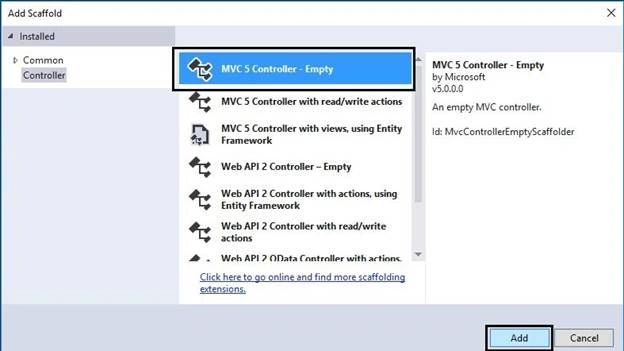
Figure 11: Add Scaffold Wizard
Step 4
Specify the controllers name as “PlayersController”.
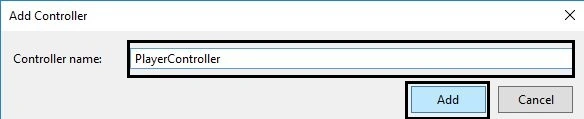
Figure 12: Add Controller
Step 5
Update the Model with the help of following code.
- using System.Collections.Generic;
-
- namespace BestPlayers.Core.Models
- {
- public class Team
- {
- #region Properties
-
-
-
- public int ID { get; set; }
-
-
-
- public string Name { get; set; }
- #endregion
- }
-
- public class Players
- {
- #region Properties
-
-
-
- public int ID { get; set; }
-
-
-
- public string Name { get; set; }
-
-
-
- public int ODI { get; set; }
-
-
-
- public int Tests { get; set; }
-
-
-
- public int ODIRuns { get; set; }
-
-
-
- public int TestRuns { get; set; }
-
-
-
- public int TotalCount { get; set; }
- #endregion
- }
-
- public class Cricketer
- {
- #region Properties
-
-
-
- public List<Team> Teams { get; set; }
- #endregion
- }
- }
Step 6
Now, replace the code with the code given below.
- using BestPlayers.Core.BL;
- using BestPlayers.Core.Models;
- using System.Collections.Generic;
- using System.Linq;
- using System.Web.Mvc;
-
- namespace BestPlayers.Controllers
- {
- public class PlayerController : Controller
- {
- #region Cricketer
-
-
-
-
- [HttpGet, ActionName("GetAllTeams")]
- public ActionResult GetAllTeams()
- {
- List<Team> teamList = new List<Team>();
-
- var response = new PlayersBL().GetAllTeams();
- if (!object.Equals(response, null))
- {
- teamList = response.ToList();
- }
- return View("~/Views/Player/Teams.cshtml", new Cricketer { Teams = teamList });
- }
- #endregion
- }
- }
Step 7
Now, right click on the Players folder in the Views folder and go to Add-> View.
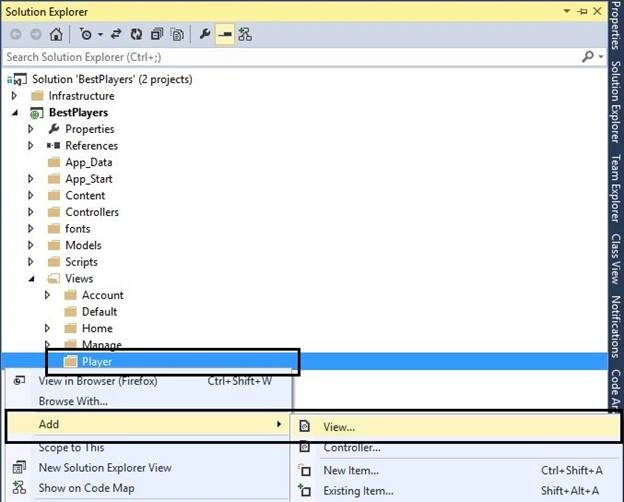
Figure 13: Adding View
Step 8
Specify the name for view as “Teams”, as shown below.
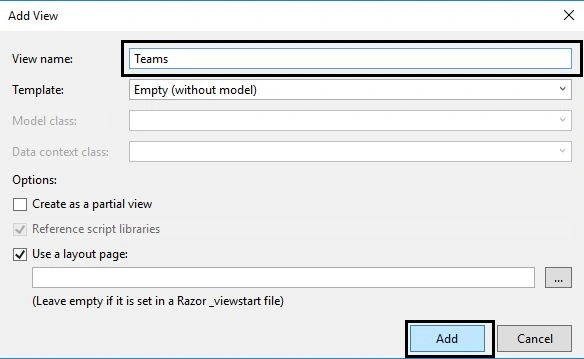
Figure 14: View in MVC
Step 9
Now, replace the code with the code given below.
- @model BestPlayers.Core.Models.Cricketer
- @{
- ViewBag.Title = "Teams";
- }
-
- <h2>Teams</h2>
-
- <table>
- <thead>
- <tr>
- <th>
- Name
- </th>
- </tr>
- </thead>
- <tbody>
- @if (Model.Teams.Count > 0)
- {
- foreach (var item in Model.Teams)
- {
- <tr>
- <td>
- <a href="javascript:void(0)" onclick="GetPlayersDetails('@item.ID')">@item.Name</a>
- </td>
- </tr>
- }
- }
- </tbody>
- </table>
Step 10
Add the connection string given below in the Web.Config file of MVC project.
- <add name="PlayersConfiguration" connectionString="Data Source=Your Server Name; Initial Catalog=Cricketer; User Id=User Name; Password=Password" providerName="System.Data.SqlClient"/>
Step 11
Modify the code in the “Views/Shared/_Layout.cshtml” with the highlighted code given below.
- <!DOCTYPE html>
- <html>
- <head>
- <meta charset="utf-8" />
- <meta name="viewport" content="width=device-width, initial-scale=1.0">
- <title>@ViewBag.Title - Best Players App</title>
- @Styles.Render("~/Content/css")
- @Scripts.Render("~/bundles/modernizr")
-
- </head>
- <body>
- <div class="navbar navbar-inverse navbar-fixed-top">
- <div class="container">
- <div class="navbar-header">
- <button type="button" class="navbar-toggle" data-toggle="collapse" data-target=".navbar-collapse">
- <span class="icon-bar"></span>
- <span class="icon-bar"></span>
- <span class="icon-bar"></span>
- </button>
- @Html.ActionLink("Best Players", "Index", "Home", new { area = "" }, new { @class = "navbar-brand" })
- </div>
- <div class="navbar-collapse collapse">
- <ul class="nav navbar-nav">
- <li>@Html.ActionLink("Home", "Index", "Home")</li>
- <li>@Html.ActionLink("About", "About", "Home")</li>
- <li>@Html.ActionLink("Contact", "Contact", "Home")</li>
- <li>@Html.ActionLink("Cricket", "GetAllTeams", "Player")</li>
- </ul>
- @Html.Partial("_LoginPartial")
- </div>
- </div>
- </div>
- <div class="container body-content">
- @RenderBody()
- <hr />
- <footer>
- <p>© @DateTime.Now.Year - Best Players App</p>
- </footer>
- </div>
-
- @Scripts.Render("~/bundles/jquery")
- @Scripts.Render("~/bundles/bootstrap")
- @RenderSection("scripts", required: false)
- </body>
- </html>
Step 12
Run the Application with Ctrl + F5. Click the Cricketer link.
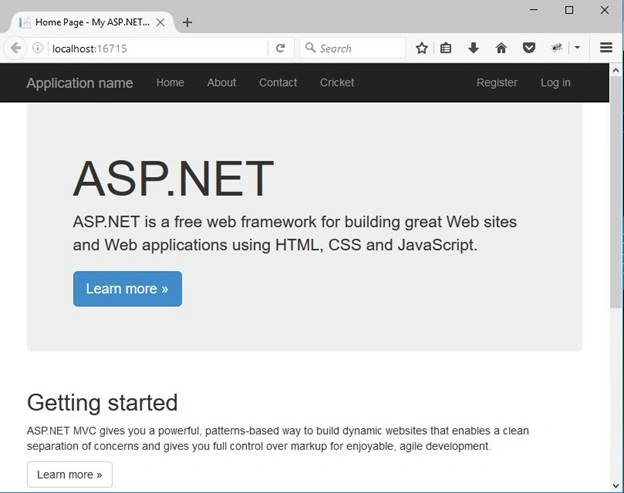
Figure 15: Dashborad in MVC
Now, you can see that all the teams are listed below.
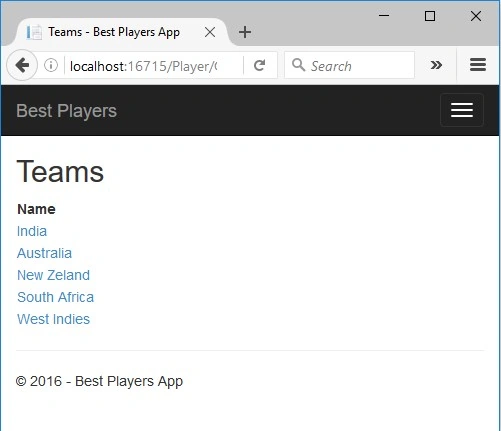
Figure 16: Team View in MVC
Binding Partial View with jQuery Dialog
In this section, we’ll add one partial view and render the partial view in a div element with the help of jQuery Dialog. We’ll set the datatype as HTML in jQuery function to render the partial view. Let’s begin with the steps given below.
Step 1
Right click on the Views-> Player folder and go to Add -> View.
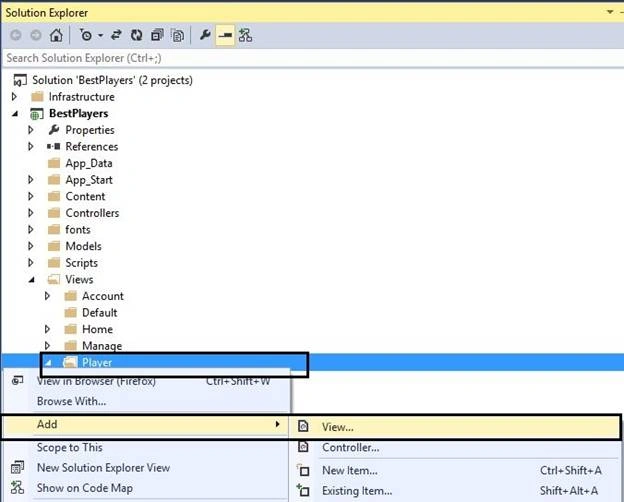
Figure 17: Adding Partial View
Step 2
Check the option of creating Partial View in the wizard, as shown below.
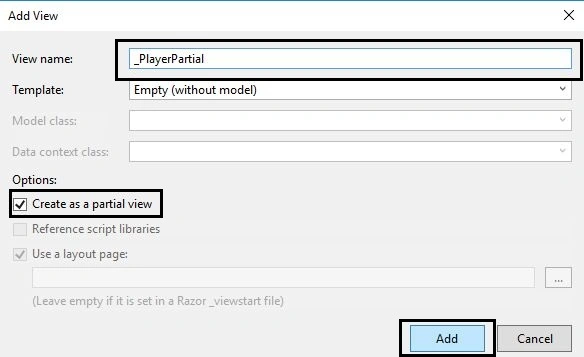
Figure 18: Partial View in MVC
Step 3
At first, we’ll add the PagedList reference in our Application. In the Solution Explorer, right click on the BestPlayers and go to Manage NuGet Packages and search for the PagedList. Subsequently, install it as shown below.
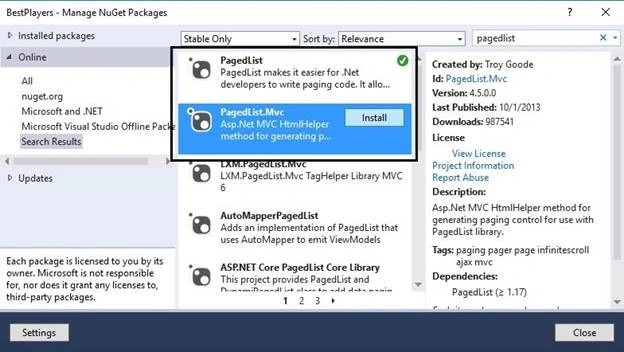
Figure 19: Adding PagedList Reference
Step 4
Now, add an action method in the PlayersController with the help of the code given below.
At first, add the reference given below.
Now, add the code in the PlayersController, as defined below.
-
-
-
-
-
-
-
- [HttpGet, ActionName("GetPlayersByTeam")]
- public ActionResult GetPlayersByTeam(int? page, int? pageSize, int teamId)
- {
- List<Players> playersList = new List<Players>();
- if (object.Equals(page, null))
- {
- page = 1;
- }
- if (object.Equals(pageSize, null))
- {
- pageSize = 4;
- }
- ViewBag.TeamId = teamId;
- ViewBag.PageSize = pageSize;
- var response = new PlayersBL().GetPlayersByTeam(teamId, page.ToString(), pageSize.ToString());
- if (!object.Equals(response, null))
- {
- playersList = response.ToList();
- }
-
- return View("~/Views/Player/_PlayerPartial.cshtml", new StaticPagedList<Players>(playersList, Convert.ToInt32(page), Convert.ToInt32(pageSize), playersList.Count > 0 ? playersList.FirstOrDefault().TotalCount : 0));
- }
Step 5
Add jQuery & jQueryUI reference and unobtrusive reference from the NuGet Packages.
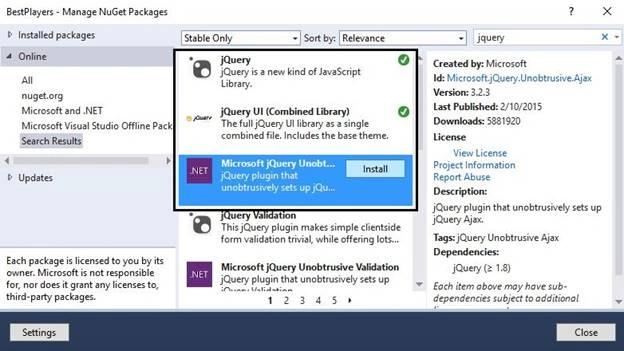
Figure 20: Adding jQuery Reference
Step 6
Add the highlighted code given below in Team.cshtml page.
- @model BestPlayers.Core.Models.Cricketer
- @{
- ViewBag.Title = "Teams";
- }
- <script src="~/Scripts/jquery-2.1.1.js"></script>
- <script src="~/Scripts/jquery-ui-1.11.1.js"></script>
- <script src="~/Scripts/jquery.unobtrusive-ajax.js"></script>
- <link href="~/Content/themes/base/jquery-ui.min.css" rel="stylesheet" />
-
- <h2>Teams</h2>
-
- <table>
- <thead>
- <tr>
- <th>
- Name
- </th>
- </tr>
- </thead>
- <tbody>
- @if (Model.Teams.Count > 0)
- {
- foreach (var item in Model.Teams)
- {
- <tr>
- <td>
- <a href="javascript:void(0)" onclick="GetPlayersDetails('@item.ID')">@item.Name</a>
- </td>
- </tr>
- }
- }
- </tbody>
- </table>
-
- <div class="popupcntr" id="playerDetails_content" style="display: none;" title="Event Information">
- <div class="innerBox">
- <div id="PlayerContainer"></div>
- </div>
- </div>
-
- <script type="text/javascript">
- var j$ = jQuery.noConflict();
- function GetPlayersDetails(teamId) {
- j$(function () {
- j$('#playerDetails_content').dialog({
- dialogClass: 'eventdetail_dialog',
- modal: true,
- width: 676,
- open: function (event, ui) {
- $.ajax({
- url: '@Url.Action("GetPlayersByTeam", "Player")',
- dataType: "html",
- data: { teamId: teamId },
- type: "GET",
- error: function (xhr, status, error) {
- var err = eval("(" + xhr.responseText + ")");
- toastr.error(err.message);
- },
- success: function (data) {
- $('#PlayerContainer').html(data);
- }
- });
- },
- close: function (event, ui) { $('#playerDetails_content').dialog("destroy"); $('#PlayerContainer').html(""); },
- });
- });
- }
- </script>
Step 7
Replace the code of _PlayerPartial.cshtml page with the code given below.
- @model PagedList.IPagedList<BestPlayers.Core.Models.Players>
- @using PagedList.Mvc;
-
- <table class="table">
- <thead>
- <tr>
- <th>
- Name
- </th>
- <th>
- ODI
- </th>
- <th>
- Tests
- </th>
- <th>
- ODIRuns
- </th>
- <th>
- TestRuns
- </th>
- </tr>
- </thead>
- <tbody>
- @if (Model.Count > 0)
- {
- foreach (var item in Model)
- {
- <tr>
- <td>
- @item.Name
- </td>
- <td>
- @item.ODI
- </td>
- <td>
- @item.Tests
- </td>
- <td>
- @item.ODIRuns
- </td>
- <td>
- @item.TestRuns
- </td>
- </tr>
- }
- }
- else
- {
- <tr>
- <td colspan="13" class="NoData">No data found</td>
- </tr>
- }
- </tbody>
- </table>
- @if (Model.TotalItemCount > 4)
- {
- <div class="pagingBox">
- <input id="HiddenPageSize" name="PageSize" type="hidden" />
- <input id="HiddenPage" name="Page" type="hidden" />
- <span class="selectBoxes display_none_mobile">
- @Html.DropDownList("PageSize", new SelectList(new Dictionary<string, int> { { "2", 2 }, { "4", 4 } }, "Key", "Value", Convert.ToString(ViewBag.PageSize)), new { id = "pagesizelist" })
- </span>
- <div class="pagerecord display_none_mobile">
- Records
-
- Page @(Model.PageCount < Model.PageNumber ? 0 : Model.PageNumber) of @Model.PageCount
- </div>
-
- @Html.PagedListPager(Model, page => Url.Action("GetPlayersByTeam", "Player",
- new
- {
- page,
- pageSize = ViewBag.PageSize,
- teamId = ViewBag.TeamId
- }),
- PagedListRenderOptions.EnableUnobtrusiveAjaxReplacing(new PagedListRenderOptions
- {
- Display = PagedListDisplayMode.IfNeeded,
- MaximumPageNumbersToDisplay = 5
- },
- new AjaxOptions
- {
- InsertionMode = InsertionMode.Replace,
- HttpMethod = "Get",
- UpdateTargetId = "PlayerContainer"
- }))
- </div>
- }
- <script type="text/javascript">
-
- $(function () {
- $("#pagesizelist").change(function (event) {
- $.ajax({
- url: '@Url.Action("GetPlayersByTeam", "Player")',
- dataType: "html",
- data: {
- page: 1,
- pageSize: $(this).val(),
- teamId: '@ViewBag.TeamId'
- },
- type: "GET",
- error: function (xhr, status, error) {
- var err = eval("(" + xhr.responseText + ")");
- toastr.error(err.message);
- },
- success: function (data) {
- $('#PlayerContainer').html(data);
- }
- });
- });
- });
- </script>
Step 8
Build the Application and run the Application. Open the Cricketer page and click India.
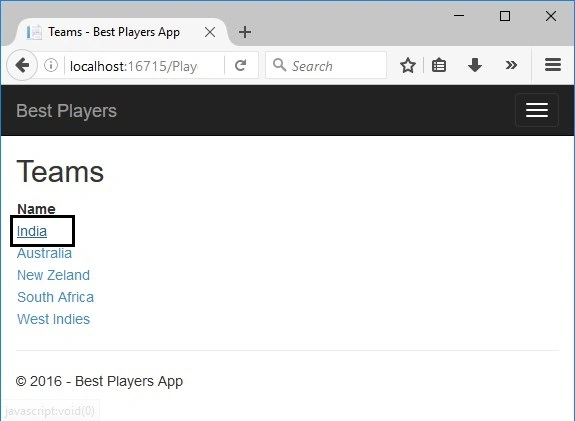
Figure 21: Cricketer View in App
Step 9
When you click on India, you will get the details of the players listed in Indian team.
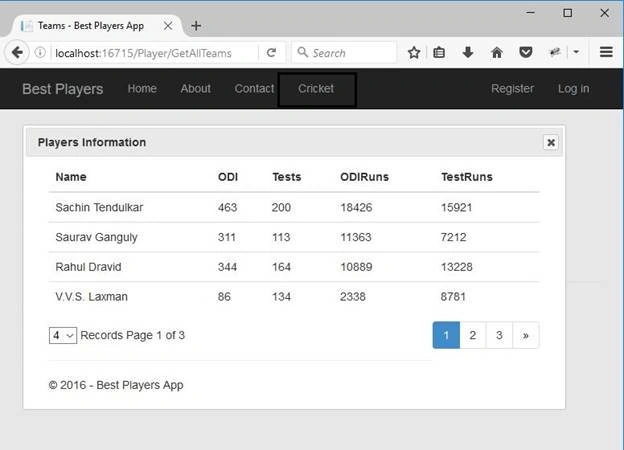
Figure 22: Partial View with jQuery Dialog
You can also perform paging in this dialog box.
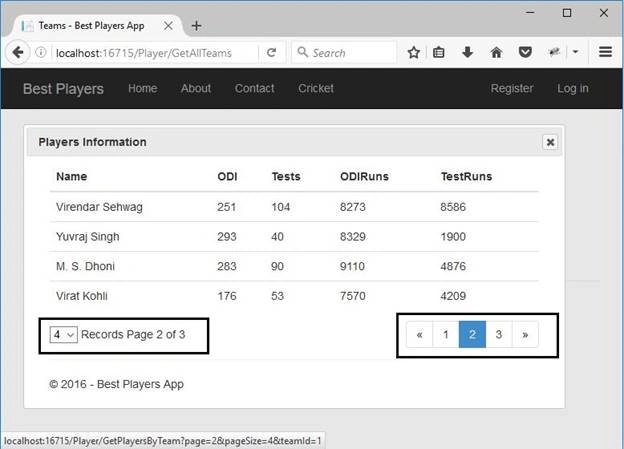
Figure 23: Paging in Partial View with jQuery Dialog
Note - The records are available only for India. One can easily insert the data into the table to get more records.
Summary
This article described how we can integrate the partial view with div element, with the help of jQuery & jQuery UI. This is one of the benefits of using partial view in any ASP.NET MVC application. We also saw the easy paging functionality and no postback while paging in this application. Thanks for reading this article. Happy coding.


Moises RiverPosted May 26, 2019, 8:59 PM
Good night, I am trying to validate the case when playerList.count =0, because app freezes when you click a tema that is empty
Moises RiverPosted May 24, 2019, 11:14 PM
Lin of team freezes when it haven't data, I try to solve with no success
Former memberPosted Jan 10, 2017, 3:10 AM
Sorry that i have not seen any link you given to download the code. would you mention the link properly. thanks
Former memberPosted Jan 9, 2017, 3:30 AM
Would you please upload the source code so i can download the source code.
Pankaj GuptaPosted Dec 23, 2016, 5:04 AM
Good article with nice example.but can u share link to download the code.
Manav PandyaPosted Dec 23, 2016, 4:43 AM
Ya u r right but file like bootstrap and jquery ,how can we effectively find suitable classes easily , just let me know easy way Ehsan Sajjad brother
Manav PandyaPosted Dec 23, 2016, 2:59 AM
I want to ask that if we are not aware of ajax i mean writing manually ajax , so take advantage of ajax with mvc
Manav PandyaPosted Dec 23, 2016, 2:59 AM
Thanks for that article sir Nimit Joshi
Tushar BeniwalPosted Dec 23, 2016, 1:21 AM
Hi what about bestplayers.core BL Folder source code ,missing in article
Mohammed Deeb HammoudehPosted Dec 22, 2016, 3:50 PM
Perfect article , thanks for your efforts
recep seyisPosted Dec 22, 2016, 8:31 AM
Omg supper............................................
Amit Kumar SinghPosted Dec 21, 2016, 11:58 PM
Nice one sir ........................................