

I have recently published my first XRMToolBox Plugin “Dataverse Users, Security roles, Teams and Teams security roles” related to Dataverse Security, which helps administrators, developers, and auditors retrieve and explore detailed user access information from Microsoft Dataverse environments.
You can check the below for the Overview, Key Features, Use Cases and Data Export of my Plugin.
📦 Overview
This plugin provides a comprehensive view of Dataverse users and their access configurations, including:
👤 User Details:
UserId,ApplicationId,Full Name,Email,User Status,Business Unit,Azure AD Object IDetc.🛡️ User Security Roles (Separated by semicolon)
👥 User Teams (Separated by semicolon)
🛡️ Team Security Roles (Separated by semicolon)
🧰 Key Features
🔎 Global Search: Use a single search box to find any text across all retrieved user fields
↕️ Column Sorting: Sort by any field for easier navigation and analysis
📤 CSV Export: Export all data or filtered search results to a
.csvfile with a custom filename📊 Detailed Metadata: View additional fields like domain name, business unit ID, and application ID
⚡ Fast Performance: Optimized for large datasets with responsive UI
🧭 User-Friendly Interface: Intuitive layout with minimal setup required
🔄 Refresh Capability: Reload data without restarting the plugin with a single click
📁 Offline Analysis: Exported data can be used for reporting, auditing, or compliance reviews
📋 Use Cases
🔐 Security Audits: Identify users with elevated or missing roles
🧾 Compliance Reporting: Export user-role mappings for documentation
👥 Team Management: Understand team memberships and inherited roles
🧹 Environment Cleanup: Detect inactive users or redundant access
📈 Access Reviews: Analyze user metadata for governance and policy enforcement
📤 Data Export
Click the Export button to download data as a
.csvfileChoose your own filename
Export either full dataset or filtered results based on search
Installation
Follow the below steps for installing this plugin in XrmToolBox.
Step 1: Click on the link to open XrmToolBox website.

Step 2: Click on the Download latest version.

Step 3: Click on Folder icon in Downloads.

Step 4: Right click on the folder and click on Extract All.

Step 5: Click on Extract.

Step 6: Once the file is extracted, click on it to open the folder.
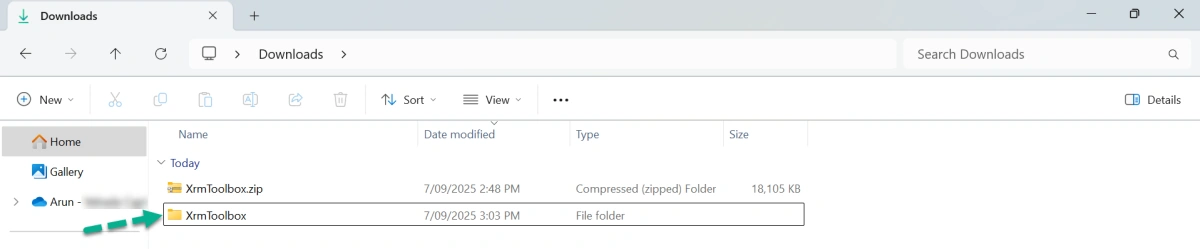
Step 7: Click on the XrmToolBox.exe to open the XrmToolBox executable file.

XrmToolBox is opening…

Step 8: Click on Open Tool Library from Quick actions.
Or
Click on Configuration -> Tool Library.

Step 9: Search for “Dataverse Users, Security roles, Teams and Teams security roles“.

Step 10: Select the Tool and Click on Install.

Step 11: Click on Yes to install this tool.

Step 12: Once the Installation is done successfully, you can see the below.
Click on Close.

Step 13: Click on Tools tab.

Step 14: Search for “Dataverse Users, Security roles, Teams and Teams security roles“.
You can see my tool, which has been successfully installed.

Usage
Follow the below steps.
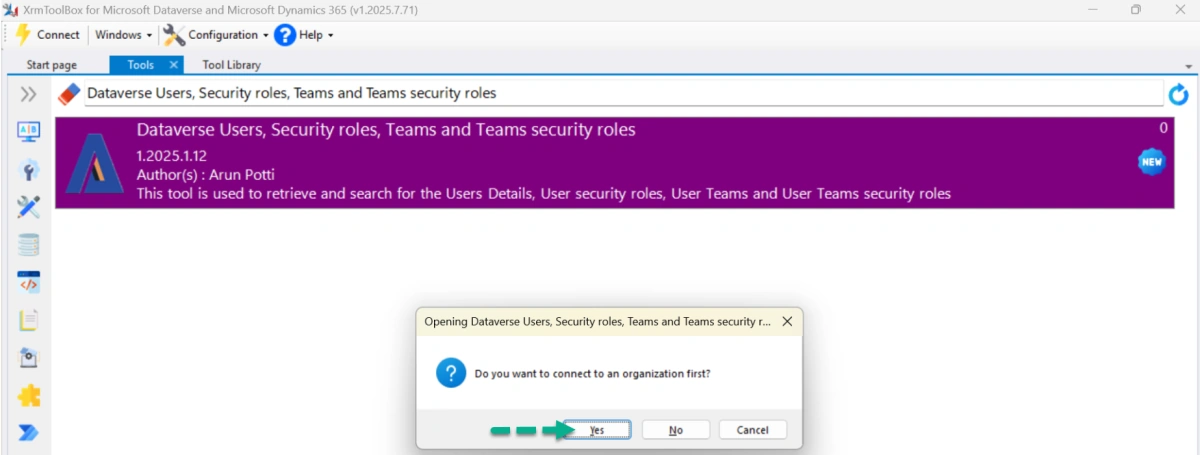
Step 1: Open XrmToolBox and search for “Dataverse Users, Security roles, Teams and Teams security roles” in Tools tab.
Click on it.

Step 2: Click on Yes to connect to an organization.
Step 3: Select the required connection and click on OK.

Tool has been opened successfully.

Step 4: Click on Load Data.

Tool will start retrieving all the System user details, Security roles (separated by semicolon ;), Teams (separated by semicolon ; and Team Security Roles (separated by semicolon ;).

Once, the Tool retrieves the data, you can see the data in the grid and also can see the number of users retrieved.

Step 5: Search for some text to filter the data.
As an example, I have entered the text “System Administrator“, and you can see the grid filtered with the entered text and can see the updated count as well.

If you want to sort, click on any column in the grid to sort ascending or descending.
As an example, I have clicked on Full Name to sort in Ascending order.

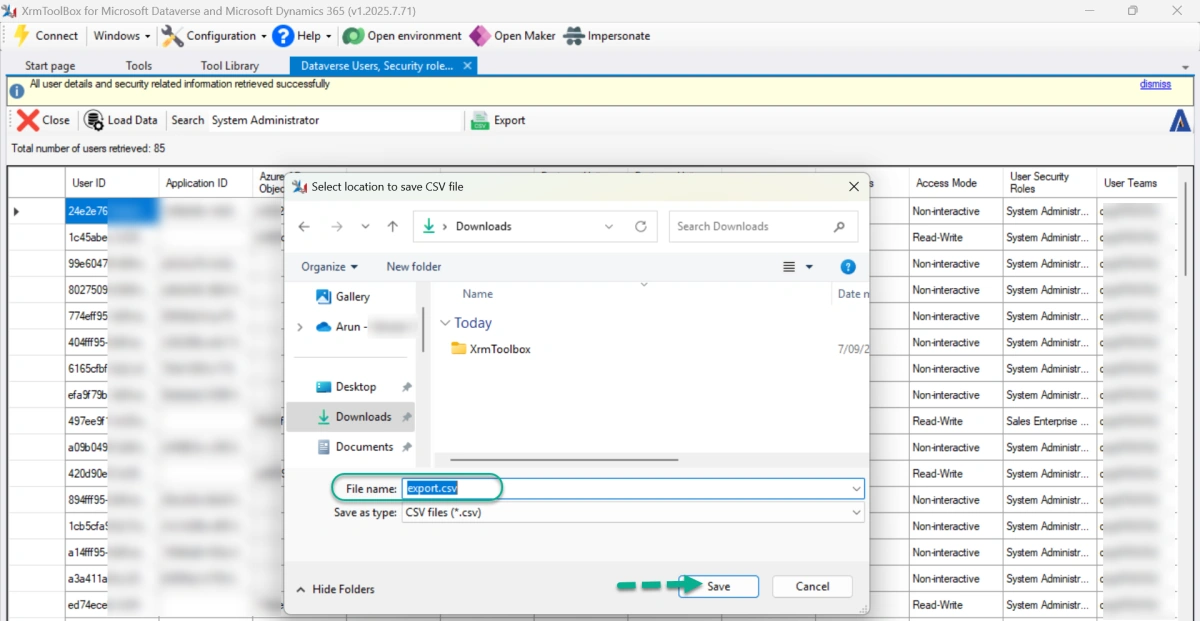
Step 6: Click on Export to export the data in CSV format.
Note: Data will be exported to the CSV format only on the filtered data, which you can see on this grid.

Step 7: Choose the required path and Provide the File name.
Click on Save.
Step 8: Once the data is exported successfully, you can see the Information message and the alert dialog with the Path, the file is downloaded.
Click on OK.

Step 9: Go to the Downloads folder and open the file to see the data.

Hope you liked my new XrmToolBox tool “Dataverse Users, Security roles, Teams and Teams security roles“.
Please like and share your valuable feedback on this article.
Join the conversation! Your thoughts help the community grow.