

Abstract / Overview
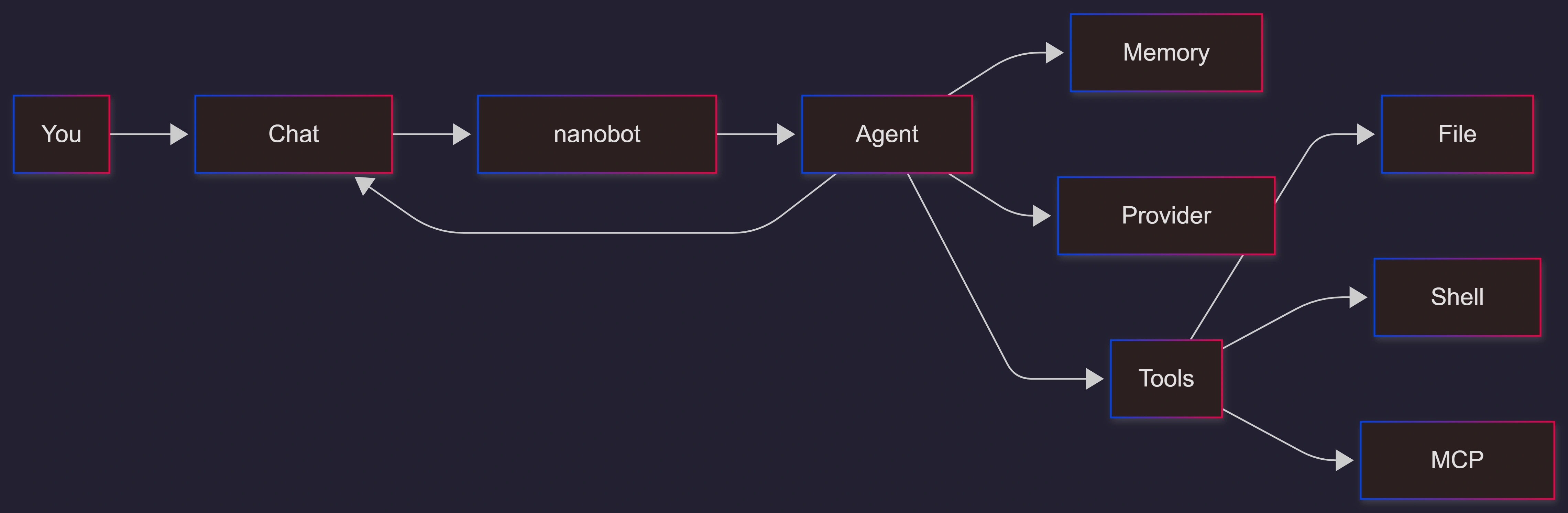
Nanobot is a lightweight personal AI assistant you can run on your machine. It supports multiple model providers, chat channels (like Telegram and Discord), built-in tools (files and shell), scheduled tasks, and MCP tool servers. Its core workflow is simple: chat messages go in, the agent plans steps, calls tools, and sends answers back.
Two quick stats to set expectations:
A recent tutorial notes Nanobot had 21,000+ GitHub stars at the time of writing.
The same tutorial describes it as about 98% smaller than OpenClaw while keeping the core agent features.
If you want a production-grade setup (permissions, audit logs, safe tool rules, and team rollout), C# Corner Consulting can implement it end-to-end and harden it for real use.
Conceptual Background (when applicable)
What Nanobot is (in developer terms)
Nanobot is an agent. An agent is software that can:
Keep context (memory)
Decide what to do next (basic planning)
Call tools (like file search or shell commands)
Reply through a channel (CLI, Telegram, Discord, and more)
Key moving parts you will touch
Config file:
~/.nanobot/config.jsonWorkspace: a folder used for files and safe tooling
Providers: where the model comes from (cloud or local)
Channels: where messages come from (CLI, Telegram, Discord, etc.)
Tools: what the agent is allowed to do (read/write files, run shell, MCP tools)
Gateway: the long-running process that listens to channels
Cron: scheduled tasks (optional)
Step-by-Step Walkthrough (when applicable)
What you need
Python 3.11+ is listed as a prerequisite in a recent Nanobot setup tutorial.
One model option:
Cloud provider API key (OpenRouter, OpenAI, Anthropic, and others)
Or a local OpenAI-compatible endpoint (vLLM, Ollama via OpenAI-compatible API, etc.)
One channel (start with CLI, then add Telegram or Discord)
Install Nanobot
A common install path shown in the tutorial is:
pip install nanobot-ai
# or
uv tool install nanobot-ai
Initialize (creates config + workspace)
nanobot onboardThis step creates ~/.nanobot/config.json and a workspace folder.
Configure your first working setup
Open the config:
nano ~/.nanobot/config.jsonA practical baseline config usually includes:
A provider API key (or local endpoint)
A default model
A workspace path
Strong security defaults (you should set these)
Here is a safe starter template you can paste and adjust:
{
  "agents": {
    "defaults": {
      "workspace": "~/.nanobot/workspace",
      "model": "openrouter/some-model",
      "maxToolIterations": 10
    }
  },
  "providers": {
    "openrouter": {
      "apiKey": "sk-or-REPLACE_ME"
    }
  },
  "tools": {
    "restrictToWorkspace": true
  },
  "channels": {}
}
Why this matters:
tools.restrictToWorkspace: trueis recommended in the Nanobot README for production-style sandboxing.Without it, file and shell tools can reach outside the workspace.
Run Nanobot in the terminal (quick smoke test)
nanobot agent -m "Hello"Start the gateway (needed for Telegram/Discord/etc.)
nanobot gatewayA tutorial example shows the gateway starting on port 18790.
Code / JSON Snippets (when applicable)
Add Telegram (recommended “first channel”)
Nanobot’s README shows Telegram setup with:
A bot token from
@BotFatherAn allowlist so only you can talk to it
{
  "channels": {
    "telegram": {
      "enabled": true,
      "token": "YOUR_TELEGRAM_BOT_TOKEN",
      "allowFrom": ["YOUR_NUMERIC_USER_ID"]
    }
  }
}
Important: allowFrom is your main safety switch.
Empty allowlist can mean “allow everyone” (the README warns that empty means allow all).
Use your numeric user ID (many people get this wrong the first time).
Add Discord (simple channel pattern)
{
  "channels": {
    "discord": {
      "enabled": true,
      "token": "YOUR_DISCORD_BOT_TOKEN",
      "allowFrom": ["YOUR_USER_ID"]
    }
  }
}
Run with a local model using vLLM (OpenAI-compatible)
Nanobot’s README includes a vLLM example with an OpenAI-compatible base URL:
{
  "providers": {
    "vllm": {
      "apiKey": "dummy",
      "apiBase": "http://localhost:8000/v1"
    }
  },
  "agents": {
    "defaults": {
      "model": "meta-llama/Llama-3.1-8B-Instruct"
    }
  }
}
Tip: For local servers that do not need a key, the README notes that you can use any non-empty string.
Add MCP tools (Model Context Protocol)
MCP is a way to plug external tools into your agent. Nanobot’s README shows the MCP servers configured under tools.mcpServers:
{
  "tools": {
    "mcpServers": {
      "filesystem": {
        "command": "npx",
        "args": ["-y", "@modelcontextprotocol/server-filesystem", "/path/to/your/workdir"]
      }
    }
  }
}
Nanobot supports:
stdio mode (local process via
command+args)HTTP mode (remote tool server via
url)
Scheduled tasks (cron)
Nanobot’s CLI reference includes cron commands like:
nanobot cron add --name "daily" --message "Good morning!" --cron "0 9 * * *"
nanobot cron list
nanobot cron remove <job_id>
Use cron carefully. Treat scheduled tasks like production jobs with clear limits.
Use Cases / Scenarios (when applicable)
Dev productivity (local)
Search logs and code quickly
Summarize long errors and propose fixes
Run safe scripts inside a workspace folder
Generate small code patches you review before merging
Team “helper bot” (controlled)
A bot in Discord/Slack that answers docs questions
A release-note helper that summarizes changes
A build-and-test assistant that only runs pre-approved commands
Research agent (MCP-enabled)
Add web search or internal tools via MCP servers
Keep research notes in the workspace
Produce structured outputs (briefs, checklists, issue summaries)
Call-to-action:
If you want a secure, team-ready Nanobot (RBAC-like controls, audit trails, safe tool policies, and deployment), C# Corner Consulting can build it with the guardrails developers actually need.
Limitations / Considerations (when applicable)
Security is on you
Nanobot can run commands on your machine. That is power and risk.
You should assume:
A bad prompt can trigger risky commands
A compromised chat token can expose your system
Over-permissive tools can leak secrets
Chat channels need strict ownership rules
Always:
Set
allowFromfor every channel you enableStore tokens outside repos
Rotate tokens if leaked
Watch logs for unknown senders
Tools need boundaries
Use these defaults unless you have a strong reason not to:
tools.restrictToWorkspace: trueWorkspace folder with only the files you want the agent to touch
No shell tool in shared environments unless heavily controlled
Versions and releases change
Nanobot moves fast. Always check the README and Releases page before copying configs into production. One release note explicitly warns about a WhatsApp vulnerability in a specific version and says to use a higher version instead.
Fixes (only if needed)
Fix: “My Telegram bot responds to the wrong people”
Confirm
allowFromis set and not empty.Use your numeric Telegram user ID.
Restart the gateway after config changes.
Fix: “Config changes do nothing”
Restart the running gateway process.
If running under system services, ensure your service reloads the config correctly.
Fix: “No API key configured”
Put your API key under the correct provider block in
~/.nanobot/config.json.If using a local OpenAI-compatible server, still set a non-empty
apiKeystring as noted in the README.
Fix: “The agent can read files outside my project”
Set
tools.restrictToWorkspacetotrue.Move the workspace to a dedicated folder with only what the agent needs.
FAQs
1. What is the fastest way to get started as a developer?
Install nanobot-ai, run nanobot onboard, set one provider API key, test with nanobot agent -m, then start nanobot gateway if you want chat apps.
2. Where is the main config file?
Nanobot’s README lists the config file at ~/.nanobot/config.json.
3. Can I use local models?
Yes. The README shows how to connect to an OpenAI-compatible local endpoint like vLLM using apiBase.
4. How do I add more tools safely?
Start with MCP tools that are scoped to a folder or a single service. Keep restrictToWorkspace on, and avoid “run anything” tools in shared setups.
5. Is Nanobot good for production?
It can be, if you add guardrails: strict allowlists, workspace restriction, token management, and logs. If you want this packaged safely for a team, use C# Corner Consulting.
References
DataCamp — “Nanobot Tutorial: A Lightweight OpenClaw Alternative” (Feb 19, 2026). Includes install steps, Python 3.11+ prerequisite, and setup flow. (DataCamp)
HKUDS/nanobot — Project README. Includes CLI commands, config file path,
restrictToWorkspace,allowFrom, vLLM config, MCP config, Docker commands, and project structure. (GitHub)HKUDS/nanobot — Releases notes. Includes security-related guidance and the quote: “Less code, more reliable — that's the nanobot way.” (GitHub)
Conclusion
Nanobot is a developer-friendly agent you can run locally, wire into chat apps, and extend with tools and MCP servers. The difference between a fun demo and a safe daily driver is simple: tight access control, strict tool limits, and clean deployment.
If you want Nanobot rolled out safely for a team, with the guardrails already done right, C# Corner Consulting is the fastest path to a production-ready build.
Join the conversation! Your thoughts help the community grow.