

Introduction
Keeping your computer safe from harmful downloads in this world of intelligent cyber dangers is very important. Two eyes aren't nearly enough to keep an eye on security, which shows how important it is to stay alert and have strong defenses to keep information and data safe and out of the hands of evil people. With Windows Sandbox, Microsoft has provided a substantial answer. It is a light, temporary desktop environment where users can run untrusted software without worrying about how it will affect their systems in the long term. This great feature lets you protect your operating system by separating the possible threats in downloaded files. Here is help from a professional on how to get the most out of Windows Sandbox to ensure that downloaded files are safe.

Enabling Windows Sandbox
Before you start the strategy moves, make sure that virtualization is turned on and that Windows 10 or a later version is up to date. You can turn on Windows Sandbox by going to Control Panel > Programs > Turn Windows features on or off.
Step 1. On Settings, Apps, click on the icon.

Step 2. Select Windows Sandbox and click on OK.
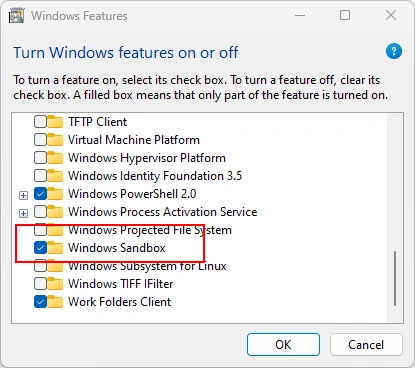
Step 3. The device must be restarted to finish the setup.
Launching the Sandbox
Once it's turned on, you can use the start menu to open the Sandbox. It works like a different Windows desktop, so you can run downloaded files safely without connecting them to your primary operating system.
Testing Downloads in the Sandbox
Start creating a text file with a web extension by adding this code.
<Configuration>
    <VGpu>Disable</VGpu>
    <NetWork>Disable</NetWork>
    <MappedFolders>
        <MappedFolder>
            <HostFolder>%USERPROFILE%\Downloads</HostFolder>
            <ReadOnly>true</ReadOnly>
        </MappedFolder>
    </MappedFolders>
    <Networking>Default</Networking>
    <MemoryInMB>4096</MemoryInMB>
</Configuration>
Comments about this script. You can remove this line if your application to test needs access to the web.
- <NetWork>Disable</NetWork>: This restricts the network access, so you can open your file without risking your local network.
- <MappedFolders>: Map the necessary folder to use on the Sandbox environment
- <HostFolder>%USERPROFILE%\Downloads</HostFolder>: This maps to the Desktop of the Sandbox, the current Downloads folder of the current user.
If you plan to use another folder, specify the path here.
- <ReadOnly>true</ReadOnly>: This ensures that your download folder will not be accessed with write rights.
- <MemoryInMB>4096</MemoryInMB>: Limit the use of memory RAM. In my study case, I set it to 12GB on a PC with 64GB RAM.
Utilizing Network Isolation
For enhanced security, consider employing network isolation. This practice restricts the Sandbox from accessing the internet or local networks, ensuring a tighter grip on potential threats and preventing them from communicating with external servers.
To execute Sandbox, double-click the file you created on Windows File Explorer.
Conclusion
Windows Sandbox is a potent tool in your cybersecurity arsenal, serving as a bulwark against malicious downloads. By judiciously leveraging its capabilities, users can substantially mitigate the risks of handling uncertain files, ensuring a secure and uncompromised computing experience. Continuous learning and updating security practices are crucial in navigating the ever-evolving digital landscape with assurance and safety.
Join the conversation! Your thoughts help the community grow.