
Let’s explore C# 7.0 features and Visual Studio Intelligence changes provided in this release to increase the productivity. There are lots of things that have been added in this new release. I will give you some overview of the features that I have checked.
Note
Some of the features available in Visual Studio 2015 are either updated or are with specific Add-In, but in VS 2017, all features will come by default.
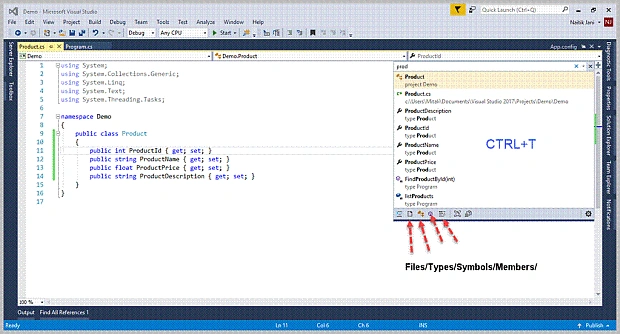
Navigation between Functions and Files is now very easy
- You can just press (Ctrl + T, CTRL +) in the code window and go to files, types, methods in your code on the same files or different files.
- Interestingly, you can find specific items by applying filter from the bottom bar (Files, Properties or Member Functions etc.)
Go To Line (CTRL + G) is also changed
- Go To will not move you to specific lines but now, you can Go To Specific Members function, types, etc.
- For more detail, check the below example of "Go to Line".
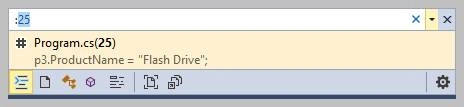
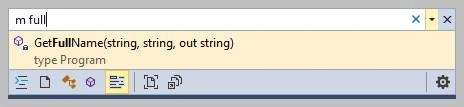
- "m function name" is used to search the drive for specific function.
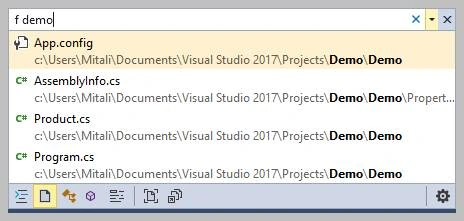
- f is used to search for the content in any files in the project or path of the files. You will get the matching files in dropdown.
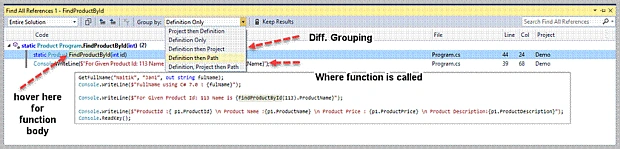
Find All References (SHIFT + F12) has been changed. Now, it will provide advance grouping, filtering, sorting, searching within referenced result so that you can get a clear understanding of your references and get to the specific line of code, you need, without problem.
- On Mouse over on specific result in find window, the Tooltip will appear with Function body to get better understanding.
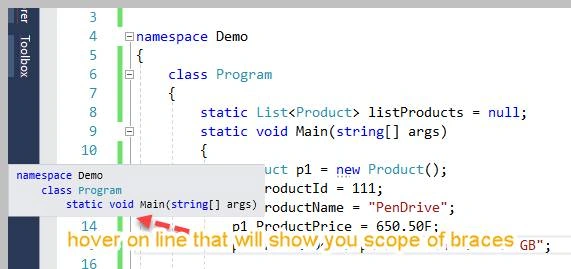
Structure Guide Lines are now drawn in editor so that we can easily know which bracket is for which function and all. If we hover the mouse over a particular line, it will show the Tool Tip with current code block.
- We can disable this feature from Options menu if it is not needed.
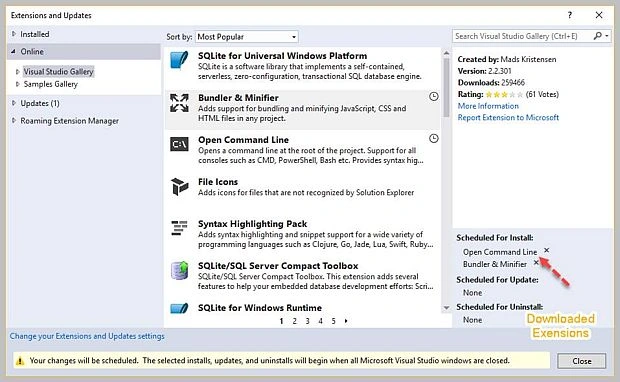
You can modify Extensions in Bulk. Once you close VSIX Installer, it will start installing Configured extension installation one by one.
- In older versions, if we downloaded any extension, then it will get first installed and then we need to restart Visual Studio. But now, this extension will get scheduled automatically and get installed when VS gets closed.
- Once we close VS, the VSIX installer will start immediately.
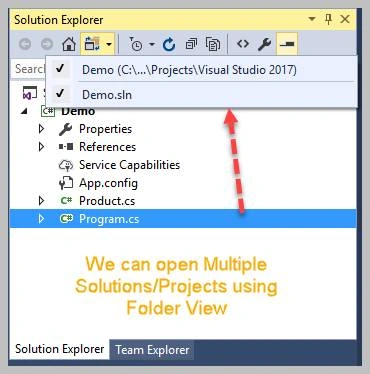
In Solution Explorer, VS Team have added Folder View. From there, we can open multiple projects if they exist in same directory.
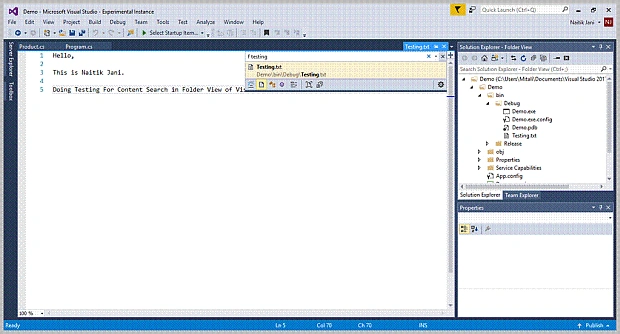
- Search using CTRL + G in subfolder for files.
Much Improvement in IDE Experience and Productivity
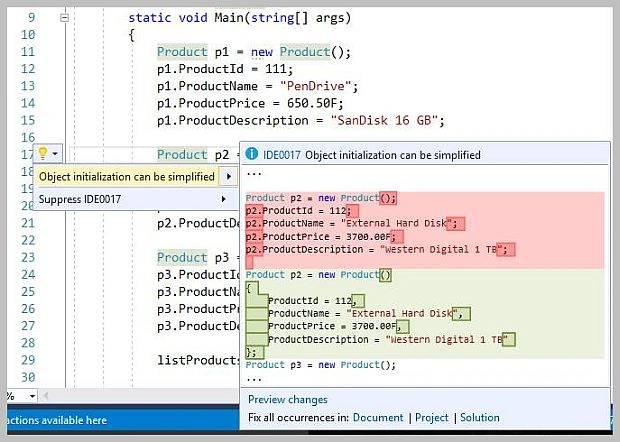
- Press CTRL + . , it will provide you suggestion that will make code look better and more scalable. (CTRL + and .) This will change Object Initialization that we have done in our project.
This one is one of the coolest features of C# 7.0. Now, we can declare Out variable inline. Let‘s check it with the help of an example.
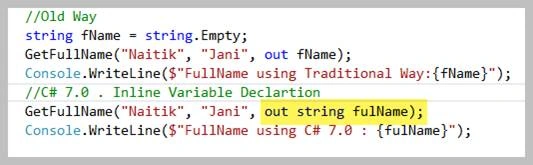
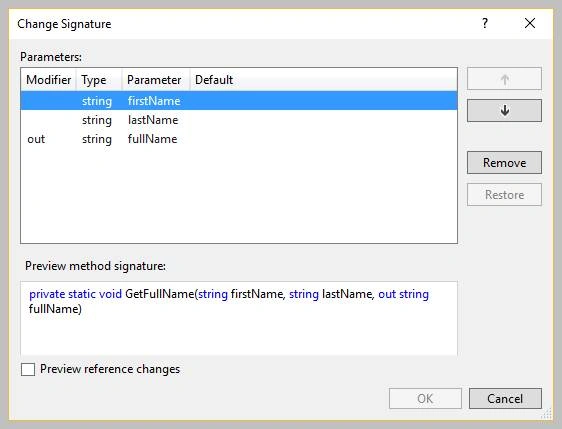
- Once you download VS 2017, write out the function using old way, and then press CTRL + and, it will convert and provide you the suggestions for signature change.
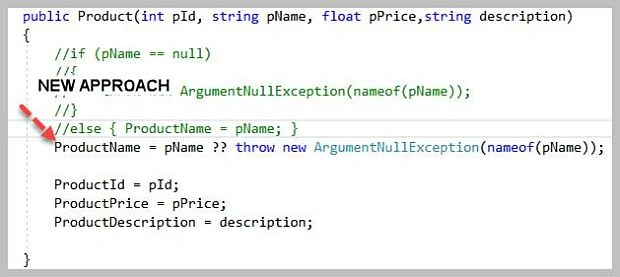
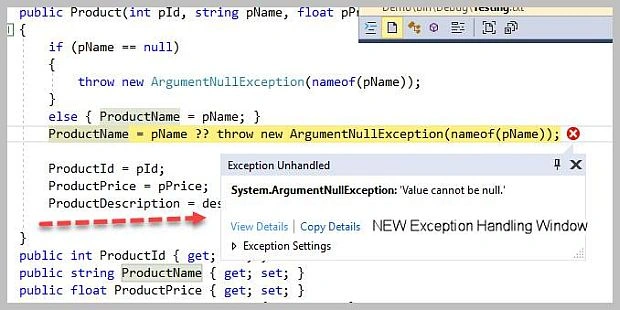
Now, we can check For NULL directly using null-Coalescing operator (??) and we can throw the exception directly. Check this.
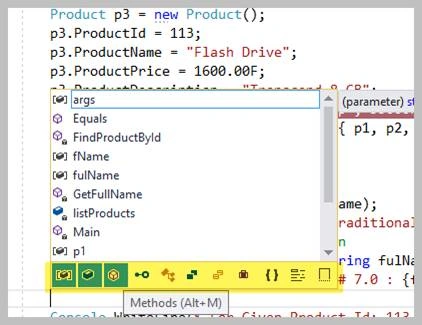
Improvement in IntelliSense will make us more productive when working in a large solution or an unfamiliar codebase. VS Team have added an icon tray to IntelliSense that enables you to filter the member list by type (e.g., methods, properties, classes, etc.).
Each filter toggle has an associated keyboard shortcut which you can discover by hovering over the icon. To enable this feature, go to Tools > Options > Text Editor > [C# | Visual Basic] > IntelliSense and check the options for filtering and highlighting.
We can split long string (for e.g Inline query) into multiple concatenated string by positioning the cursor mid-string and press enter.

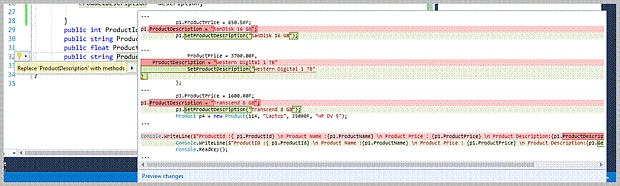
New Code action for converting Properties to Method. Declare Properties and press CTRL + and. It will provide suggestion for same.
Nested Local Function
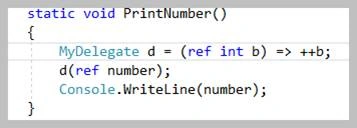
- Value of Number is 10 and if we call this method then it will be printed as 11. Now we can do nesting of function.
- Sometime if we want to access variable without passing it as parameter then we can do that.
IncrementNumber(ref number);
void IncrementNumber(ref int a) { a++; };
Pattern Matching
- https://github.com/dotnet/roslyn/blob/future/docs/features/patterns.md
- New Type of Construct that can be used to test the values in our code.

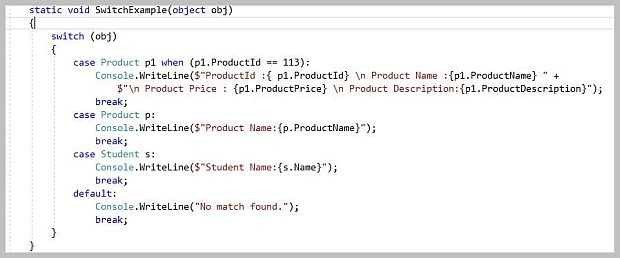
Switch Statement, now we can switch on anything. Let‘s look by example.
- Now it is not limited to Primitive types and string. (now we can directly pass reference types and check based on condition)
- Generalized case statement to Hold Pattern.
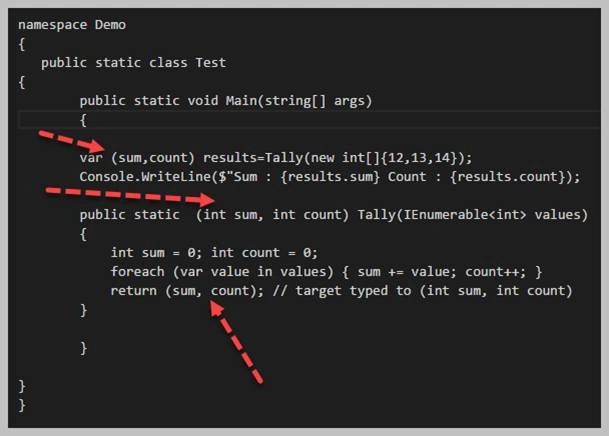
Tuple introduces language support for grouping of variable names.
- The syntax (int sum, int count) indicates an anonymous data structure with public fields of the given names and types, also referred to as tuple.
- In VS 2017 this example was not working due to some reason so done in VS Code will post more examples for this.
Now, we can return the value using Ref keyword. Yes! You heard it right.
- For details, click here
NEW Exception Handler
- Use the new Exception Helper to view your exception information at a glance, in a compact non-modal dialog with instant access to inner exceptions.
- Quickly see what was null right inside the Exception Helper when diagnosing your NullReferenceException.
- You can now exclude breaking on exception types thrown from specific modules by clicking the checkbox to add a condition while stopped at the thrown exception.
Chrome Debugging Support
- When you start debugging ASP.NET projects and choose Google Chrome as your browser, Visual Studio will debug your JavaScript running in Chrome.
- Not tested this feature yet. Do share the same if you test this feature.
Please find the attached Demo.zip file which contains examples that are mentioned in the article. Install VS 2017 RC and try it.
Do share your feedback and suggestion on this blog.
References
https://www.visualstudio.com/en-us/news/releasenotes/vs2017-relnotes
https://connectevent.microsoft.com/?wt_mc_id=dx_874921#day2
Nigel FernandesPosted Dec 22, 2016, 8:38 PM
Good information, I hope to install visual studio 2017 soon
Rathrola Prem KumarPosted Dec 2, 2016, 4:14 AM
Very Helpfull Article ..Thank you :)
Anu VPosted Nov 25, 2016, 11:07 PM
Nice article sir, Thanks for sharing..
Mahesh ChandPosted Nov 25, 2016, 8:18 PM
Welcome to C# Corner, Naitik. Good start with VS 2017.