

Introduction
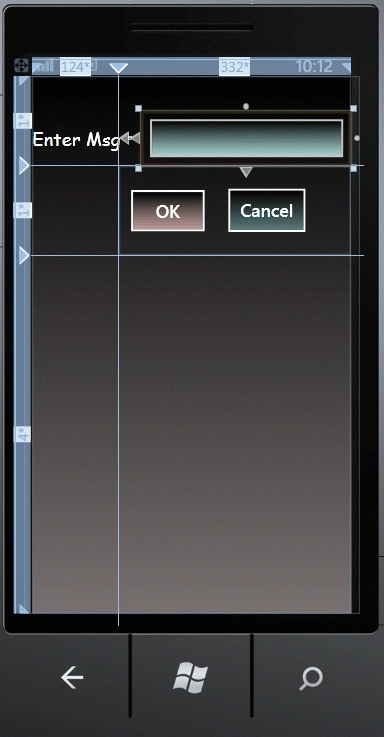
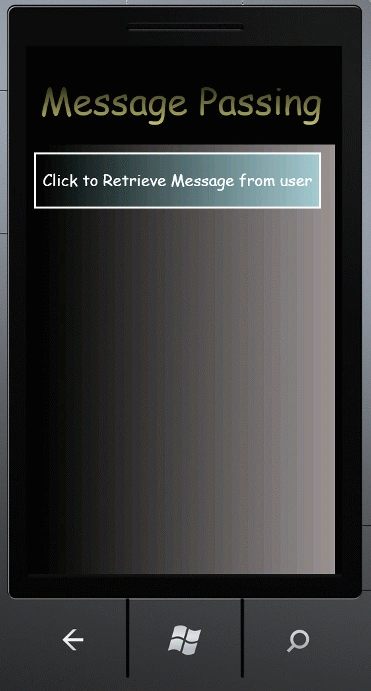
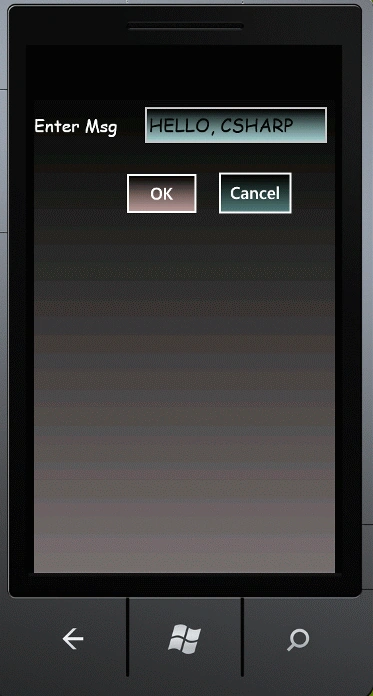
In this article we are going to explore how to pass a message between pages in Windows Phone 7. Further in details this article explains that we have two pages inside the Windows Phone application and want to pass a message between the pages we have in Windows Pphone 7. In this article we will learn how it is possible to do that. In this we have to pass a message such as whenever we click on the first page button to retrieve the message from the user then it will navigate to the other page. Further the only issue is that how do I get the data entered on page1 back to MainPage or to the calling page? The answer is that we have to use the NavigationService.Navigate method to add the data in page 2, and use the NavigationContext.QueryString property to retrieve the data in MainPage. Let's create a small sample to see how this works. Further we will see that there will be another page opened in which there is a Textbox and two buttons; inside the Textbox we will write the message which we have to send to the other page which is the first page. Let's see that how it is possible. So to do it we have to use the followiing steps.
Step 1: In this step first of all we have to open a Windows Phone application; let us see how you will open it.
- Go to Visual Studio 2010
- File->New->Project
- Select the template named as Silverlight for Windows Phone
- Select the Windows Phone application
- Give it a name as you want.

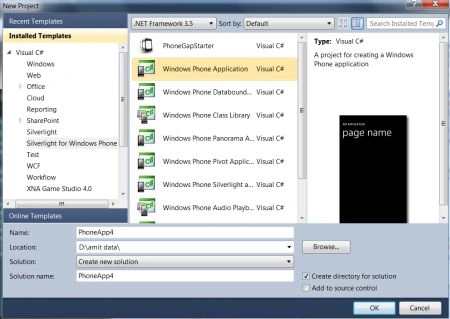
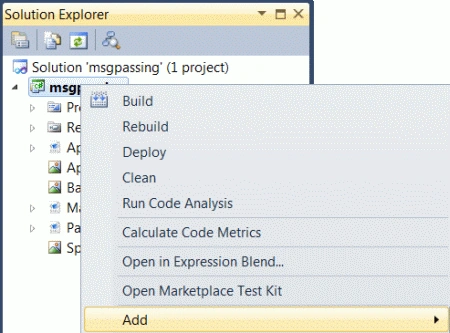
Step 2: In this step you have to add another new page inside the Windows Phone application; let us see from where you have to add it.
Go to Solution Explorer and Select the project and right-click on it:
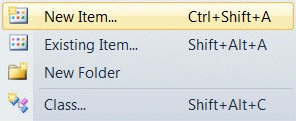
Add New Item:
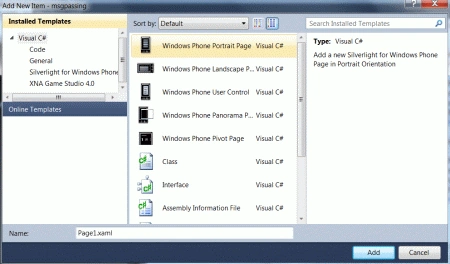
Select new Windows Phone page:
Step 3: In this step we will see the code for the MainPage.xaml.cs file which is given below.
Code:
using System;
using System.Collections.Generic;
using System.Linq;
using System.Net;
using System.Windows;
using System.Windows.Controls;
using System.Windows.Documents;
using System.Windows.Input;
using System.Windows.Media;
using System.Windows.Media.Animation;
using System.Windows.Shapes;
using Microsoft.Phone.Controls;
namespace msgpassing
{
public partial class MainPage : PhoneApplicationPage
{
// Constructor
public MainPage()
{
InitializeComponent();
display_data.Click += (display_data_Click);
}
private void display_data_Click(object sender, RoutedEventArgs e)
{
NavigationService.Navigate(new Uri("/Page1.xaml", UriKind.Relative));
}
protected override void OnNavigatedTo(System.Windows.Navigation.NavigationEventArgs e)
{
string Mytxt = string.Empty;
if (NavigationContext.QueryString.TryGetValue(
"mytextbox",
out Mytxt))
{
DisplayText.Text = Mytxt;
}
base.OnNavigatedTo(e);
}
}
}
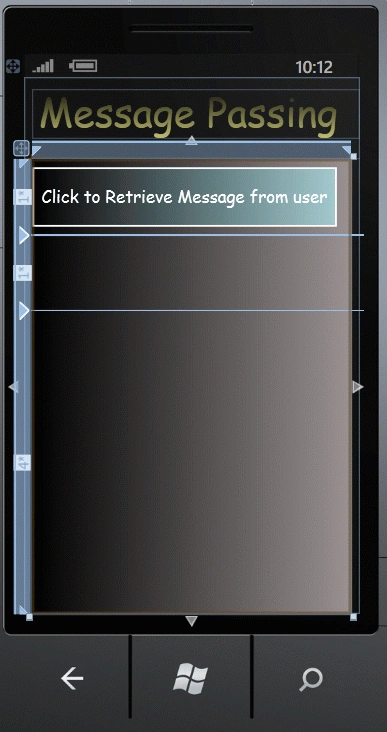
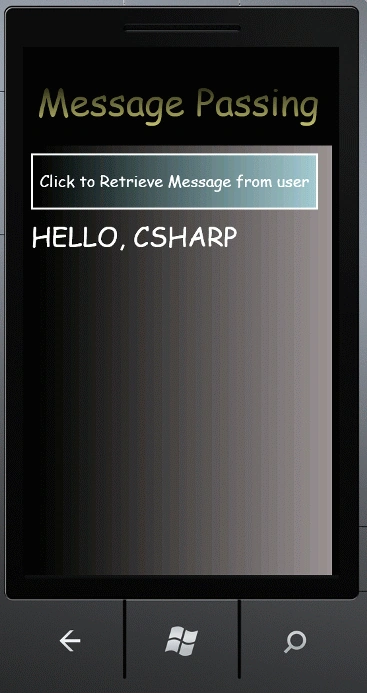
Description: In the above code of the MainPage.xaml.cs first of all we have to create the event handler for the display_data button. Further the job of this event handler is to navigate to page1. At last at the end of the page of MainPage.xaml we have to add an override of the OnNavigatedTo method. In that method you'll retrieve the QueryString if it exists and add the string retrieved to the TextBlock.
Step 4: In this step we will see the code for the MainPage.xaml file which is given below.
Code:
<phone:PhoneApplicationPage
x:Class="msgpassing.MainPage"
xmlns="http://schemas.microsoft.com/winfx/2006/xaml/presentation"
xmlns:x="http://schemas.microsoft.com/winfx/2006/xaml"
xmlns:phone="clr-namespace:Microsoft.Phone.Controls;assembly=Microsoft.Phone"
xmlns:shell="clr-namespace:Microsoft.Phone.Shell;assembly=Microsoft.Phone"
xmlns:d="http://schemas.microsoft.com/expression/blend/2008"
xmlns:mc="http://schemas.openxmlformats.org/markup-compatibility/2006"
mc:Ignorable="d" d:DesignWidth="480" d:DesignHeight="768"
FontFamily="{StaticResource PhoneFontFamilyNormal}"
FontSize="{StaticResource PhoneFontSizeNormal}"
Foreground="{StaticResource PhoneForegroundBrush}"
SupportedOrientations="Portrait" Orientation="Portrait"
shell:SystemTray.IsVisible="True">
<!--LayoutRoot is the root grid where all page content is placed-->
<Grid x:Name="LayoutRoot" Background="Transparent">
<Grid.RowDefinitions>
<RowDefinition Height="Auto"/>
<RowDefinition Height="*"/>
</Grid.RowDefinitions>
<!--TitlePanel contains the name of the application and page title-->
<StackPanel x:Name="TitlePanel" Grid.Row="0" Margin="12,17,0,28">
<TextBlock x:Name="PageTitle" Text="Message Passing" Margin="9,-7,0,0" Style="{StaticResource PhoneTextTitle1Style}" FontFamily="Comic Sans MS" FontSize="56">
<TextBlock.Foreground>
<LinearGradientBrush EndPoint="0.5,1" StartPoint="0.5,0">
<GradientStop Color="Black" Offset="0" />
<GradientStop Color="#FFC4C170" Offset="1" />
</LinearGradientBrush>
</TextBlock.Foreground>
</TextBlock>
</StackPanel>
<Grid x:Name="ContentPanel" Grid.Row="1" Margin="12,0,12,0">
<Grid.Background>
<LinearGradientBrush EndPoint="1,0.5" StartPoint="0,0.5">
<GradientStop Color="Black" Offset="0" />
<GradientStop Color="#FF9C9393" Offset="1" />
</LinearGradientBrush>
</Grid.Background>
<Grid.RowDefinitions>
<RowDefinition Height="1*" />
<RowDefinition Height="1*" />
<RowDefinition Height="4*" />
</Grid.RowDefinitions>
<Button Name="display_data" Content="Click to Retrieve Message from user" Click="display_data_Click" FontSize="24" FontFamily="Comic Sans MS" Margin="-12,0,9,0">
<Button.Background>
<LinearGradientBrush EndPoint="1,0.5" StartPoint="0,0.5">
<GradientStop Color="Black" Offset="0" />
<GradientStop Color="#BDA9E0E7" Offset="1" />
</LinearGradientBrush>
</Button.Background>
</Button>
<TextBlock Text="" Name="DisplayText" Grid.Row ="1" FontFamily="Comic Sans MS" FontSize="40" />
Join the conversation! Your thoughts help the community grow.