

Introduction
Windows 10 has many great features that include the personalize Windows 10 setting called Personalization. In personalization, we will change the look and feel of Windows 10 and manage some notifications. To understand the functionality of Personalization, we will follow some easy steps.
Open Personalization
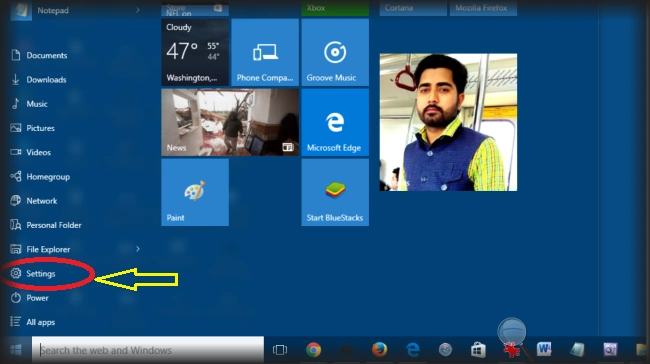
In the first step, we will face how to open the Personalization setting in Windows 10. Click on the Start button or press the Windows key from the keyboard then finally single click on Settings to open personalization. Here's the screenshot:
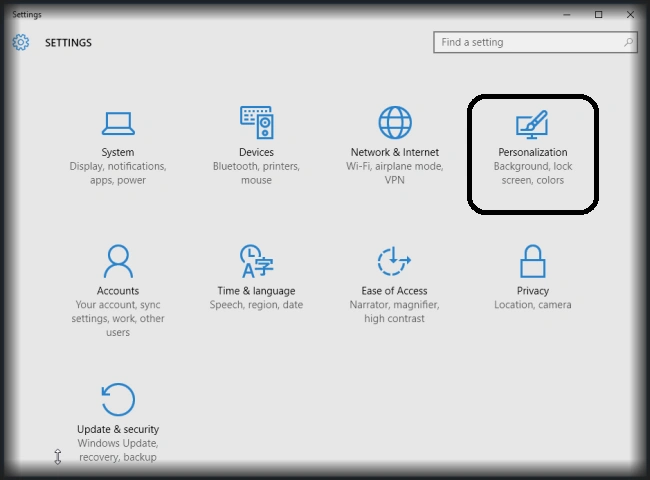
 After following these steps we will see SETTINGS home page then click on Personalization as in the following screenshot:
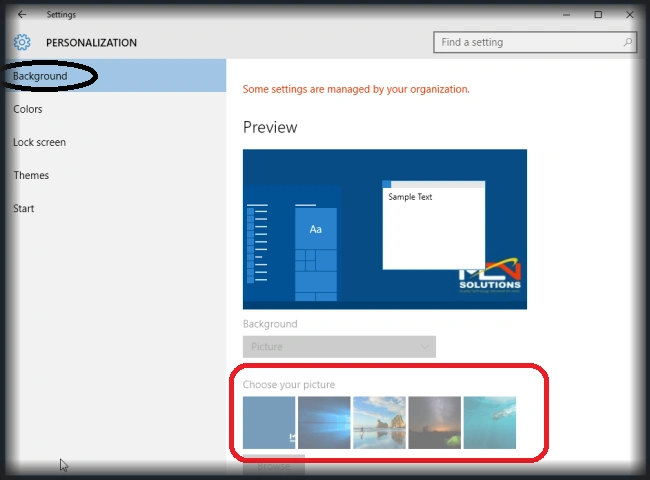
 If we want to change the Background image and wallpaper just click on Background Tab and choose any new image and wallpaper as in the following screenshot:
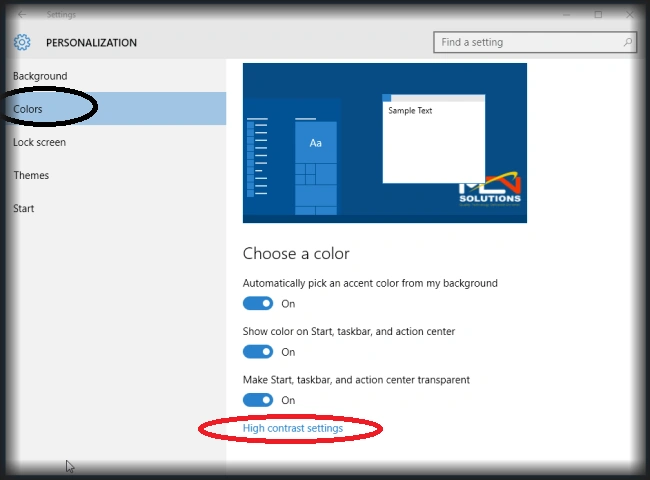
 Click on Colors tab to change the Windows colors, we will also change high Contrast of Windows 10 as in the following screenshots:
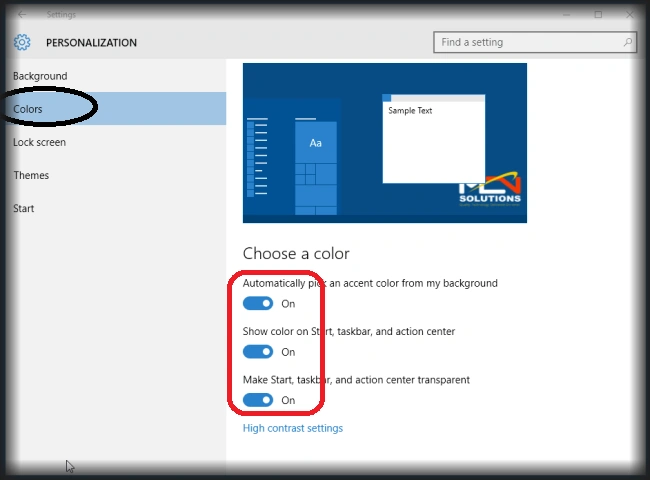 If you want to change the Contrast Settings, then click on High contrast settings marked with a red color circle.
 Select any one option from the dropdown list marked as a red color box.
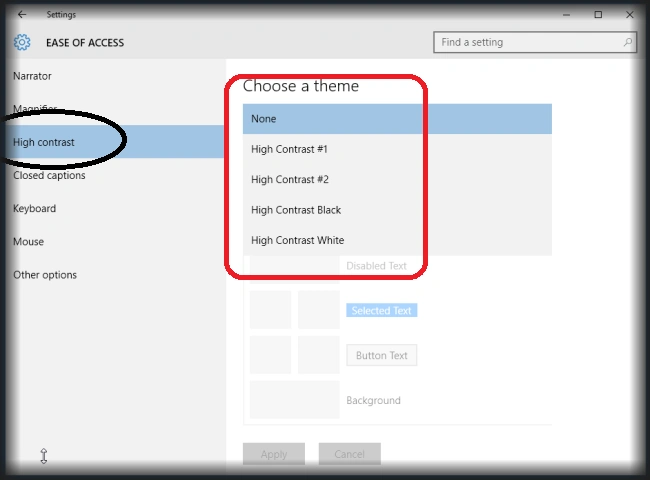 After selection just click on the Apply button to change the look and feel.
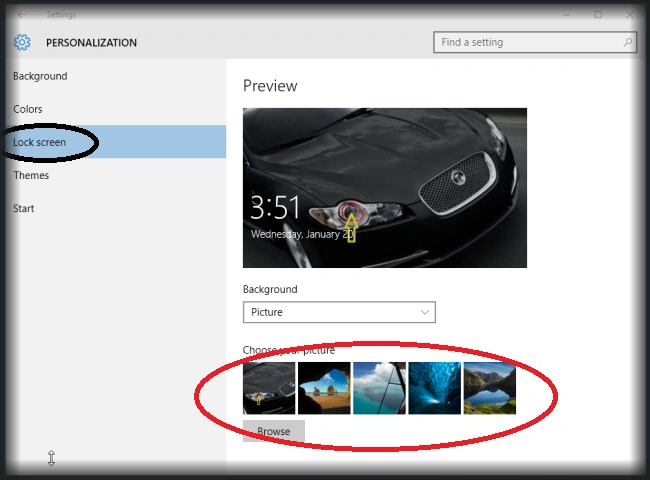
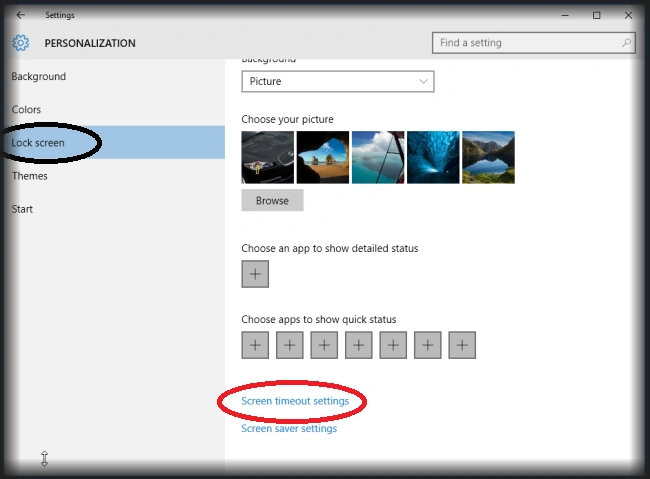
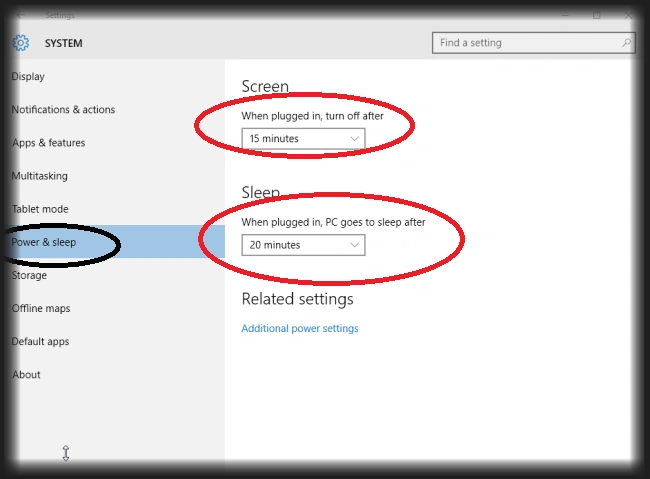
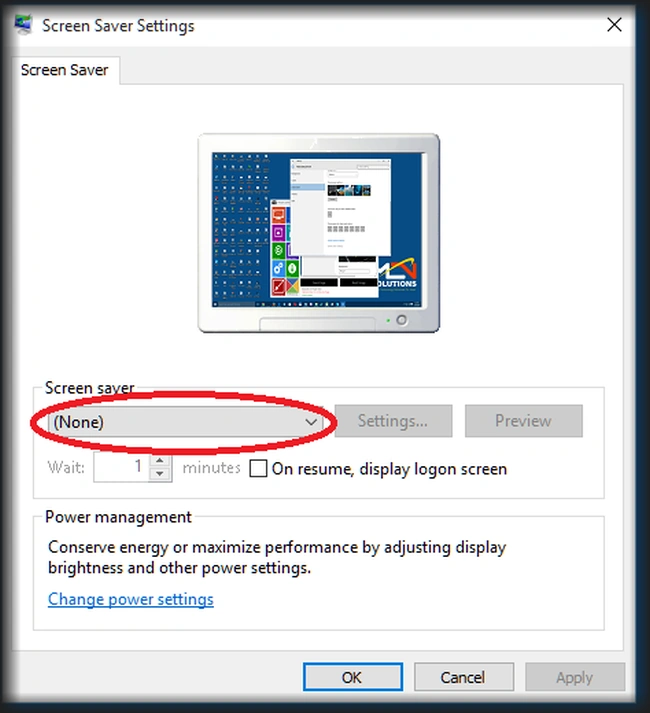
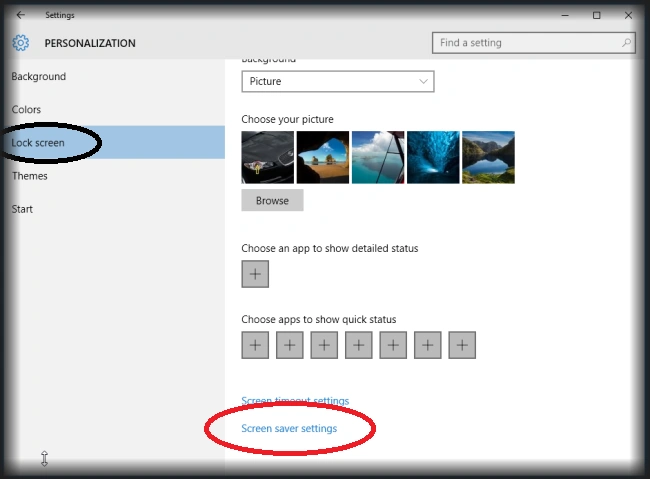
 We will also manage the security for the user login with a picture password. To utilize the picture password just click on this hyperlink which we already discussed in the previous Picture Password article. In this tab option, we will also manage the screen time out and screensaver Settings. Here's the screenshot:
 To change the screen timeout, click on Screen timeout settings marked with a red color circle.
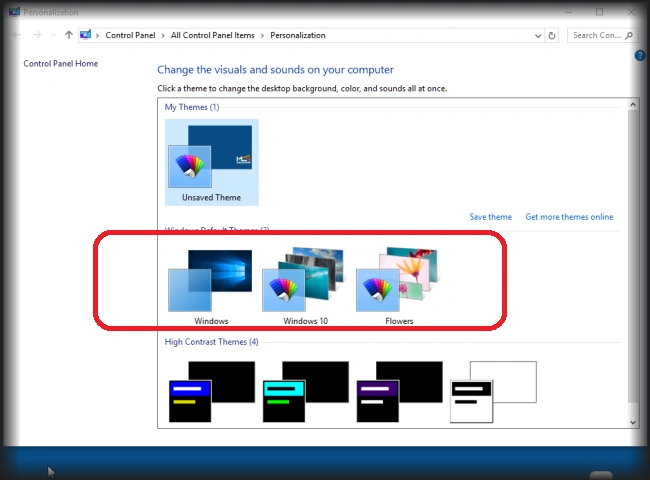
 Windows 10 has inbuilt themes that are used to change the GUI look and feel. Click on the Themes tab menu and choose any theme. Here's the screenshot.

 If we want to configure Sound Setting, then click Advanced sound settings marked with red:

 For changing desktop icons, click on Desktop icon settings marked with a red color circle.


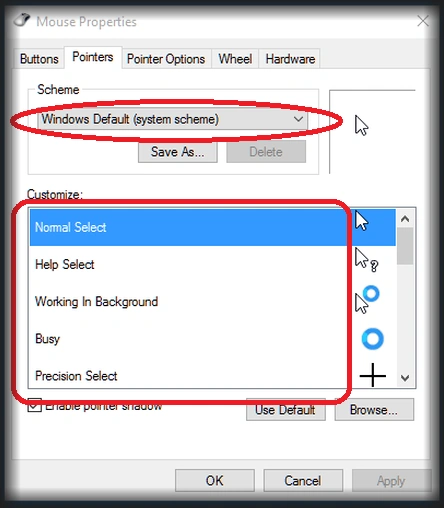 To manage the start of Windows 10 click on the Start tab menu as in the following screenshot:
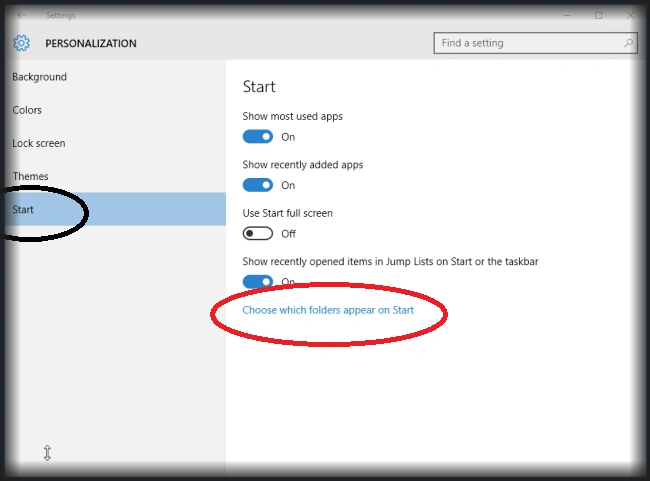
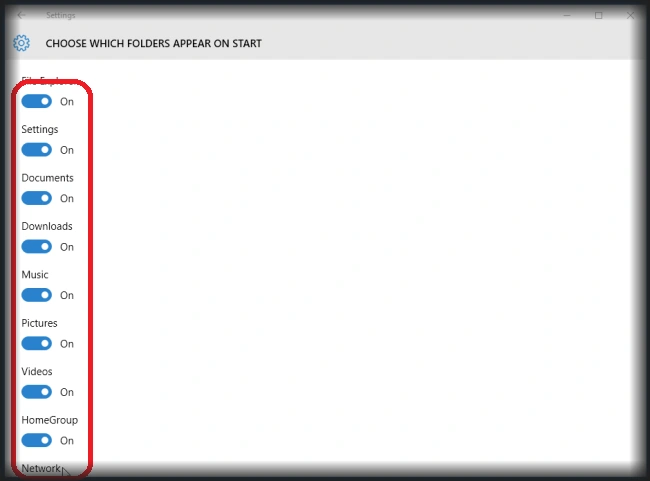 The main motivation of this article was to learn how to use the Personalized Windows 10 Setting.
Background
Color
Lock Screen
Power and Sleep
Screen Saver Settings
Themes
Personalization
Sound Setting
Desktop Icons
Mouse Pointer
Start
Santhakumar MunuswamyPosted Jan 23, 2016, 1:42 AM
Thanks for nice share