

This article explain how to pick a folder from the computer local drive in a Windows Store Application using XAML.
In this article I will show how to use a FolderPicker contract to obtain the complete folder, so that its contents can be accessed later.
I have built an application to pick a folder and show it's necessary information such as Name, Created Date and Path of the selected folder.
So, let's start to create a Windows Store Application.
Step 1
Select the Windows Store template using XAML and C#.
Step 2
Create the XAML markup for the UI in the MainPage.XAML page.
<Page
x:Class="PickAFolder.MainPage"
xmlns="http://schemas.microsoft.com/winfx/2006/xaml/presentation"
xmlns:x="http://schemas.microsoft.com/winfx/2006/xaml"
xmlns:local="using:PickAFolder"
xmlns:d="http://schemas.microsoft.com/expression/blend/2008"
xmlns:mc="http://schemas.openxmlformats.org/markup-compatibility/2006"
mc:Ignorable="d">
<Grid Background="Black">
<Grid.RowDefinitions>
<RowDefinition Height="Auto"/>
<RowDefinition Height="*"/>
</Grid.RowDefinitions>
<Grid x:Name="Input" Grid.Row="0">
<Button Grid.Row="1" x:Name="PickFolderButton" Content="Pick folder" Margin="40,50,10,0"Click="PickFolderButton_Click"/>
</Grid>
<Grid x:Name="Output" Grid.Row="1" HorizontalAlignment="Left" VerticalAlignment="Top">
<StackPanel Orientation="Vertical">
<TextBlock x:Name="Name" Style="{StaticResource BasicTextStyle}" TextWrapping="Wrap" />
<TextBlock x:Name="Path" Style="{StaticResource BasicTextStyle}" TextWrapping="Wrap" />
<TextBlock x:Name="Date" Style="{StaticResource BasicTextStyle}" TextWrapping="Wrap" />
</StackPanel>
</Grid>
</Grid>
</Page>
Step 3
The code of the MainPage.XAML.cs file:
using System;
using Windows.Storage;
using Windows.Storage.AccessCache;
using Windows.Storage.Pickers;
using Windows.UI.Xaml;
using Windows.UI.Xaml.Controls;
using Windows.UI.Xaml.Controls.Primitives;
using Windows.UI.Xaml.Input;
using Windows.UI.Xaml.Media;
using Windows.UI.Xaml.Navigation;
namespace PickAFolder
{
public sealed partial class MainPage : Page
{
public MainPage()
{
this.InitializeComponent();
}
private async void PickFolderButton_Click(object sender, RoutedEventArgs e)
{
FolderPicker folderPicker = new FolderPicker();
folderPicker.SuggestedStartLocation = PickerLocationId.Desktop;
folderPicker.FileTypeFilter.Add(".docx");
folderPicker.FileTypeFilter.Add(".xlsx");
folderPicker.FileTypeFilter.Add(".pptx");
StorageFolder folder = await folderPicker.PickSingleFolderAsync();
if (folder != null)
{
// Application now has read/write access to all contents in the picked folder (including other sub-folder contents)
StorageApplicationPermissions.FutureAccessList.AddOrReplace("PickedFolderToken", folder);
Name.Text = folder.Name + " folder is picked.";
Path.Text = "Path of Folder is : " + folder.Path;
Date.Text = "Created Date is : " + folder.DateCreated;
}
else
{
}
}
}
}
Now to explain the above code step-by-step:
- Add the following namespaces to the .cs file:
using Windows.Storage;
using Windows.Storage.AccessCache;
using Windows.Storage.Pickers;
- First of all create an object of FolderPikcer to access the folder.
FolderPicker folderPicker = newFolderPicker();
- We can also set the default location from where the folder will be picked. Add a filter to the folder properties, as in:
folderPicker.SuggestedStartLocation =PickerLocationId.Desktop;
folderPicker.FileTypeFilter.Add(".docx");
folderPicker.FileTypeFilter.Add(".xlsx");
folderPicker.FileTypeFilter.Add(".pptx");
- Now, pick the folder using the PickSingleFolderAsync() method. This method allows the user to pick only the single folder from the drives.
StorageFolder folder = await folderPicker.PickSingleFolderAsync();
- Then, set read/write access to all contents in the chosen folder (including other sub-folder contents); see:
if (folder != null){
// Application now has read/write access to all contents in the picked folder (including other sub-folder contents)
StorageApplicationPermissions.FutureAccessList.AddOrReplace("PickedFolderToken", folder);
Name.Text = folder.Name + " folder is picked.";
Path.Text = "Path of Folder is : " + folder.Path;
Date.Text = "Created Date is : " + folder.DateCreated;
}
Step 4
Now, run the application and click on the button display in the UI.
Pick a folder.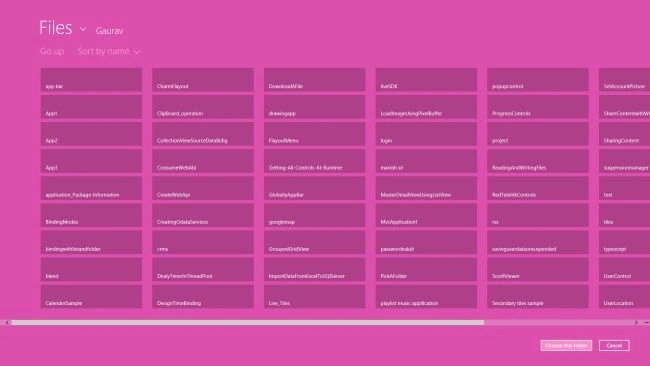
You will see the necessary properties of the chosen folder.
Rohatash KumarPosted Nov 27, 2012, 10:31 PM
Nice article. Georgie