This article describes the various input pointer events that can be helpful when designing Windows Store Apps using XAML.
In my previous article I showed two events of Pointer input; MouseHover and MouseExit. You can see that from here.
But now I will show another 4 types of pointer input events that Windows Store apps support; they are:
- PointerPressed: It occurs when the pointer is pressed on the screen.
- PointerMoved: It occurs when the pointer is moving around the screen.
- PointerReleased: It occurs when the pointer button is released after being pressed.
- PointerExisted: It works the same as PointerReleased but maybe in another condition too.
So, here I will create an application using these pointer events.
Procedure to be followed.
Step 1
Create a Blank Windows Store App using C#.
Step 2
Here I create some XAML markup code for the UI design; it is:
<Page
x:Class="drawingapp.MainPage"
xmlns="http://schemas.microsoft.com/winfx/2006/xaml/presentation"
xmlns:x="http://schemas.microsoft.com/winfx/2006/xaml"
xmlns:local="using:drawingapp"
xmlns:d="http://schemas.microsoft.com/expression/blend/2008"
xmlns:mc="http://schemas.openxmlformats.org/markup-compatibility/2006"
mc:Ignorable="d">
<Grid >
<Grid.Background>
<LinearGradientBrush EndPoint="0.5,1" StartPoint="0.5,0">
<GradientStop Color="Black"/>
<GradientStop Color="#FFCD7070" Offset="1"/>
</LinearGradientBrush>
</Grid.Background>
<Grid.RowDefinitions>
<RowDefinition Height="Auto"/>
<RowDefinition Height="*"/>
</Grid.RowDefinitions>
<Grid x:Name="Output" HorizontalAlignment="Left" VerticalAlignment="Top" Margin="30,30,0,0" Grid.Row="1">
<StackPanel ManipulationMode="All">
<Canvas x:Name="DrawingArea" Background="White" Height="500" Width="900"/>
<StackPanel Orientation="Horizontal" HorizontalAlignment="Center" Margin="0,10">
<Button x:Name="Erase" Content="Erase" Margin="0,0,10,0" Click="Erase_Click_1"/>
<Button x:Name="Draw" Content="Draw" Margin="0,0,10,0" Click="Draw_Click_1"/>
<Button x:Name="Reset" Content="Reset" Margin="0,0,10,0" Click="Reset_Click_1"/>
</StackPanel>
</StackPanel>
</Grid>
</Grid>
</Page>
Step 3
Here is the code of code-behind file.
Declare the 4 events of the input pointer at the initialization point. See:
DrawingArea.PointerPressed += new PointerEventHandler(DrawingArea_PointerPressed);
DrawingArea.PointerMoved += new PointerEventHandler(DrawingArea_PointerMoved);
DrawingArea.PointerReleased += new PointerEventHandler(DrawingArea_PointerReleased);
DrawingArea.PointerExited += new PointerEventHandler(DrawingArea_PointerReleased);
Code of PointerPressed Event:
void DrawingArea_PointerPressed(object sender, PointerRoutedEventArgs e)
{
Windows.UI.Input.PointerPoint pt = e.GetCurrentPoint(DrawingArea);
contacts[pt.PointerId] = pt.Position;
e.Handled = true;
++ActiveContacts;
}
The above code gets the current pointer position.
Code of PointerRelease Event.
void DrawingArea_PointerReleased(object sender, PointerRoutedEventArgs e)
{
uint ptrId = e.GetCurrentPoint(sender as FrameworkElement).PointerId;
if (contacts.ContainsKey(ptrId))
{
contacts[ptrId] = null;
contacts.Remove(ptrId);
--ActiveContacts;
}
e.Handled = true;
}
Code of PointerMoved Event.
void DrawingArea_PointerMoved(object sender, PointerRoutedEventArgs e)
{
if (i == 0)
{
Windows.UI.Input.PointerPoint pt = e.GetCurrentPoint(DrawingArea);
uint ptrId = pt.PointerId;
if (contacts.ContainsKey(ptrId) && contacts[ptrId].HasValue)
{
Point currentContact = pt.Position;
Point previousContact = contacts[ptrId].Value;
if (Distance(currentContact, previousContact) > 4)
{
Line l = new Line()
{
X1 = previousContact.X,
Y1 = previousContact.Y,
X2 = currentContact.X,
Y2 = currentContact.Y,
StrokeThickness = THICKNESS,
Stroke = new SolidColorBrush(Colors.Green),
StrokeEndLineCap = PenLineCap.Round
};
contacts[ptrId] = currentContact;
((System.Collections.Generic.IList<UIElement>)DrawingArea.Children).Add(l);
}
}
}
else
{
Windows.UI.Input.PointerPoint pt = e.GetCurrentPoint(DrawingArea);
uint ptrId = pt.PointerId;
if (contacts.ContainsKey(ptrId) && contacts[ptrId].HasValue)
{
Point currentContact = pt.Position;
Point previousContact = contacts[ptrId].Value;
if (Distance(currentContact, previousContact) > 4)
{
Line l = new Line()
{
X1 = previousContact.X,
Y1 = previousContact.Y,
X2 = currentContact.X,
Y2 = currentContact.Y,
StrokeThickness = THICKNESS + 12,
Stroke = new SolidColorBrush(Colors.White),
StrokeEndLineCap = PenLineCap.Round
};
contacts[ptrId] = currentContact;
((System.Collections.Generic.IList<UIElement>)DrawingArea.Children).Add(l);
}
}
}
e.Handled = true;
}
Step 4
The complete code of the MainPage.cs file:
using System;
using System.Collections.Generic;
using System.IO;
using System.Linq;
using Windows.Foundation;
using Windows.Foundation.Collections;
using Windows.UI;
using Windows.UI.Xaml;
using Windows.UI.Xaml.Controls;
using Windows.UI.Xaml.Controls.Primitives;
using Windows.UI.Xaml.Data;
using Windows.UI.Xaml.Input;
using Windows.UI.Xaml.Media;
using Windows.UI.Xaml.Navigation;
using Windows.UI.Xaml.Shapes;
namespace drawingapp
{
public sealed partial class MainPage : Page
{
const uint CONTACTS = 10;
const double THICKNESS = 5;
uint ActiveContacts;
Dictionary<uint, Point?> contacts;
public MainPage()
{
this.InitializeComponent();
ActiveContacts = 0;
contacts = new Dictionary<uint, Point?>((int)CONTACTS);
DrawingArea.PointerPressed += new PointerEventHandler(DrawingArea_PointerPressed);
DrawingArea.PointerMoved += new PointerEventHandler(DrawingArea_PointerMoved);
DrawingArea.PointerReleased += new PointerEventHandler(DrawingArea_PointerReleased);
DrawingArea.PointerExited += new PointerEventHandler(DrawingArea_PointerReleased);
}
protected override void OnNavigatedTo(NavigationEventArgs e)
{
}
void DrawingArea_PointerReleased(object sender, PointerRoutedEventArgs e)
{
uint ptrId = e.GetCurrentPoint(sender as FrameworkElement).PointerId;
if (contacts.ContainsKey(ptrId))
{
contacts[ptrId] = null;
contacts.Remove(ptrId);
--ActiveContacts;
}
e.Handled = true;
}
void DrawingArea_PointerMoved(object sender, PointerRoutedEventArgs e)
{
if (i == 0)
{
Windows.UI.Input.PointerPoint pt = e.GetCurrentPoint(DrawingArea);
uint ptrId = pt.PointerId;
if (contacts.ContainsKey(ptrId) && contacts[ptrId].HasValue)
{
Point currentContact = pt.Position;
Point previousContact = contacts[ptrId].Value;
if (Distance(currentContact, previousContact) > 4)
{
Line l = new Line()
{
X1 = previousContact.X,
Y1 = previousContact.Y,
X2 = currentContact.X,
Y2 = currentContact.Y,
StrokeThickness = THICKNESS,
Stroke = new SolidColorBrush(Colors.Green),
StrokeEndLineCap = PenLineCap.Round
};
contacts[ptrId] = currentContact;
((System.Collections.Generic.IList<UIElement>)DrawingArea.Children).Add(l);
}
}
}
else
{
Windows.UI.Input.PointerPoint pt = e.GetCurrentPoint(DrawingArea);
uint ptrId = pt.PointerId;
if (contacts.ContainsKey(ptrId) && contacts[ptrId].HasValue)
{
Point currentContact = pt.Position;
Point previousContact = contacts[ptrId].Value;
if (Distance(currentContact, previousContact) > 4)
{
Line l = new Line()
{
X1 = previousContact.X,
Y1 = previousContact.Y,
X2 = currentContact.X,
Y2 = currentContact.Y,
StrokeThickness = THICKNESS + 12,
Stroke = new SolidColorBrush(Colors.White),
StrokeEndLineCap = PenLineCap.Round
};
contacts[ptrId] = currentContact;
((System.Collections.Generic.IList<UIElement>)DrawingArea.Children).Add(l);
}
}
}
e.Handled = true;
}
private double Distance(Point currentContact, Point previousContact)
{
return Math.Sqrt(Math.Pow(currentContact.X - previousContact.X, 2) + Math.Pow(currentContact.Y - previousContact.Y, 2));
}
void DrawingArea_PointerPressed(object sender, PointerRoutedEventArgs e)
{
Windows.UI.Input.PointerPoint pt = e.GetCurrentPoint(DrawingArea);
contacts[pt.PointerId] = pt.Position;
e.Handled = true;
++ActiveContacts;
}
int i = 0;
public void AllClear()
{
((System.Collections.Generic.IList<UIElement>)DrawingArea.Children).Clear();
ActiveContacts = 0;
if (contacts != null)
{
contacts.Clear();
}
}
private void Draw_Click_1(object sender, RoutedEventArgs e)
{
i = 0;
}
private void Erase_Click_1(object sender, RoutedEventArgs e)
{
i = 1;
}
private void Reset_Click_1(object sender, RoutedEventArgs e)
{
AllClear();
}
}
}
Step 5
Output
Now, our Windows Store App is ready to run. Press F5 to run it.
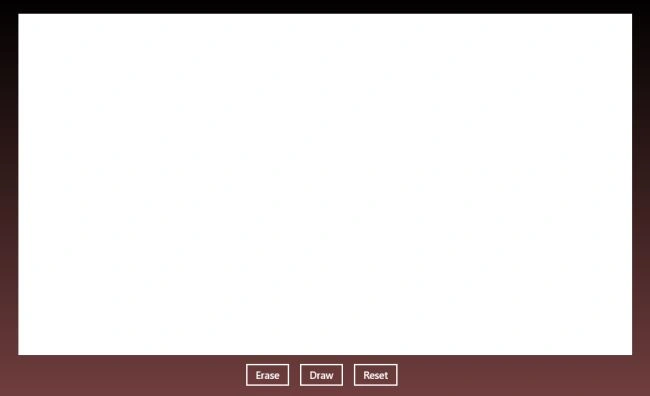
You will see that there are 3 buttons and one white canvas in which you can write or paint.
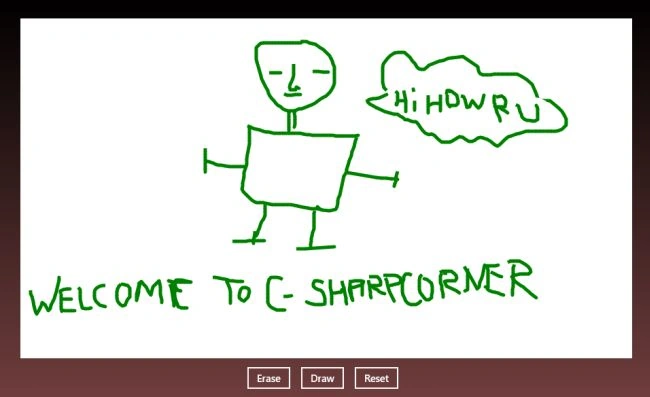
Select the Draw button to draw onto the given canvas.
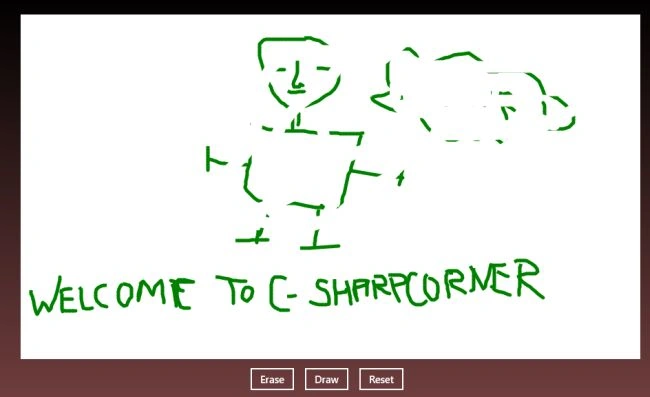
Select the Erase button to erase the content of the canvas.
The Reset button is used to remove all the content of the canvas at once.


deepak mandalPosted Jun 15, 2017, 7:50 AM
Ya really good, But when I Click Erase Button After that Press inside canvas and move pointer to outside. It also erase all background color.