

Introduction
Here are the steps to use Power and Sleep options in Windows 10:
Step 1
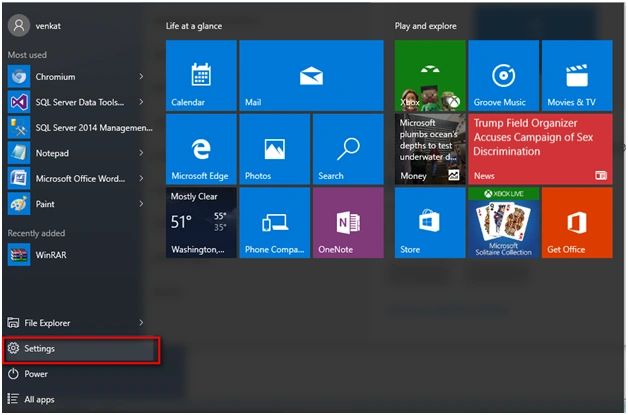
Got to "Settings" in Windows 10.
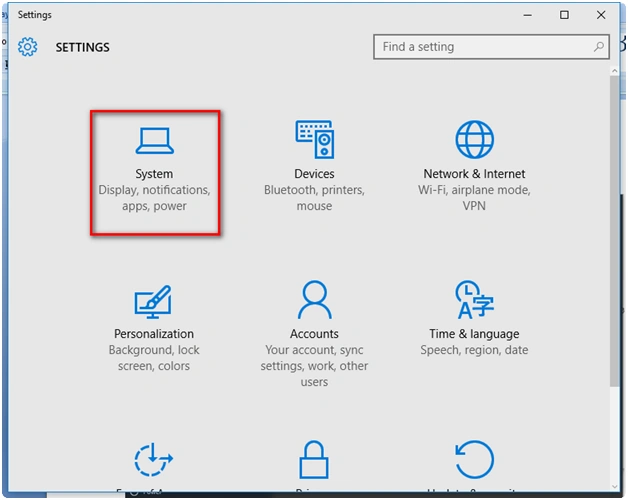
Now click System Icon in the SETTINGS Tab.
Step 3
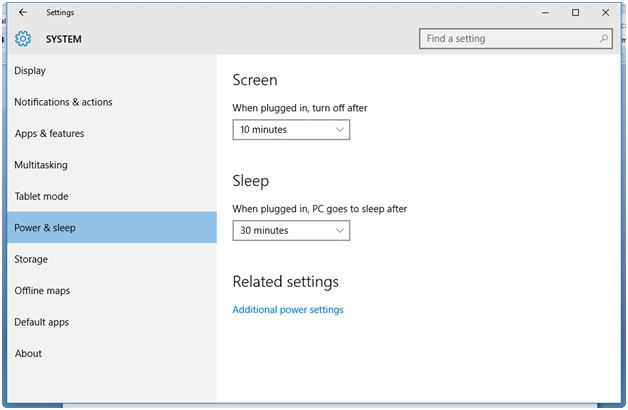
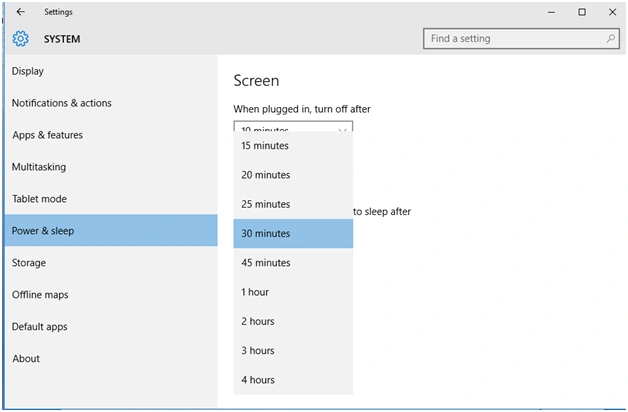
Under System -> goto Power & sleep. You can see the Screen and Sleep option for off timing and sleep timing, respectively to be setup.
 Step 4
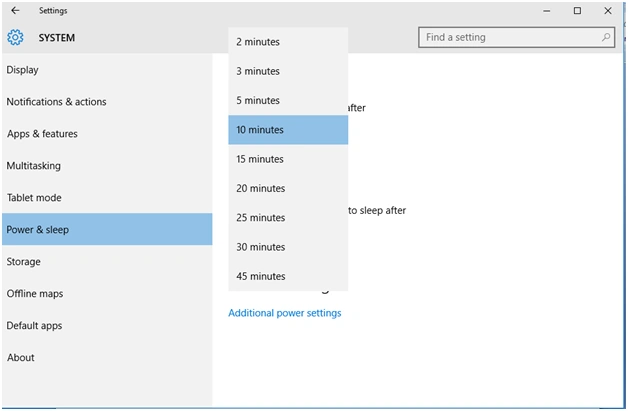
Under monitor switch off, you can now see the setup timing options.
 Step 5
The sleep timing can be set up now.
 Step 6
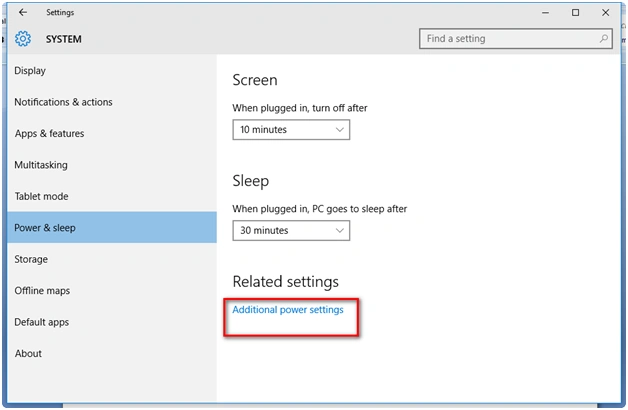
I am a bit eager to know the option of clicking the "Additional power settings" hyperlink.
 Step 7
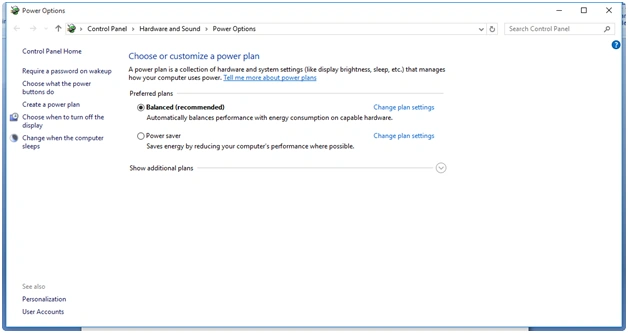
This is a familiar option for windows users. Hope you know it.
- The balanced option is the recommended windows power option setting. You will be provided the option to change the plan set.
- In case, if the windows user prefers the option of saving more power in the battery for their laptop. You can go to the Power saver option. In which, you will be provided with the option of changing the plan settings.
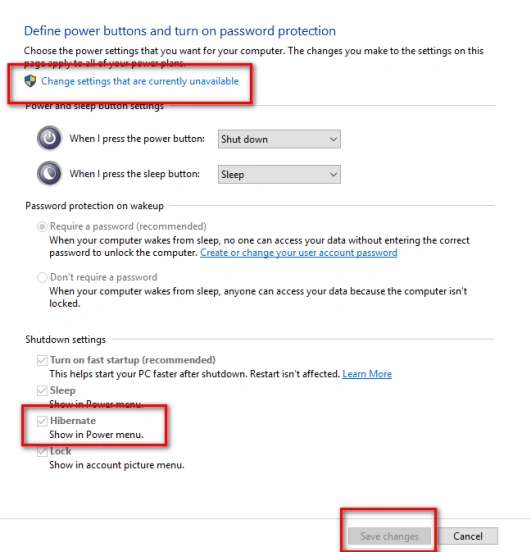
Adding Hibernate to Power Button
- Click the option "Choose what the power buttons do".
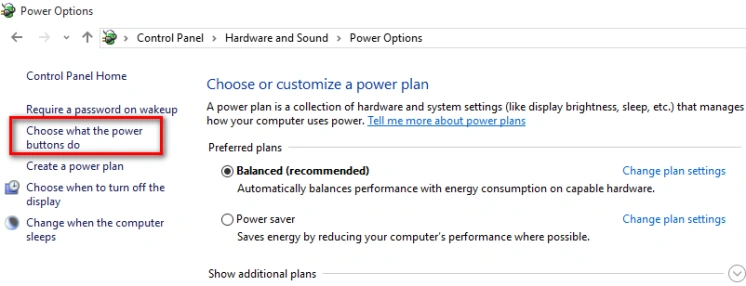
- In the dialog box that appears, click "Change settings that are currently unavailable".
- Enable the "Hibernate option".
- Click the "Save Changes" button.
Read more articles on Windows 10 features:
Summary
In this article, we learned about Power And Sleep Options In Windows 10.
Mudassir KhanPosted Feb 14, 2017, 5:25 AM
How can i set values(in minutes) - example: When plugged in, turn off after = 10 min...When plugged in, PC goes to sleep after = 30 min..... using c# or using registry.
Syed ShanuPosted Feb 5, 2016, 6:00 PM
Nice to see you back after long time :)
Hemant SrivastavaPosted Feb 5, 2016, 4:39 PM
Thanks for sharing
Hemant SrivastavaPosted Feb 5, 2016, 4:39 PM
Yeah, in previous windows versions we were quite accustomed to use control panel for all these kind of operation but in Windows 7 naming are bit different.
Santhakumar MunuswamyPosted Feb 5, 2016, 3:39 PM
Thanks for your sharing
Sibeesh VenuPosted Feb 5, 2016, 7:10 AM
Nice Share
Shubham KumarPosted Feb 5, 2016, 5:26 AM
nice!!