

Introduction and Background
I have dedicated most of my time to C# and C# programmers. I have already written a brief description and guide for C# programmers to be able to port their applications, develop them, build them and install them on Ubuntu, which indirectly focuses on all of the Linux environments. Basically, C# is a Windows programming language and many frameworks like .NET, Windows Runtime, ASP.NET etc. are all using C# as their “popular” programming language. But developers have also worked very hard to provide a cross-platform support for C# programming language, using Mono you can develop C# applications and build and deploy C# applications on non-Windows environments too. If you are interested in the basic post, please read this post: Using C# for cross-platform development. You will be shown how Mono can help you, how you can build the applications on multiple frameworks and use them on those frameworks, operating systems too, and not just on Windows or .NET framework environments.
In this post, I am going to demonstrate how you can use C# for programming a Mac environment. I have never been a “huge” fan of Apple products, however, since I love C# so I think it should also be promoted on Mac environments and among Mac developers! C# can highly leverage the performance of their applications. If you are interested in using Mono framework, I recommend that you read the guide for C# programming on Ubuntu, the framework and features are similar.
However, the installation is somewhat different and that is the topic for my post. I will explain the methods and steps required to install, run, and test the Mono project, then I will also show how you can install Xamarin Studio (the IDE for Mono on Mac). So basically, this post is about setting up the environment for C# programming on Mac. I remember, when SiddharthKoya asked me whether I can write a guide for Mac or not, I told him that it would take some time, However, Sid! It is here. You can read this and then continue to read the related Ubuntu guides for Mono programming.
Information about Mono platform
So, before I move further, there are some prerequisites to the platform, too! You need to make sure you are using the correct platform of Mac OS and also that you are having required packages installed. Otherwise, Mono may not work! Mono supports, Mac OS 10.7 and onwards. You must at least have 10.7, otherwise, you should upgrade your systems.
Setting up the environment
The method for installing the Mono on Mac is somewhat different from others, however is also very easy at the same time. You need to have an internet connection before you can continue to install the packages. The packages are free for download, installation and then use. So basically, all you need to do is, just capture those packages, run and install them and there, you will have C# environment installed on your Mac in no time! First of all, I will show you how to install the packages, starting by showing you the URL address of the website, later I will show you to check if environment is set up or not, later I will show you how to install the IDE for Mono.
Mono is basically a set of compilers, debuggers, and assemblies required to compile and build the projects. However, there are some GUI applications which integrate the components and present you with an IDE (Integrated development environment), which can be used to develop and build applications rapidly, without having to execute scripts each time to make your project work, you are provided with a clean and intuitive interface that can be used to create, modify and build the projects. IDEs also allow you to debug the applications in case you want to fine tune them, remove bugs or make them performance efficient.
So basically, what IDEs are meant to do is that they provide you with controls, that you can use to perform your actions that typically are done using scripts.
Downloading and installing the packages
First of all, I will talk about installing the packages and assemblies of Mono project. Now, in Ubuntu we did that using the terminal, in Mac, you are going to download the package itself and then install it using the GUI installer. The process is analogous to what we have on Windows environment, however, there are a few security steps that you would have to undergo before you can install the package itself. So, let’s start with downloading and installing the packages.
You can follow the same URL for Mono Project, and download the packages for Mac instead. Go to Mono Project’s Download web page and download the packages for Mac. If you are on Mac, the website will automatically load the page for Mac.

Figure 1: Mono downloads for Mac
Typically, you are going to install using the 32-bit version. However, you can also install the packages for 64-bit environment. It would take some time depending on your network once that is downloaded. Open it, and it would give you an installer. The installer would lead you through the procedure and you will have your packages installed successfully!
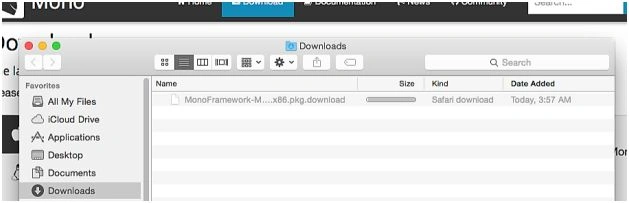
Figure 2: Package being downloaded
Once this gets downloaded, open it.
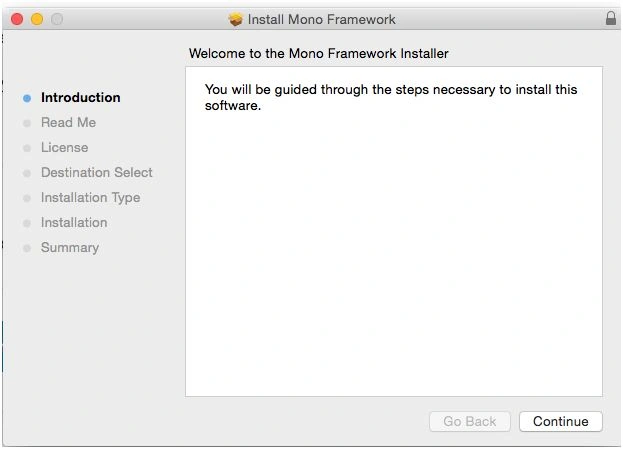
Figure 3: Mono framework installer
This installer is actually going to guide you through different steps that you require to install Mono project on your Mac, however just for the sake of formality I am going to describe these stages. Once you click continue and move forward a bit, you will be shown the license information about the product. You “should” read the license terms before you click “I Agree”. Even though the license and product are free, you should know how much freedom you actually have. So, read the license and then continue.

Figure 4: Must read the license terms before you continue and click Agree
Continue to the next steps now. Once you have entered the details for disk usage, drive selection and others, you will be asked for security check, your password! Enter the password and continue with installation of the package.
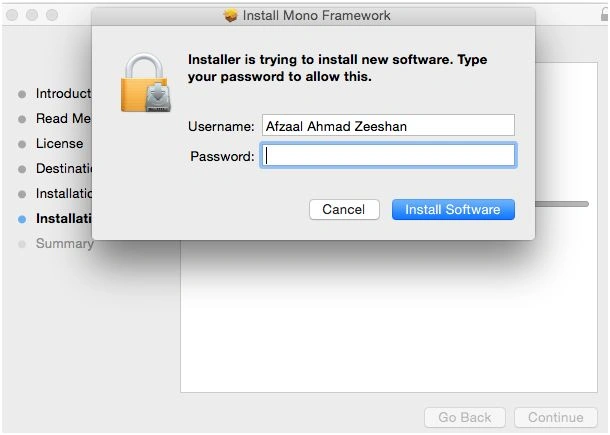
Figure 5: Security check before installation
You will then continue to install the package. The installation process would take some time, and after a while it would show you a success message. This message tells that the package has been indeed installed.
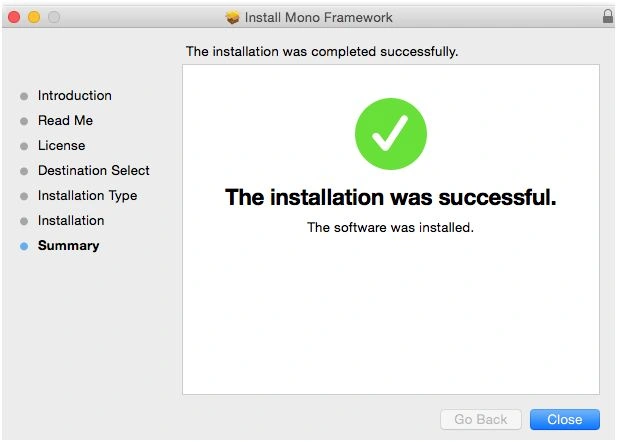
Figure 6: Mono framework is installed
Although the packages have been installed. But, I would “recommend” that you test the packages and the framework itself. So, in the next section I am going to show you how to test if everything is OK!
Simple hello world!
In this section, I am going to show you a simple hello world program, using which you can determine if framework is installed correctly, or if there were some troubles during your installation process. You are all already very much aware and familiar with the hello world programs, so basically I am going to use that one program and I am going to demonstrate how you can test the C# environment easily, using the terminal.
Remember: Without IDE, you are going to use terminal, so I would recommend that you go and learn terminal scripting. Otherwise, just follow the scripts I share and then install Xamarin Studio if you don’t feel easy with terminal.
Anyways, you would require to create a new file. What I do is that I try to create a separate folder for each new project, you should do the same. Create a new folder, anywhere, (I chose desktop) and then create a new file in it, name it “Program.cs”. To do so, you would use the following shell script. Uh huh, before you write the code, open the terminal. For most of Apple users, it is found under Utilities in Application tab.
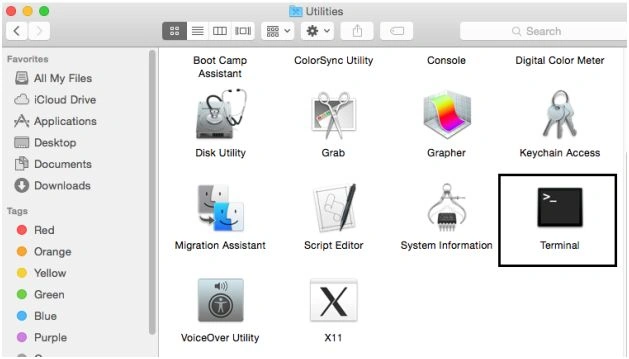
Figure 7: Terminal program in the Utilities tab
Once you have opened the terminal, go to the location where your folder is created. Currently, it would be like this:
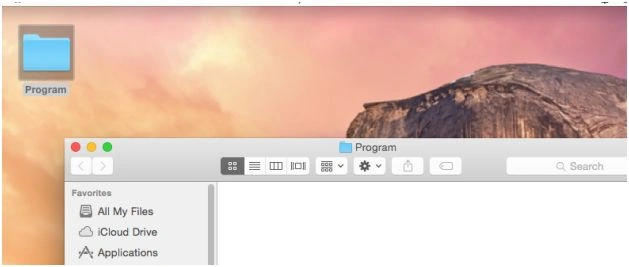
Figure 8: Program directory empty at the moment
Initially the directory is empty, so we would create the file here. In that directory, create a new file, I used the following shell script to create a new file:
- echo "" >Program.cs
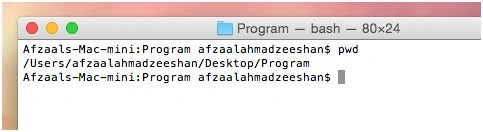
Figure 9: Shell script for pwd; “present working directory”
Just to ensure that we are on the right directory. Later, enter that shell script to create the file. Shell won’t tell you what happened, it would just create the file there.

Figure 10: Shell
As already mentioned, Shell didn’t reply or show a message. It just executed that statement, command or what-ever you want to call it.

Figure 11: Directory, file and the shell visible. A new file “Program.cs” created in the directory
All three of our items are visible here! Our file has been created and we can now edit the file to write a C# program.
- using System;
- namespace Text
- {
- class Program
- {
- public static void Main(string[] args)
- {
- Console.WriteLine(25);
- }
- }
- }
- mcsProgram.cs
- mono Program.exe
- mcsProgram.cs
- This command would compile and build the program. Generating the executables in the same directory.
- mcs == Mono C Sharp compiler.
- mono Program.exe
- mcs would generate the executable (.exe) in the same directory, and this command would execute it under mono runtime!
The output would also be shown right under the command itself, in the terminal.
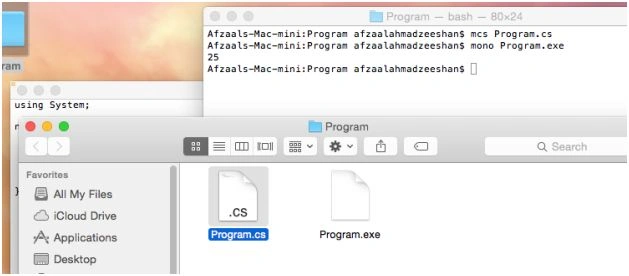
Figure 12: Program and build output shown
You can see the program output and build output! Program output is shown in the terminal, whereas build output is shown in the directory. However, this shows that our environment is set up and that we can continue to install other stuff, or use this and start building our C# projects to run on Mac itself.
Installing IDE
I don’t recommend going terminal. IDE is a great tool that can help you in many things,
- Syntax highlighting: You can see in the code above, it is hard to see what is going on, unless you are experienced.
- Code suggestions.
- Keyboard shortcut to compile, build and debug.
- Debuggers and breakpoints.
- Integrated environment.
- Configurations for project files and output directories.
Much more! So I would recommend that you start by installing an IDE on your machine, instead of doing all this yourself by a terminal. Which takes a lot of time, I would say.
The IDE for Mac is different from what we had in Ubuntu, in Ubuntu we had MonoDevelop, and however on Mac we have Xamarin Studio. They are both provided by Mono Project (which is led by Xamarin). You will now need to download Xamarin Studio from their download web page, download the package for Mac and install it.
It would start and Mac would try to run a security check and other package checks,
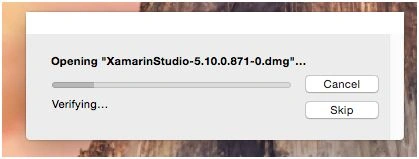
Figure 13: Verification of the Xamarin Studio package
This will take a while, let it take a while. Later, you know what to do! Drag and drop the application to install it.
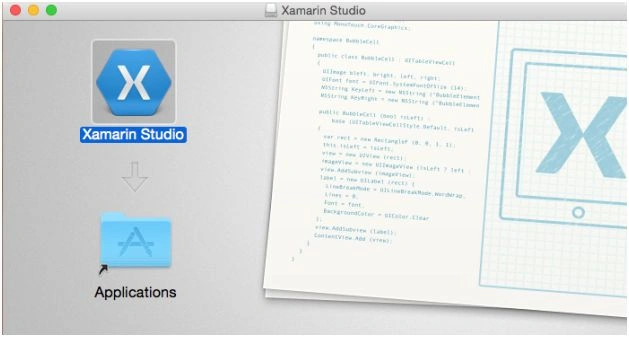
Figure 14: Drag and drop the Xamarin Studio to install
Drag and drop it in Applications, it would copy the files and then your IDE would be installed for you on your machine.
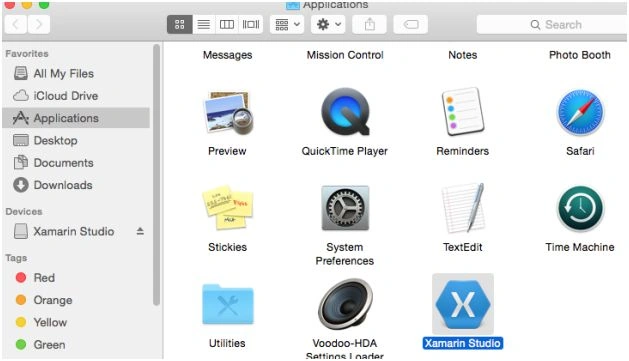
Figure 15: Xamarin Studio installed on Mac
Click on it to start it! Mac would attempt to tell you that this application was downloaded from Internet and that you should not trust everyone on internet, just continue to the next step.
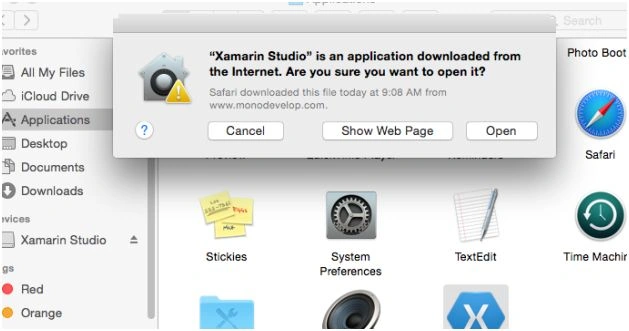
Figure 16: Security warning by Mac
Open it and then you would have your IDE active in front of you!
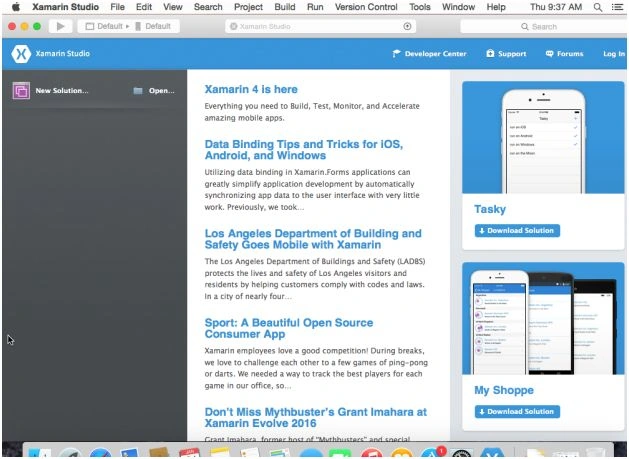
Figure 17: Xamarin Studio active window
You can now create a new project, and then continue to use the Mono Project in your environment to create applications in C#!
Points of Interest
This is a very short post about Programming C# on Mac, which covers the required topics about setting up the environment for C# programming on Mac, however to continue learning more about Mono Project, what it offers you, how you can program C# on other platforms, I recommend that you check out my previous posts about “Programming C# on Ubuntu”! I am sure you are going to enjoy those posts, if you like C#.
Programming C# on Linux or Mac is similar to using C# on Windows platform like .NET or Windows Runtime. Mono Project brings the same efficiency, same flexibility and same power to other platforms too, so that you can build your C# programs on Mac and Linux too. However, remember, that the programs built using Mono are executed on “mono” environment, or “mono runtime”. Mono runtime would be required before you can execute those applications, because Mono runtime provides the underlying foundation for this cross-platform support. Without this, you won’t be able to execute the programs, which is similar to installing .NET framework on Windows!
Anyways, this was to help you get started in Mac too, now you can check out the rest of posts! Hope to see you there too
Ankur MistryPosted Jan 25, 2016, 10:36 PM
Nice share
Debasis SahaPosted Jan 25, 2016, 1:21 PM
Nice One..
Muhammad Aqib ShehzadPosted Jan 25, 2016, 6:53 AM
fabulous
Mohammed IbrahimPosted Jan 25, 2016, 4:41 AM
nice
Debasis SahaPosted Jan 25, 2016, 3:27 AM
Nice..
Jaco ZwartsPosted Jan 25, 2016, 2:08 AM
Nice Article!
Nitin PanditPosted Jan 25, 2016, 1:51 AM
Great