

A Progress Bar is presented as a line that fills with color to indicate the state and length of a time-consuming task. Progress Bars should always be used when the length of the tasks can be computed. Progress bars should not only show that a lengthy task is taking place, but give the user an indication of how much of the task is completed and an estimate of the remaining time.
Before reading this article, please go through the article How To Create And Use XAML Content Page In Xamarin Forms Application For Android And Universal Windows Platform
After reading this article, you will learn how to add Progress Bar Control in Xamarin.Forms Application for an Android and Universal Windows Platform with XAML and Visual C# in cross platform application development.
The important tools are given below, which are required to develop UWP.
- Windows 10 (Recommended).
- Visual Studio 2015 Community Edition (It is a free software available online).
- Using Visual studio 2015 Installer, Enable the Xamarin (Cross Platform Mobile development and C#/.NET while install/Modify Visual studio 2015.
Now, we can discuss step by step app development.
Step 1
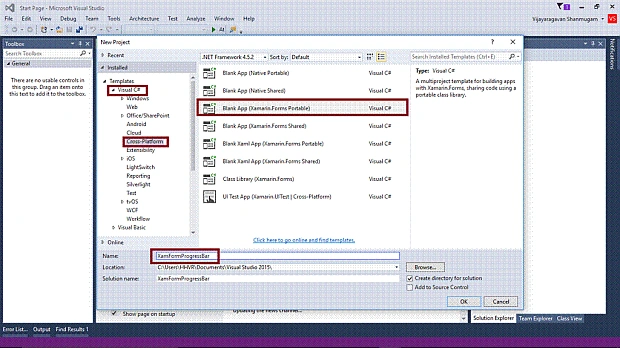
Open Visual Studio 2015 -> Start -> New Project-> Select Cross-Platform (under Visual C#-> Blank app (Xamarin.Forms Portable)-> Give the suitable name for your app (XamFormProgressBar) ->OK.
Step 2
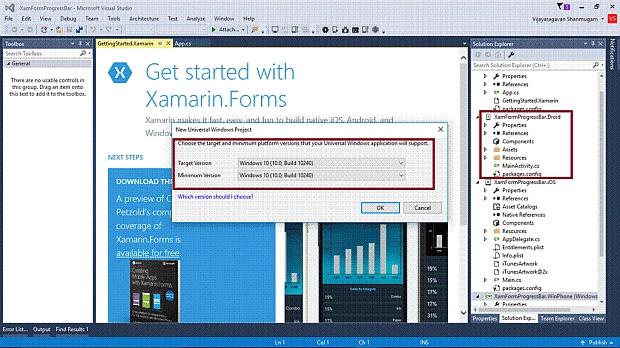
Now, create project “XamFormProgressBar_Droid”. Choose the Target and minimum platform version for your Universal Windows Project and create the project “XamFormProgressBar_UWP”.
Step 3
Afterwards, Visual Studio creates 6 projects and displays Getting Started.XamarinPage. Now, we have to update Xamarin forms reference for Portable Project and XamFormProgressBar_Droid project.
(Please refer How To Create And Use XAML Content Page In Xamarin Forms Application For Android And Universal Windows Platform)
Step 4
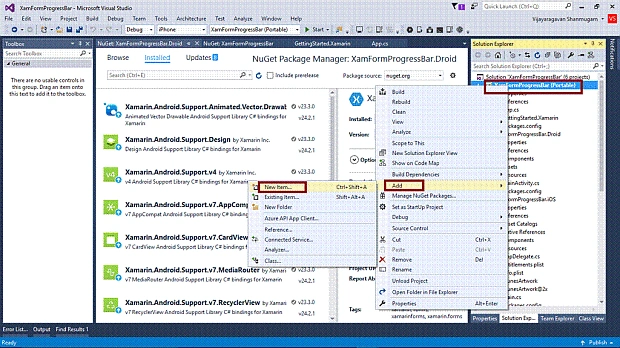
Add a XAML page for Progress Bar Control demo. Right click XamFormProgressBar(Portable) project. Select ADD-> NewItem.
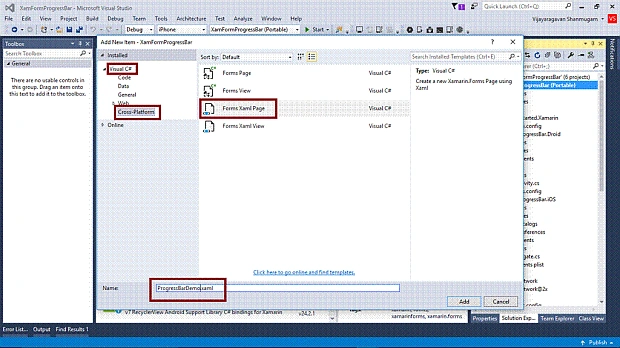
Select ->CrossPlatform-> FormXamlPage-> Give the relevant name.
Step 5
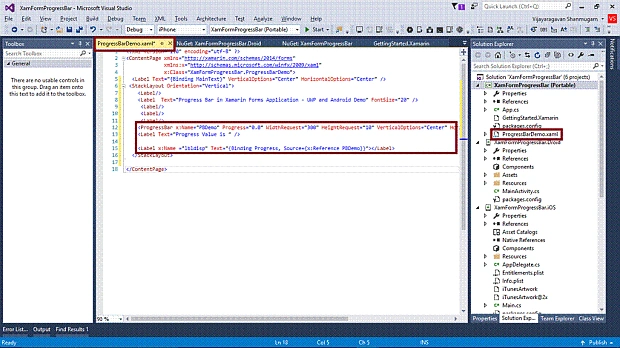
Add ProgressBar tag with the items and labels in ProgressBarDemo.xaml.
- <StackLayout Orientation="Vertical">
- <Label/>
- <Label Text="Progress Bar in Xamarin Forms Application - UWP and Android Demo" FontSize="20" />
- <Label/>
- <Label/>
- <Label/>
- <ProgressBar x:Name="PBDemo" Progress="0.0" WidthRequest="300" HeightRequest="10" VerticalOptions="Center" HorizontalOptions="Center" />
- <Label Text="Progress Value is " />
- <Label x:Name="lbldisp" Text="{Binding Progress, Source={x:Reference PBDemo}}"></Label> </StackLayout>
Step 6
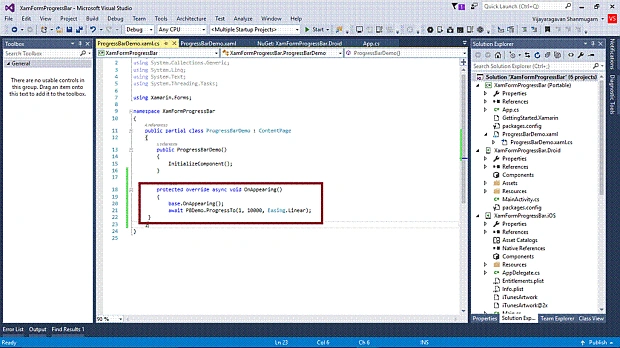
Add the code given below in ProgressBarDemo.xaml.cs.
- protected override async void OnAppearing() {
- base.OnAppearing();
- await PBDemo.ProgressTo(1, 10000, Easing.Linear);
- }
Step 7
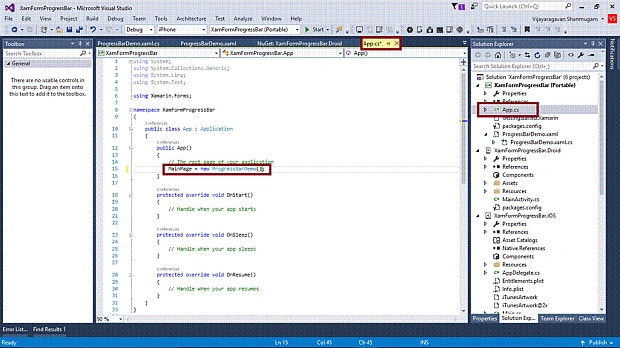
Open (double click) the file App.cs in the Solution Explorer-> XamFormProgressBar (portable) and set the Root page.
Step 8
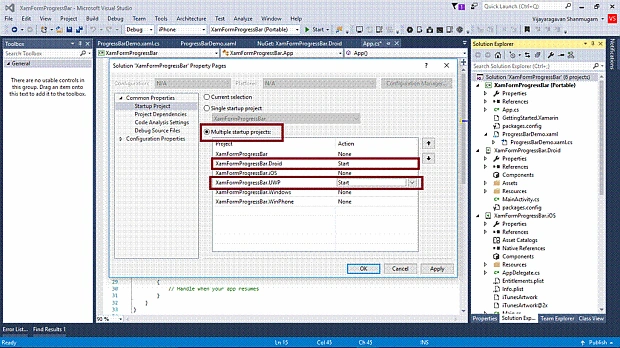
We will test Android and UWP. Thus, we can set the Multiple Startup Projects as XamFormProgressBar.Droid and XamFormProgressBar.UWP (Uuniversal Windows).
Step 9
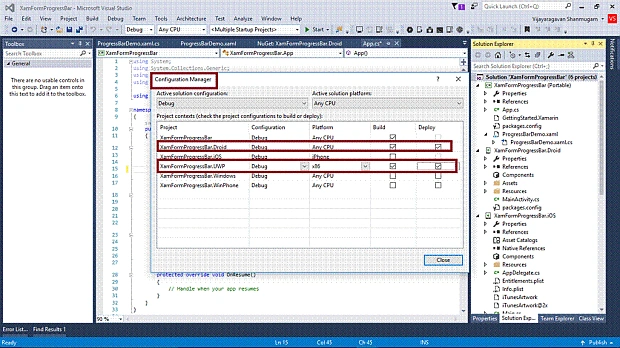
Change the Configuration Manager settings. Go to Build -> Configuration Manager, uncheck all the Build and deploy options to the iOS, Windows, WinPhone, check the Droid and UWP.
Step 10
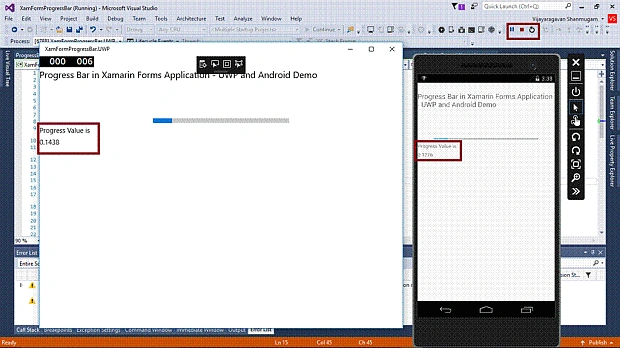
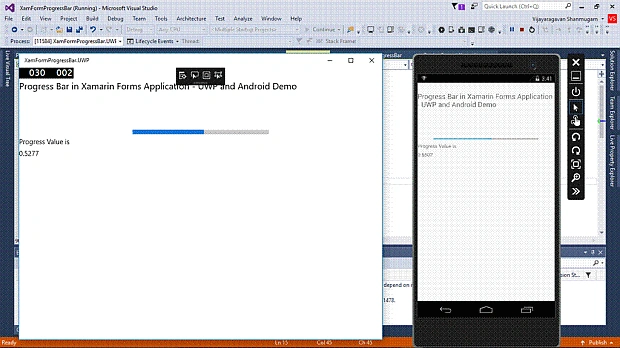
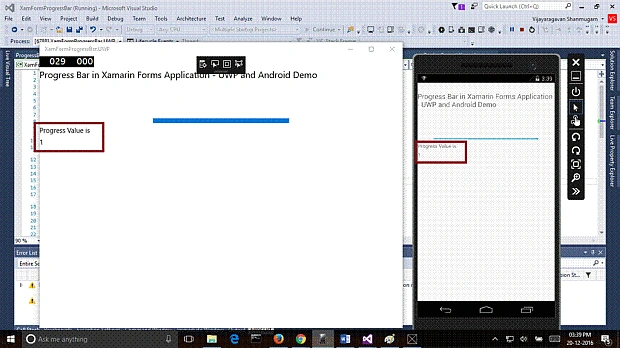
Deploy your app in the local machine and the output of the XamFormProgressBar app is shown below.
Summary
Now, you have successfully created and tested Progress Bar control in Xamarin. Forms Application for Cross Platform Application Development, using Visual C# and Xamarin.
Join the conversation! Your thoughts help the community grow.