

Reading this article, you will learn how to create and use XAML Content Page in the Xamarin Forms application for Android and Universal Windows Platform, with XAML and Visual C# in cross-platform application development.
The following important tools are required for developing UWP.
- Windows 10 (Recommended)
- Visual Studio 2015 Community Edition (It is a free software available online)
- Using Visual studio 2015 Installer, enable the Xamarin Studio(Cross-platform mobile development and C#/.NET while installing/modifying Visual Studio 2015).
Now, we can discuss the step by step app development process.
Step 1
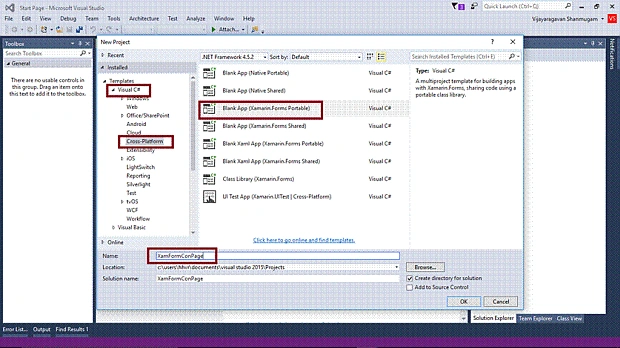
Open Visual Studio 2015. Go to Start -> New Project-> Cross-Platform (under Visual C# -> Blank App (Xamarin.Forms Portable)-> Give a suitable name for your app (XamFormConPage) -> OK.
Step 2
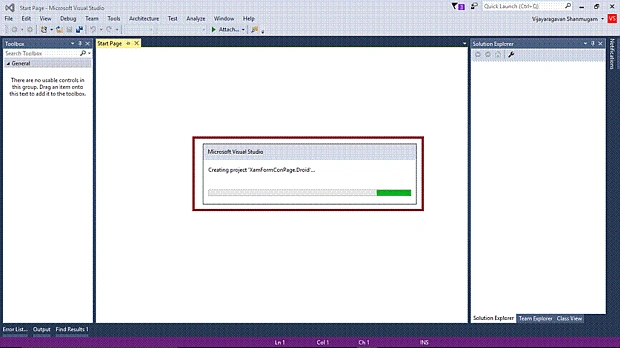
Now, the system starts creating the project “XamFormConPage _Droid” … (Android).
Step 3
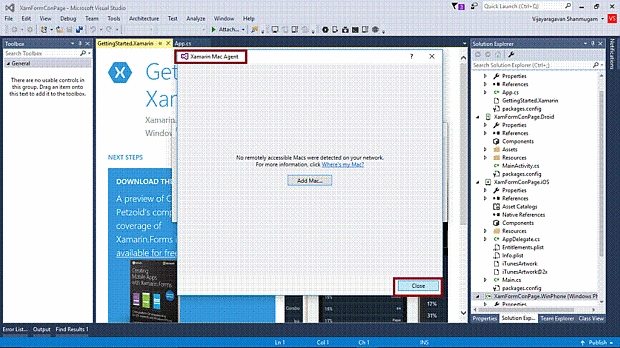
It will ask you for adding Xamarin Mac Agent. If you don’t have a Mac machine, just close the window.
Step 4
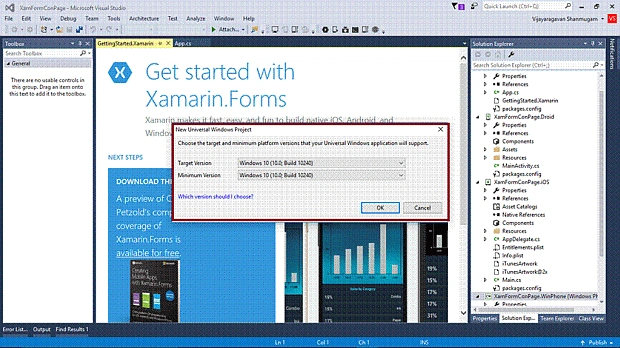
Choose the target and minimum platform versions for your Universal Windows Project.
Step 5
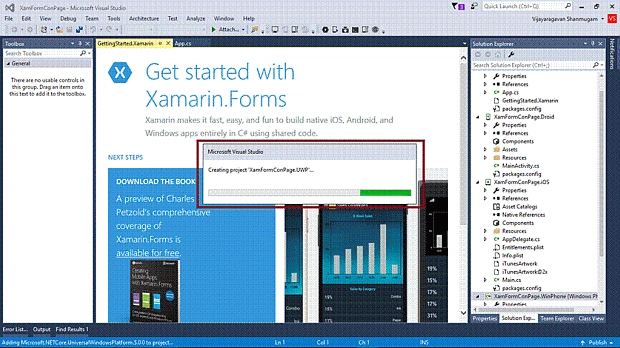
Now, it is creating the project “XamFormConPage _UWP” …
Step 6
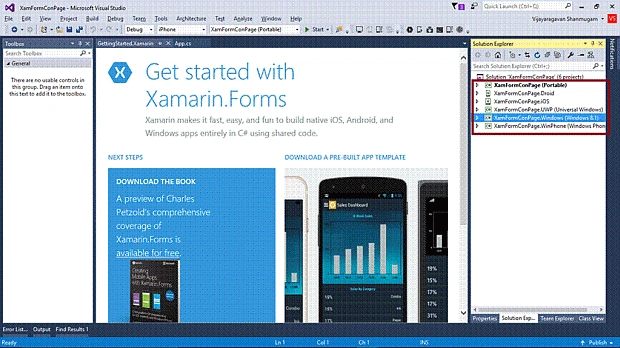
After that, Visual Studio creates six projects. Also, it displays "Getting Started with Xamarin.Forms" page.
Step 7
Now, we have to update the Xamarin Forms reference for Portable Project and XamFormConPage _Droid project.
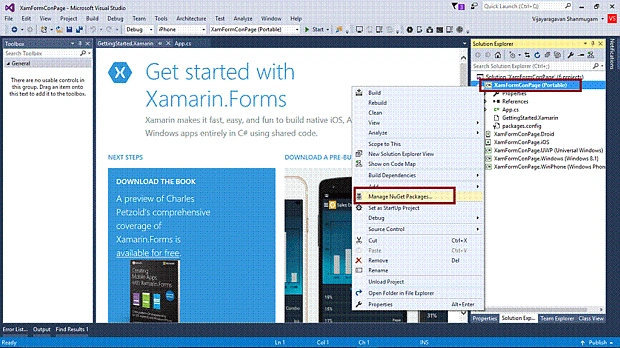
For updating Xamarin Forms reference, right click XamFormConPage(Portable) -> Manage Nuget Packages.
For updating Xamarin Forms Reference, select Xamarin Forms package and click Update.
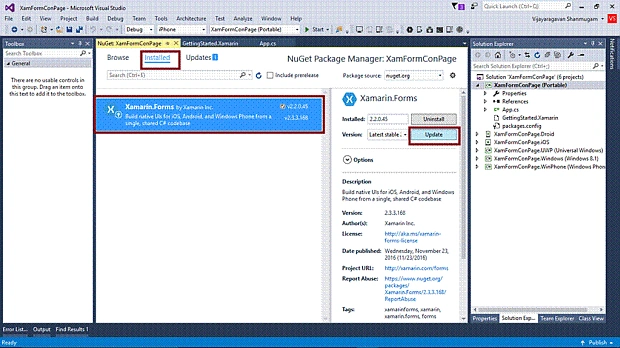
Xamarin Forms is updated in Portable project.
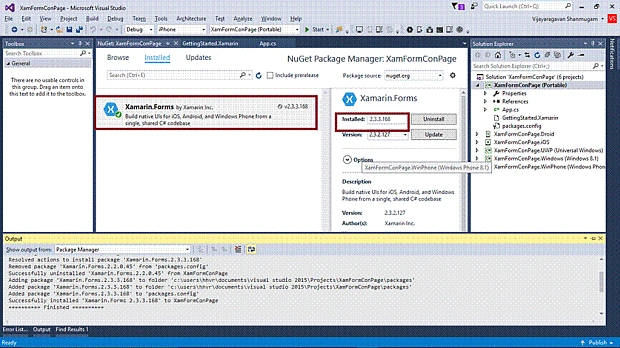
Similarly, update the Xamarin Forms in the XamFormConPage.Droid Project. For updating Xamarin Forms reference, select Xamarin Forms package and click Update.
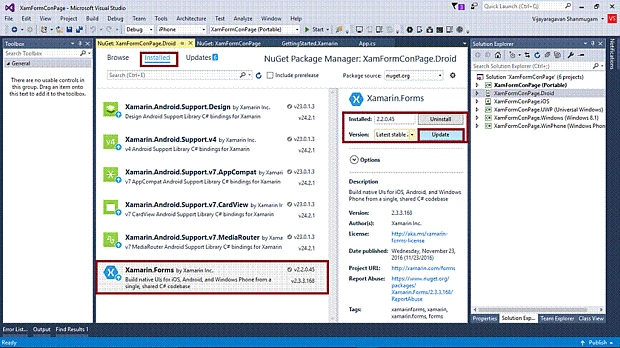
Xamarin Forms is updated in Android project.
Step 8
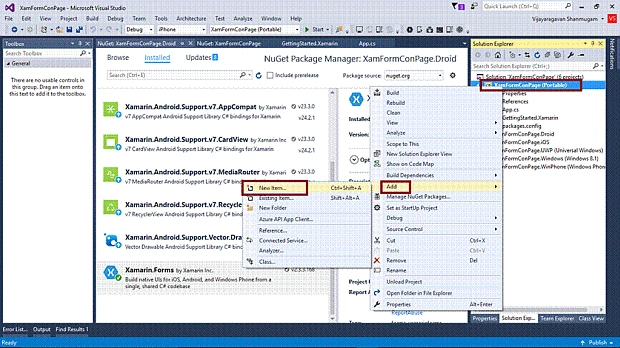
For Adding Xaml ContentPage, right click XamFormConPage(Portable) project and select ADD-> NewItem.
Select -> CrossPlatform -> FormXamlPage -> Give it a relevant name.
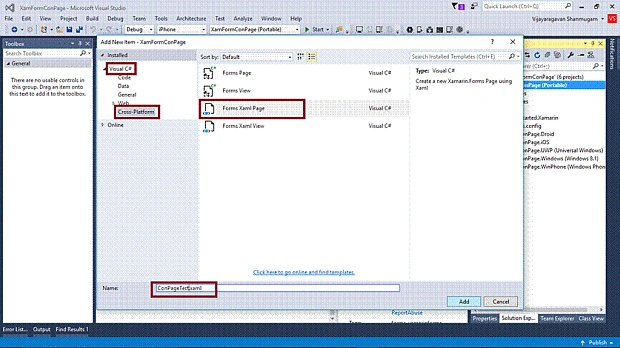
Now, XAML Content Page is added to your project.
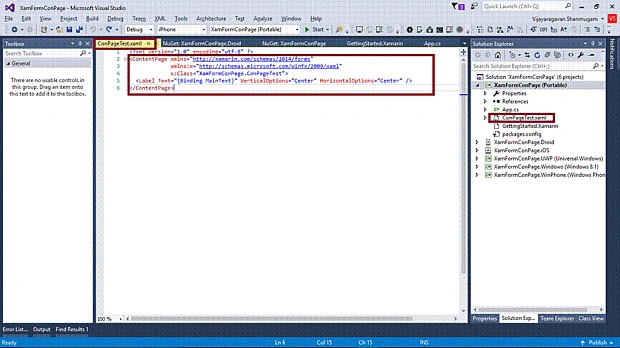
Step 9
Change the Label content in the project.
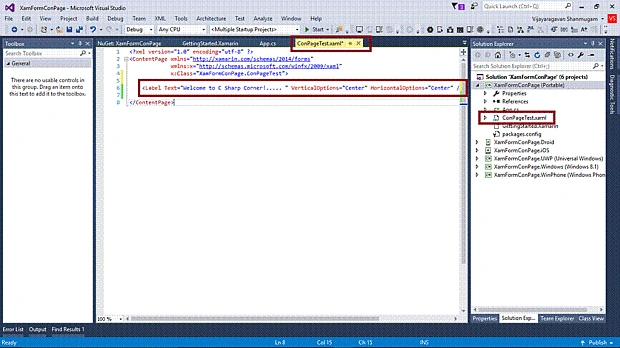
Step 10
We will test Android and UWP. That’s why we will set the "Start for" option to XamFormConPage.Droid and XamFormConPage.UWP (Universal Windows) as Multiple Startup Projects.
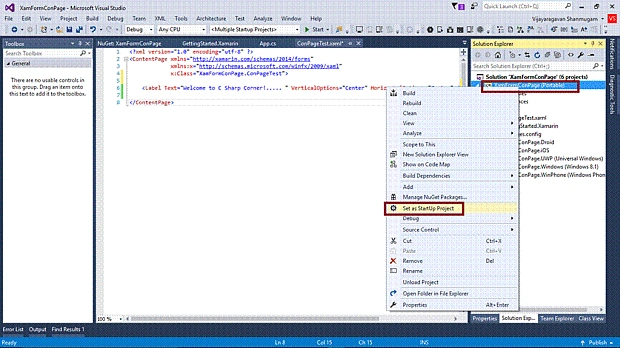
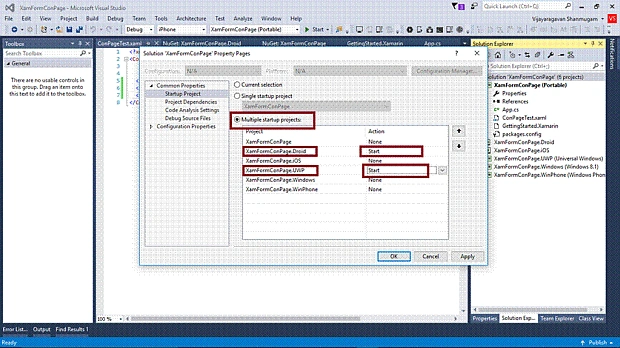
Step 11
Change the Configuration Manager settings. Go to Build -> Configuration Manager.
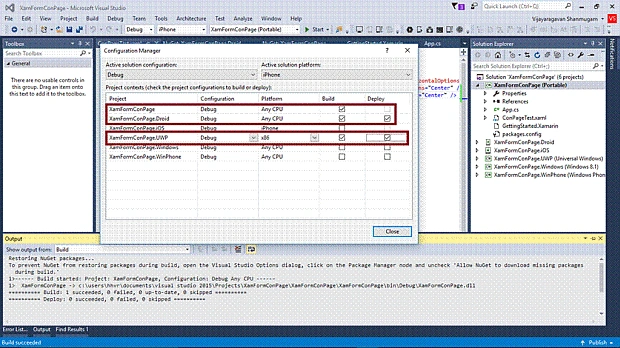
Step 12
Open (double click) the file App.cs in the Solution Explorer-> XamFormConPage (portable) and set the Root Page.
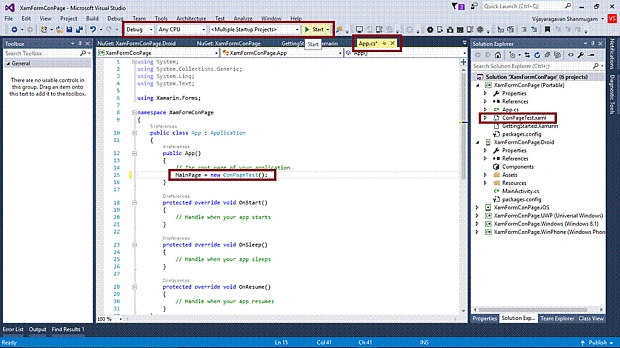
Step 13
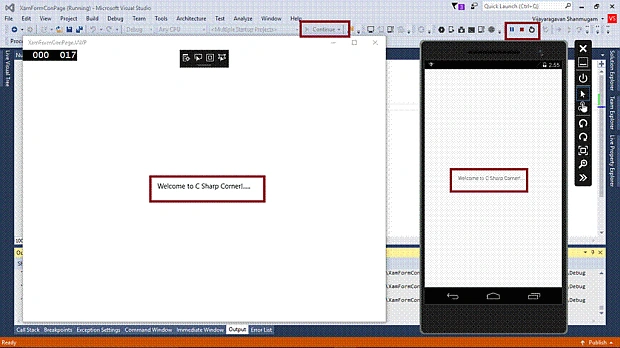
Deploy your app on Local Machine. The output of the XamFormConPage App is shown below.
Summary
Now, you have successfully created and tested your XAML Content Page in Xamarin Forms application, in Cross-Platform application development using Visual C# and Xamarin.
Rajan kumarPosted Apr 13, 2018, 5:36 AM
How to print in UWP native in Xamarin
Vijayaragavan SPosted Dec 22, 2016, 11:31 AM
Sure Sir.... Thanks......
Mahesh ChandPosted Dec 22, 2016, 11:03 AM
Thanks for publishing. This article seems pretty basic and for students who are using Visual Studio first time. May be we create an area for students. I think title of your articles should be simple. Like Creating your first XAML page using Visual Studio. No need to Add Xamarin.Forms or UWP etc. Keep in mind, most of C# Corner visitors are professional developers and they may find these articles very basic. Try to remove screen shots and build a real application that explains some useful code.